Next Year Calendar
The Next Year Calendar page allows districts and schools to set up the attendance calendar for the upcoming school year before rollover. This page works the same as the Calendar page, but stores data for the next school year so it can be copied forward during rollover.
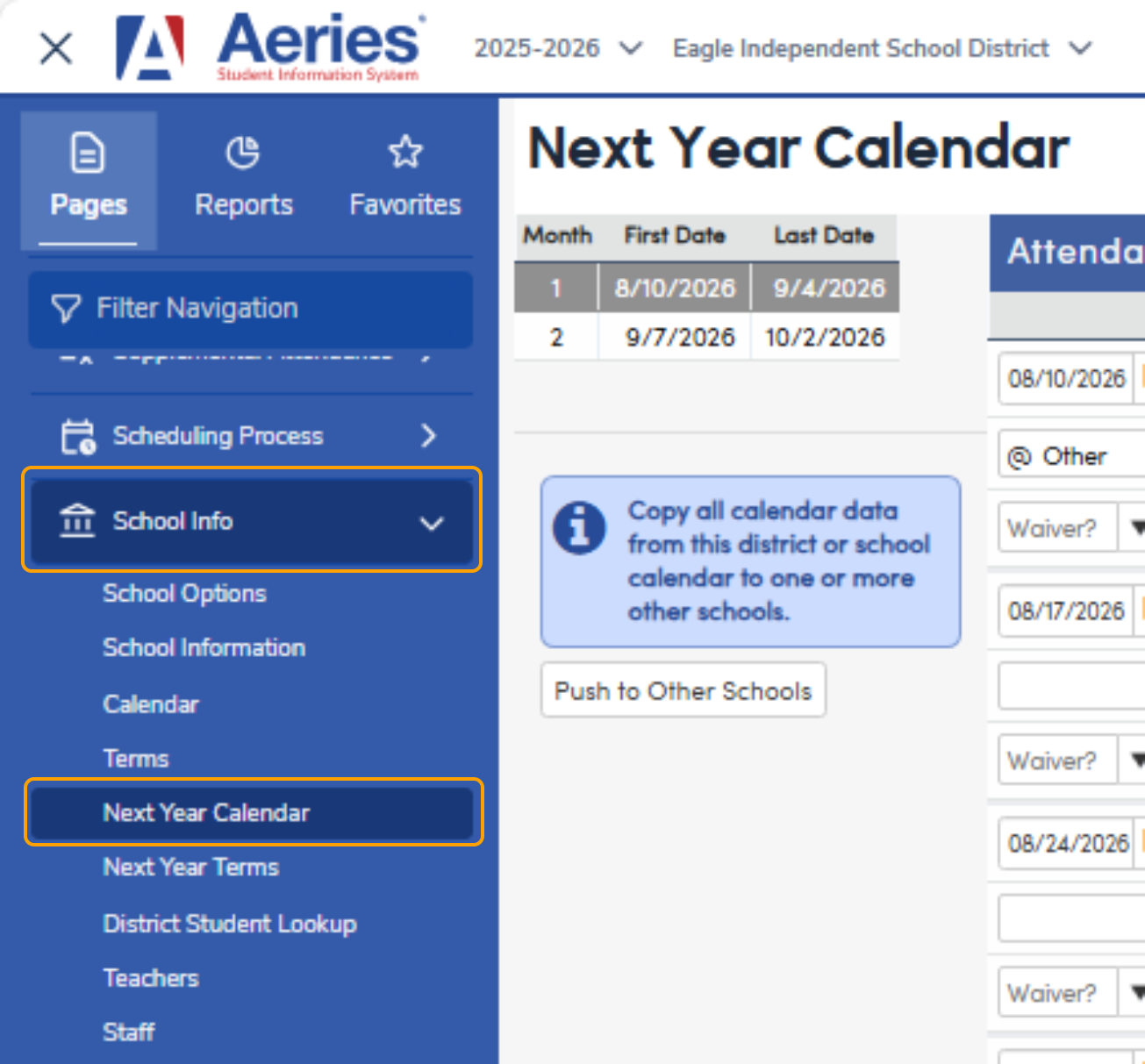
Overview
The Next Year Calendar page is used to define:
- Student instructional days
- Teacher‑only days
- Holidays and non‑attendance days
- Waiver days and instructional minutes (Texas only)
Setting up the Next Year Calendar ahead of time ensures that calendar data is ready and accurate when the school year is rolled over.
NOTE: If using Next Year Calendar, a calendar must be set up at the District (School 0) level. The data may then be pushed to other schools or next year calendar data may be set up at each individual school separately.
Security
Access to the Next Year Calendar page uses the same security permissions as the Calendar page.
Users must have appropriate permissions to view, edit, add, or delete calendar months.
| Permission | Allows the user to |
|---|---|
| Read | View the Next Year Calendar |
| Update | Edit dates and calendar codes |
| Insert | Add new calendar months |
| Delete | Delete the last calendar month (if allowed) |
Initial Calendar Setup
If no Next Year Calendar data exists, the page will prompt you to initialize the calendar.
- Enter the first day of school
- The date must be a Monday
- Save to create the first calendar month
NOTE: California customers: Per CDE: For the purpose of attendance accounting, the school district attendance calendar begins either the week of July 1 or the first week that students are scheduled to attend. Each school month consists of four weeks, five days each. All school months consist of 20 days, begin on a Monday, and end on a Friday. Winter break may be included or excluded when configuring the school months for ADA reporting. A school month for the purpose of attendance accounting differs from a normal calendar month. CDE Instructional Time and Attendance Accounting
When initialized:
- The first month is created automatically
- 20 consecutive weekdays (Monday–Friday) are generated
- Weekend dates are skipped
Note: Initialization only occurs once. After the first month is created, the page opens directly to the calendar grid.
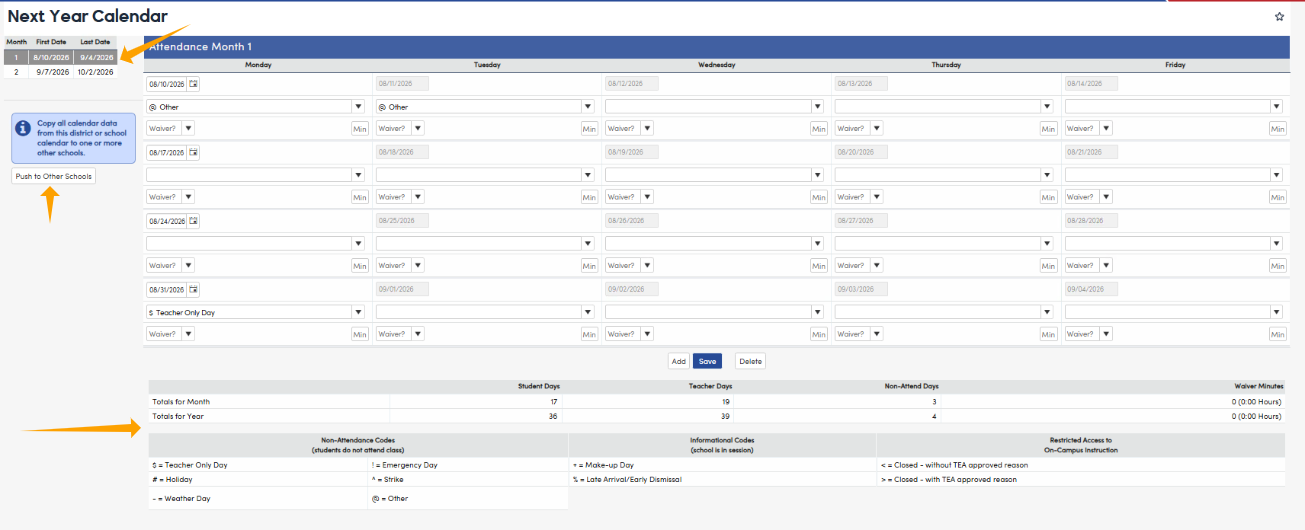
Calendar Summary
The upper section of the page displays a summary of all attendance months, including:
- Month number
- Start and end dates
- Total student days
- Total teacher days
- Total non‑attendance days
Select a month to view or edit its details.
Calendar Details
The Calendar Details section displays the daily calendar in a weekly grid format.
Editing Dates
- Each row represents one school week
- The Monday date is editable
- Tuesday through Friday populate automatically
- Week start dates must:
- Be Mondays
- Follow sequentially from the previous week
Attendance and Holiday Codes
- Attendance and holiday codes are selected from a dropdown
- The same codes used on the Calendar page are available here
Validation
The Next Year Calendar page includes built‑in validation to prevent common errors.
Automatic Checks
- Week start dates must be Mondays
- Dates cannot overlap or precede the prior week
- Required fields must be completed
If validation errors exist, the Save button will be disabled until they are corrected.
Totals
Totals are calculated automatically and update as changes are made.
Monthly Totals
- Student days
- Teacher days
- Non‑attendance days
Year‑to‑Date Totals
- Cumulative totals across all months
Texas Only
- Waiver minutes
- Hours calculated automatically from minutes
Adding a New Month
To add a new attendance month:
- Click Add
- The next sequential month is created automatically
- Dates continue from the previous month
- Weekend dates are skipped
The month summary refreshes automatically.
Deleting a Month
- Only the last calendar month may be deleted
- Deletion is allowed only when calendar rules permit it
- Earlier months cannot be deleted
Attendance and Holiday Codes
California
| Code | Description |
|---|---|
| @ | School Not in Session |
| # | School Holiday |
| $ | Staff Development |
| % | Minimum Day (Informational) |
| + | Parent Conference (Informational) |
Texas (TSDS / PEIMS)
| Code | Description |
|---|---|
| $ | Teacher Only Day |
| # | Holiday |
| - | Weather Day |
| ! | Emergency Day |
| ^ | Strike |
| @ | Other |
| + | Make‑up Day (Informational) |
| % | Late Arrival / Early Dismissal |
| < | Closed – Without TEA Approved Reason |
| > | Closed – With TEA Approved Reason |
Rollover Information
During New Year Rollover:
- Next Year Calendar data (NDY) is copied into the active Calendar (DAY)
- The Next Year Calendar (NDY) is cleared
- The Calendar (DAY) page becomes available for daily attendance
Important Notes
- The Next Year Calendar is for setup only and is not used for taking attendance
- Changes made after rollover must be done on the Calendar page
- District calendars must be created to support rollover
Push Next Year Calendar to Other Schools
Security and Permissions
- Have permission to view and/or manage Next Year Calendar data, and
- Have access to more than one active school in the district.
Multi-School Selector
- Lists all active schools the user has permission to access
- Does not display schools the user does not have permission to view or manage
- Allows selection of one or multiple schools
- No schools are selected by default
- The Push to Other Schools button is visible but disabled
Push to Other Schools Button
- Disabled when no schools are selected
- Enabled when one or more schools are selected
- The system copies the current school’s or district’s Next Year Calendar data.
- The data is written to the NDY table for each selected school.
- The process completes immediately and does not use a long-running background process.
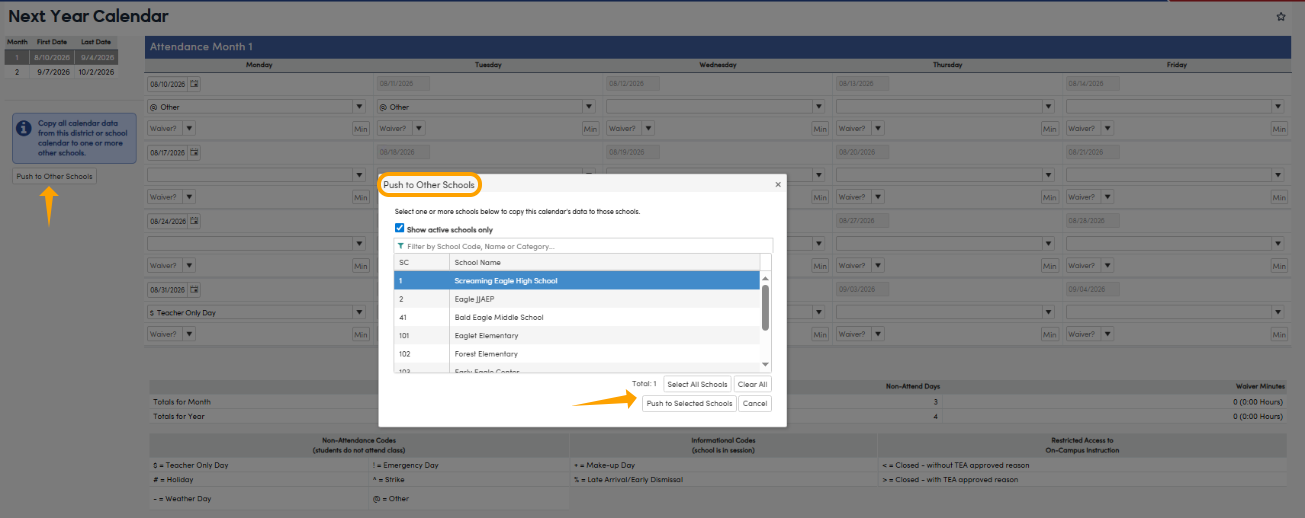
If Next Year Calendar data already exists for a school selected in the Push to Other Schools modal, a message will display indicating that the existing calendar data will be overwritten in the NDY table: 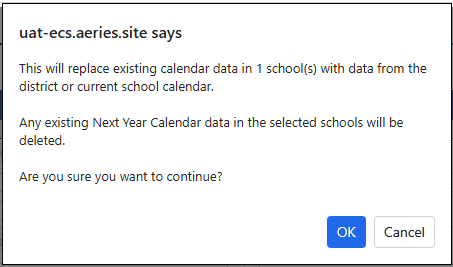
Data Persistence and Results
- Each selected school displays the updated Next Year Calendar data when navigated to
- The NDY table reflects the correct calendar data for each selected school
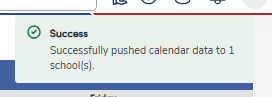
- A confirmation message is displayed indicating the push was successful