This document pertains to NYC customers only.
The RCON report file is used by JumpRope to inform Family Account and Family Contact information. For more information see How to - Import NYC RCON (ATS) Contact Information
*Note - When requesting the RCON file from ATS, be sure to select 'Y' for Yes in the INCLUDE ADULT AND STUDENT EMAIL ADDRESS section. See screenshot below.
Login to ATS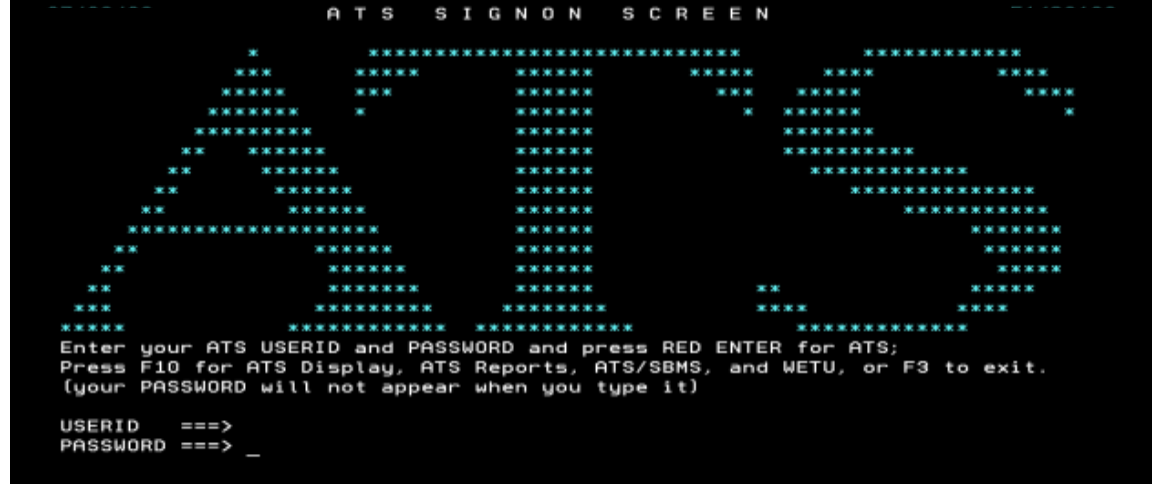
Select "6 REPT ATS Reports" then select RCON from the report list.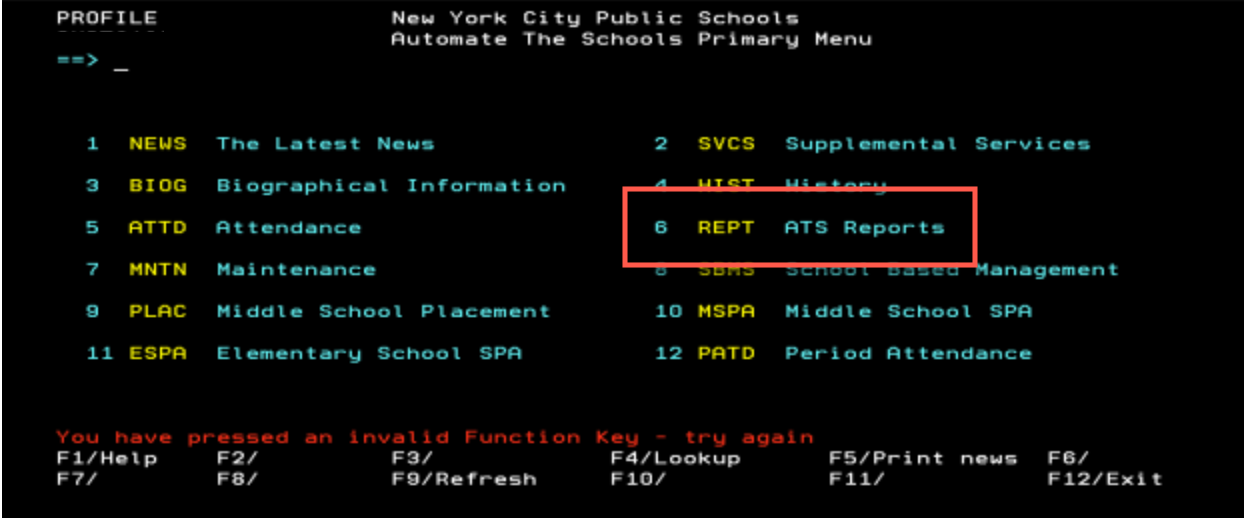
In the report selection screen for RCON, fill in options as described below. Pay particular attention to "Include Adult & Student Email Address", set this to Y for 'yes'.
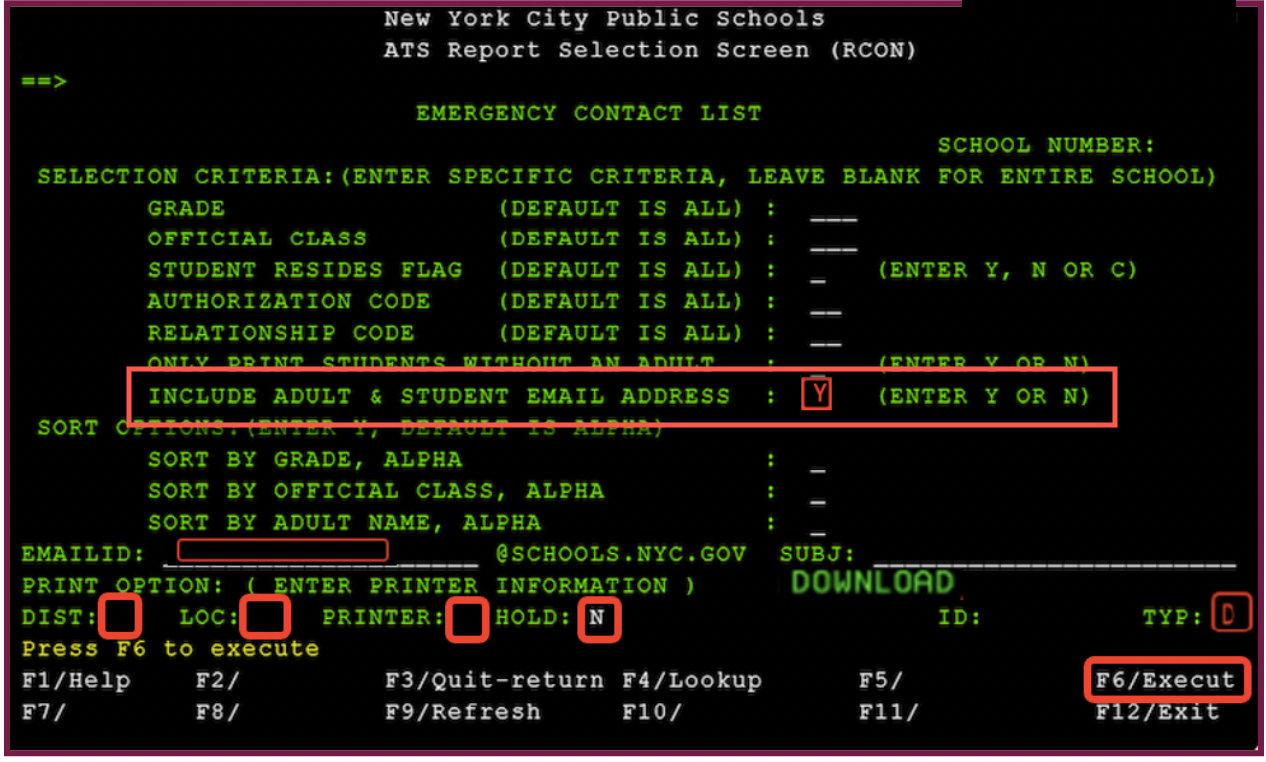
- All reports should be ordered for ALL students.
- For the RCON, enter Y for INCLUDE ADULT AND STUDENT EMAIL ADDRESS
- Enter your email in the EMAIL ID field. @schools.nyc.gov is already entered for you.
- Delete all characters to the right of LOC field.
- Delete all characters to the right of PRINTER field.
- Enter N to the right of the HOLD field.
- Enter D to the right of the TYP field.
- Type F6 to execute and then click ENTER. You will see FTP/EMAILED as a confirmation the report was requested.
Check your email for an ATS email - your file link will be in that email along with a password to open it. This may take a while, depending on how busy ATS is and the time of year. If you ordered multiple reports, you will have an email for each one.
Repeat the following process for each report you ordered from ATS:
- Open the email. At the lower left, you will see a password. Use your mouse to copy the password from right to left - this will avoid adding unwanted spaces to the password when you copy it.
- Click on the link in the email to go to the secure report hub.
- Once the file opens, you will be prompted to enter the password - simply paste the password from previous step.
- The file will download to your computer and you can open and/or upload the file to JumpRope.
- Make sure you record where the files were saved on your computer so you can find them easily. Creating a folder on your desktop can be helpful.
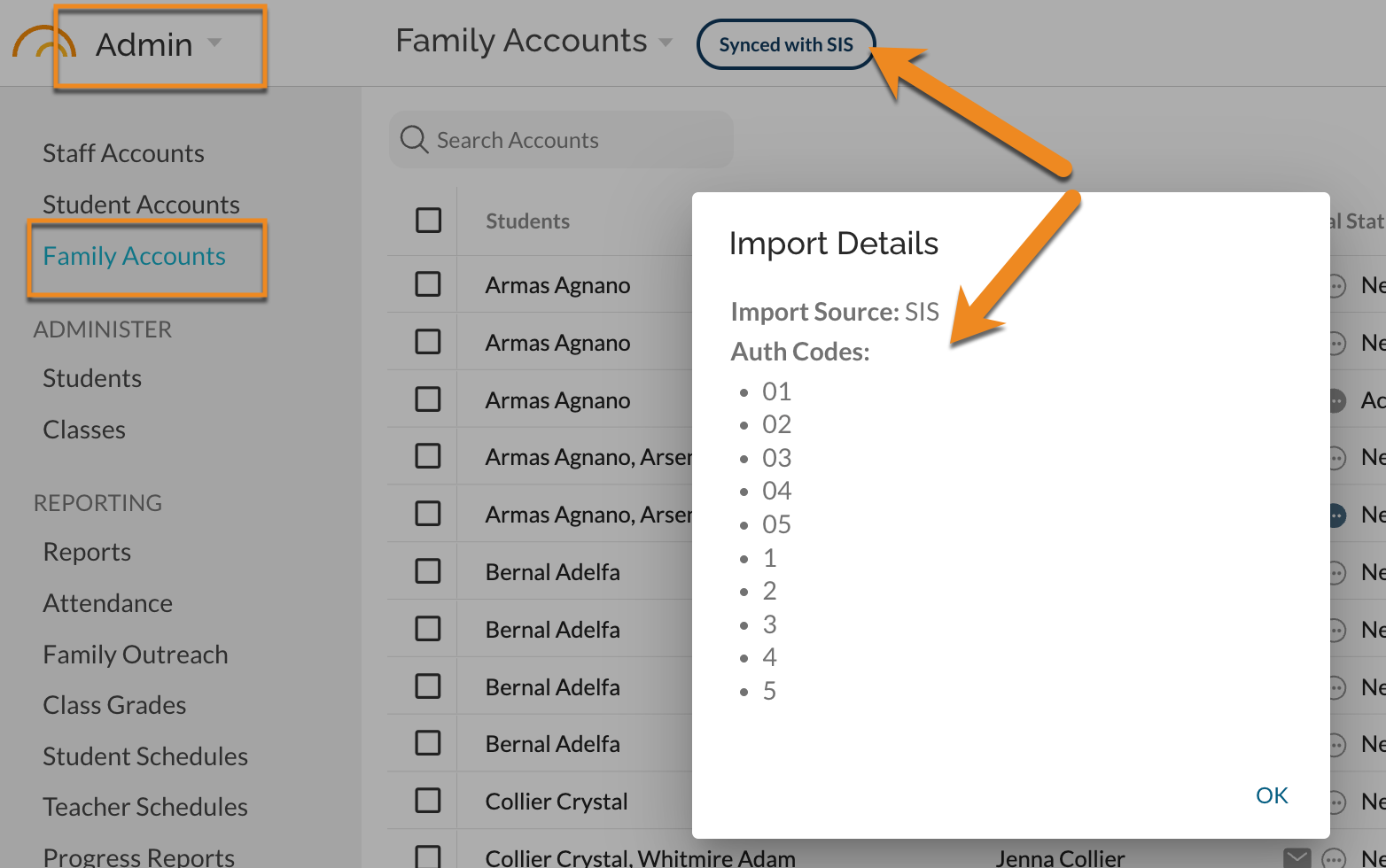
Review the Auth Code filters in Admin - Family Accounts as shown below. Requests for changes can be made through support@jumpro.pe.