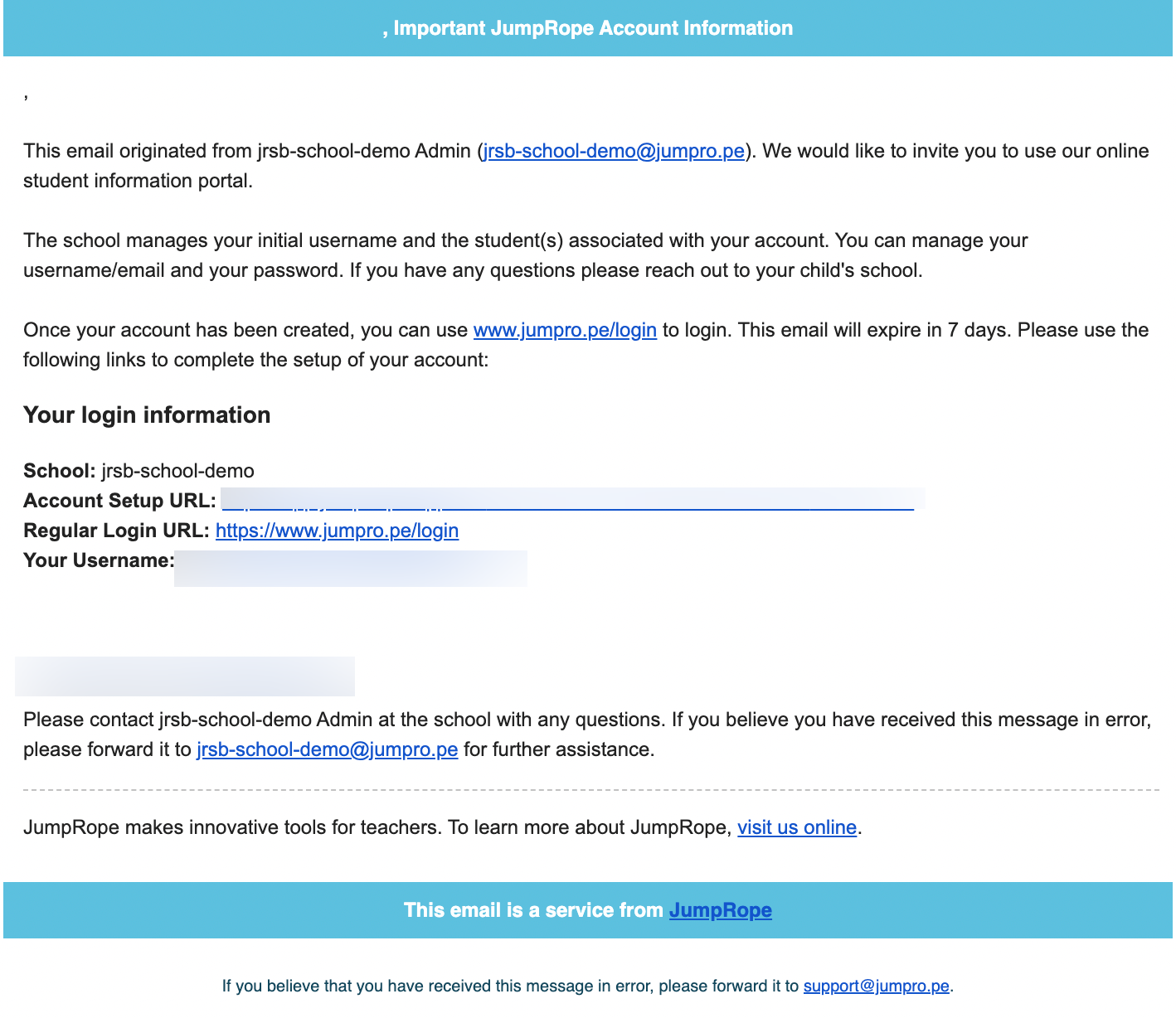
A Welcome Email invitation allows the recipient to set up their Family Account. They can add their first and last name, create their password, and edit their email/username. This email invitation is sent immediately upon clicking Send Welcome Email. See bottom of this document for a sample of the email text and format.
Send Welcome Email invitation individually
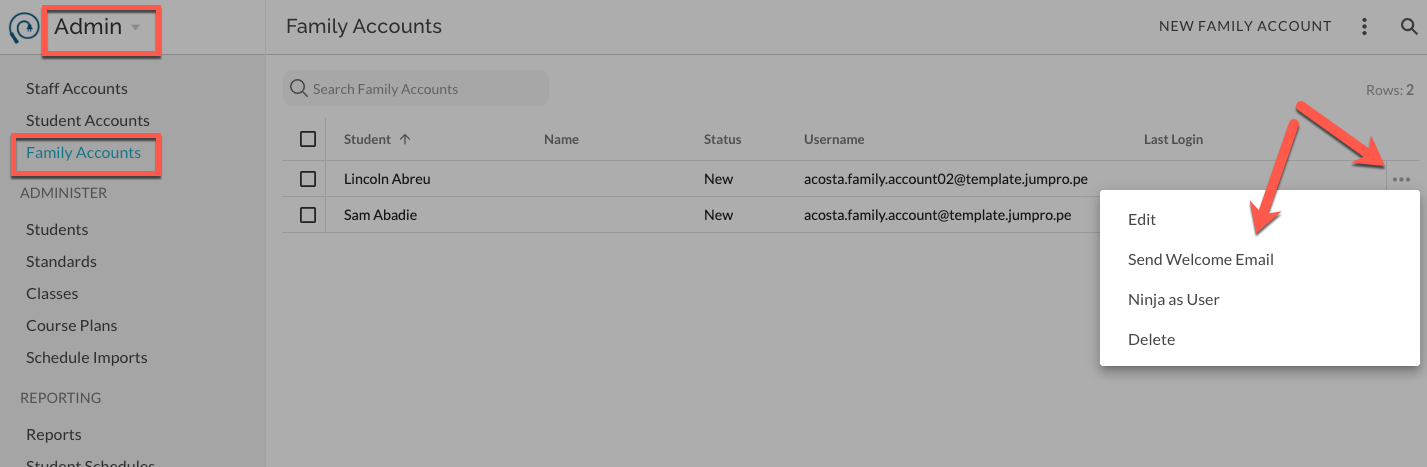
In Admin - Family Accounts, select Send Welcome Email the extras menu to the far right.
A notification displays when the message has been sent.
The Account status updates to "Invited".
Send Welcome Email in bulk
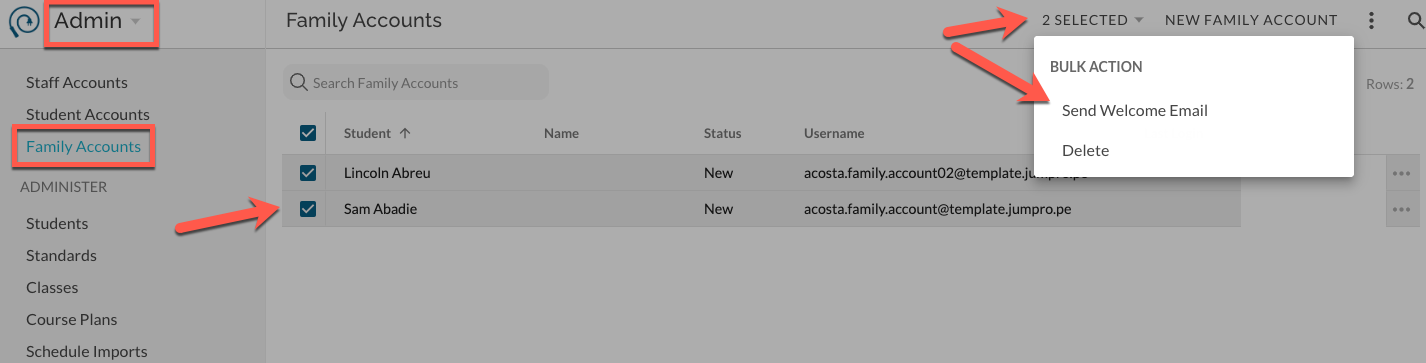
In Admin - Family Accounts, select set of accounts using the check boxes. Select the bulk action menu and Send Welcome Email.
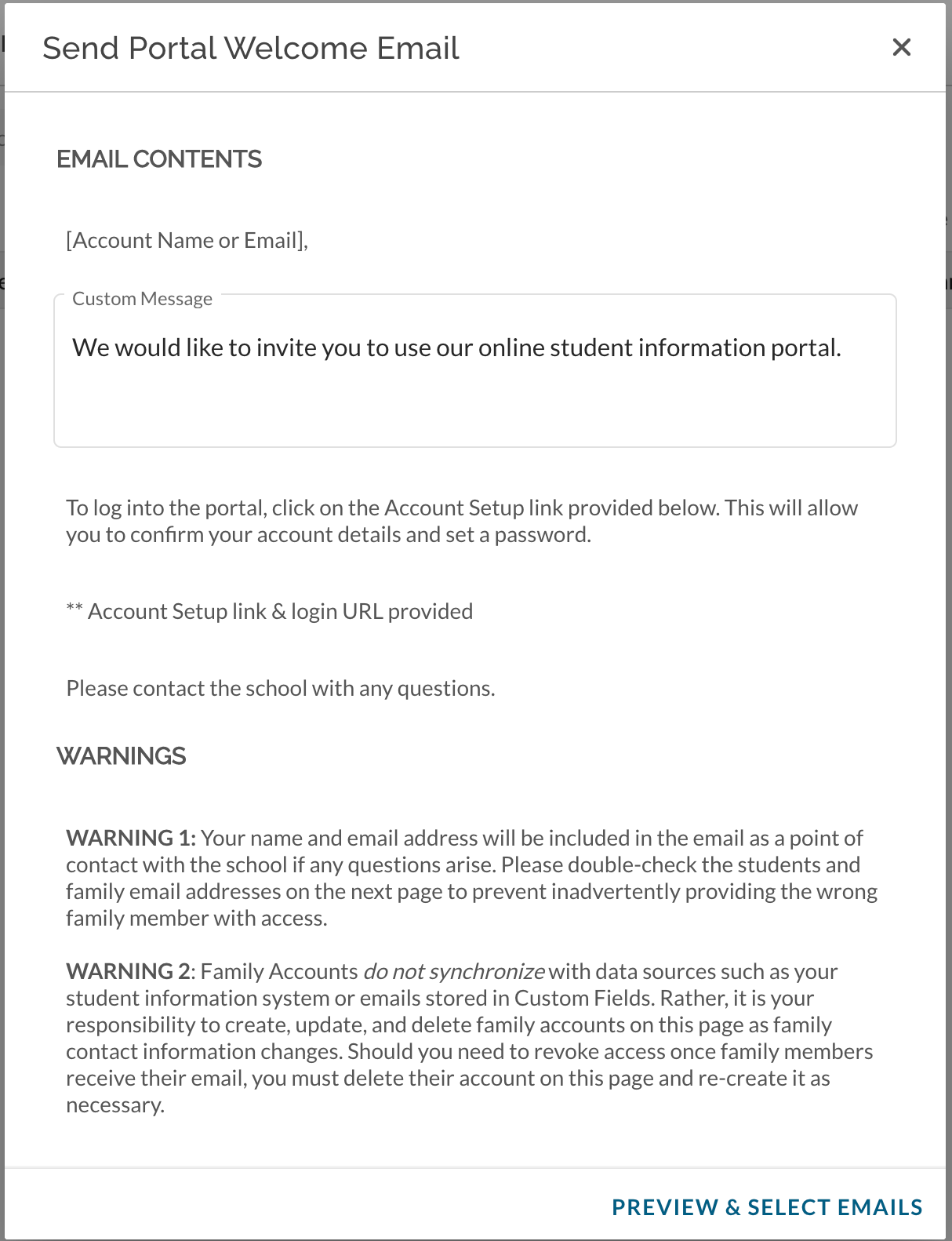
In the popup, enter any custom message within the editable field. Click Preview & Select Emails to advance.
Confirm email addresses to send to and Click Send.
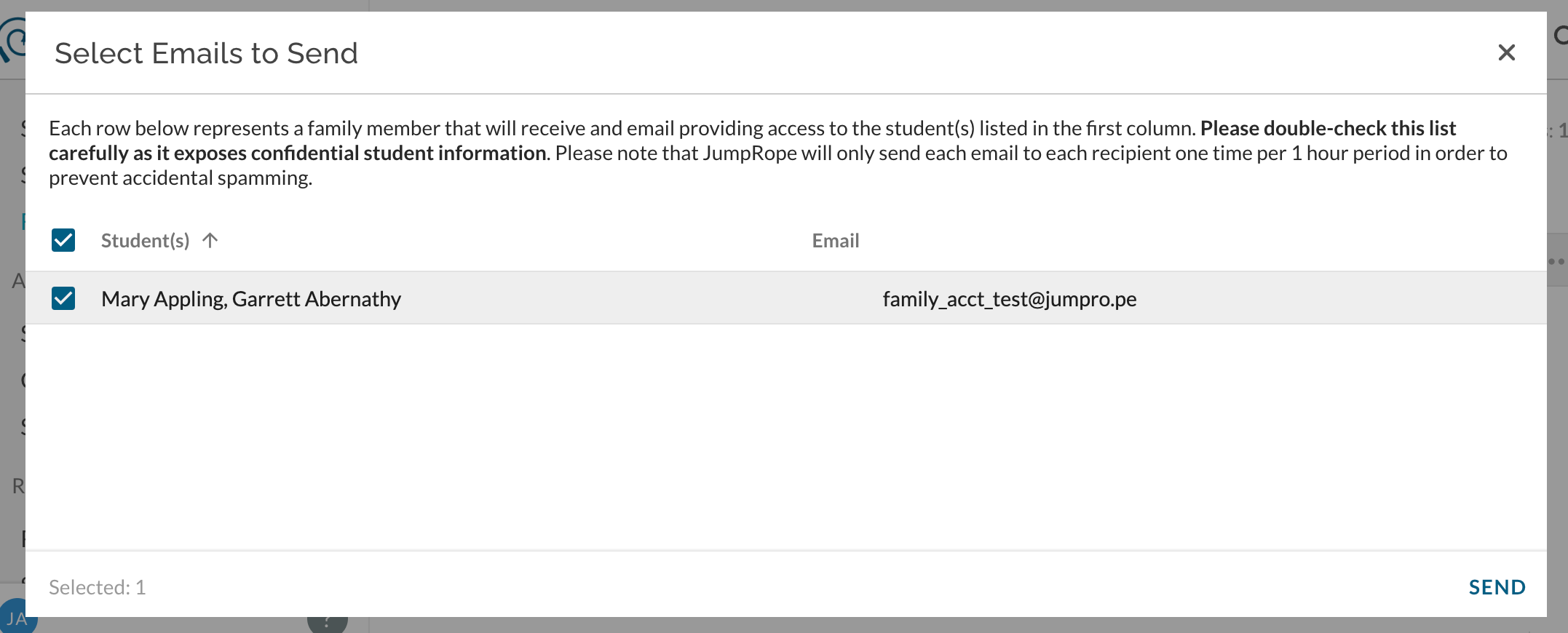
A notification displays when messages have been sent.
Account statuses update to "Invited".
When the invitation is opened and the user completes setup of their Family Account, the status will update to "Active".
Example of Email Invitation: