

The SIS Integration page is where administrators configure how enrollment form fields map to fields in your Student Information System (SIS). By connecting Enroll Path to Aeries SIS and mapping each enrollment field to its corresponding SIS field, you ensure that student data submitted through enrollment forms flows accurately into Aeries when a student is enrolled.
From this page, you can:
- Connect Enroll Path to your Aeries SIS using your API (Application Programming Interface) endpoint and credentials
- Select a district or individual school and choose an enrollment form to configure
- Map each enrollment form field to its corresponding Aeries SIS field
- Define code value mappings to translate form option values into SIS codes
- Use bulk actions to Auto-Map, mark, or clear multiple fields at once
- Add internal field values to write fixed data to Aeries columns that have no form field
- Filter and search field mappings to focus on specific sections or statuses
- Refresh SIS field options to pull the latest code values from Aeries
- Create school-level custom mappings or revert a school to district-level defaults
- Track mapping progress across sections with a live completion indicator
To access this page, navigate to Administration > SIS Integration in the left sidebar.
Table of Contents ↑
Prerequisites
Setting Up Your SIS Connection
Selecting a District or School
Selecting an Enrollment Form
The Field Mapping Table
Mapping Fields
Mapping Code Values
Row Actions
Filtering and Searching
Field Mapping Guidelines
Bulk Actions
Adding Optional Internal Field Values
Refreshing SIS Fields
Tracking Mapping Progress
School-Level Customization
Standard Field Mappings for the Aeries Form Template
Tips for Efficiency
Prerequisites ↑
The following is required to access and configure SIS Integration:
| Role | Access Level |
|---|---|
| Administrator | Full access to configure SIS connection, field mappings, and school-level customization |
Setting Up Your SIS Connection ↑
Before mapping fields, your district must have an active connection to Aeries SIS. Connection settings are configured district-wide through the API Settings dialog and apply to all schools in your district.
Obtaining Your Credentials
Before configuring the connection in Enroll Path, your Aeries SIS administrator must create an Enroll Path record on the API Security page in Aeries (Security > API Security). When adding the record, select Enroll Path as the product type. After saving, click Display Certificate Details to retrieve the two values you will need: the Aeries URL (your API Endpoint URL) and the API Certificate (your API Key / Secret). The Aeries administrator must also grant the appropriate Read and Update permissions for the tables Enroll Path accesses — see API Security in Aeries for guidance.
Opening API Settings
To open the API Settings dialog:
- Navigate to Administration > SIS Integration.
- Click the API Settings button (key icon) in the upper-right corner of the toolbar.
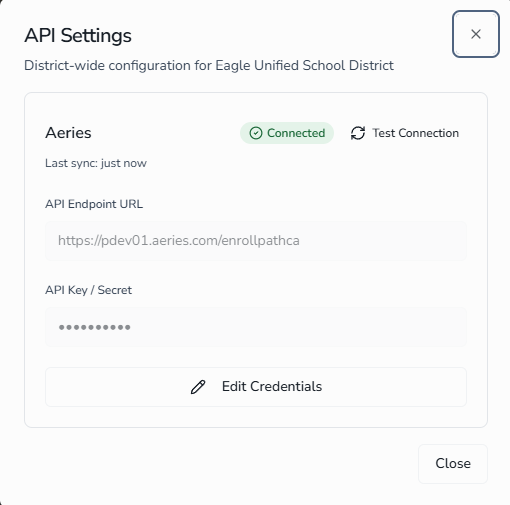
The dialog shows:
- The current connection status badge — Connected, Connection Failed, or Disconnected
- The last time a connection test was performed
- The API Endpoint URL field showing the Aeries SIS endpoint
- The API Key / Secret field (masked for security)
Entering or Updating Credentials
To enter or update your SIS credentials:
- In the API Settings dialog, click Edit Credentials.
- Enter or update the API Endpoint URL — the base URL of your Aeries SIS instance.
- Enter or update the API Key / Secret provided by your Aeries SIS administrator.
- Click Save. Enroll Path immediately tests the connection and updates the status badge.
To discard your changes, click Cancel.
Testing the Connection
To verify your connection at any time, click Test Connection in the API Settings dialog. Enroll Path contacts your Aeries SIS and displays the result:
- A Connected badge confirms the connection is active and the credentials are valid.
- A Connection Failed badge indicates a problem — check the API Endpoint URL and API Key / Secret and try again.
When you are finished, click Close.
Selecting a District or School ↑
The District / School selector at the top of the page determines whose field mappings you are viewing and editing. You can configure mappings at the district level (which all schools inherit by default) or create custom mappings for an individual school. Starting at the district level is the most efficient approach — all schools inherit district mappings automatically unless a school-level customization has been applied. See School-Level Customization for details.
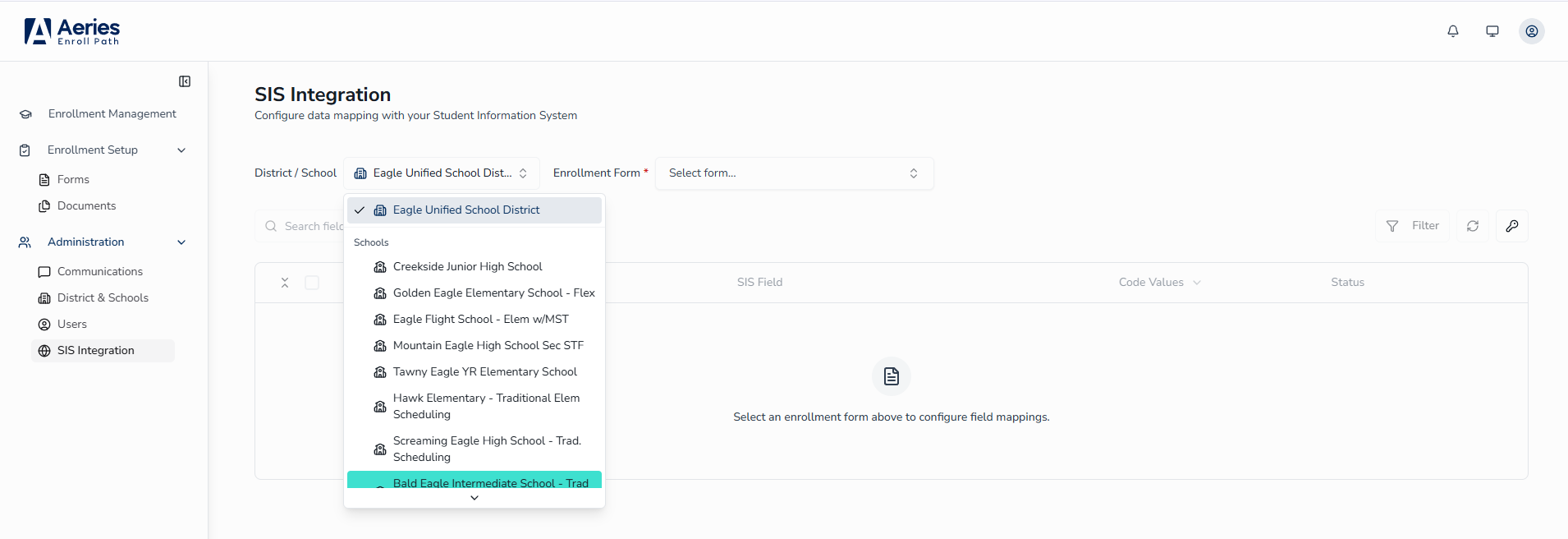
To select a district or school, click the District / School dropdown and choose from the list:
- The district name appears at the top of the list.
- Individual schools are listed below under Schools.
Selecting an Enrollment Form ↑
Field mappings are configured per enrollment form. After selecting a district or school, choose the form you want to map from the Enrollment Form selector.
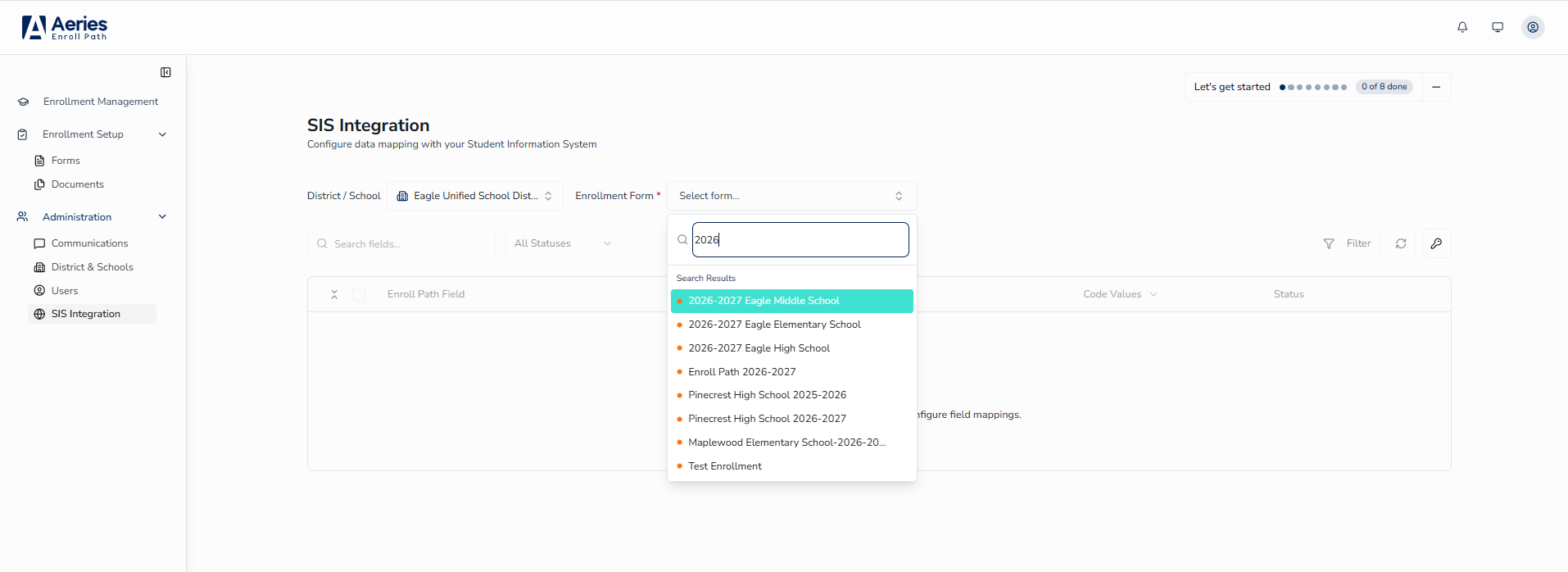
To select a form:
- Click the Enrollment Form dropdown.
- Type part of the form name to filter the list, or scroll to find it.
- Click the form name to select it. The field mapping table loads automatically.
If your district has multiple active forms, each must be mapped separately — return to this selector and repeat the process for each form.
Each form in the list shows a small colored circle indicating its field mapping completion:
- Orange circle — the form has fields that are not yet mapped or code values that are incomplete.
- Green circle — all fields in the form are fully mapped.
The Field Mapping Table ↑
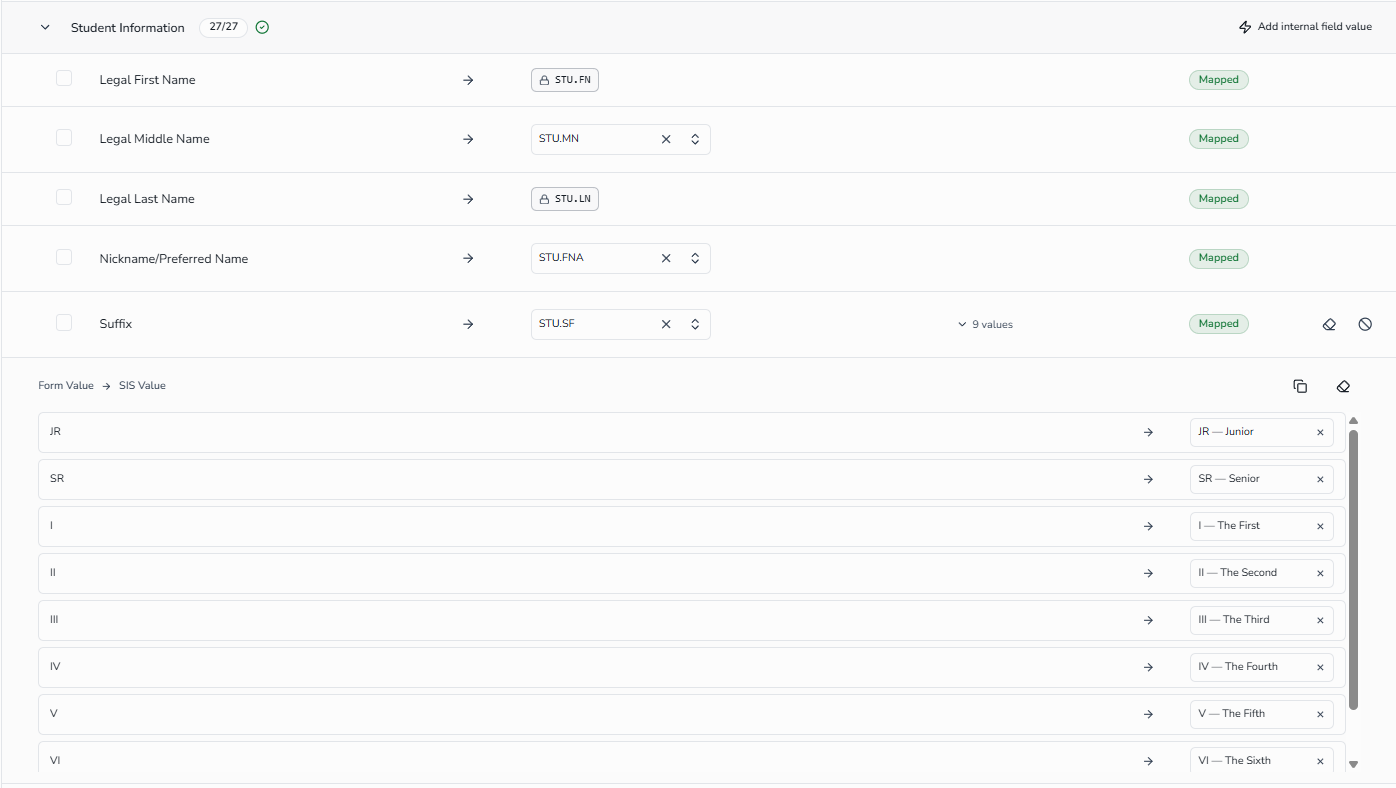
After selecting a form, the field mapping table displays all fields from that form organized into sections. Each row represents one enrollment form field and its current mapping to an Aeries SIS field.
What's Configured Automatically When You First Open a Form
The first time you open a form in SIS Integration, Enroll Path pre-configures the most common mappings so you can review them rather than build from scratch:
- All Other District Enrollment (ODE) fields are pre-mapped to their Aeries
ODE.*columns. - Was Expelled, Special Education, and 504 Plan are pre-mapped and arrive with their Yes → Y / No → N code values already filled in — no manual code-value setup is needed for these three.
- Highest Education Level (Parent / Guardian) is pre-mapped to
CON.ELV, with its code values pre-filled — no manual code-value setup is needed, the same as Was Expelled, Special Education, and 504 Plan above. - Certain composite questions that have no Aeries equivalent — including the school-selection fields in Enrollment Information and the history questions in Other District Enrollments (History) — are pre-set to N/A. See Standard Field Mappings for the Aeries Form Template for the complete list.
Every one of these can be changed at any time — reassign a pre-mapped field or undo an N/A designation using the normal Row Actions. This automatic setup runs only the first time a form is initialized; forms that were already set up are not retroactively changed.
Table Columns
| Column | Description |
|---|---|
| Enroll Path Field | The field label as it appears in the enrollment form |
| SIS Field | The Aeries SIS field assigned to receive this enrollment field's data |
| Code Values | Indicates whether code value mappings exist for this field; click to expand the code value panel |
| Status | The current mapping status of this field |
Field Status Badges
Each row in the table displays one of four status badges:
| Status | Meaning |
|---|---|
| Mapped | A SIS field has been assigned — this field's data will be written to Aeries on enrollment |
| Unmapped | No SIS field has been assigned yet — this field's data will not be written to Aeries |
| N/A | This field has been intentionally excluded from SIS mapping |
| System Managed | This field is automatically linked by Enroll Path and cannot be manually changed |
Section Groups
Fields are grouped into sections (for example, Student Information, Guardian Information, Emergency Contacts). Each section header shows the section name and a completion count — see Tracking Mapping Progress for how to read it.
Click a section header to expand or collapse its rows. Use the expand/collapse toggle at the top-left of the table to expand or collapse all sections at once.
Conditional Fields
Some form fields only appear to the parent or guardian when a specific condition is met on a preceding question. In the mapping table, these conditional fields are indented below their parent question row and display a small gray caption reading Shown when followed by the parent question and the answer that reveals it — for example, Shown when "Is your student interested in playing sports?" is "Yes".
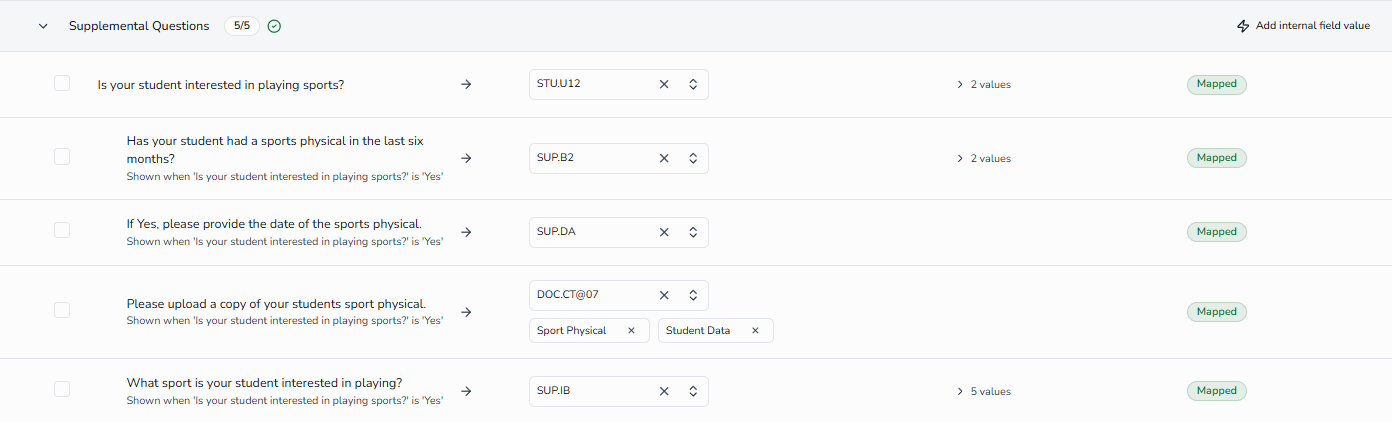
The parent question is a regular mapping row and may have its own SIS field assignment. Map each indented conditional field to the appropriate Aeries SIS field just as you would any other row.
Some rows show a lock icon next to the SIS field code instead of a dropdown. These fields are managed directly by Aeries; their SIS assignments are read-only and cannot be changed or cleared.
Mapping Fields ↑
To assign a SIS field to an enrollment form field:
- Expand the section containing the field you want to map.
- In the SIS Field column for that row, click the dropdown and type to search for the Aeries SIS field name.
- Select the matching SIS field from the list. The row status updates to Mapped immediately — changes save automatically.
To change an existing mapping:
- Click the X on the current SIS field badge to deselect it. The row returns to Unmapped status.
- Click the SIS Field dropdown and select the new SIS field.
To remove an assignment entirely, see Row Actions below.
Mapping Code Values ↑
The SIS code values available for selection in Enroll Path come directly from the Aeries Code Table. Aeries provides a set of fixed codes for certain fields that are read-only and cannot be modified. Districts can also define their own local codes for fields throughout Aeries to meet their specific data needs. Both are managed in Aeries under School Info > Configurations > Update Code Table. If a code you expect to see is missing, it will need to be added there first — then click Refresh SIS Fields in the Enroll Path toolbar to pull in the updated codes. For full instructions, see Code Table Management.
Code value mapping is not handled by Auto-Map, but each field's code value panel includes an Auto-fill SIS values from form values button that automatically matches codes where the form value text and SIS code label are identical. After using Auto-fill, review the results and manually complete any remaining values that were not matched.
When a mapped field has code values configured, the Code Values column shows a count link (for example, 9 values). Click the link to expand the code value panel for that row.
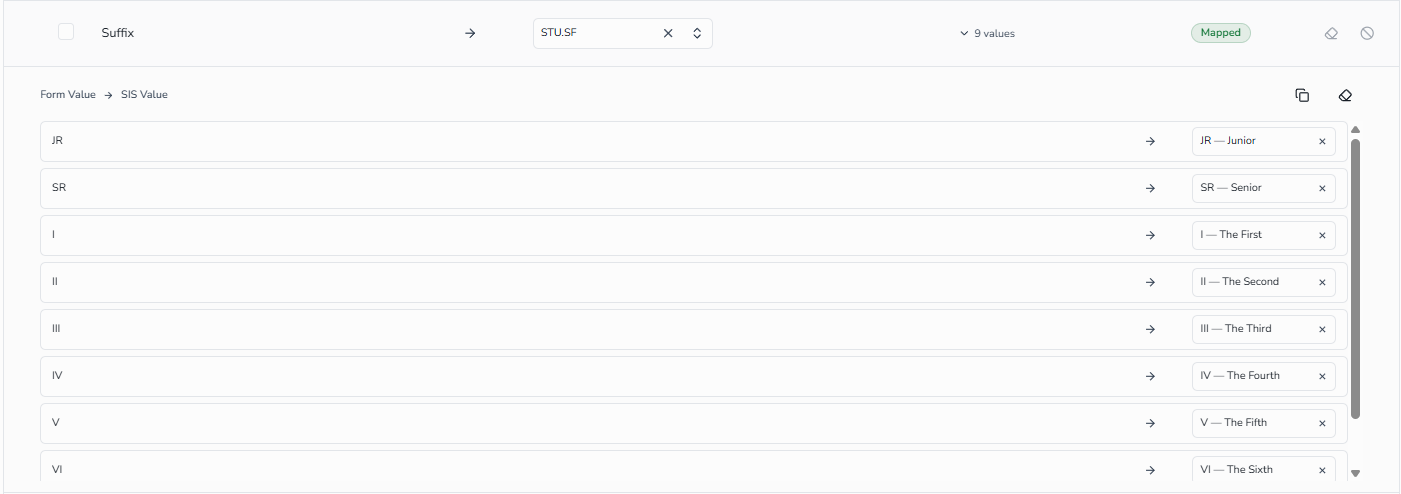
Assigning SIS Codes to Form Values
The code value panel displays two columns: Form Value (the option as it appears in the enrollment form) and SIS Value (the Aeries code to map it to).
To map a code value:
- In the SIS Value column for a form value row, click Search code....
- Type to search for the matching Aeries SIS code and select it.
- Repeat for each form value in the list.
Two bulk actions are available at the top right of the code value panel:
- Auto-fill SIS values from form values — automatically matches SIS codes to form values where the text is identical. Useful as a starting point when your form values closely match Aeries code labels.
- Clear all code value mappings — removes all SIS code assignments for this field.
If the SIS Value dropdown shows no options for a field, click Refresh SIS fields in the toolbar — the SIS connection may be inactive or the field codes may not have been loaded yet. See Refreshing SIS Fields.
Row Actions ↑
Hover over any editable row to reveal action buttons on the right side of the row. A mapped row shows both Clear Mapping and Mark As Not Applicable; a row already marked N/A shows only Undo Not Applicable.
Marking a Field as Not Applicable
If a field in the enrollment form does not correspond to any Aeries SIS field and should not be mapped, mark it as not applicable:
- Hover over the row to reveal the action buttons.
- Click Mark As Not Applicable. The row status changes to N/A and the SIS Field dropdown is hidden.
To revert an N/A row back to an unmapped state, hover over it and click Undo Not Applicable.
A common example is a question field in your enrollment form. The question text itself — such as "Does your child have any known allergies?" — is a label displayed to the parent and is not imported to Aeries. Only the parent's response to that question would be mapped to an Aeries SIS field. Mark the question field itself as N/A so it does not appear as an incomplete mapping in your progress count.
Clearing a Mapping
To remove the SIS field assignment from a mapped row:
- Hover over the row to reveal the action buttons.
- Click Clear Mapping. The SIS field assignment is removed and the row status returns to Unmapped.
Filtering and Searching ↑
The toolbar above the mapping table provides several ways to narrow down which rows are visible.
Searching Fields
Type in the Search fields... box to filter rows by field name. Only rows whose Enroll Path Field label matches your search term are shown. Clear the search box to restore the full list.
Filtering by Status
Use the All Statuses dropdown to show only rows with a specific mapping status:
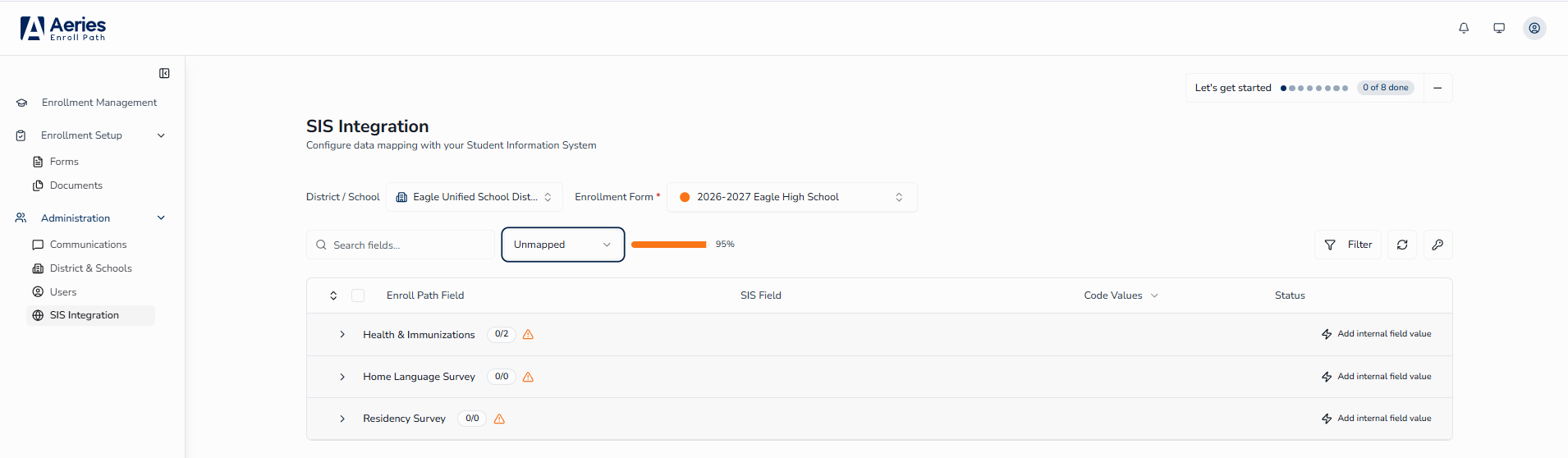
- All Statuses — show all rows (default)
- Mapped — show only fields with a SIS field assigned
- Unmapped — show only fields that still need a SIS assignment
- N/A — show only fields marked as not applicable
- System Managed — show only auto-linked fields
Advanced Filters
Click Filter to open the advanced filter panel, which provides three additional dropdown filters:
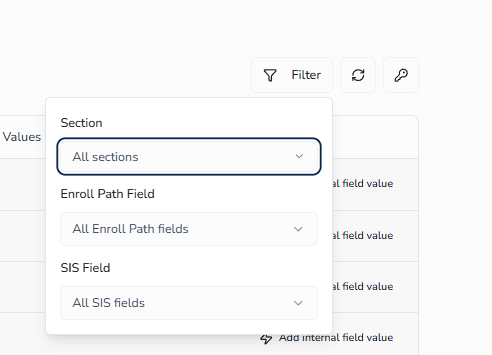
- Section — show only rows belonging to a specific section
- Enroll Path Field — filter to a specific enrollment form field
- SIS Field — filter to rows mapped to a specific Aeries SIS field
All filters work together. To clear all advanced filters, reselect All sections, All Enroll Path fields, and All SIS fields from each dropdown.
Field Mapping Guidelines ↑
Following these rules ensures enrollment data imports to Aeries correctly. Violations are caught by Enroll Path's validation layer and will prevent the mapping from saving.
Rule 1 — One SIS field per enrollment form field
Each enrollment form field should be mapped to exactly one Aeries SIS field. The SIS Field selector allows choosing more than one target, but assigning a single form field to multiple SIS columns is not a supported configuration and can cause incorrect data to be written to Aeries upon import.
STU.RC1 like any other field. Because students may identify with up to five races, Enroll Path automatically distributes each selected race value across STU.RC1 through STU.RC5 during import. All five race columns share the same code values, so code value mappings only need to be configured once, against STU.RC1.Rule 2 — Each SIS field used only once per scope
The same Aeries SIS field cannot be assigned to more than one enrollment form field within the same scope. Enroll Path enforces two different rules depending on the type of data:
| Data Type | Rule | Why |
|---|---|---|
Student, Language Assessment, Parent Response to Survey, Authorization, Supplemental Data, Documents, Document Confirmation Log, and Free/Reduced Records Fields (STU, LAC, PRS, AUT, SUP, DOC, DCL, FRP, and others) | Form-wide — the same SIS field cannot be used more than once anywhere in the form | Aeries stores only one student record per registration. If two form fields write to the same SIS field, only one value will be saved and the other is lost. |
Contact, Insurance, Medical History, Immunizations, and Other District Enrollment Fields (CON, MII, MHS, IMM, ODE, and others) | Section-wide — the same SIS field cannot be used more than once within the same section, but the same SIS field can appear in different sections | Each section creates its own record in Aeries. For example, First Name (CON.FN) in Guardian Information and First Name (CON.FN) in Emergency Contacts each write to a separate contact record — this is correct and expected. |
Exception: STU.BST (Birth State / Birth Province/Territory) is multi-source. Birth Country's per-country follow-up question — Birth State for the United States and Mexico, Birth Province/Territory for Canada — always maps to STU.BST, and Enroll Path allows all of them to be mapped at once rather than blocking the save. See the Birth State row in Standard Field Mappings for the Aeries Form Template below.
STU.BST exception above, if two form fields in the same scope are mapped to the same SIS field, Enroll Path will block the mapping from saving. Always verify your mappings using the standard reference table below to avoid conflicts.Bulk Actions ↑
When you need to apply the same action to multiple fields at once, use the checkboxes in the mapping table to select rows. The bulk action bar appears at the top of the table as soon as at least one row is selected.
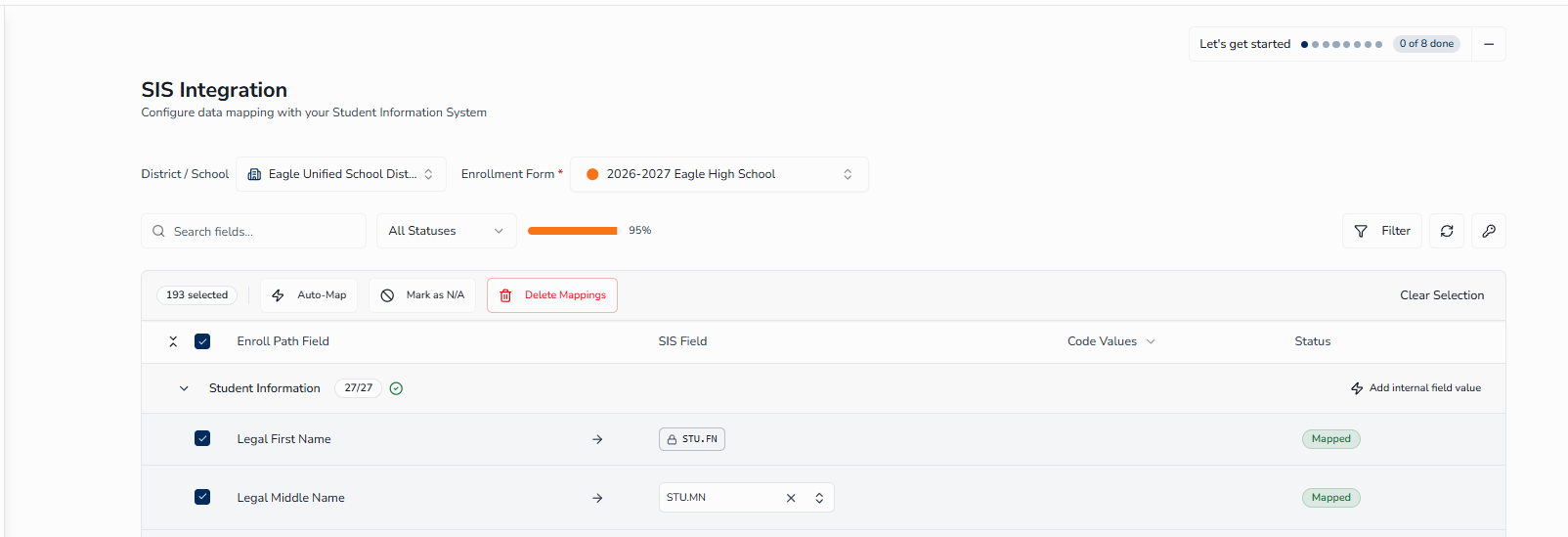
To select rows, click the checkbox at the left of each row. To select all visible rows at once, click the checkbox in the table header. To deselect everything without taking any action, click Clear Selection on the right side of the bar.
Auto-Map
Click Auto-Map to have Enroll Path automatically assign SIS fields to the selected unmapped rows. Auto-Map uses a multi-pass matching strategy:
- Dictionary lookup — checks a built-in key map to find the known Aeries SIS field for standard enrollment form fields.
- Section-aware label match — narrows the search to the correct SIS table based on the field's section (for example, Student Information fields are matched within the
STUtable), then matches by label. - Broader label match — searches across all SIS fields using exact, starts-with, and word-boundary contains matching.
- Leftover pass — re-runs on any remaining unmatched fields.
Auto-Map only processes fields that are currently Unmapped — it will not overwrite any SIS field you have already assigned. A field it cannot confidently match generally stays Unmapped; however, when a field's dictionary-known SIS target is not part of your district's writable schema, Auto-Map marks that field N/A instead. Because Auto-Map uses label matching, always review every assignment it makes before relying on the results. Use the Unmapped filter to find any fields that still need manual attention. Auto-Map is a starting point, not a final step.
Mark as N/A
Click Mark as N/A to bulk-mark all selected rows as not applicable. This is useful when multiple fields in a section do not correspond to any Aeries SIS field and should be excluded from mapping progress. All selected rows change status to N/A at once.
Delete Mappings
Click Delete Mappings to remove the SIS field assignment from all selected mapped rows. A confirmation dialog appears before any changes are made. After confirming, the selected rows return to Unmapped status.
Adding Optional Internal Field Values ↑
Some Aeries SIS fields need to receive a fixed value upon import — even though there is no corresponding field in the enrollment form that the parent or guardian fills in. The Add internal field value feature lets you configure exactly this: choose an Aeries SIS field and specify the value it should always receive, independent of form responses.
For example, a district may need a particular Aeries column to always receive the same fixed value on every imported record — a standing code or flag that families never see or complete on the form. Using Add internal field value, an administrator selects the Aeries column and specifies the value it should always be given upon import, with no parent-facing form field required.
CON.CD) is still an internal field value — Enroll Path pre-configures it automatically when a form is initialized, so you don't need to create it from scratch. It appears as a section-level summary rather than in the main list, but you can still open it through the same edit dialog as any other internal field value to review or change its assigned value.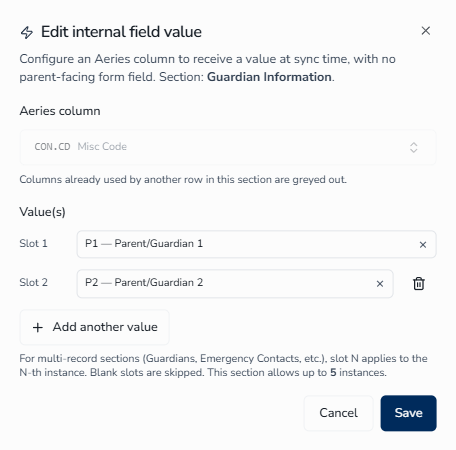
Adding a Value
The Add internal field value link appears on the right side of each section header.
To add an internal field value:
- Locate the section header for the section where the Aeries column lives (for example, Student Information).
- Click Add internal field value on the right side of the section header. The dialog opens.
- Under Aeries column, click Pick a column... and select the Aeries column from the list. Columns already used by other rows in this section are greyed out — this enforces the uniqueness rule described in Field Mapping Guidelines Rule 2, which prevents the same SIS field from being assigned more than once within the same scope.
- Under Value(s), type or search for the value to assign in the Slot 1 field.
- Click Save. The new internal field value row appears in the section.
Multi-Record Sections
For sections that can have multiple instances — such as Guardian contacts or Emergency Contacts — you can configure a separate value per slot. Each slot corresponds to one instance of the section at sync time: Slot 1 applies to the first guardian record, Slot 2 to the second, and so on. Click + Add another value to add additional slots. Blank slots are skipped upon import.
Internal field values appear as rows in the section table alongside the form field rows. To edit an existing internal field value, hover over its row and click the edit icon. To remove it, hover over the row and click the delete icon.
Refreshing SIS Fields ↑
The SIS field options available in the SIS Field dropdowns and code value panels are loaded from your Aeries SIS. If your SIS administrator has recently added or changed field codes in Aeries — for example, updated the available suffix codes or added new race/ethnicity options — those changes will not appear in Enroll Path automatically.
To pull the latest field options from Aeries, click the Refresh SIS fields button (circular arrow icon) in the toolbar. Enroll Path retrieves codes for the fields used in the current form, updates the dropdowns in place, and shows a Refreshing indicator followed by a success or error confirmation. An active connection is required — if your connection status shows Disconnected or Connection Failed, verify your API Settings first.
You usually don't need to click Refresh manually: when a mapped field's codes aren't loaded yet, the page refreshes them automatically on load, so the code-value panel appears without any action from you.

Tracking Mapping Progress ↑
The toolbar displays a live progress indicator showing how many fields in the selected form have been mapped. For example, 59% means 59% of the form's mappable fields currently have a SIS field assigned.
Progress is also tracked per section. Each section header shows a completion count — for example, Student Information 26/27 means 26 of 27 fields in that section are mapped. A green checkmark next to the count means the section is complete. An orange warning triangle means the section needs attention — this appears in either of two cases:
- One or more fields in the section are still Unmapped — no SIS field has been assigned yet.
- One or more mapped fields have incomplete code value mappings — the SIS field is assigned, but some code values still need to be matched.
Fields marked N/A and System Managed fields are excluded from the progress count — only Mapped and Unmapped fields count toward the total.
School-Level Customization ↑
By default, all schools in your district use the district-level field mappings. When you select a school in the District / School selector, Enroll Path indicates whether that school is using inherited district mappings or its own custom mappings.
Inherited District Mappings
When a school uses district mappings, a blue banner appears above the mapping table:
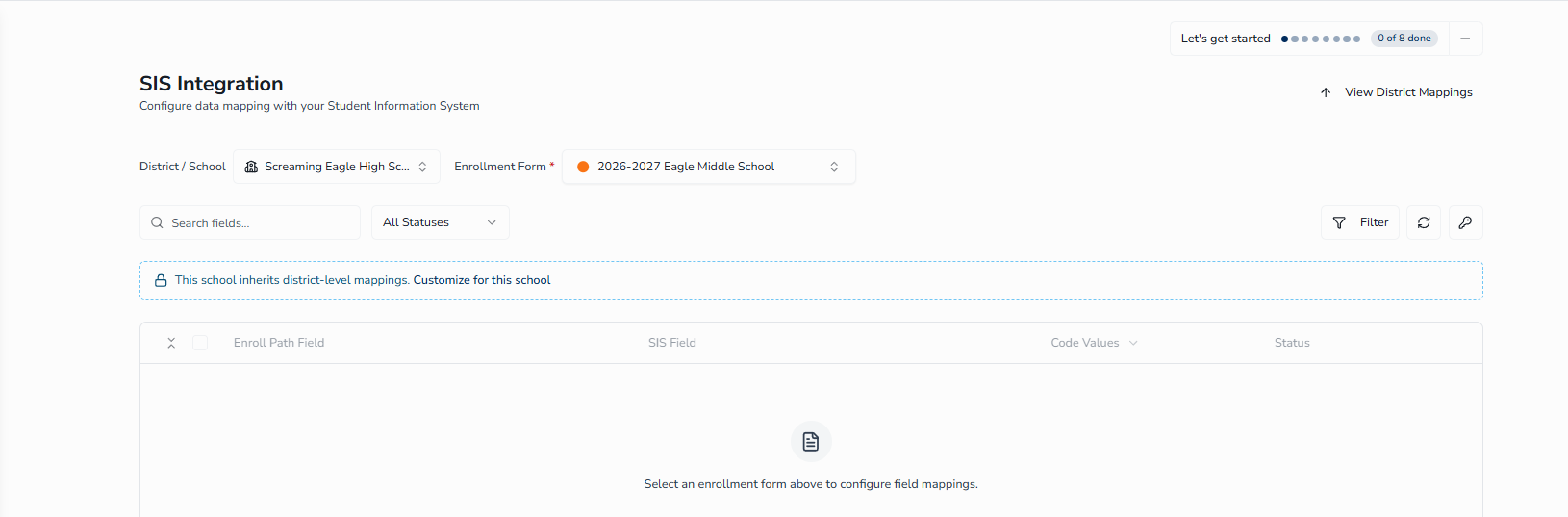
When inherited mappings are active:
- The mapping table rows are read-only — individual fields cannot be changed at the school level.
- A View District Mappings button appears in the page header to switch quickly to the district view.
- A Customize for this school link in the banner lets you create school-specific mappings.
Customizing Mappings for a School
To create school-specific field mappings that differ from the district defaults:
- Select the school from the District / School selector.
- Select the enrollment form you want to customize.
- Click the Customize for this school link in the blue inheritance banner.
- In the confirmation dialog, review the message and click Customize.
Enroll Path creates a copy of the district's current field mappings for this school. You can then edit those mappings independently — changes apply only to this school and do not affect the district or any other schools.
Reverting to District Mappings
To discard a school's custom mappings and return it to district-level inheritance:
- Select the school from the District / School selector.
- Click the Revert button in the page header.
- Confirm the action in the dialog. The school's custom mappings are deleted and it resumes inheriting from the district.
Standard Field Mappings for the Aeries Form Template ↑
The tables below list the standard Enroll Path form fields, their corresponding Aeries SIS fields, data type, and whether code value mappings are required. These are the mappings Enroll Path's Auto-Map feature uses when it can confidently match a field. Use this reference when configuring or auditing your form mappings. Custom form fields added by your district are not included in this table and will need to be mapped manually.
Enrollment Information
This section contains the grade level the student is enrolling into, along with the school-selection questions used to route the family to the correct school. The school-selection question fields listed below do not correspond to an Aeries SIS field. Enroll Path sets these to N/A automatically when the form's mappings are first initialized, so you don't need to mark them by hand.
| Enroll Path Field | SIS Field | Data Type | Code Values Required | State Specific |
|---|---|---|---|---|
| School Selection | N/A | N/A | No | -- |
| School Year | N/A | N/A | No | -- |
| School District | N/A | N/A | No | -- |
| School of Residence | N/A | N/A | No | -- |
| Preferred School | N/A | N/A | No | -- |
| Grade Level | STU.GR | Code | Yes | -- |
Student Information
| Enroll Path Field | SIS Field | Data Type | Code Values Required | State Specific |
|---|---|---|---|---|
| Legal First Name | STU.FN | Text | No | -- |
| Legal Last Name | STU.LN | Text | No | -- |
| Legal Middle Name | STU.MN | Text | No | -- |
| Nickname / Preferred Name | STU.FNA | Text | No | -- |
| Suffix | STU.SF | Code | Yes | -- |
| Date of Birth | STU.BD | Date | No | -- |
| Gender | STU.GN | Code | Yes | -- |
| Student Email | STU.SEM | Text | No | -- |
| Student Home Phone | STU.TL | Text | No | -- |
| Student Mobile Number | STU.MPH | Text | No | -- |
| Residence Address (Street) | STU.RAD | Text | No | -- |
| Residence City | STU.RCY | Text | No | -- |
| Residence State | STU.RST | Code | Yes | -- |
| Residence Zip Code | STU.RZC | Text | No | -- |
| Residence Zip Code Extension | STU.RZX | Text | No | -- |
| Use residence address above as mailing address? | N/A | N/A | No | -- |
| Mailing Address (Street) | STU.AD | Text | No | -- |
| Mailing City | STU.CY | Text | No | -- |
| Mailing State | STU.ST | Code | Yes | -- |
| Mailing Zip Code | STU.ZC | Text | No | -- |
| Mailing Zip Code Extension | STU.ZX | Text | No | -- |
| Birth City | STU.BCY | Text | No | -- |
| Birth State | STU.BST | Code | Yes | -- |
| Birth Country | STU.BCU | Code | Yes | -- |
| Hispanic / Latino (Ethnicity) | STU.ETH | Code | Yes | -- |
| Race / Ethnicity (see Field Mapping Guidelines) | STU.RC1 (auto-distributed to STU.RC1–RC5 on import) | Code | Yes | -- |
| Parent / Guardian Mailing Name | STU.PG | Text | No | -- |
STU.BST field. This is the multi-source exception to Rule 2 described in Field Mapping Guidelines above.Guardian Information
The following fields belong to the CON (Contacts) table. The same field codes also apply to Emergency Contacts, Restrained Individual, and Local Physician sections — each section creates a separate Aeries contact record. The Restrained Individual section also includes the question Is there a restrained individual?, which does not correspond to an Aeries SIS field. Like the school-selection questions in Enrollment Information, Enroll Path sets it to N/A automatically when the form's mappings are first initialized.
CON.FN), Last Name (CON.LN), Relationship (CON.RL), Primary Phone (CON.TL), Mailing Name (CON.NM), and Contact Code (CON.CD) — are locked. Their SIS assignments are pre-set and read-only in the mapping table; you cannot change or clear them. Email (CON.EM) is not locked: you can map it in the Guardian Information and Emergency Contacts sections, and existing forms keep their current email mappings.| Enroll Path Field | SIS Field | Data Type | Code Values Required | State Specific |
|---|---|---|---|---|
| First Name | CON.FN | Text | No | -- |
| Last Name | CON.LN | Text | No | -- |
| Middle Name | CON.MN | Text | No | -- |
CON.EM | Text | No | -- | |
| Relationship | CON.RL | Code | Yes | -- |
| Primary Phone | CON.TL | Text | No | -- |
| Cell Phone | CON.CP | Text | No | -- |
| Work Phone | CON.WP | Text | No | -- |
| Work Extension | CON.WX | Text | No | -- |
| Mailing Name | CON.NM | Text | No | -- |
| Lives with Student | CON.LW | Code | Yes | -- |
| Allow Portal Access | CON.AP | Code | Yes | -- |
| Address Line 1 | CON.AD | Text | No | -- |
| Address Line 2 | CON.AD2 | Text | No | -- |
| City | CON.CY | Text | No | -- |
| State | CON.ST | Code | Yes | -- |
| Zip Code | CON.ZC | Text | No | -- |
| Employer Name | CON.ENM | Text | No | -- |
| Highest Education Level (Parent / Guardian) | CON.ELV | Code | Yes | -- |
Language Assessment
| Enroll Path Field | SIS Field | Data Type | Code Values Required | State Specific |
|---|---|---|---|---|
| Native Language | LAC.L1 | Code | Yes | -- |
| Primary Language | LAC.L2 | Code | Yes | -- |
| Home Language | LAC.L3 | Code | Yes | -- |
| Adult Language | LAC.L4 | Code | Yes | -- |
| Previous Language | LAC.L5 | Code | Yes | TX |
| Home Language Survey Date | LAC.HLD | Date | No | -- |
| US Entry Date | LAC.USE | Date | No | -- |
| US Preschool Entry Date | LAC.US3 | Date | No | -- |
| US School Entry Date | LAC.USS | Date | No | -- |
| State School Entry Date | LAC.STS | Date | No | -- |
LAC.L1–LAC.L5 and LAC.HLD — are hidden from the SIS Field dropdown. They are pre-configured and locked by the Home Language Survey sync path, not mapped manually. Only the entry-date family (LAC.USE, LAC.US3, LAC.USS, LAC.STS) remains admin-mappable — these date fields are stored in the Language Assessment (LAC) table and appear under the Language Assessment grouping in the mapping table — even though they may be collected on a prior-schooling or other-district portion of your form.Health and Immunizations
The Health and Immunizations section supports mapping both medical conditions and vaccine records. For vaccine fields, the code-value dropdown displays human-readable vaccine descriptions (such as Polio or Hepatitis B) rather than internal codes — select the description that matches your form option. Auto-Map pre-fills vaccine type matches where the form's description text matches an Aeries vaccine description exactly (case-insensitive). When syncing, doses are sent to Aeries in earliest-date-first order. Any vaccine that cannot be matched to a mapped type is surfaced in sync-failure review for manual resolution.
| Enroll Path Field | SIS Field | Data Type | Code Values Required | State Specific |
|---|---|---|---|---|
| Medical Conditions | MHS.CD | Code | Yes | -- |
| Medical Comments | MHS.PC | Text | No | -- |
| Vaccine Type | MHS.VT | Code | Yes | -- |
| Vaccine Date | MHS.VD | Date | No | -- |
Insurance
MII.MBI), that policy will not import.| Enroll Path Field | SIS Field | Data Type | Code Values Required | State Specific |
|---|---|---|---|---|
| Insurance Type | MII.TY | Code | Yes | -- |
| Carrier Name | MII.NM | Text | No | -- |
| Insurance Carrier Code | MII.ICC | Code | Yes | -- |
| Group Number | MII.GP | Text | No | -- |
| Policy Number | MII.PN | Text | No | -- |
| Member ID | MII.MID | Text | No | -- |
| Effective Date | MII.SD | Date | No | -- |
| Termination Date | MII.ED | Date | No | -- |
| Medicaid | MII.MC | Code | Yes | -- |
| Medicaid Benefits ID (required when Medicaid = Yes) | MII.MBI | Text | No | -- |
| Primary Insurance | MII.PRI | Code | Yes | -- |
| Primary Care Provider Name | MII.PCN | Text | No | -- |
| Primary Care Provider Phone | MII.PCT | Text | No | -- |
| Subscriber First Name | MII.SFN | Text | No | -- |
| Subscriber Last Name | MII.SLN | Text | No | -- |
| Subscriber Address | MII.SAD | Text | No | -- |
| Subscriber Address Line 2 | MII.SA2 | Text | No | -- |
| Subscriber City | MII.SCY | Text | No | -- |
| Subscriber State | MII.SST | Code | Yes | -- |
| Subscriber Zip Code | MII.SZC | Text | No | -- |
| Comment | MII.CO | Text | No | -- |
Other District Enrollments (History)
This section covers two groups of fields: questions about the student's enrollment history, and the repeatable Previous Schools list a district can fill in up to four times per student.
History Questions
The questions below filter which follow-up questions a family sees and mostly have no Aeries SIS equivalent, so Enroll Path sets them to N/A automatically. A few of these questions also trigger a follow-up date field that does map to Aeries — for example, the date a student entered the United States. Those date fields are stored in the Language Assessment (LAC) table and are documented in Language Assessment, even though Enroll Path collects them on this part of the form. See Conditional Fields for how follow-up questions display in the mapping table.
| Enroll Path Field | SIS Field | Data Type | Code Values Required | State Specific |
|---|---|---|---|---|
| Was this student born in the United States? | N/A | N/A | No | -- |
| Date of Birth Shown when "Was this student born in the United States?" is "Yes" | N/A | N/A | No | -- |
| Has this student previously attended a preschool (age 3+) in the United States? | N/A | N/A | No | -- |
| Has this student previously attended a TK-12 (Transitional Kindergarten to Grade 12) school in the United States? | N/A | N/A | No | -- |
| Has this student previously attended a school in California? | N/A | N/A | No | CA |
| Has this student previously attended a school in this school district | N/A | N/A | No | -- |
| What was the most recent date this student attended this district? | N/A | N/A | No | -- |
| What was the most recent school attended at this district? | N/A | N/A | No | -- |
Previous Schools
The following repeatable fields make up each entry in the Previous Schools list.
| Enroll Path Field | SIS Field | Data Type | Code Values Required | State Specific |
|---|---|---|---|---|
| District Name | ODE.DNM | Text | No | -- |
| School Name | ODE.SNM | Text | No | -- |
| Street Address | ODE.AD | Text | No | -- |
| City | ODE.CY | Text | No | -- |
| State | ODE.ST | Text | No | -- |
| Zip Code | ODE.ZC | Text | No | -- |
| Entry Grade | ODE.EG | Code | Yes | -- |
| Leave Grade | ODE.LG | Code | Yes | -- |
| Entry Date | ODE.ED | Date | No | -- |
| Leave Date | ODE.LD | Date | No | -- |
| District Contact Name | ODE.CNM | Text | No | -- |
| Phone Number | ODE.TL | Text | No | -- |
| Fax Number | ODE.FX | Text | No | -- |
| Was Expelled | ODE.EXP | Code | Yes | -- |
| Special Education | ODE.SPE | Code | Yes | -- |
| 504 Plan | ODE.FOF | Code | Yes | -- |
| Comment | ODE.CO | Text | No | -- |
Program Surveys
The following fields from survey sections (Residency, Foster, Family Military) each map to their own PRS.TY@{type} SIS field, distinguished by survey type (1, 2, and 4 respectively). Program survey fields display a Survey pre-configured badge and are locked — the SIS field assignment is pre-set and cannot be changed.
| Enroll Path Field | SIS Field | Data Type | Code Values Required | State Specific |
|---|---|---|---|---|
| Residence Status (Residency Survey) | PRS.TY@1 | Code | Yes | -- |
| Foster Care (Foster Survey) | PRS.TY@4 | Code | Yes | -- |
| Parent Active Military (Family Military Survey) | PRS.TY@2 | Code | Yes | -- |
Authorizations
Each authorization in your enrollment form maps to AUT.CD@{Code}, where {Code} is the authorization code configured in Aeries. After mapping the authorization response, you can also map AUT.TY to capture the authorization category. Verify Authorization codes exist in Aeries before mapping — if codes are missing, add them and click Refresh SIS Fields. See Code Table Management.
| Enroll Path Field | SIS Field | Data Type | Code Values Required | State Specific |
|---|---|---|---|---|
| Authorization Response | AUT.CD@{Code} — one per authorizationMultiple mapping not allowed | Code | No | -- |
| Authorization | AUT.TY | Code | No | -- |
Documents
Each document in your enrollment form maps to DOC.CT@{Code}, where {Code} is the document category code configured in Aeries. After mapping the document, you can also map DOC.SCT to capture the document sub-category. Verify Document Category codes exist in Aeries before mapping — if codes are missing, add them and click Refresh SIS Fields. See Code Table Management.
| Enroll Path Field | SIS Field | Data Type | Code Values Required | State Specific |
|---|---|---|---|---|
| Document | DOC.CT@{Code} — one per document | Code | No | -- |
| Document Sub-category | DOC.SCT | Code | No | -- |
DOC.CT@{Code} target can be assigned to more than one document row in the same form, including rows in multi-record sections such as Guardian Information and Emergency Contacts. This is useful when several document upload fields belong to the same Aeries document category. Other multi-record tables continue to follow the one-field-per-section rules described in Field Mapping Guidelines.Document Acknowledgements
Document Acknowledgement fields are System Managed and appear as read-only rows in the SIS Integration mapping table — no admin configuration is required. At sync time, DCL (Document Link) records are resolved automatically from the Enroll Path to Aeries document link established during Documents Sync. Because this relationship is handled entirely by Enroll Path, the mapping control is not available and no code values need to be configured for these fields.
| Enroll Path Field | SIS Field | Data Type | Code Values Required | State Specific |
|---|---|---|---|---|
| Document Acknowledgement | System Managed — no mapping required | N/A | No | -- |
Tips for Efficiency ↑
- Map at the district level first — configure district mappings before working on individual schools. All schools inherit those mappings automatically, saving you from repeating the same work per school.
- Start with Auto-Map — select all rows using the header checkbox, then click Auto-Map. Enroll Path handles every field it can confidently match. Follow up with the Unmapped filter to review and assign the remainder manually.
- Use the Unmapped filter — select Unmapped from the status filter to see only fields that still need a SIS assignment. Work through them section by section to reach 100%.
- Mark non-synced fields as N/A — if a field genuinely has no SIS equivalent, mark it N/A so it doesn't appear as an incomplete mapping in your progress count.
- Refresh SIS fields after SIS changes — whenever your SIS administrator adds or updates code values in Aeries, click Refresh SIS fields to pull those changes into Enroll Path before continuing to map.
- Use Auto-fill for code values — click Auto-fill SIS values from form values in the code value panel as a starting point. Then review and correct any mismatches manually.
- Test your connection before mapping — open API Settings and click Test Connection at the start of each session to confirm the SIS connection is active before working with field options and code values.