

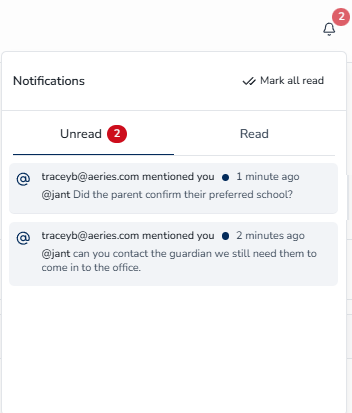
The Notifications feature lets staff receive notifications when they are @mentioned in an Internal Note. When a staff member @mentions you, Enroll Path displays a notification in the notification bell in the header. You can mark notifications as read individually or mark all as read at once. Click on any notification to open the associated Internal Note Thread and see the full conversation.
From this feature, you can:
- View all unread notifications in one place
- Mark notifications as read individually or all at once
- Navigate directly to the enrollment and conversation thread from a notification
- @mention staff members to send them notifications
The notification bell appears in the header of the staff portals (Admin and Registrar) after you log in.
Table of Contents ↑
Prerequisites
Viewing and Managing Notifications
Mentioning Staff
Tips for Efficient Mentioning
Prerequisites ↑
Access to notifications depends on your assigned role. The table below shows what each role can do.
| Role | Receive Notifications | @Mention Staff |
|---|---|---|
| Admin | Yes | Yes |
| Enrollment | Yes | Yes |
Viewing and Managing Notifications ↑
Finding the Notification Bell
The notification bell is located in the header of the staff portals (Admin and Registrar). A number badge on the bell shows how many unread notifications you have (counts above 99 display as 99+). Click the bell to open the notification dropdown, which displays your notifications with the most recent ones first. Guardians do not use this bell — the family portal has its own separate notifications indicator.

Marking Notifications as Read
Click the bell icon and:
- To mark a single notification as read, click the individual notification in the dropdown.
- To mark all notifications as read at once, click the Mark all read button in the dropdown.
Opening an Internal Note Thread
When you click a notification, a side drawer titled Internal Note Thread opens. The drawer shows:
- The full conversation thread containing the @mention and any replies
- All participants in the conversation
- Options to reply to the mention or view more details about the enrollment
From within the drawer, you can:
- Send Reply — add a response to the thread (you can @mention other staff if needed)
- View Enrollment — navigate to the enrollment record associated with the thread
- View All Internal Notes (N) — see all internal notes for the enrollment (N is the total count)
Mentioning Staff ↑
To mention staff and start a notification thread, navigate to the Internal Note section within an enrollment record.
How to @Mention Staff
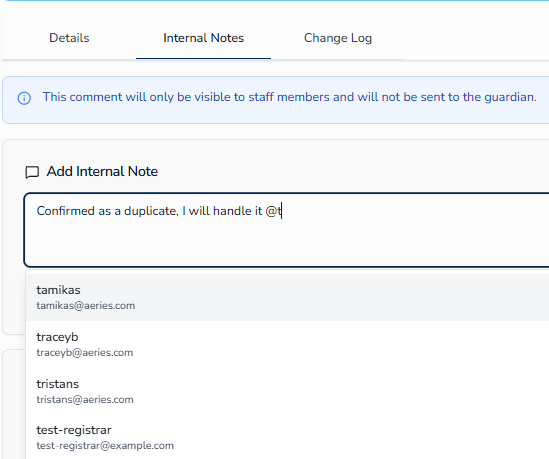
When you add an Internal Note to an enrollment, you can @mention another staff member to notify them.
To mention a staff member:
- Type
@followed by the staff member's name in the note. - Review the dropdown of matching staff members. Each result shows the person's email on a secondary line for reference, though the search matches by name only.
- Click the staff member you want to mention.
Where @Mentions Work
@Mentions are available only when adding or editing Internal Notes in an enrollment record. Other note types do not support @mentions.
Tips for Efficient Mentioning ↑
- Mention individuals, not groups. @Mentions are for specific people. Type
@for each person you need to reach, rather than looking for a team or group option. - Notifications update every two minutes. New notifications are not instant. Check your notifications after switching tabs, or at the start of your shift if you're expecting urgent updates. If you need an immediate response, follow up in real time through a quick message or call.
- Be clear with your ask. Lead with what you need: "@Jane can you verify the residency proof?" is more actionable than a generic FYI mention. Your mention is more likely to get a quick response.
- Keep the conversation in the thread. Reply to mentions inside the Internal Note Thread drawer so context stays attached to the enrollment. This keeps the enrollment record complete and searchable.