

Student Matching Options for ASVAB Import
Overview
The Armed Services Vocational Aptitude Battery (ASVAB) is a military entrance examination used to determine enlistment eligibility and qualification for military job training. The test is administered to students in grades 10 through 12.
ASVAB results, including the Armed Forces Qualification Test (AFQT) score, are typically sent to the school staff who coordinated the ASVAB administration with the Military Entrance Processing Command (MEPCOM). Schools should contact their designated point of contact at the Military Entrance Processing Station (MEPS) to request the electronic results file.
The Import Test Results for ASVAB feature supports importing the overall AFQT score along with the four subtest scores: Arithmetic Reasoning, Word Knowledge, Paragraph Comprehension, and Mathematics Knowledge.
Security ↑
The security page outlines permissions needed for Importing Test Results.
https://support.aeries.com/support/solutions/articles/14000066405-security-for-import-test-results
| Table | Permission | Description |
|---|---|---|
| Test Scores (TST) | Mass Update | Allows non-admin users and groups to see the Import Test Results node in the navigation. Also allows non-admin users to access the Special Processes tab. |
Import Scores Option ↑
For complete instructions on the Import Test Results process, see Import Test Results page.
Prior to importing the file, it may be necessary to add Student ID column to the file and populate the Student's ID number in the file to allow for a more accurate matching process. Otherwise, students can be matched by Last Name (STU.LN) and First Name (STU.FN). When matching using the name method, the Last Name and First Name must be identical to the name in the file, or the student will not match. A manual match option is also available for files that contain no matching data elements. Note: Matching on SSID or Unique ID is not available for this process.
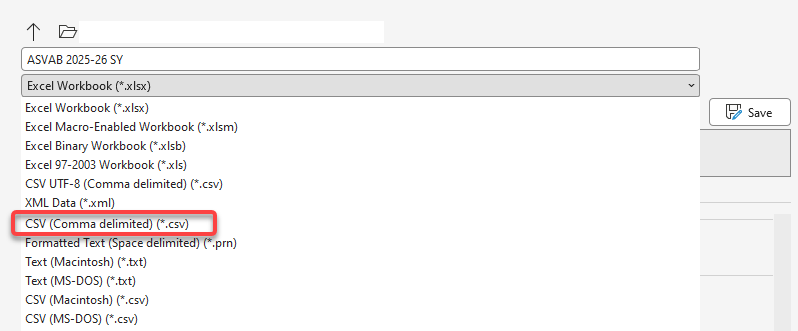
The file type must be a CSV file. If the file received is in *.xls or *.xlsx format, it can be easily converted to csv:
- Open file in excel
- Select SAVE AS or SAVE A COPY
- Select CSV (Comma delimited) (*.csv) from the file type
- Select SAVE
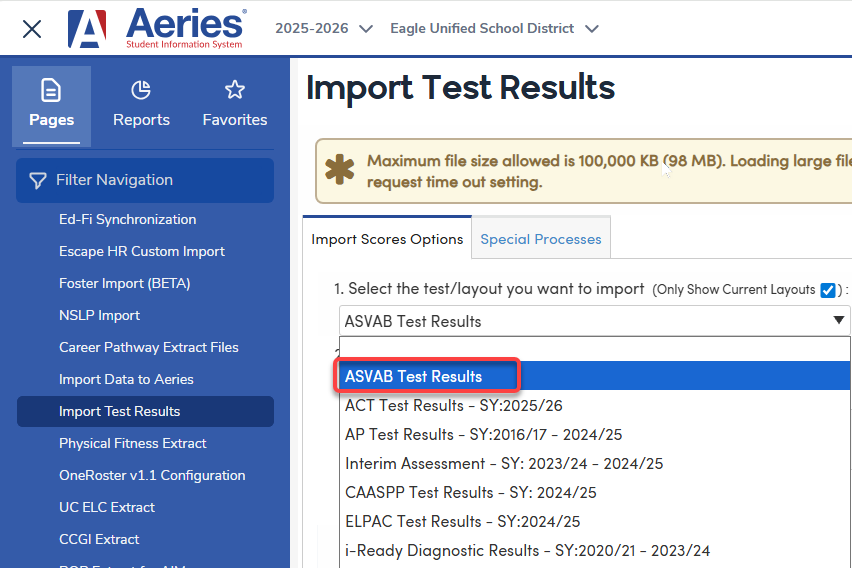
Navigate to School Info > Imports and Exports > Import Test Results.
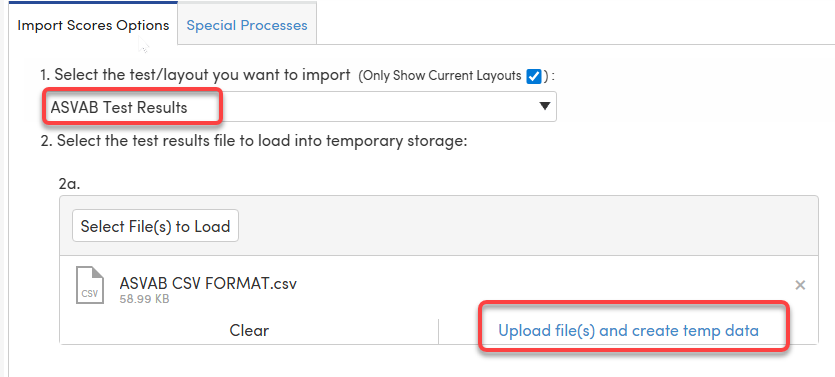
On the Import Scores Options tab, select ASVAB Test Results from the dropdown. Select the .csv file, then select Upload file(s) and create temp data.
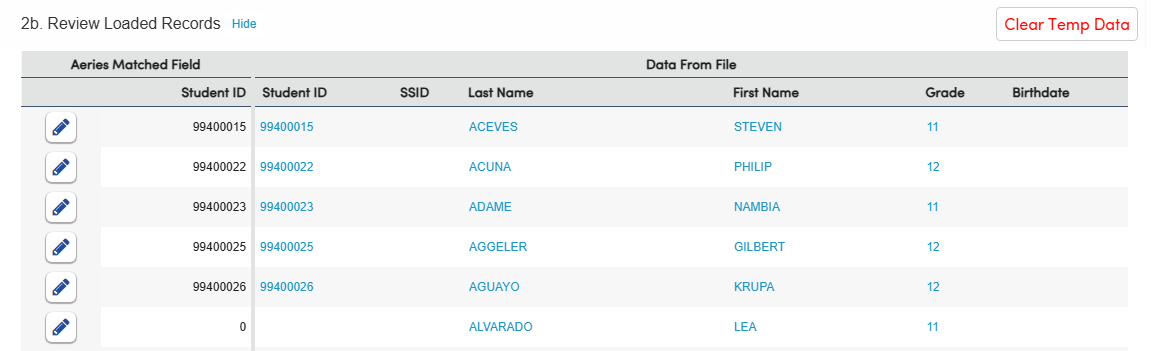
Students will appear under Review Loaded Records. If the Student ID is included in the results file, the Student ID will display under Data From File.
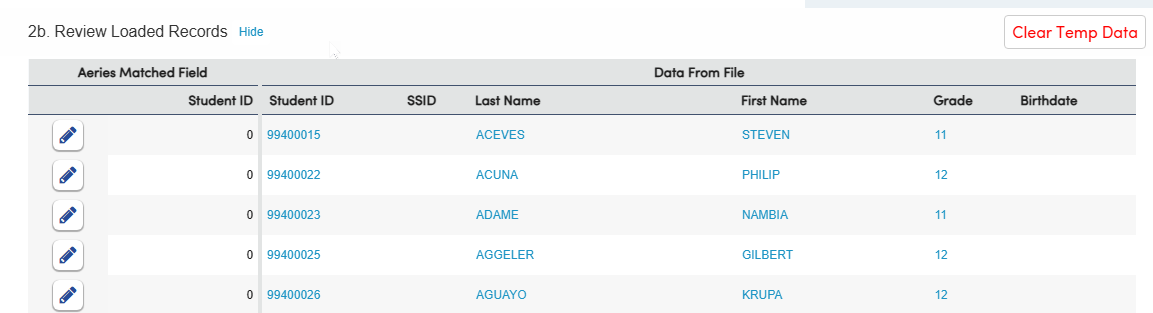
NOTE: SSID, Unique ID and Birthdate columns are not supported in this process.
Student Matching Options for ASVAB Import ↑
When importing ASVAB results, students can be matched using one of the following methods. Because the ASVAB results file does not include a student’s Permanent ID number, some manual matching may be required.
Available Matching Options
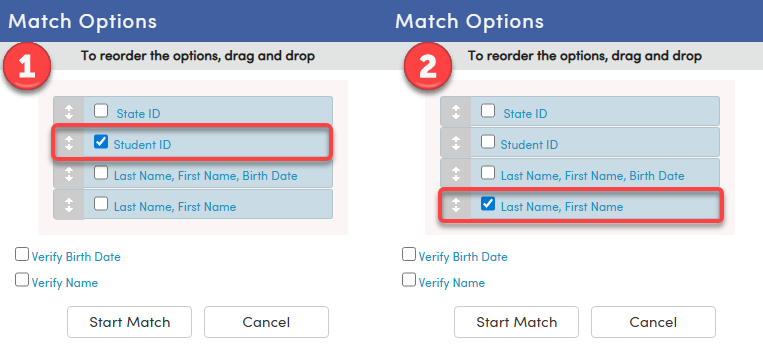
- Student ID (Recommended)
Including the Student ID in the results file is strongly recommended.- Add a column with the header titled Student ID to the file. There is no specific area the column should be appended to. It can be added to the beginning of the file in Column 1 or at the very end.
- Enter each student’s ID number exactly as it appears in the system.
- Select the option to match on Student ID during the matching process.
- Last Name, First Name
Students may also be matched using Last Name and First Name.- Names must match exactly (Last name and First name only (STU.LN, STU.FN)).
- Records without an exact name match will not be automatically matched and will require manual matching.
Automatic Matching Process ↑
- Select the desired Match Options.
- Select Start Match.
- For students who are automatically matched, the Student ID will display in the Aeries Matched Field.
- For students who are not automatically matched:
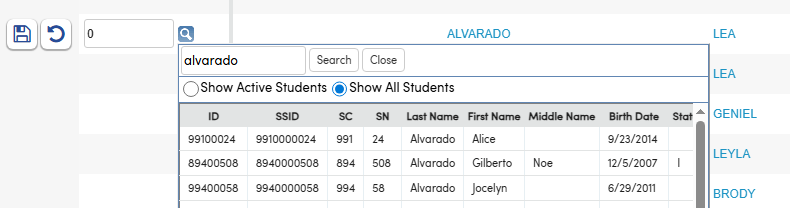
- Select the pencil icon to edit the record.
- Select the magnifying glass icon to open the student search.
- Search for and select the appropriate student.
- Select Close, then select the Save icon to confirm the match.
CA
TX

Manual Matching Requirements ↑
- Any records that are not automatically matched must be manually matched.
- All unmatched records must be resolved before test results can be imported.
NOTE: Although additional matching options may appear in the user interface, no other matching methods are supported for importing ASVAB results. Only Student ID and Last Name, First Name matching options can be used.
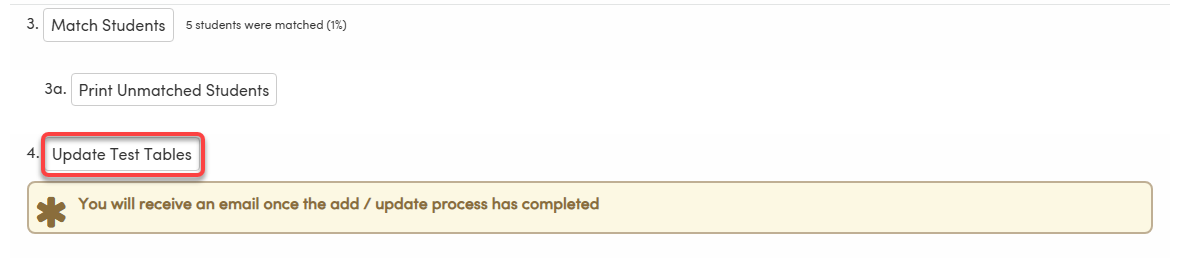
Once all students are matched, select Update Test Tables to complete the import of ASVAB test results.
Email Notification ↑
An email notification will be sent indicating the number of records that were Added or Updated in the TST table.
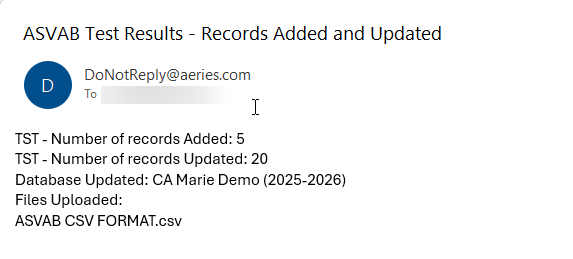
Table and Fields ↑
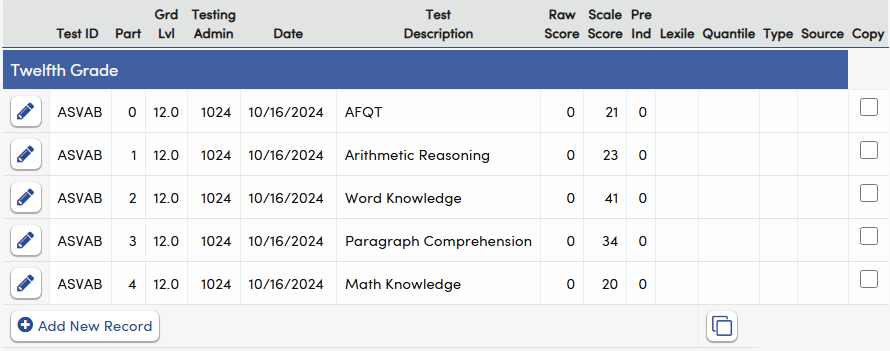
The ASVAB data will be populated from the results file into the following table fields:
| Table | Field | Description |
| Test Scores (TST) | Test ID | 0 = AFQT |
| Test Scores (TST) | Part | 1=AR, 2=WK, 3=PC and 4=MK |
| Test Scores (TST) | Grade level | Grade level from import file |
| Test Scores (TST) | Testing Admin | month and year (MMYY) from results file |
| Test Scores (TST) | Date | Testing Date from results file |
| Test Scores (TST) | Test Description | Test Part Description Name |
| Test Scores (TST) | Scale Score | Test Score from results file |
Student Data > Test Scores will be updated.
NOTE: The ASVAB import only matches on Student ID or Last Name, First Name. If there is more than one student in the database with the same last name and first name as a student in the Results file, the process will verify that the Student IDs match and the student will be imported. Otherwise, the student will not be matched automatically and the student will need to be matched manually.
Resources ↑
FAQ from ASVAB instructions are available at the following link: https://www.cde.ca.gov/ds/sp/cl/asvabtestfaq.asp. Some important information includes:
- Q: Do LEAs receive ASVAB results?
- A: No. Based on federal restrictions, the Military Entrance Processing Command can only send the test results to schools, and cannot send the results directly to the district or the CDE. The CDE administrates the EDCS Reporting System to collect the AFQT score.
- A: No. Based on federal restrictions, the Military Entrance Processing Command can only send the test results to schools, and cannot send the results directly to the district or the CDE. The CDE administrates the EDCS Reporting System to collect the AFQT score.
- Q: Can the Military Entrance Processing Station provide historical ASVAB data from prior test administrations?
- A: Yes. All ASVAB test data is kept on file for two years. Schools can request testing data for the current school year and the previous school year only.