

Environment
- Application: Aeries Parent Portal
- Feature: Parent Data Confirmation (PDC)
- Tab: Family Information
- Audience: District and School Administrators
Purpose
To provide step-by-step instructions for configuring the Family Information tab in Parent Data Confirmation, including survey options, permissions, and customization.
Instructions
Step 1: Understand What Displays
The Family Information tab includes:
- Foster Survey Options
- Military Survey Options
- Residence Survey Options
Step 2: Set Permissions
- Ensure the Parent Portal Group has Read and Update rights to the Parent Response to Survey (PRS) security area.
- These permissions allow parents to view and respond to survey questions.

Step 3: Enable or Disable Surveys
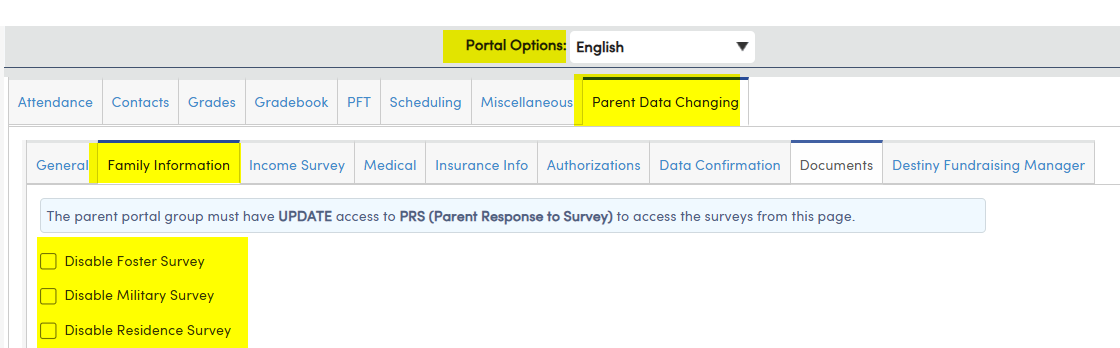
- Navigate to Portal Options → Parent Data Changing area.
- In the Family Information tab, you can disable:
- Foster Survey
- Military Survey
- Residence Survey
- If disabled, the survey will not display during PDC.
Step 4: Residence Survey Updates (optional)
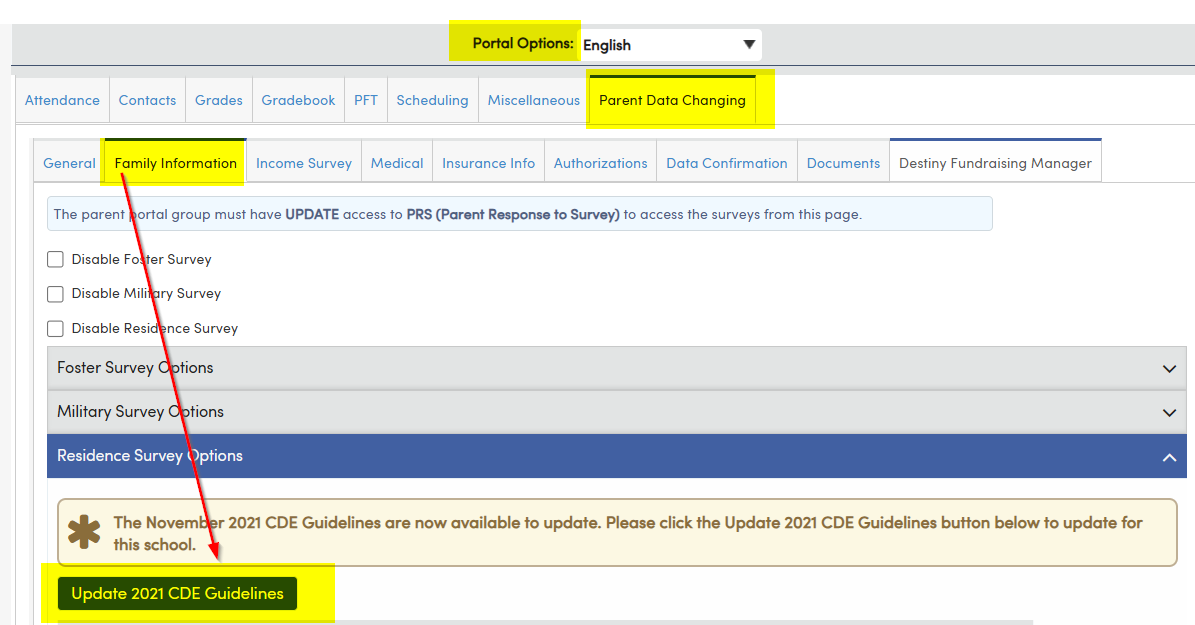
- There is the option to enable the Residence Survey to the 2021 CDE Guidelines.
- For conversion instructions, refer to: Portal Options - Residence Survey Changes for the CDE 2021 Housing Questionnaire
- If you do not see the option to Update 2021 CDE Guidelines, it means it has already been enabled
- It will need to be enabled at each school that would like to show the updated guidelines
- If the option is enabled at one school it will also update the Residence Survey to the 2021 CDE Guidelines in the Online Enrollment database
Step 5: Customize Survey Text
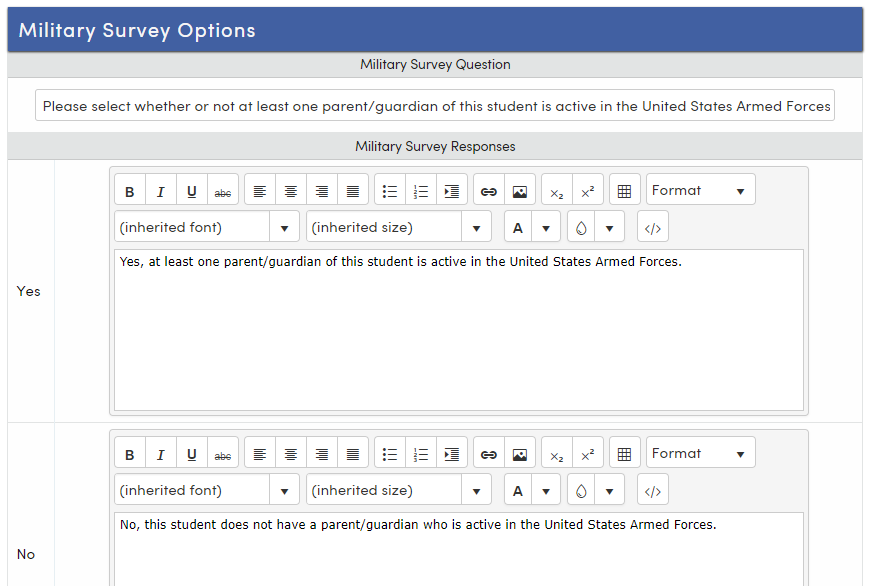
- Default text is provided for Foster, Military, and Residence surveys.
- Districts/Schools can:
- Define and translate Residence and Military Survey Question text, Type text, and Description text.
- Translations are school-specific for customization.
Foster Survey ↑

Military Survey ↑

Residence Survey ↑
Code definitions for the Residence Type available for selection are entered here.


Step 6: Parent View
- When parents access PDC, Family Information appears as Step 1.
- Selecting certain housing options displays additional sections if the Residence Survey to the 2021 CDE Guidelines has been enabled :
- Unaccompanied Youth: Updates Special Programs record (PGM.UY) when confirmed.
- Children’s Rights: Displays CDE Housing Questionnaire rights text.
- Additional Children: Parents can enter additional children.
- Data stored in Parent Response Details (PRD) table.
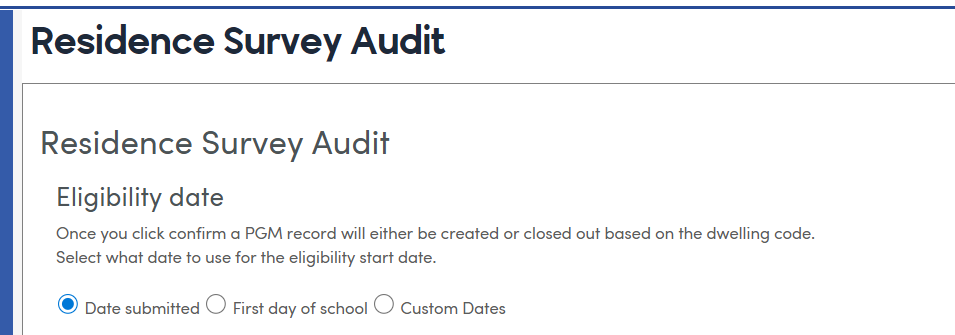
- Displayed on Residence Survey Audit page.
Step 7: Data Storage
- Residence Survey responses are stored in Parent Response to Survey (PRS) table.
- District reviews and confirms/rejects data on the Residence Survey Audit page.
For More information on Parent Data Confirmation, Click Here: Parent Data Confirmation Setup