

How to configure available options on the General tab in Parent Data Confirmation (PDC), including confirmation windows, email notifications, access restrictions, and additional display and submission settings.
1. Navigate to the General Tab in Parent Data Confirmation
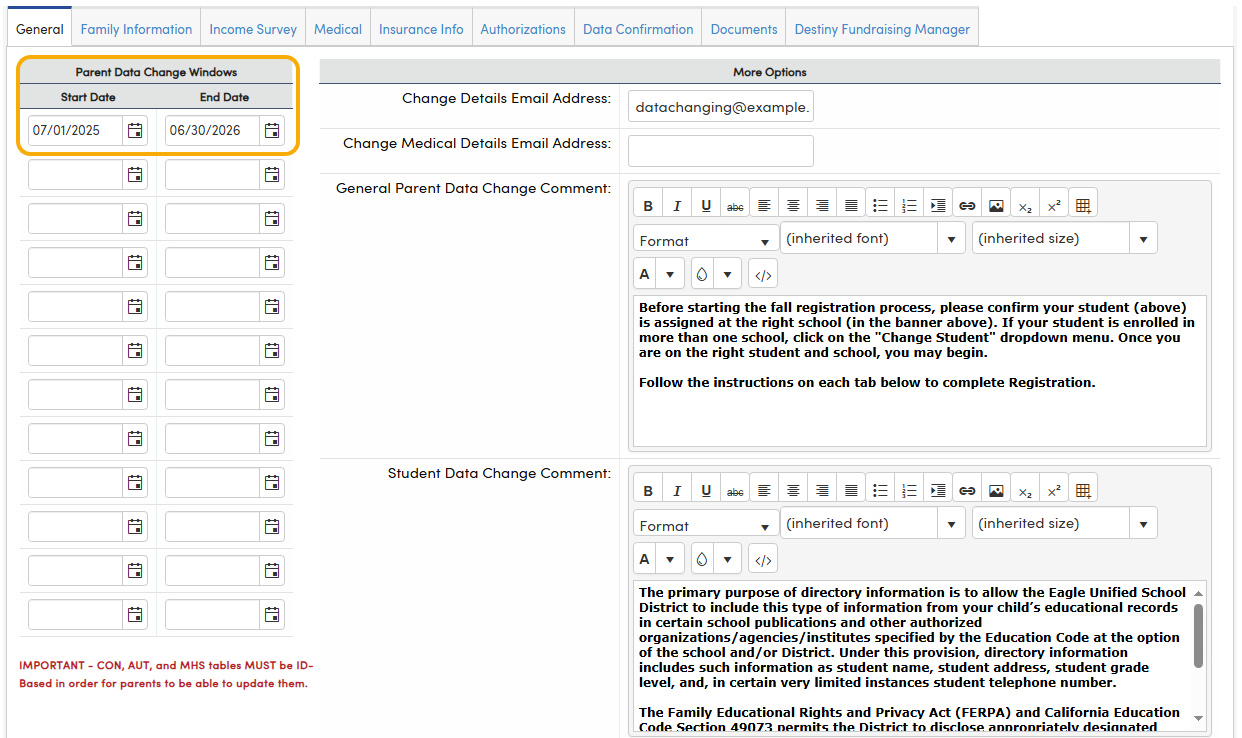
2. Configure the Data Confirmation Window
- Enter a valid Start Date and End Date in the Parent Data Change Windows section
- These dates trigger notifications for the PDC process to begin and control the visibility of PDC screens — screens are hidden when the window is closed
- Multiple date ranges may be entered to schedule planned openings and closures throughout the year
3. Restrict Access (Optional)
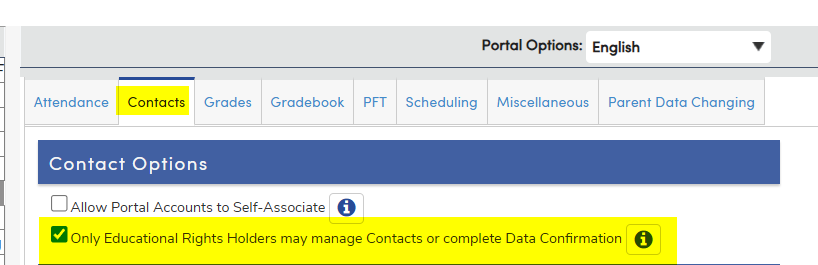
- Enable Limit Data Confirmation to Ed Rights Holders in the Contacts Options section to restrict PDC completion to contacts marked as Ed Rights Holders only
4. Configure Email Notification Recipients
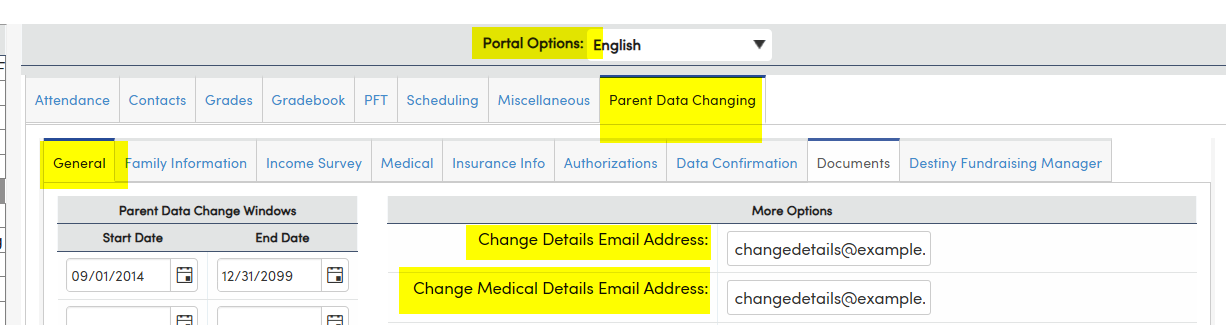
- Change Details Email Address — Required. Enter one or more email addresses separated by commas. Recipients are notified when any student information is changed during PDC
- Change Medical Details Email Address — Optional. Intended for Health Technicians. Supports multiple addresses separated by commas
5. Add Comments and Translations
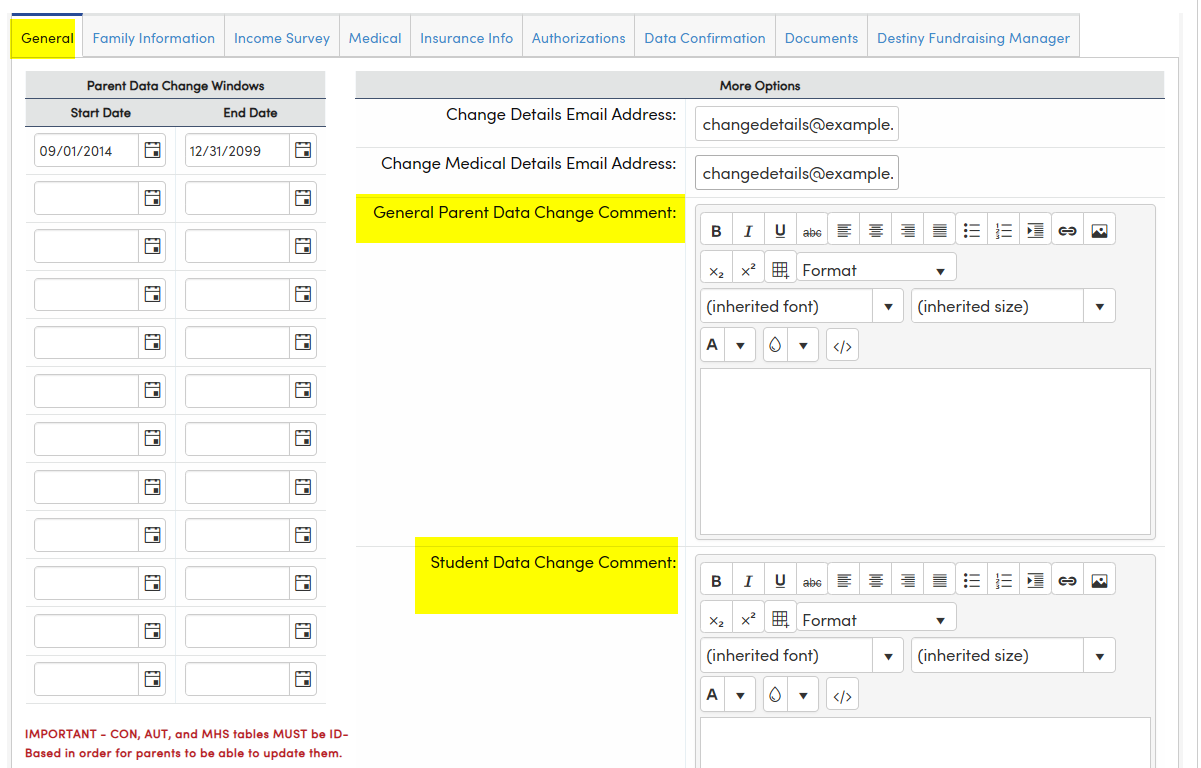
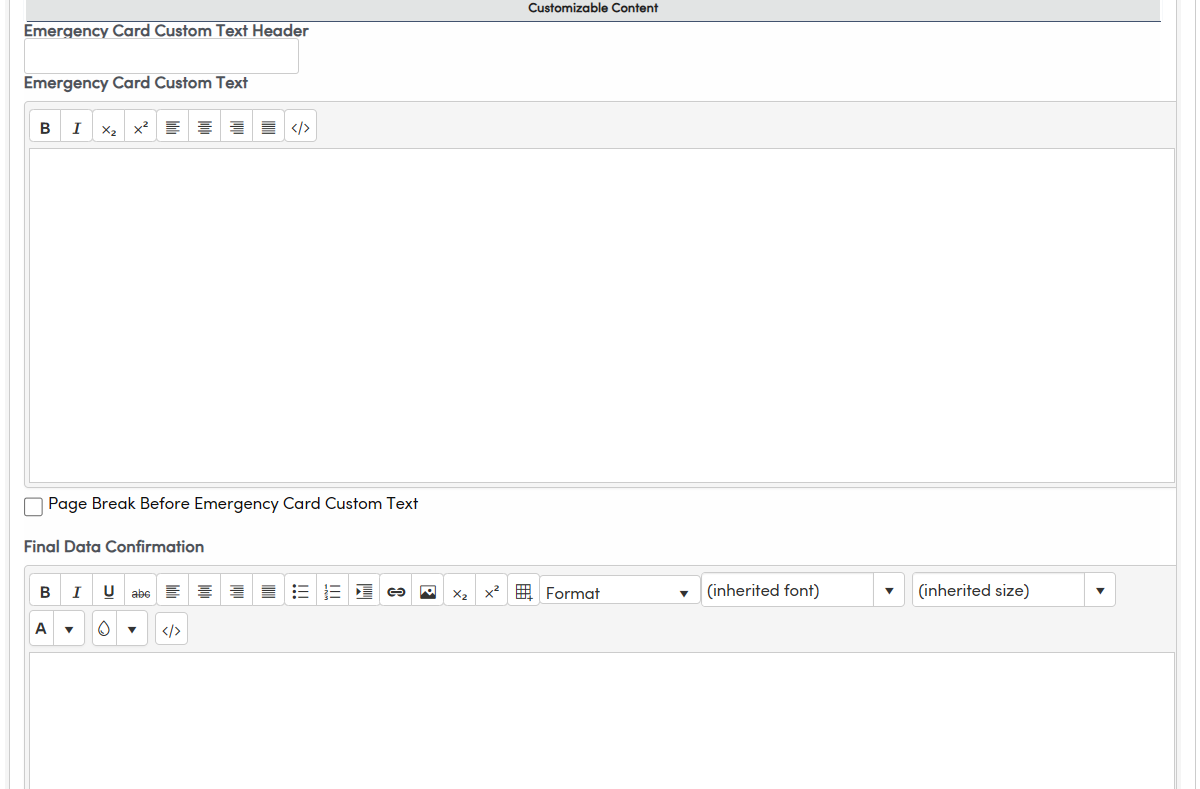
- Enter instructional text in the available comment boxes — content displays on the respective PDC tabs in the selected formatting
- Use the Language selector at the top of the page to enter translations for any comment fields
6. Configure Additional Options
- Allow Parents to Print a New Emergency Card — When enabled, the option to print an emergency card is available after final confirmation. An additional option to Hide Emergency Card Signature Line is available when this setting is on
- Do NOT Email Parents on Data Confirmation — When selected, most automated emails to the contact are suppressed; the Final Confirmation email is still sent
- Do NOT Email Students on Data Confirmation — When selected, most automated emails to the student are suppressed; the Final Confirmation email is still sent
- Allow Parents to Skip Steps — When enabled, the PDC process can be completed without filling out all sections. When disabled, all steps must be completed before the final confirmation screen is accessible
- Enable Parent e-Signatures — Adds an electronic signature field and affirmation checkbox to the final step; both are required for submission when this setting is enabled
Step 7: Save Changes
- Click Save at the bottom of the page.
- A confirmation message will display.