

Parent Portal Access to Program Screening
Missing Risk for Reading Difficulties Report
Report Logic: Who Appears on the Report
Overview
The Screening for Risk of Reading Difficulties allows for early identification and intervention of reading difficulties, including dyslexia, for students in kindergarten to grade two. Education Code Section 53008 requires all California local educational agencies (LEAs) to implement screenings beginning no later than the 2025–2026 school year.
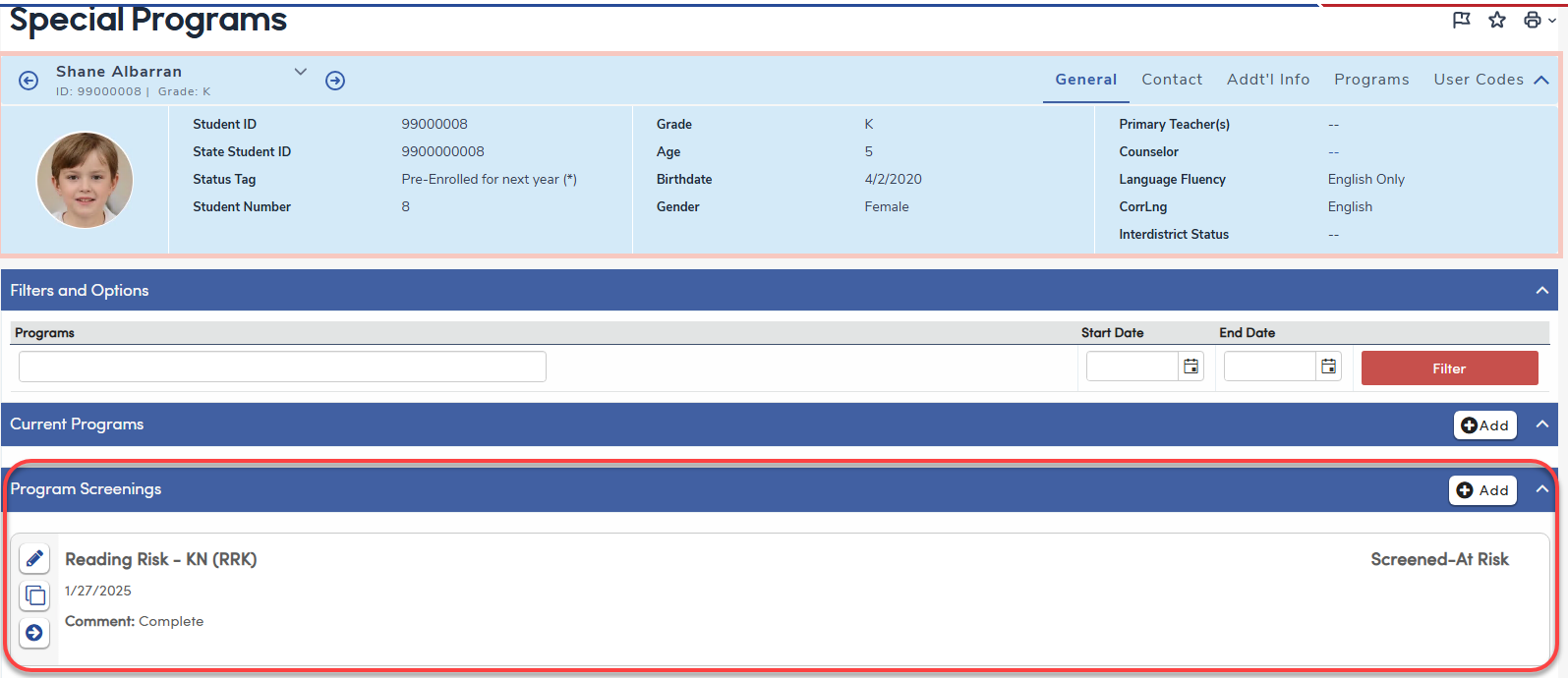
A Program Screenings section is available in the Special Programs page allowing for users to enter screening information for a student.
Navigate to Student Data > Programs > Special Programs.
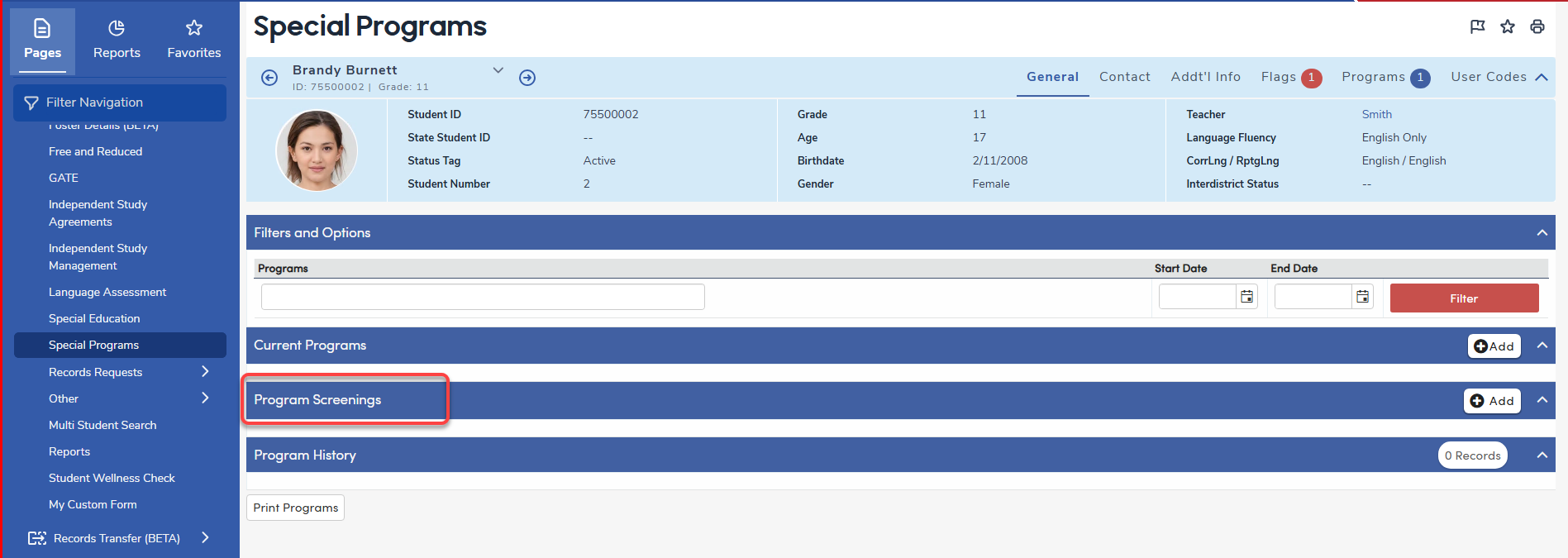
Program Screening
Security ↑
Table | Permission | Description |
|---|---|---|
| Program Screening (PGR) | Read Insert Update Delete | Read Program Screening (Program Screening is nested under Special Programs in the Student Info section of the navigation) Add new record Update records Delete Records |
| Special Programs (PGM) | Read Insert Update Delete | Read Special Programs (For Parent Portal only - It is not necessary to have Read permission to PGM in order to access the Program Screening section under Special Programs.) Add new record Update records Delete Records |
Code Fields ↑
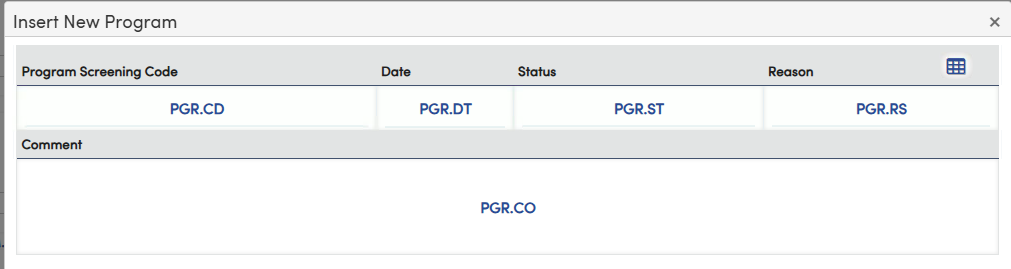
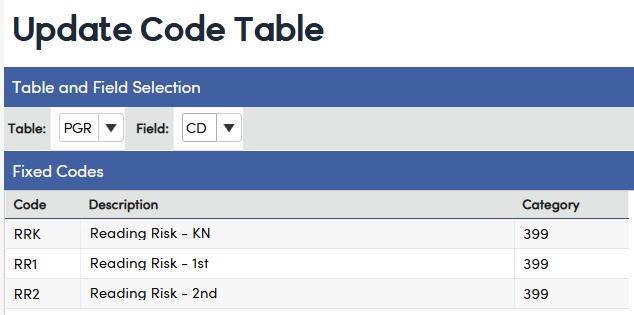
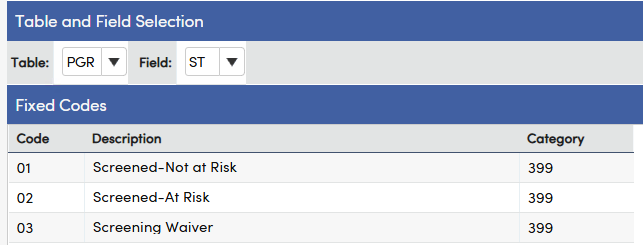
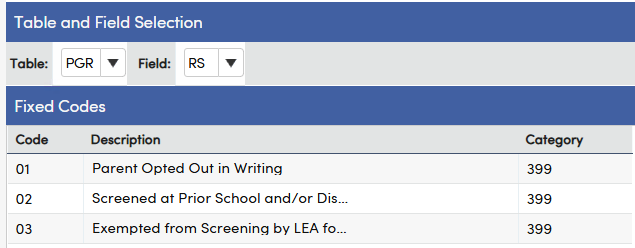
Aeries has added a list of fixed codes to the Program Screening Code, Status and Reason fields. These fields can have local codes added by entering additional codes in the Update Code Table page.
Tables ↑
| Table | Field | Description |
| Program Screening (PGR) | Program Screening Code (CD) | Fixed Codes RR1, RR2, RRK |
| Program Screening (PGR) | Date (DT) | |
| Program Screening (PGR) | Status (ST) | Fixed Codes 01, 02, 03 |
| Program Screening (PGR) | Reason (RS) | Fixed Codes 01, 02, 03 |
| Program Screening (PGR) | Comment (CO) | Text field |
Program Screening Report ↑
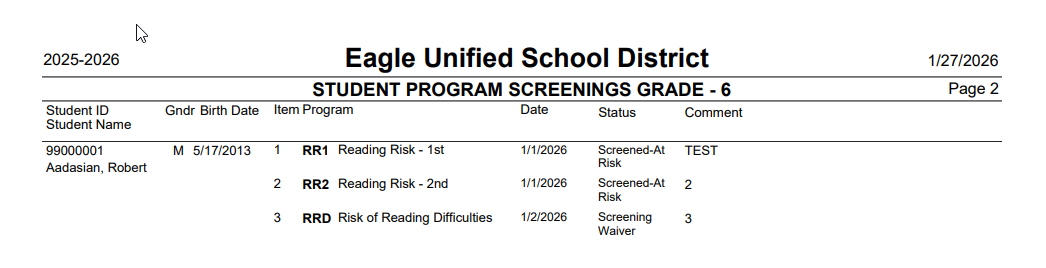
Navigate to View All Forms > Student Program Screening report. The report will display with the appropriate codes that align with the data populated. For TX, the data will come from PGM. For CA, the data will come from PGR.
Example in CA:
Import Data to Aeries Form ↑
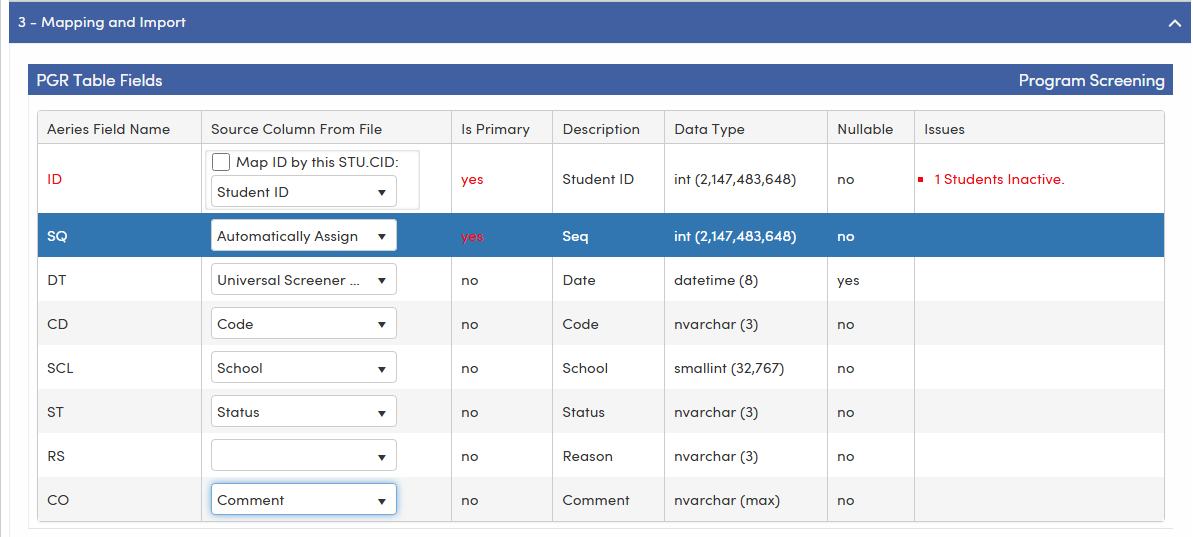
Screening records for students can be imported on the Import Data to Aeries form using a file. It's important to ensure the file has correct mapping to the PGR table and fields have the proper format. It's highly recommended to test the import process in a sandbox the first time testing this process.
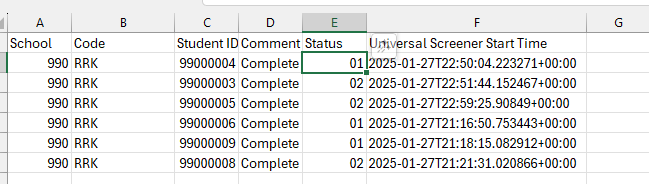
The following is an example of a file that contains records for students who have been screened:
The Status column can be updated with a code that aligns with our Fixed Code set. The column will need to be formated so the data aligns with the fixed code set or local codes defined by the district.
Example: Status field contains fixed codes 01, 02 or 03. In order to import a record to match these numbers, the data field in the file must be formatted with a CUSTOM two digit number format so the data in the field displays as 01, 02, or 03.
Navigate to Pages > School Info > Imports and Exports > Add or Import Data to Aeries.
Step 1: Upload Source File

Step 2: Select PGR table

Step 3:
Map fields:
The following is an example of a record imported using the Add or Import Data to Aeries process. In the Special Programs page, under Program Screenings, the record will display.

Parent Portal Access to Program Screening ↑
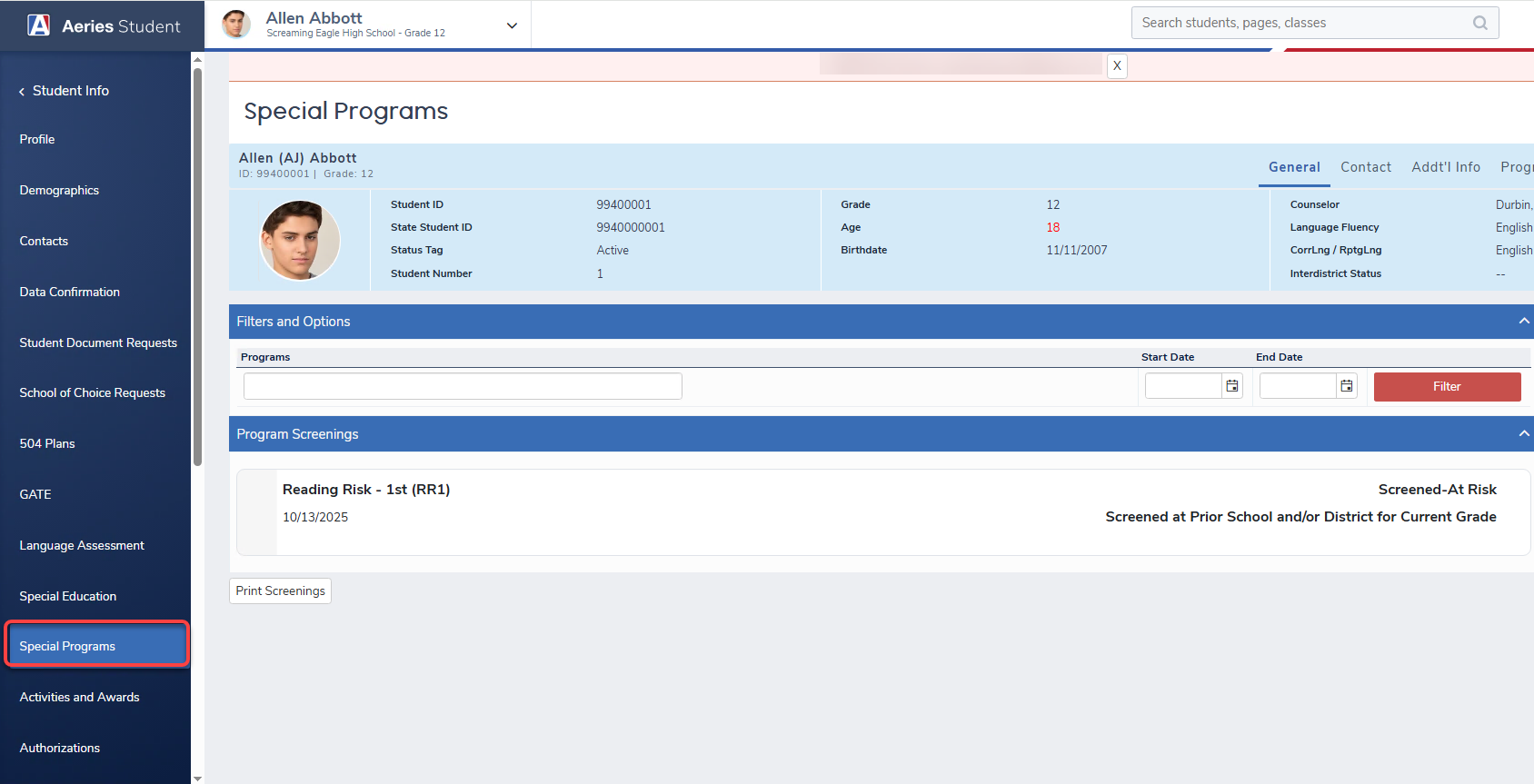
If a parent or student portal group has been given Read permission to Program Screening, the section will display under Special Programs even if the portal group does not have Read permission to PGM. The portal group will honor either permission to the PGM and PGR tables.
- If the parent or student portal group has read permission to PGM, Special Programs will display in the navigation under Student Info > Special Programs.
- If the parent or student portal group has read permission to PGR, Program Screening will be accessible by navigating to Student Info > Special Programs.
The following is an example where the parent portal group has Read permission to PGR (Program Screenings) and no permission to PGM (Special Programs).
Missing Risk for Reading Difficulties Report ↑
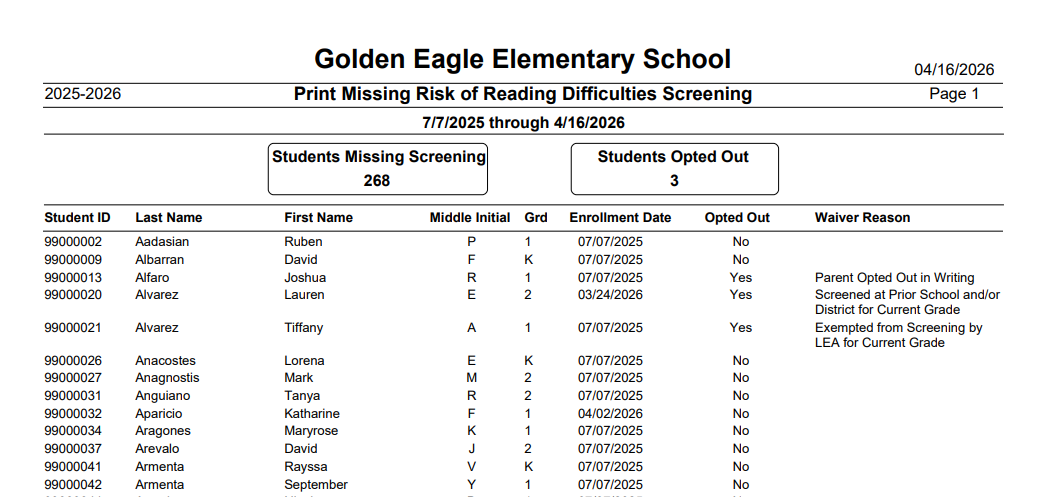
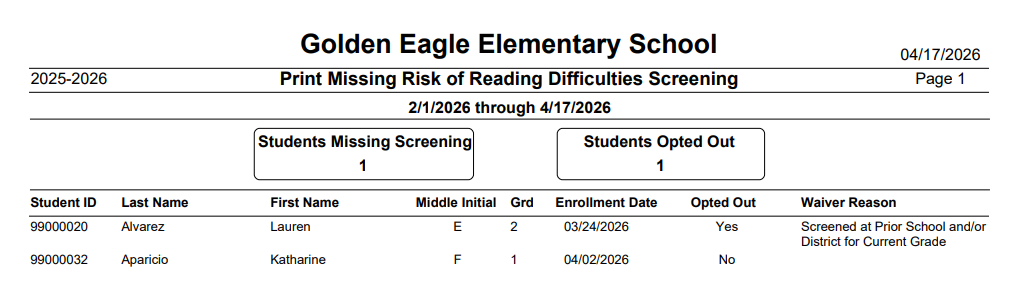
The Print Missing Risk of Reading Difficulties Screening report identifies students who are enrolled at a California school and have not yet received a required reading difficulties screening for their currently enrolled grade. It is intended to help administrators monitor compliance and take timely action to ensure students are screened annually.
Report Logic: Who Appears on the Report ↑
A student appears on the report when the system cannot find a completed screening record for their current grade. For a screening record to count, the following must be true:
- The screening code matches the student's current enrolled grade (RRK, RR1, or RR2).
- The record is from the current school year.
- PGR.ST is not 03 (Waiver)
Opted-Out Students
Students whose parent or guardian has opted out of screening are identified by a PGR record where PGR.ST = 03 (Waiver).
- When the Include Opted Out Students option is enabled, these students appear on the report with a distinct Opt-Out indicator so administrators maintain full compliance visibility.
- PGR.RS contains the Waiver Reason and is included in the report output for opted-out students.
- If a student has both a Waiver record (PGR.ST = 03) and a valid qualifying screening record for their current grade in the current school year, the valid screening record takes precedence and the student does not appear on the report.
Report Options ↑
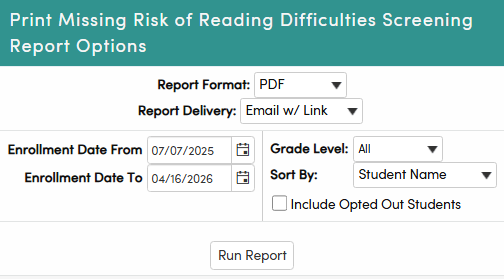
- Enrollment Date Ranges
- Defaults to the first day of school through the current date, ensuring the report covers all students enrolled so far in the current school year. If a date is not entered into either date field, the system will automatically use 07/01 for the Enrollment Date From and 06/30 for the Enrollment Date To respectively.
- Inactive students are not included in the report.
- Administrators can narrow the date range — for example, to the last 45 days — to focus on recently enrolled students who may still be within their compliance window.
- Grade Level Filter
- Defaults to All. Can be filtered to a specific grade (Kindergarten, Grade 1, or Grade 2) to narrow results.
- Sort By
- Student Name - Sort by Student Name
- Opt Out - Sort by Opt Out indicator, No then Yes
- Grade Level - Sort by Student Grade Level
- Include Opted Out Students
- When checked, Opted-out students are included in the report. When unchecked, they are excluded from the list.
The report header displays two summary counts:
- Students Missing Screening — total count of students without a qualifying PGR record.
- Students Opted Out — total count of students with a Waiver record (PGR.ST = 03). Opt Out bubble only displays totals if the option "Include Opted Out Students" is checked.
