

The Notifications screen in the Aeries Mobile App shows messages for all students linked to the account. The two most common types are Data Confirmation notifications, when the Data Confirmation window is open and the parent still needs to complete it, and Grade Notifications, when a student\'s class mark falls below or rises above a mark the parent picked. The screen can also show a warning that a student\'s portal account will become restricted on a certain date.
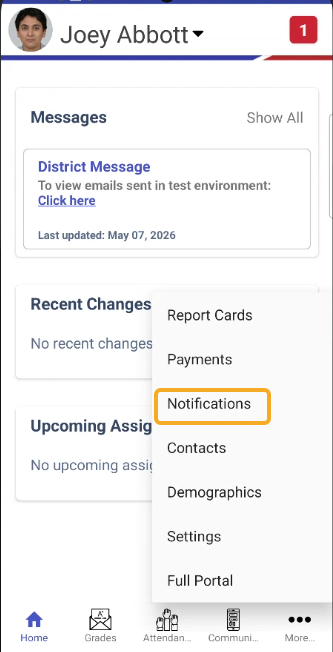
Tap More at the bottom of the screen, then tap Notifications. (If your school has only a few features turned on, Notifications may be on the bottom bar instead.)
Data Confirmation Notifications
A Data Confirmation notification appears in the Notifications screen when the school's Data Confirmation window is open, the warning date set up for Data Confirmation has been reached, and the student has not yet completed Data Confirmation. Student logins do not receive Data Confirmation notifications. Notifications that have not been read will display a red New icon to the left of the notification. The Notifications screen displays notifications for all students in the parent portal account, so in the below screenshot even though the current student is Abel, the notification that is displayed is for Allan.

Once a notification has been read (tapped on), the red icon will disappear. Notifications stay in the list for the whole school year; they do not carry over into the next school year.

Tap a notification to open it. For Data Confirmation, the pop-up shows Cancel and Go; tap Go to continue to the Data Confirmation pages. Other notifications show an OK button.

Data Confirmation opens inside the app, on a screen titled Data Confirmation. The Data Confirmation process will guide the parent through all of the steps. When the parent has completed Data Confirmation, or at any time while in it, they can tap any icon on the app's bottom bar (for example, Home) to leave Data Confirmation and return to the Mobile Portal App.

For more information on Data Confirmation setup please review the Data Confirmation / Summer Re-Registration articles.
For more information on the parent view of Data Confirmation please review the Viewing Data Confirmation as a Parent article.
NOTE: Parents may also complete the Data Confirmation using the Full Portal view by clicking on the More icon at the bottom of the screen and selecting the Full Portal option.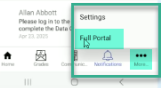
Push Notifications for Gradebook Alerts
Push notifications for changes in gradebook grades can be set up within the Mobile Portal App. For more information on what Gradebook Alerts are and how to implement them please review the Gradebook Alerts for Parents and Students article.
To set up push notifications for Gradebook Alerts in the Mobile Portal App the parent will tap on the More icon at the bottom of the screen and select Settings. On the Settings screen tap on Notification Settings. Notification Settings appears only for parent logins, and only if your district has the Mobile Portal App\'s push notification feature.

In the Notification Settings screen slide the Push Notifications button to the right to turn it on. If a Grade Filter has not already been created, tap on New Filter and create a new gradebook alert threshold.
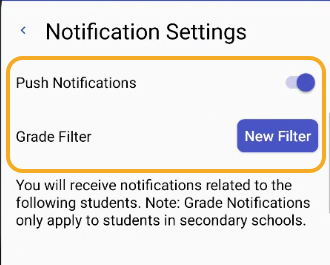
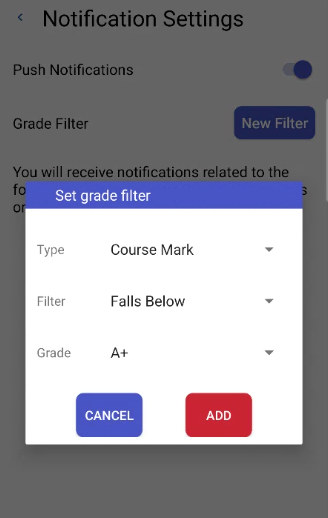
After creating the gradebook alert threshold it will display in the Notification Settings screen. Grade Notifications are only available for students in schools your district has set up for Gradebook Alerts (secondary schools).

When a threshold is met, the phone receives a Grade Change push notification, and a message is added to the Notifications screen. At most one alert per grade filter is sent every 90 minutes. Gradebook Alerts the parent set up in the Parent Portal also send notifications to the app.