
Adding or Editing a Code Setup
Combining Conditions with AND and OR
Overview ↑
The Codes section tells the Civil Rights Data Collection (CRDC) process which Aeries tables, fields and code values to use when it counts each CRDC event, such as Expulsion or Harassment - Race.
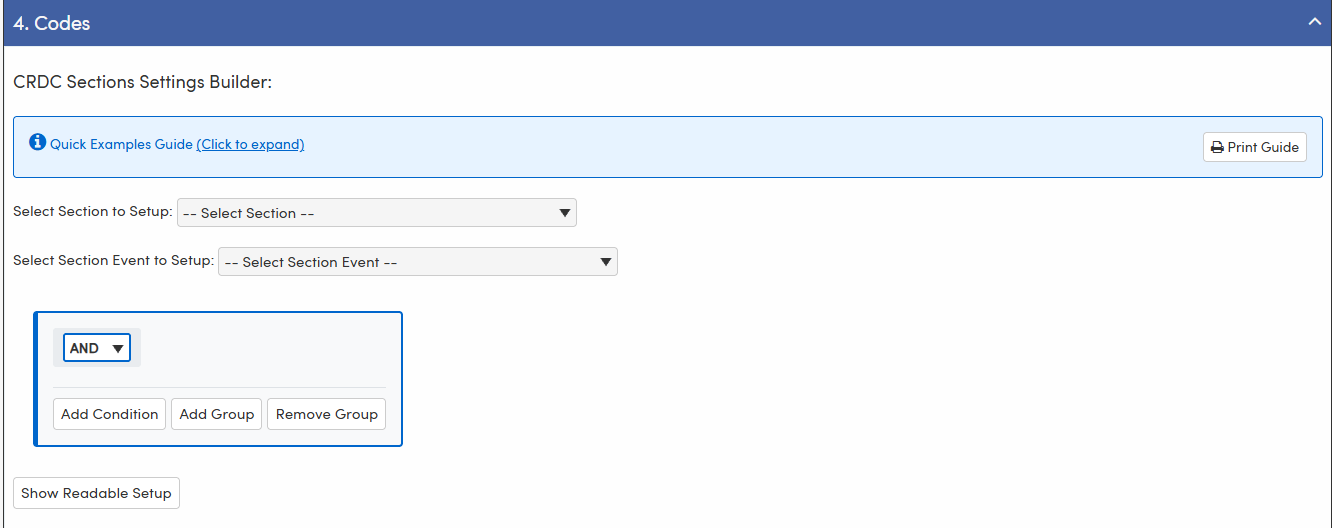
Go to School Info > Imports and Exports > Civil Rights Configuration and open 4. Codes. Access requires Admin permission on the Civil Rights Data Collection Processing security area. Teachers, parents and students cannot open the page.
How the Codes Section Works ↑
Many settings from the prior Civil Rights setup page were converted to the new Civil Rights Configuration page automatically. The conversion did not carry over every setting. The ones left out are usually the more complex ones, so review each event and enter again any that are empty or wrong.
Default mappings were added for the Restraint and Seclusion events. The Harassment or Bullying, Reported as Harassed or Bullied and Allegations of Harassment or Bullying - By Religion Type events were converted with default mappings for districts that had already set them up on the earlier page, and they appear in the builder. If your district never set up one of these events, it starts empty and you need to set it up. If you changed one of these events on the earlier page, check that its setup still matches what your district needs. Review every event and adjust the mappings to fit your district.
Each event is set up and saved on its own. Choose a section, choose an event in that section, and build a rule from one or more conditions. A condition is made of a table, a field, an operator and a value. Saving an event stores exactly the conditions shown in the builder, so Expulsion, Expulsion with educational services and Expulsion w/o educational services each need their own setup.
Adding or Editing a Code Setup ↑
- In 4. Codes, choose a section in Select Section to Setup.
- Choose the event in Select Section Event to Setup. If you saved a setup for that event before, it appears in the builder and you can change it.
- Click Add Condition. In the first drop-down, choose the table, for example "VIC - Victims". In the second drop-down, choose the field, for example "TY - Type".
- Choose an operator (=, <>, >, <, >=, <=) and a value. After you pick a field, the value list shows "Loading..." while the codes load. Fields that have codes list each value as "Code - Description". If the field has no codes, the value is a text box that reads "Enter value manually".
- Each condition holds one value. To count more than one code, add a condition for each code and set the group to OR.
- Click Remove next to a condition to take it out.
- To see the rule written out, click Show Readable Setup. The Readable Setup window opens. Click OK to close it.
- Click Save followed by the event name, for example Save Expulsion. A message reads "'[event name]' saved successfully." If the builder is empty, Aeries asks "The setup is empty. Do you want to save an empty setup (this will clear any existing setup)?"
Tip: Above the section and event lists, click (Click to expand) to open the Quick Examples Guide. Click Print Guide to open a printable version.
Combining Conditions with AND and OR ↑
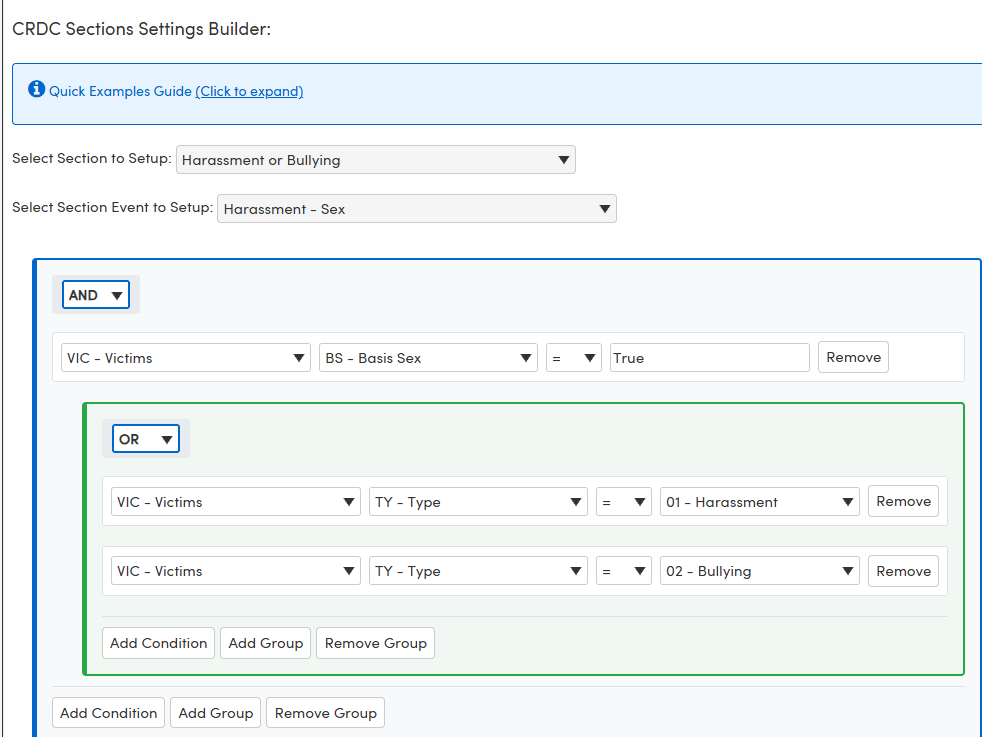
Some events need two or more tables and fields. Use the AND/OR drop-down at the top of a group to choose how its conditions work together. With AND, a record must meet every condition. With OR, a record must meet at least one condition. This is available for every event.
Click Add Group to add a group inside a group. The main group is blue, a group inside it is green and a group inside that is yellow. Click Remove Group to delete a group and the conditions in it.
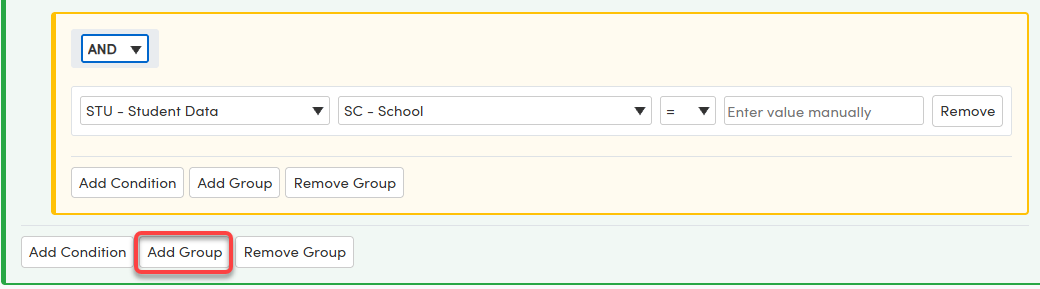
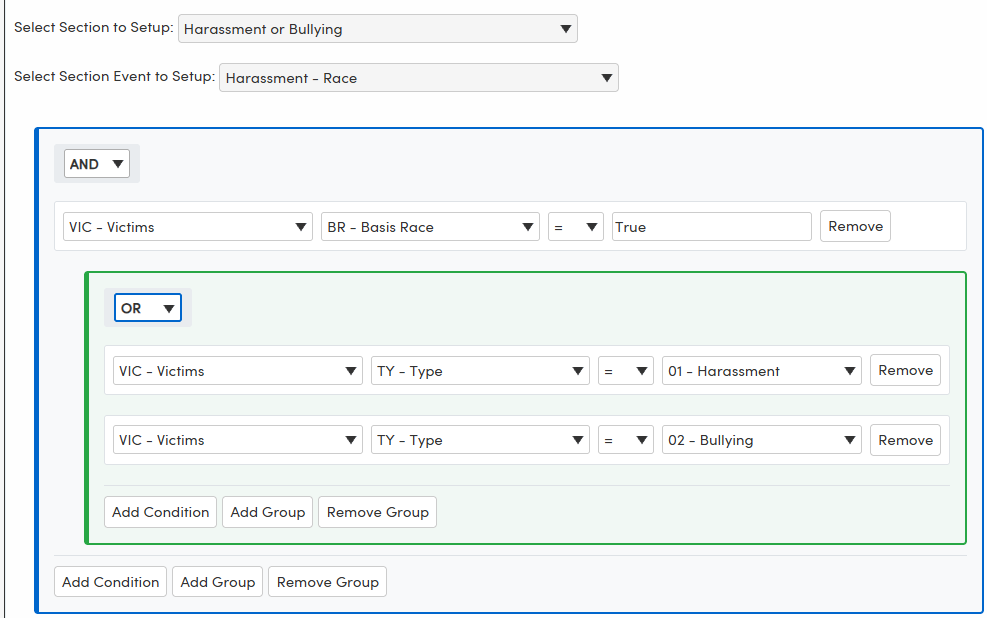
Example: To count students who were victims of harassment based on race, choose Harassment or Bullying and then Harassment - Race. The main group is set to AND. It holds a condition for the Victims (VIC) table and the Basis Race (VIC.BR) field with the value True, and a group inside it set to OR. The inner group holds one condition for the Type (VIC.TY) field for each code your district uses for harassment or bullying, such as "01 - Harassment" and "02 - Bullying". A student is counted when Basis Race is True and the Type matches either code. Click Save Harassment - Race.
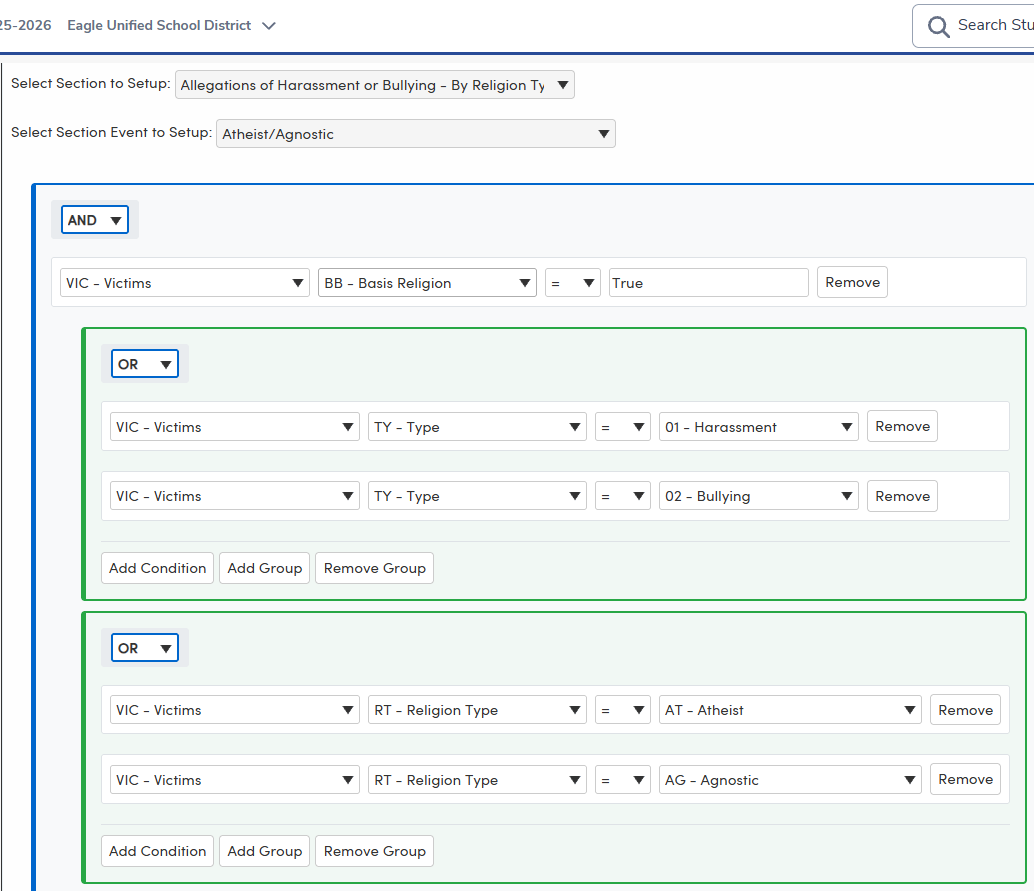
Example: For the religion events, open Allegations of Harassment or Bullying - By Religion Type and choose the religion event, for example Buddhist. Use the Victims (VIC) table. The main group is set to AND. It holds a condition for the Basis Religion (VIC.BB) field with the value True, a condition for the Religion Type (VIC.RT) field with the Fixed code for that religion, and a group inside it set to OR. The inner group holds one condition for the Type (VIC.TY) field for each code your district uses for harassment or bullying, such as "01 - Harassment" and "02 - Bullying". The Atheist/Agnostic event needs two Religion Type codes, AT and AG. Instead of the single Religion Type condition, add a second group set to OR inside the main group, with one Religion Type condition for AT and one for AG.
Deleting a Code Setup ↑
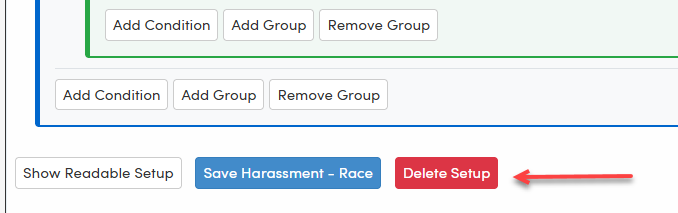
Choose the section and event, then click Delete Setup. This button is below the builder, next to Show Readable Setup and Save, and it appears after an event is chosen. It deletes the saved setup for the event. Remove and Remove Group only take a condition or a group out of the rule on screen. Aeries asks you to confirm: Are you sure you want to delete the setup for "[event name]"? This will remove both the builder configuration and the saved setup. This action cannot be undone. After the delete, a message reads "'[event name]' deleted successfully." If nothing was saved for the event, the message reads "No setup found to delete."
Events You Can Set Up ↑
The events are listed by section, exactly as they appear in the Select Section Event to Setup list.
Student Discipline
- Corporal Punishment
- Expulsion
- Expulsion with educational services
- Expulsion w/o educational services
- Expulsion under Zero-Tolerance
- Use of a firearm or explosive device
- Homicide
- In-School Suspension
- Out of School Suspension
- Physical attack or fight with a weapon
- Physical attack or fight without a weapon
- Possession of a firearm or explosive device
- Rape or attempted rape
- Referred To Law Enf Agency
- School-Related Arrest
- Sexual assault (other than rape)
- Robbery with a weapon
- Robbery without a weapon
- Threats of physical attack with a weapon
- Threats of physical attack without a weapon
- Transfer To Alternative School
Harassment or Bullying
- Harassment - Sex
- Harassment - Race
- Harassment - Disability
- Harassment - Sexual Orientation
- Harassment - Gender Identity
- Harassment - Religion
Reported as Harassed or Bullied
- Reported Harassment - Sex
- Reported Harassment - Race
- Reported Harassment - Disability
Disciplined for Harassment or Bullying
- Disciplined for Harassment - Sex
- Disciplined for Harassment - Race
- Disciplined for Harassment - Disability
Allegations of Harassment or Bullying - By Religion Type
- Atheist/Agnostic
- Buddhist
- Catholic
- Eastern Orthodox
- Hindu
- Islamic (Muslim)
- Jehovah Witness
- Jewish (Judaism)
- Mormon (Latter-day Saint)
- Multiple Religions, Group
- Other Christian
- Other Religions
- Protestant
- Sikh
Restraint and Seclusion
- Mechanical Restraint
- Physical Restraint
- Seclusion
Other
- AP Exams
- SAT or ACT
- International Baccalaureate Courses
Reviewing Your Settings ↑
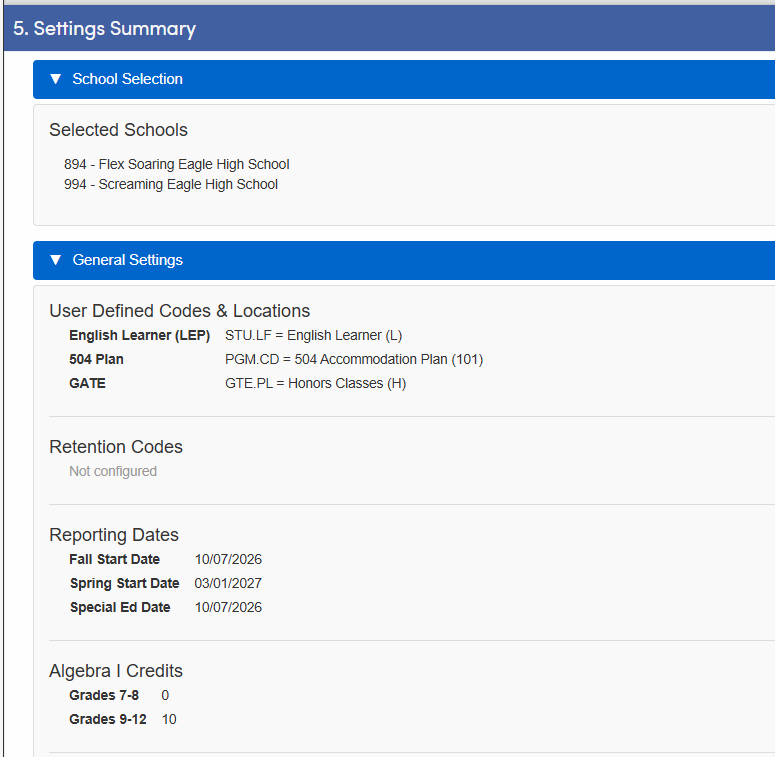
When all events are set, open 5. Settings Summary to review what is saved under School Selection, General Settings, Departments & Subject Areas by Course Area, Course Selections and Code Configurations. Then go to School Info > Imports and Exports > Civil Rights Processing and Results to run the process.