

Edit Notification Preferences (Aeries Communications)
Overview
Navigate to Student Data > Contacts
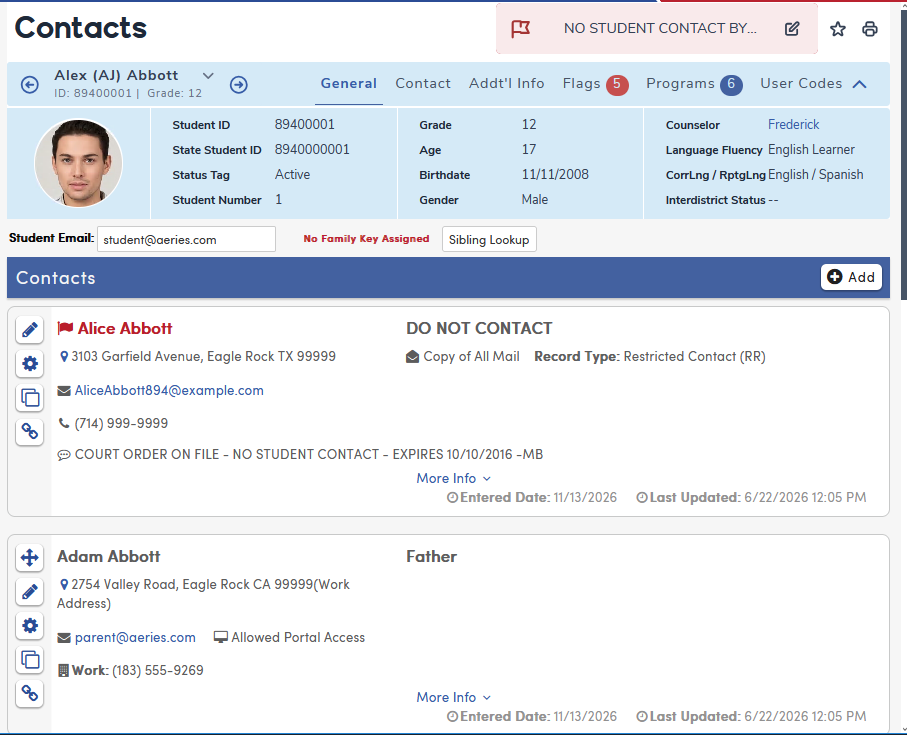
The Contacts page is used to store the contact information for Parents/Guardians, Emergency Contacts and others who are authorized to pick up Students.
Security ↑
| Table | Permission | Description |
| Contacts (CON) | Read Insert Update Delete | View Contacts Add Contacts Edit Contact Information - Field Level Security is enforceable and recommended Delete Contacts |
Adding and Editing Contacts ↑
Individual contact records may be added by clicking the Add button. Fields that have been defined as required fields are highlighted in Blue. Contacts may also be Added and edited by Parents in the Parent Portal during a Parent Data Confirmation window or during a Contact Management Window set up on the Portal Options > Contacts tab.
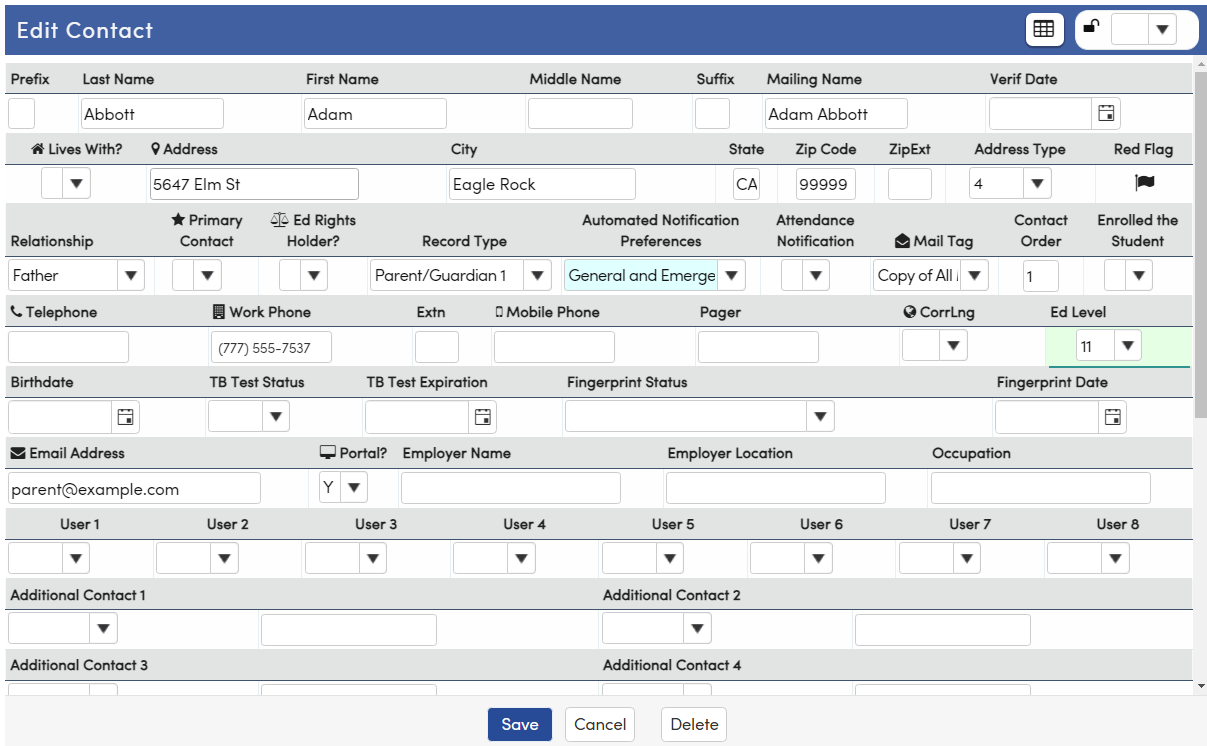
Both a First Name and Last Name should always be used. This automatically populates the Mailing Name of the Contact. The Verification Date is the Date the Contact Information, such as the Address, was verified.

If the Lives With field is set to Yes, the user is prompted to populate the Contact's address with the Student's address.

The next section displays with Demographic information about the Emergency Contact.

- CON.RL - Relationship - Codes are set up on the Update Code Table page
- CON.PC - Primary Contact - Yes/No
- CON.ERH - Ed Rights Holder - yes/no
- CON.CD - Record Type - Used to designate which Contacts are Parent/Guardians. Codes must be defined in the District Settings and Update Code table.
- CON.NP - Automated Notification Preference - used with Aeries Communications. Options: No Mass Notifications, General and Emergency Announcements, or Emergency Announcements. When Aeries Communications is enabled, a value is required to save the contact. If the parent has already chosen their own preference through their portal account, Aeries asks before overriding it.
- CON.AN - Attendance Notification - Used with Aeries Communications. A "Blank" is treated like a "Yes".
- CON.MT - Mail Tag - Copy of All Mail or Copy of Report Cards Only. Generally used with Non-Guardian Contacts such as Parents that do not live with the Student.
- CON.OR - Order the Contacts appear on the page. This updates when Contacts are re-ordered.
- CON.ES - Enrolled the Student - yes/no
- CON.TL - Telephone
- CON.WP - Work Phone
- CON.WX - Work Phone Extension
- CON.CP - Mobile Phone
- CON.PA - Pager
- CON.CL - Correspondence Language
- CON.ELV - Contact Education Level - Required for CALPADS state reporting. If the District Settings option "Parent Portal Only - Require First Name, Last Name, and Ed Level for Parents/Guardians" is enabled, the highest Ed Level among Parent/Guardian contacts is copied to STU.PED. Codes are set up on the Update Code Table page
- CON.BD - Contact Birth Date
- CON.TB - TB Test Status
- CON.TBE - TB Test Expiration Date
- CON.FP - Fingerprint Status
For Parent/Guardian Contacts, the Email address and Portal? fields should be filled out. Each Parent must have their own email address. If the School is using Automated Portal Account Creation, entering an email triggers the creation of Portal accounts. If Auto/Mass Create Portal accounts is not enabled the field has no effect on Portal Accounts. It is not recommended to enter Email addresses of other Contacts.

- CON.EM - Email Address
- CON.AP - Portal? - yes/no
- CON.ENM - Employer Name
- CON.ELC - Employer Location
There are 8 User fields available for use. Codes can be set up on the Update Code Table page in CON.U1-U8. Custom captions can also be set for these fields.

When adding a new contact record, the Entered Date field is automatically populated with today's date. This date may be edited depending on the needs of the District.

The Contact Order field shows the order of the Contact in the page, however, contacts that have the Red Flag set always display at the top of the list.

The Drag and Drop icon can be used to change the Contact Order. The icon does not display on contacts that have the Red Flag as they always display at the top of the list.

Choosing a Lock code prevents parents, students and teachers from editing the Contact. Staff with Update permission can still edit it. The codes can be added on the Update Code Table page for the CON.LK field.


Military fields are also available on the contacts page. These fields may be used to track information that may be useful for Schools that reside in communities with a high population of Parents enlisted in the military. Codes can be set up on the Update Code Table page in CON.MU1-MU5. Custom captions can be set for these also.

Edit Automated Notification Preferences (Aeries Communications) ↑
For Aeries Communications customers - ParentSquare, there is a setting to be able to change a parents' Communications notification preferences. This will allow staff to change the way a parent receives Communications.
This requires the following permissions:
- Read and Update to Contacts (CON).
- Read and Update to Notification Preferences in Communications, in the Aeries Communications security section.
- Read to the ParentSquare area of the SAML Service Providers section.
To add these permission to Users: navigate to Security > Groups and select the group(s) to add the permissions.
To add these permission to Parents: navigate to Security > Portal Groups and select the "Parent" group to add the permissions.


Also, on the Portal Options page, either the Contact editing or Parent Data Change Windows need to be open for parents to edit contact records.
The icon with the 'Cog' wheel will display for each contact record.

NOTE: The cogwheel icon displays only when ParentSquare is enabled for the district (and for the user’s school, if ParentSquare is limited to certain schools), and an enabled ParentSquare service provider on the SAML Configuration page allows IdP-initiated sign-on. It does not display while emulating another user, for users without Update to Contacts, or for parents on a locked contact. See documentation Aeries Communications - Parent Square Initial configuration.
Clicking the 'Cog' wheel opens the Notification Preferences form. After selections are made, the preferences are updated in Aeries Communications after the Save button is clicked. Parents can also update their preferences through the Communications link found on the navigation of the Parent Portal or on the Contacts page in the Portal if permissions have been given.

If a parent updates their Notification Settings in ParentSquare (found on the My Account page), the changes will sync to Aeries and the changes will be reflected on the Notification Preferences window of their contact record in Aeries.


NOTE: Only Alerts that have been activated can be modified. For example, if a parent does not have the Text Messages or the App enabled in ParentSquare, they will not be able to edit this setting. Within Parent Square notification settings, a red symbol will display indicating that this feature is disabled for the parent's account.

Copying Contacts ↑
Contacts may be copied by clicking the Copy button, navigating to another Student and clicking Paste.


Linking Contacts ↑
If Contact Linking has been enabled for your District, two Phone numbers may be chosen to be displayed on the Contact tab of the Student information bar, the Demographics page and on various reports. These replace the Mother's Work and Father's Work phone numbers.

Note: This feature must be configured by enabling the rule on the District Settings page by checking Link Primary Contacts (STU.FW / STU.MW) from Emergency Contacts form. After saving, click Initialize Contact Linking to link the existing Demographics phone numbers to contacts. Leave Keep Existing Links checked to keep links that are already set.

Clicking the Link icon displays a popup allowing the user to select which phone numbers from the selected Contact display in the Primary Contact 1 or Primary Contact 2 fields. Existing links are displayed and the Description can be edited. The Description updates the label on the Demographics page.
When linked, CON.C1F and CON.C2F store which of the contact’s phone fields is linked (Telephone, Work Phone/Extn, Mobile Phone, or Pager), and the number is copied to STU.FW/STU.FX (Primary Contact 1) and STU.MW/STU.MX (Primary Contact 2). Only one contact per student can be Primary Contact 1 or 2. The Description is stored in CON.C1D and CON.C2D. These four CON fields are not editable from the Contacts page directly but by using the Link button.

NOTE: When deleting a contact, best practice is to unlink the contact prior to deletion.
Contact Tab in Student Banner ↑
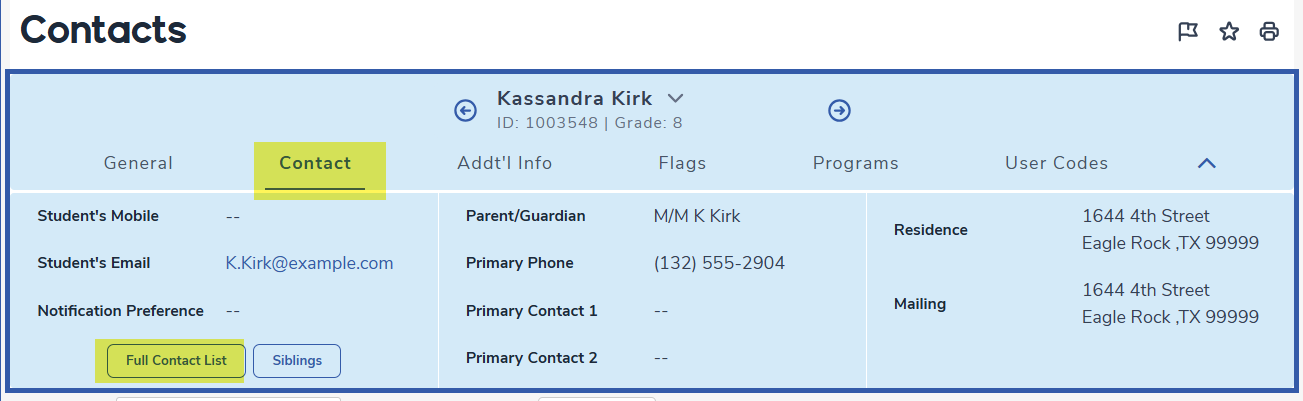
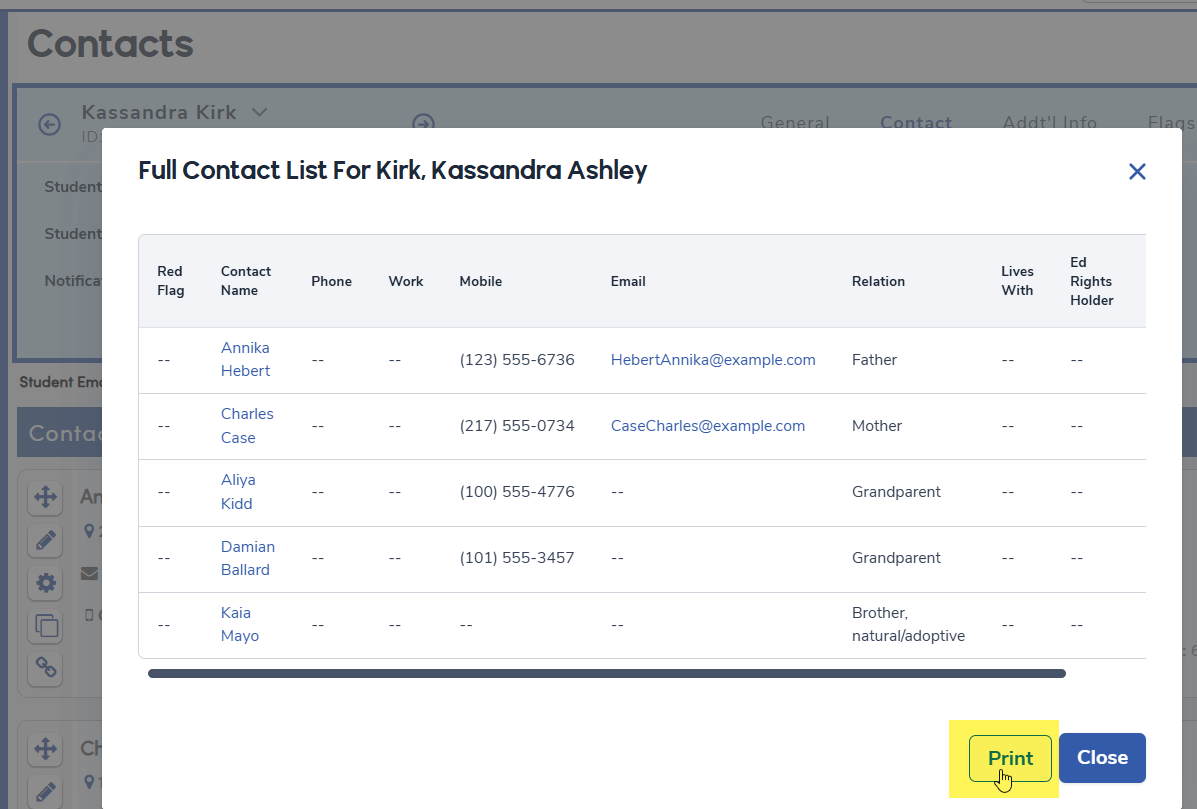
The Contacts tab in the Student Banner (available on all student pages) provides a Full Contact List button that displays the contacts for a student. See Student Banner.
The information in the list can be printed with the Print button.
Contact Fields
Below is a listing of all available Contact (CON) fields. Note: dropdown fields that are tied to code-table managed are noted.
- CON.LK - Lock - code table dropdown
- CON.PF - Prefix
- CON.LN - Last Name
- CON.FN - First Name
- CON.MN - Middle Name
- CON.SF - Suffix
- CON.NM - Mailing Name
- CON.VDT - Verification Date
- CON.LW - Lives With? - yes/no
- CON.AD - Address
- CON.CY - City
- CON.ST - State
- CON.ZC - Zip Code
- CON.ZX - Zip Code Extension
- CON.AT - Address Type - code table dropdown
- CON.RF - Red Flag
- CON.RL - Relationship - code table dropdown
- CON.PC - Primary Contact - yes/no
- CON.ERH - Ed Rights Holder - yes/no
- CON.CD - Record Type - code table dropdown
- CON.NP - Automated Notification Preferences - hard-coded dropdown used with Aeries Communications
- CON.AN -Attendance Notification - Used with Aeries Communications
- CON.MT - Mail Tag - hard-coded dropdown (Copy of All Mail, Copy of Report Cards Only)
- CON.OR - Contact Order
- CON.ES - Enrolled the Student - yes/no
- CON.TL - Telephone
- CON.WP - Work Phone
- CON.WX - Work Phone Extension
- CON.CP - Mobile Phone
- CON.PA - Pager
- CON.CL - Correspondence Language - uses the STU.HL language codes
- CON.ELV - Contact Education Level - code table dropdown
- CON.BD - Contact Birth Date
- CON.TB - TB Test Status - code table dropdown
- CON.TBE - TB Test Expiration Date
- CON.FP - Fingerprint Status - code table dropdown
- CON.FPD - Fingerprint Date
- CON.EM - Email Address
- CON.AP - Portal? - yes/no
- CON.ENM - Employer Name
- CON.ELC - Employer Location
- CON.OC - Occupation
- CON.U1 - User field - code table dropdown
- CON.U2 - User field - code table dropdown
- CON.U3 - User field - code table dropdown
- CON.U4 - User field - code table dropdown
- CON.U5 - User field - code table dropdown
- CON.U6 - User field - code table dropdown
- CON.U7 - User field - code table dropdown
- CON.U8 - User field - code table dropdown
- CON.CT1 - Additional Contact 1 Code - code table dropdown
- CON.CN1 - Additional Contact 1 Value
- CON.CT2 - Additional Contact 2 Code - code table dropdown
- CON.CN2 - Additional Contact 2 Value
- CON.CT3 - Additional Contact 3 Code - code table dropdown
- CON.CN3 - Additional Contact 3 Value
- CON.CT4 - Additional Contact 4 Code - code table dropdown
- CON.CN4 - Additional Contact 4 Value
- CON.ME - Comment
- CON.ED - Entered Date
- CON.MBR - Military Branch - code table dropdown
- CON.MRA - Military Rank - code table dropdown
- CON.MTG - Military Status - code table dropdown
- CON.MSN - Military Supervisor
- CON.MSP - Military Supervisor's Phone
- CON.MU1 - Military User 1 - code table dropdown
- CON.MU2 - Military User 2 - code table dropdown
- CON.MU3 - Military User 3 - code table dropdown
- CON.MU4 - Military User 4 - code table dropdown
- CON.MU5 - Military User 5 - code table dropdown
- CON.C1F - Contact Linking 1 Field
- CON.C1D - Contact Linking 1 Description
- CON.C2F - Contact Linking 2 Field
- CON.C2D - Contact Linking 2 Description
- CON.DTS - Date Timestamp Last Updated