

Overview
Navigate to Scheduling Process > Functions > Copy Scheduling Results to SEC & MST.
After the SMS has been created and students have been assigned to sections, the SSS and SMS are copied (or "rolled") to SEC and MST. This should be undertaken after most or all of scheduling is completed. If your school is an Elem w/ MST please refer to the Elementary with Master Schedule Scheduling documentation.
NOTE:
- Always make a backup before running Copy Scheduling Results to SEC & MST.
- Select all applicable terms, especially Year Long Classes.
Security ↑
Table | Permission | Description |
|---|---|---|
| Master Schedule (MST) Class Schedules (SEC) | Administer | To copy the SSS and SMS to SEC and MST, a user needs Administer permission to the MST and SEC tables |
| Course Requests (SSS) Scheduling Master Schedule (SMS) | Read | To copy the SSS and SMS to SEC and MST, a user needs at least Read permission to the SSS and SMS tables |
Configurations ↑
Before the SMS is rolled to the MST:
- Confirm Calendar and Term dates.
- Verify the data in the SMS. To view the number of records (sections) in the SMS by term, run the following query: TOTAL SMS SM BY SM

Once the Calendar dates, Term dates, and number of SMS sections by term are verified, proceed to Copy Scheduling Results to SEC & MST.
Options ↑
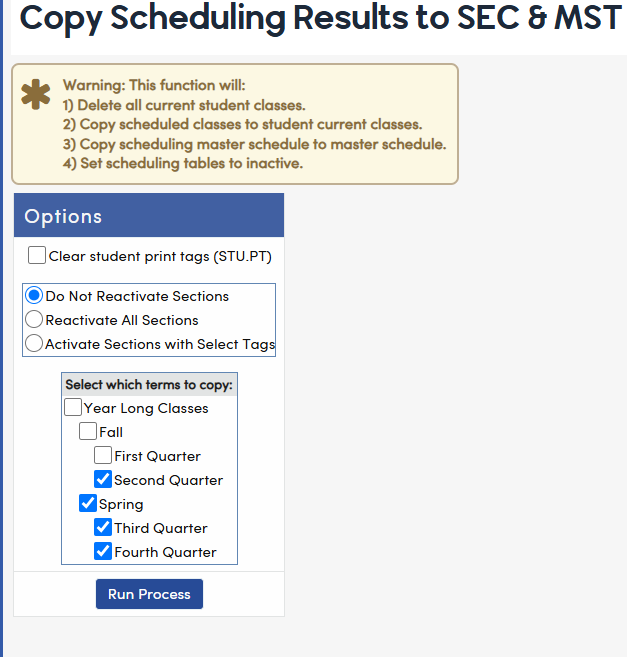
A warning message is displayed at the top of the page. Copying the SMS to the MST will:
- Delete all current student classes (SEC)
- Copy students' scheduled sections from SSS to the SEC table
- Copy the SMS table to the MST table
- Set the scheduling tables (SSS and SMS) to inactive
Select the Click here to continue check box.

Further options may be displayed, depending on your setup.
Clear Student Print Tags
An option to Clear student print tags (STU.PT) may be displayed. Selecting this option clears the print tag (STU.PT) for all active students at the school, regardless of the track or terms selected.
The print tag is set to X for each student whose sections are changed by:
- Scheduling Mass Change Sections (SSS)
- Mass Change Section Numbers (SEC)
- The Copy Tagged Students and Move Tagged Students options when copying a section on the Master Schedule
Clearing the tags during the copy means only students whose classes change afterward will be tagged.
To list tagged students, run the following query:
LIST STU ID LN FN IF PT = X
To print Locator Cards only for students whose schedules changed, use the Print only students with schedule changes since a specific date option on the Term to Print tab of Student Locator Cards.

Reactivate Sections
If the SMS contains inactive sections, the page prompts you to choose what to do with them:
- Do Not Reactivate Sections
- Reactivate All Sections
- Activate Sections with Select Tags (based on their status tag values)
If the SMS does not contain inactive sections, these choices are not displayed.