

After a new student has been enrolled, the student can then be scheduled into classes. Filter for Classes or navigate to Student Data > Scheduling > Classes.
Edit Mode
The new student's View Mode will be blank because they are not enrolled in any sections of any course. Click Edit to move into Edit Mode, which will also be blank (the Edit button displays for users with Update and Insert permission to Class Schedules). The top of Edit Mode also shows a Term / Total Courses / Total Credits summary. Reschedule stays greyed out until at least one course is added:

If your school uses Course Attendance (CAR), End Date and Start Date boxes display at the top. The End Date defaults to today (or the nearest school day) and the Start Date defaults to the next school day. Before the first day of school, only Start Date displays, and it defaults to the first day of school. When one date is changed, the other updates to match. The Start Date should be populated with the first date that they will be in their scheduled classes. Usually, this is a new student's first day of enrollment. Because no courses are being dropped, the End Date is not applicable to a new schedule.
NOTE: The Start Date is saved to the Course Attendance Record (CAR) table as the first day in each new class. The date must be a school day, and it can't be the last day of school.
Add Courses
Several options exist for adding courses to the Edit Mode workspace:
- Click the CrsReqPack button to add a Course Request Packet to the Edit Mode workspace. See Add a Course Request Packet to a Current Schedule for more information.
- Click the CrsSecPack button to add a Course Request Section Packet. A section packet adds a set of courses with specific sections already chosen. See Creating and Modifying Course Request Section Packets for more information.
- Click the View MST button, filter the MST if needed, and click the
to select a specific section of a course. The course will be added to the workspace, and the student will be scheduled into that section. See View MST for more information.
- Type a course title or course number into the New Class box (partial input is supported) and click the course you want to add from the dropdown of courses that appears.
- Click the Add By Section
icon, type a section number into the Section box, and press Enter. The student will be scheduled into that section.
The Edit Mode workspace shows a color coded graphical display of part of the master schedule: the courses that the student will be scheduled into. Each section displays the section's term and, in parentheses, the number of seats left. Sections are color coded to provide more information:
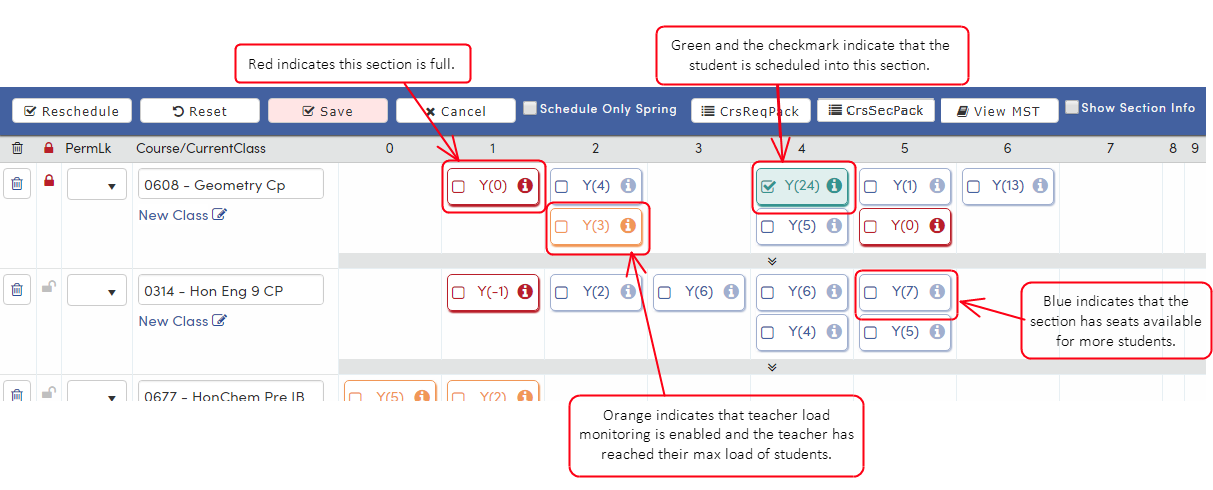
There are two ways to see even more information about the sections on the Edit Mode workspace:
- Hover over the
information icon on any section to display the section number, the block number of periods, the teacher's name and number, the grade range, the maximum seats (Max), and the number of students already enrolled (Total). Scheduling related fields (for example, Team Course Group and Team Number) are also displayed, along with Class is Full! or Teacher OverLoaded! when that applies.
- Check the Show Section Info checkbox to show the section number, block (or calendar for Flex schools), teacher name and number, Schedule Group, Team Course Group, Team and Semester Group on each section tile. Aeries remembers this setting. The max seats and total enrolled can still be viewed by hovering over the
If more than two sections per period are available for a course, they can be viewed by clicking the 
Choose Sections
After all necessary courses have been added to the workspace, sections can be chosen. To schedule a section, click it. The section will turn green and become checked, indicating that the student will be scheduled into it. If the section is full, users with Update permission to the Master Schedule see "Class is full! Continue anyway?"; other users can't choose it. If the school uses wait lists, an Add To Wait List option may display. Overloaded teachers work the same way, using Update permission to Teacher Data. Alternatively, use the Reschedule button. If no sections are locked, the Reschedule button will schedule the student according to the number of seats available in sections. If one or more sections are locked, Reschedule will keep the students in those sections and fill the rest of the student's schedule with available sections, according to the number of available seats. To unlock specific sections or the entire schedule, click the
If any section needs to be permanently locked, choose a reason from the PermLk column.
To schedule only sections meeting during the Spring term, check the Schedule Only Spring checkbox. Sections for terms other than during the Spring term will be grayed out and only sections that meet during the Spring term can be scheduled. Aeries remembers this setting.
Save the Schedule
When sections have been selected, click the Save button. The student's records in the SEC and CAR table are not affected until the Save button has been clicked. When Save is clicked, Aeries may ask you to confirm before continuing, for example for an overloaded class, a mismatched Team # in a Team Course Group, or a class with linked sections.
To undo all unsaved changes, click Reset, then confirm. The workspace goes back to the last saved schedule, which is empty for a new student. Alternatively, click Cancel. Since the student did not have an existing schedule, all of the courses added to the workspace will disappear and Classes will return to View Mode.