

Setup > Schedule > Terms
Terms should always map to the class schedule terms used in your SIS. Typically, schools use either one or two terms per year. Each school year must have at least one term, and can have up to seven terms. You may wish to consult with our support team to determine whether you need multiple terms or whether you would be better served by setting up multiple Grading Periods instead (see also Terms vs Grading Periods). A new JumpRope "Term" starts teachers with fresh, empty gradebooks.
*For schools that use the STARS system, the JumpRope "TERMS" that you use must match the terms that you use in STARS for scheduling and enrollments.
A TERM contains a set of Classes (potentially including Managed Classes and/or Custom Classes). If your school uses our attendance features it also contains a set of Cycle Days and Periods that can be customized.
Create New Term
To create a new TERM, navigate to Setup > Schedule > Terms and click New Term in the top right. TERMS are limited to the current school year and there can only be one of each term number per school, per school year. TERM numbers are limited to 1, 2, 3, 4, and 7 (which is a special code used to indicate summer school).
Once created, the name and term number of a TERM cannot be changed. You can edit the following fields of an existing term:
- Start Date *: the start date of the TERM and the accompanying system-managed Grading Period associated with the TERM.
- End Date *: the end date of the TERM and the accompanying system-managed Grading Period.
* NOTE: TERM dates should generally NOT overlap one another for a given school and school year.
Setting Up and Managing the Default Term
At any time, each school can have one default TERM which determines which classes show by default when teachers view their Class Cards.
To set a TERM as the default, choose Set as School Default from the menu to the right of the desired term.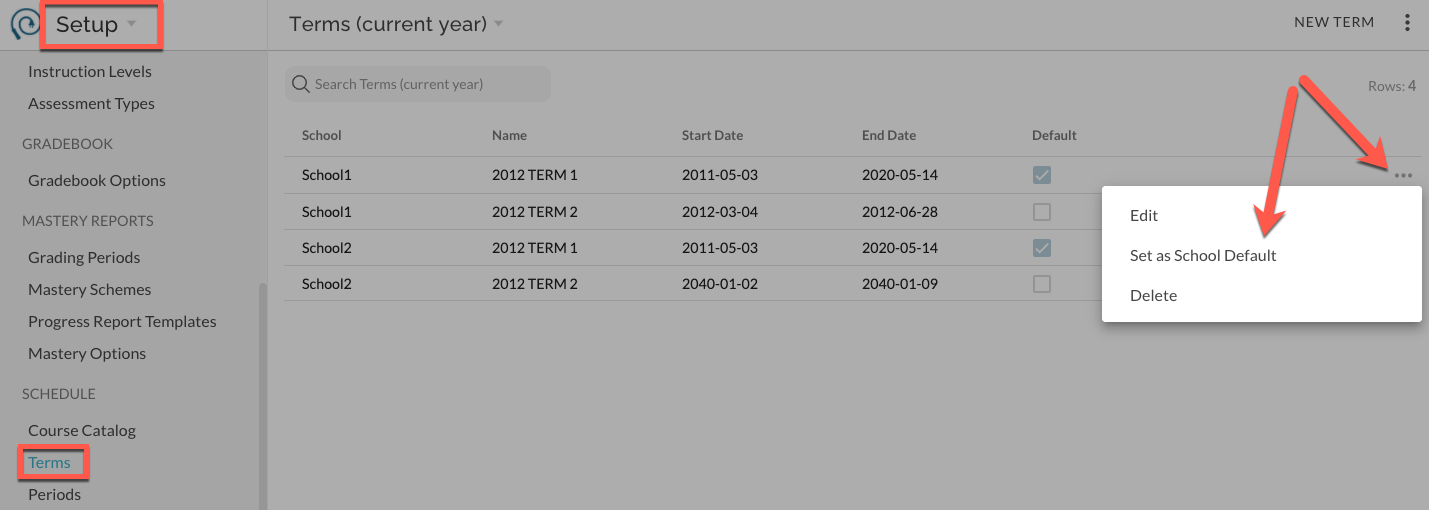
Teachers can then switch to other TERMS if one or more of the gradebook permissions (see below) is allowed for a given TERM.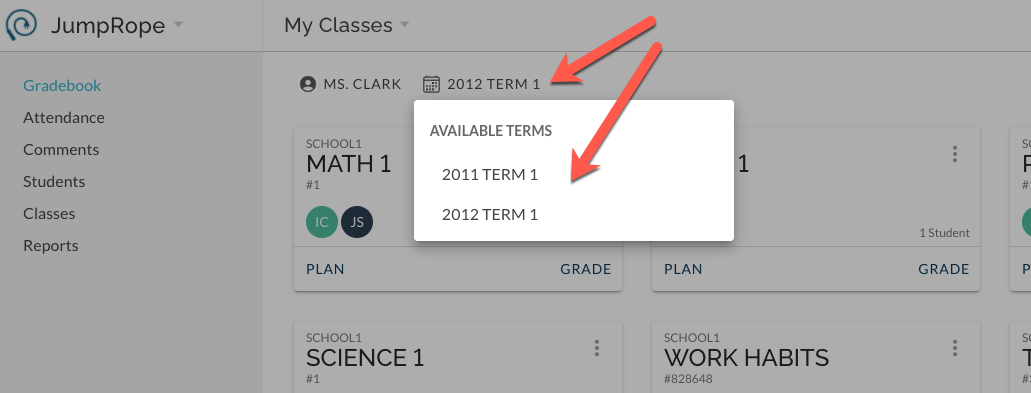
Delete a Term
To delete a TERM, make sure there are no classes in the term and select Delete from the item menu to the left of the desired TERM. This is designed to be used only when mistakes have been made (an unnecessary TERM was accidentally created), not to bulk delete classes or scores within a TERM.
Permissions for non-Default Terms (including prior years' terms)
See also How to - Access Classes from Previous Terms and Years.
All permissions will default to 'Allow' for the current school year for both default and non-default TERMS.
Select Edit from the ... menu for the desired TERM. Then flip the switches to toggle access as described below.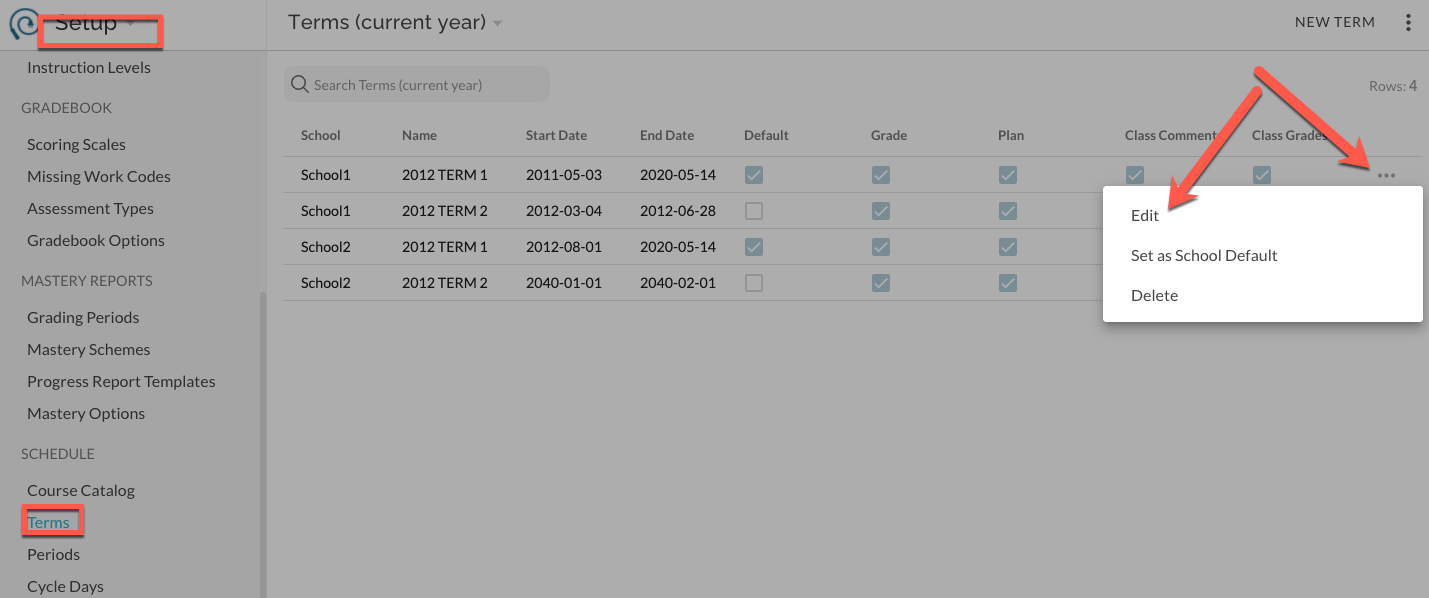
Manage permissions on TERMS from previous years by first changing the view: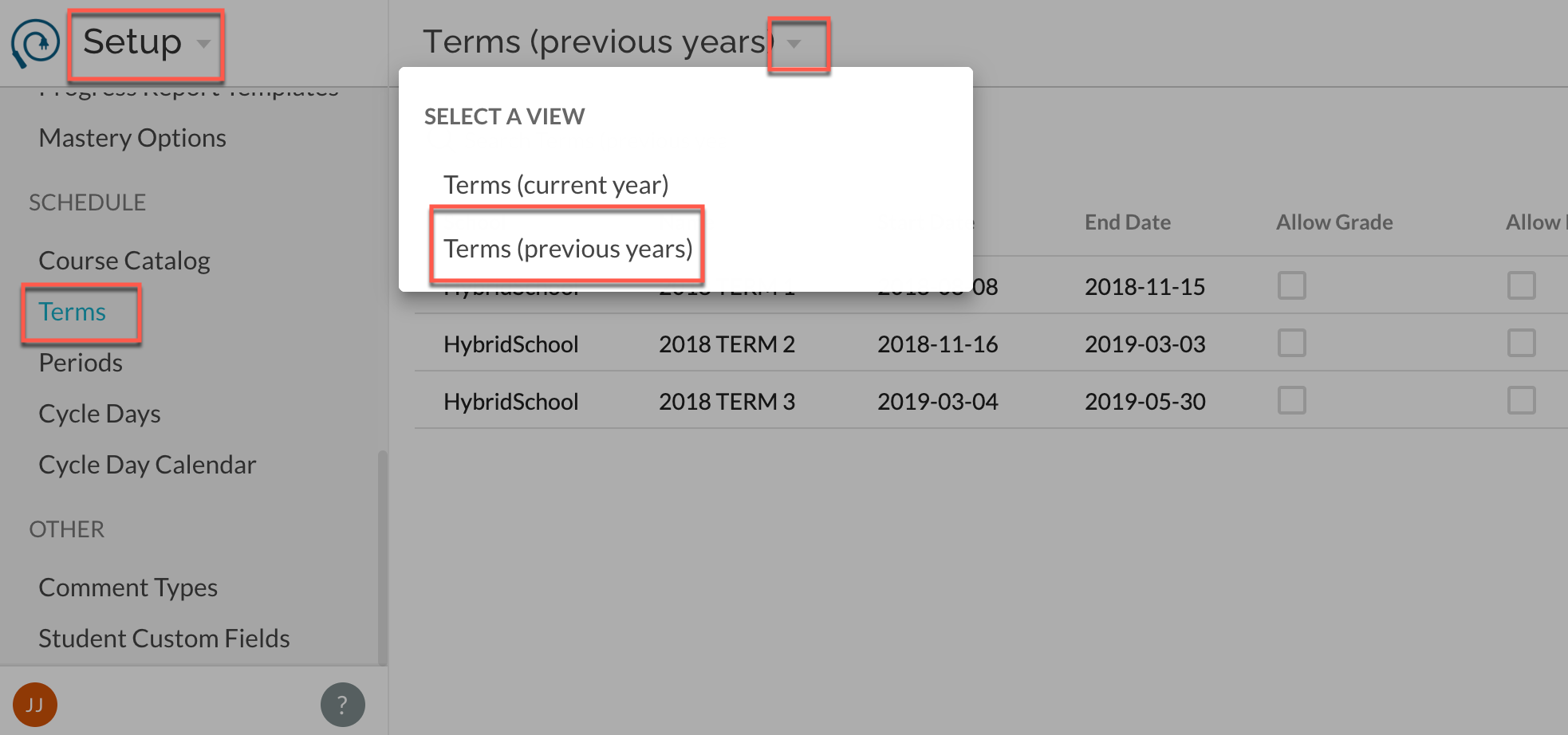
For either Current Year or Previous Year views, the permission access is as follows:
- Plan- Allows access to the Plan tab and features for the given TERM
- Grade- Allows access to create or edit scores in the Grade sheet for classes in this TERM.
- Class Comments- Allows teachers to add or edit the Class Comments for classes in this TERM.
- Grade Override- Allows teachers to override final class grades for classes in this TERM.
Special Cases with Default Term
The default TERM will always be accessible to teachers, though individual functions can still be disallowed for the default TERM if you need to e.g. close out grading for a period of time. If any one of the "Allow" options is selected for a TERM that is not the default, teachers will be able to switch to that TERM in the Gradebook or Classes view and access the allowed tools.
Example scenarios when using multiple TERMS:
- You may wish to disallow grade changes after a TERM ends and grades are due, but still allow teachers to view Mastery data and add Class Comments. In this case, you could allow Class Comments for the TERM, and disallow the other tools. Note: Mastery reports are enabled by default.
- You may wish to allow teachers to Plan for a second semester before the schedule is completed. In this case you could leave the default TERM as TERM 1 and select Allow Plan for TERM 2, leaving the other tools disabled. Then a teacher could begin to set up their standards, units, and assessments for classes even if student enrollments are incomplete.