

This is a 2 part process; Identify the course that is 'Advisory', then Align students to their teacher of that course.
Part 1
In Setup -> Course Catalog, select the extra menu item ... for the desired Course(s)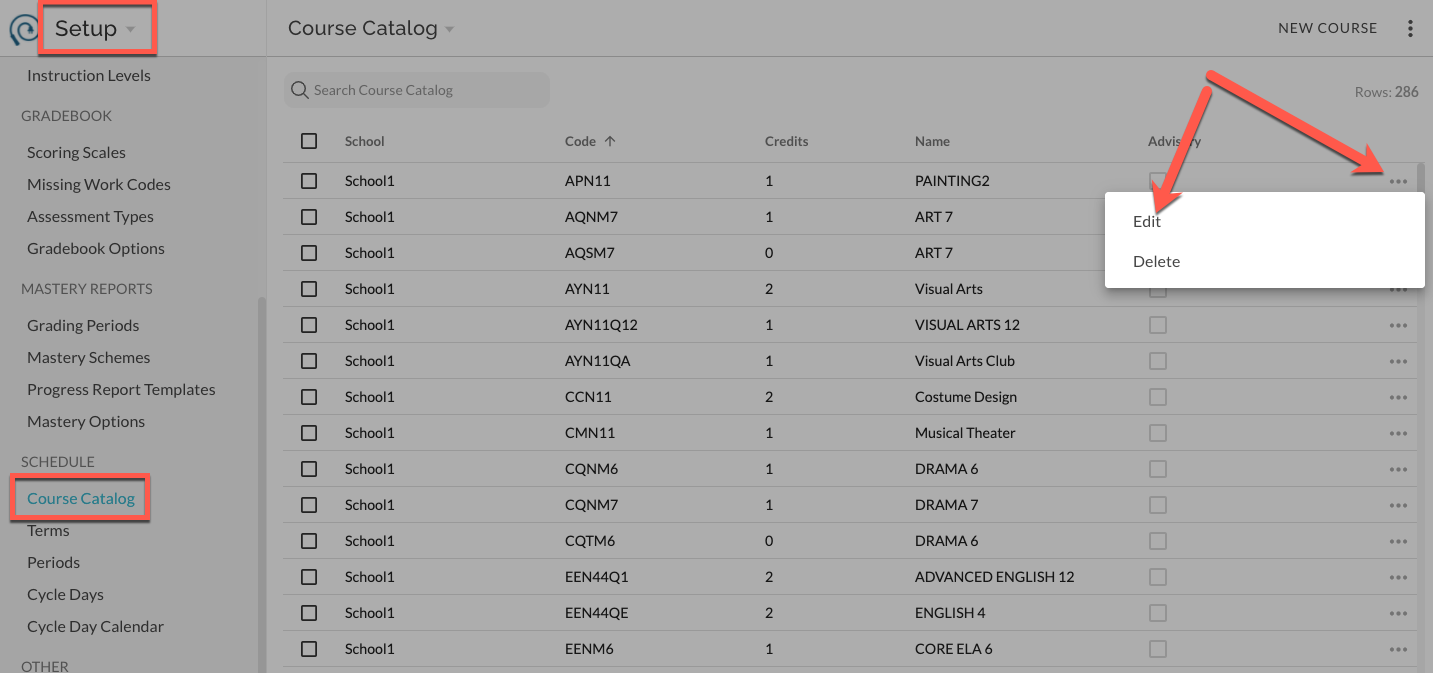
Switch the turn on Advisory and Save.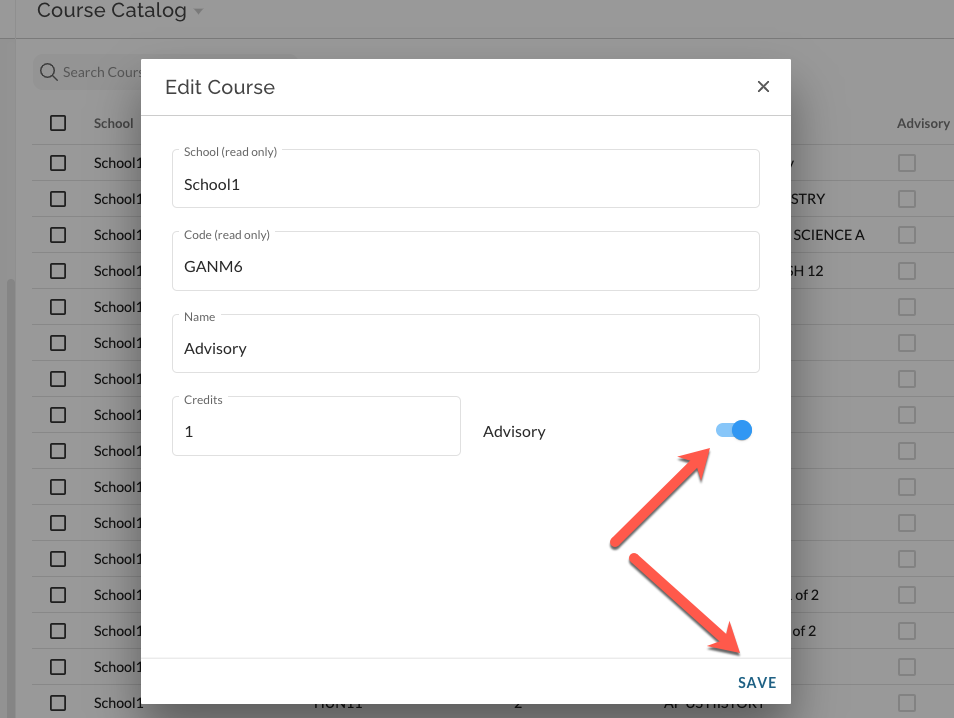
Part 2
If you use STARS programming, and would like to have students automatically aligned to their Advisor, confirm with JumpRope support that this configuration is set up for your school. If it is, loading STARS program files will match students to their Advisor teacher without the additional steps outlined below. Otherwise:
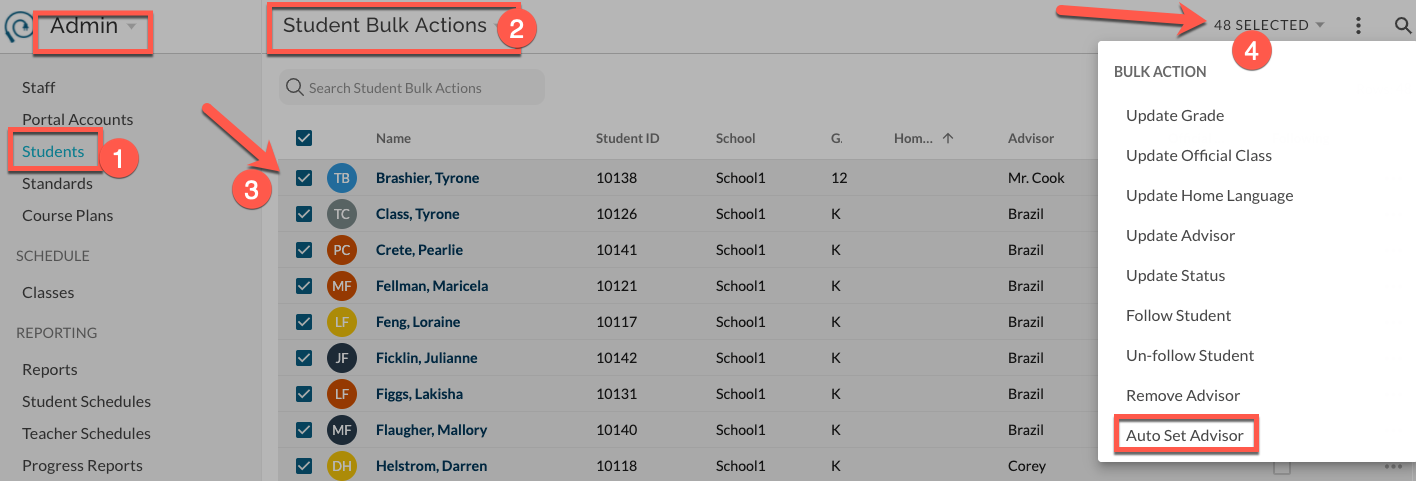
- In Admin -> Students...
- Click on "Active Students" andchange the view to Student Bulk Actions.
- Select the desired students (likely the full set by clicking the top checkbox).
- Choose Auto Set Advisor. The Advisor field will populate based on students' enrollments in the designated classes.
Notes:
- If more than one teacher teaches an advisory, the first official teacher alphabetically by last name will be used as the advisor for auto alignments since a student can only have a single advisor at a time.
- If a student is enrolled in more than one advisory course within active terms, the first class alphabetically by class name in the most recent term by term number will be used to determine the advisor.
- Depending on you configuration, a SIS data import (both manual and automatic) may overwrite advisory alignments based on a requested mapping between course enrollments and advisors.
More:
Managing the Course Catalog
How to - Manage Advisor Alignment Manually