

See also Managing Terms
In Setup - Schedule - Terms, select Edit from the ... menu for the desired term. [Note: For previous school years, click on "Terms (current year)" and change the view to "Terms (previous years)"]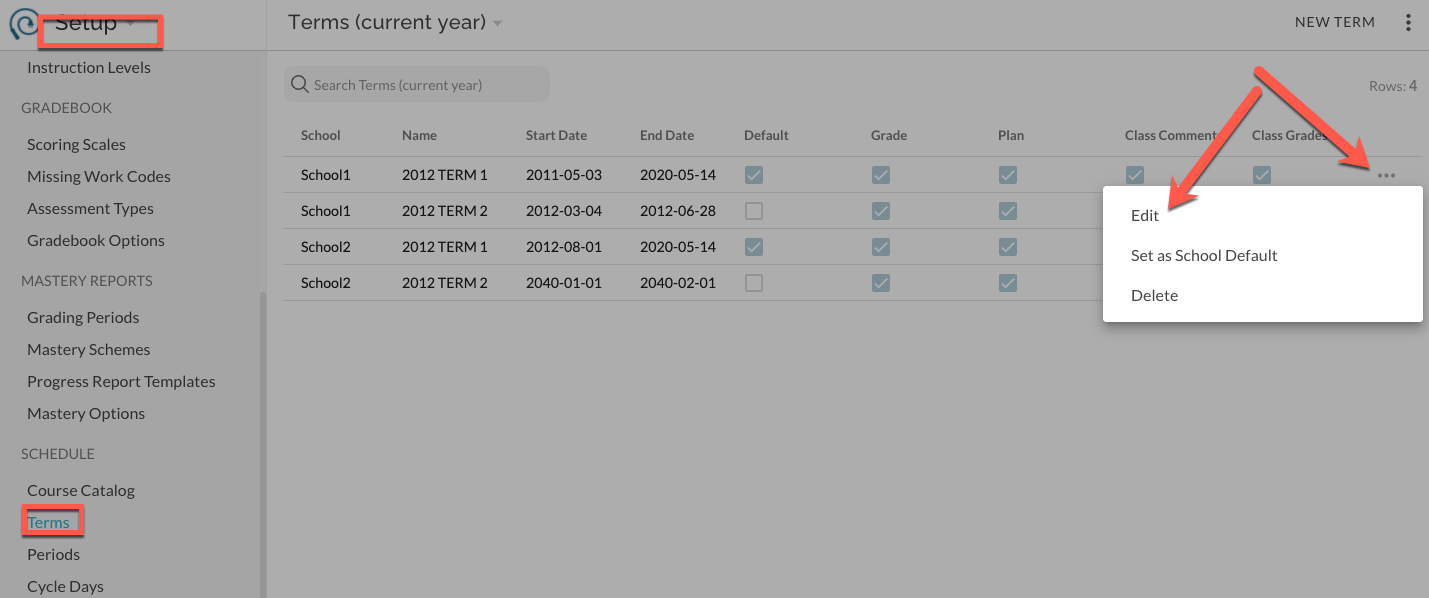
Manage permissions on TERMS from previous years by first changing the view: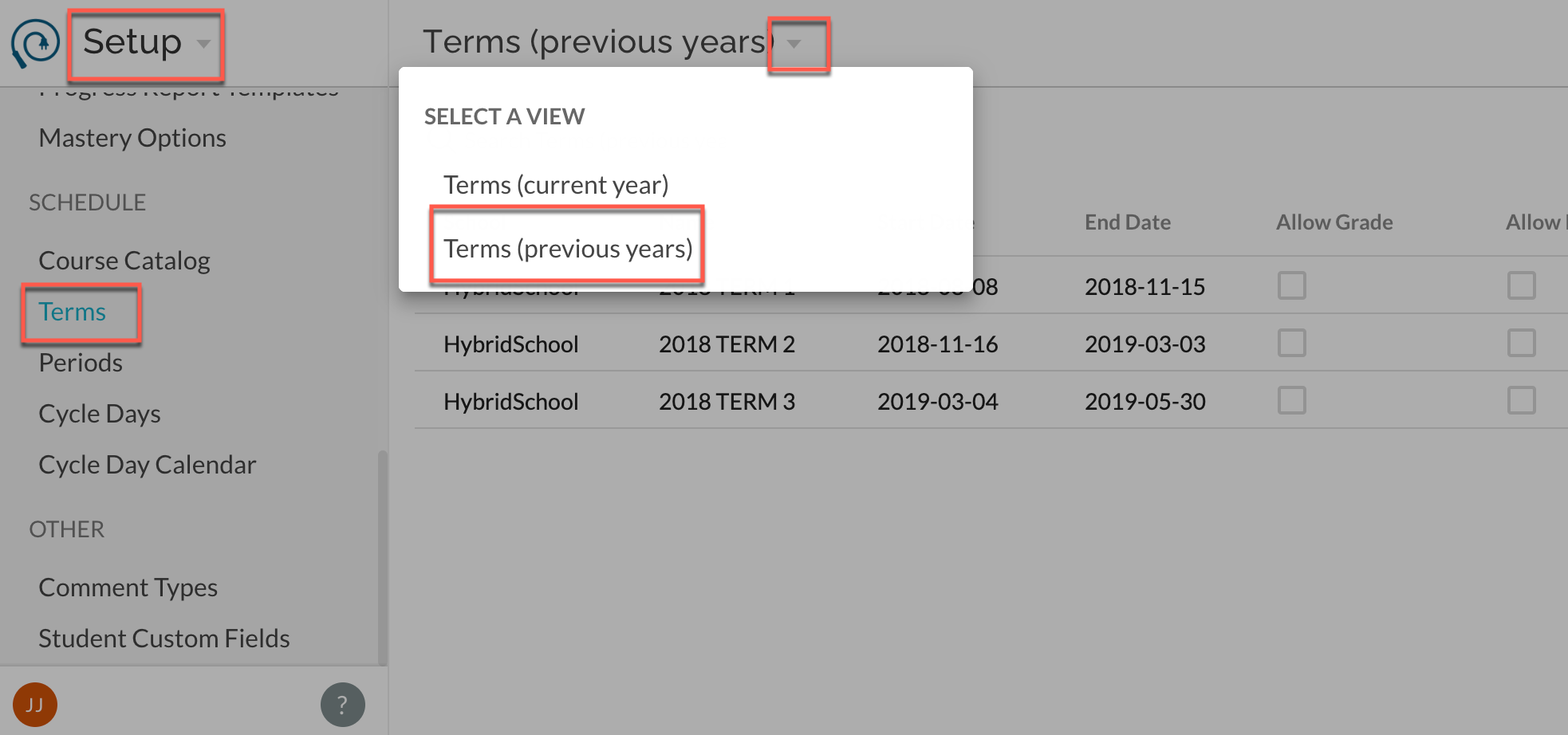
In Edit, flip the switches to 'allow' access as described below. 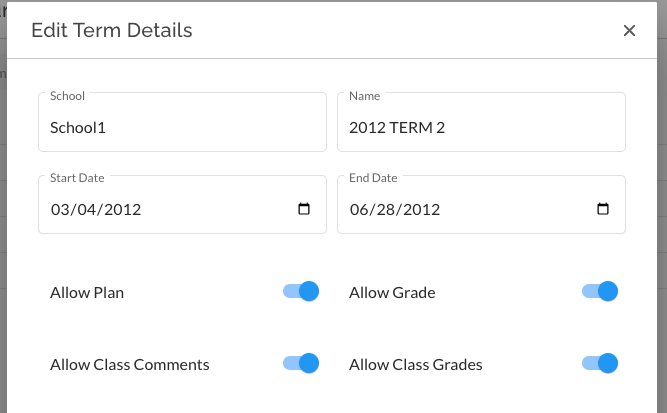
- Plan- Allows access to the Plan tab and features for the given term (i.e. create new and edit existing assessments and standards). *Note: teachers do not need this access to review their past classes for the purposes of copying their class assignments and standards to a new year. This workflow is found in their Plan tab as described here .
- Grade- Allows access to create or edit scores in the Grade tool for classes in this term (i.e. change scores)
- Class Comments- Allows teachers to add or edit the Class Comments for classes in this term. The Class Comments feature must also be currently enabled for the school.
- Class Grade - Allows teachers to override final class grades for classes in this term. The Class Grade feature must also be currently enabled for the school.
Special Cases with Default Term
The default term will always be accessible to teachers, though individual functions can still be disallowed for the default term if you need to, for example, close out grading for a period of time. If any one of the "Allow" options is selected for a term that is not the default, teachers will be able to switch to that term in the Gradebook or Classes view and access the allowed tools.
Example scenarios when using multiple terms:
- You may wish to disallow grade changes after a term ends and grades are due, but still allow teachers to view mastery data and add Class Comments. In this case, you could allow Class Comments for the term, and disallow the other tools. Note: mastery reports are enabled by default.
- You may wish to allow teachers to Plan for a second semester before the schedule is completed. In this case you could leave the default term as Term 1 and select Allow Plan for Term 2, leaving the other tools disabled. Then a teacher could begin to set up their standards, units, and assessments for classes even if student enrollments are incomplete.