

Setup > Mastery Reports > Grading Periods
Grading Periods are an important data type in JumpRope that define the date ranges over which mastery data can be reported, both in the gradebook as well as administrative reports. All mastery reports in JumpRope are either within the context of one specific grading period OR are grouped / pivoted across grading periods to show changing mastery over time
Grading periods belong to individual schools which gives you flexibility to report over different date ranges if you administer JumpRope for different schools. There are two types of Grading Periods: System and Custom.
Note: Creating additional 'custom' Grading Periods is not required, in fact many schools find that they do not need them. A teachers' view of mastery reports is affected by the Grading Periods you create; the most current Grading Period will be the default view that a teacher sees on mastery reports.
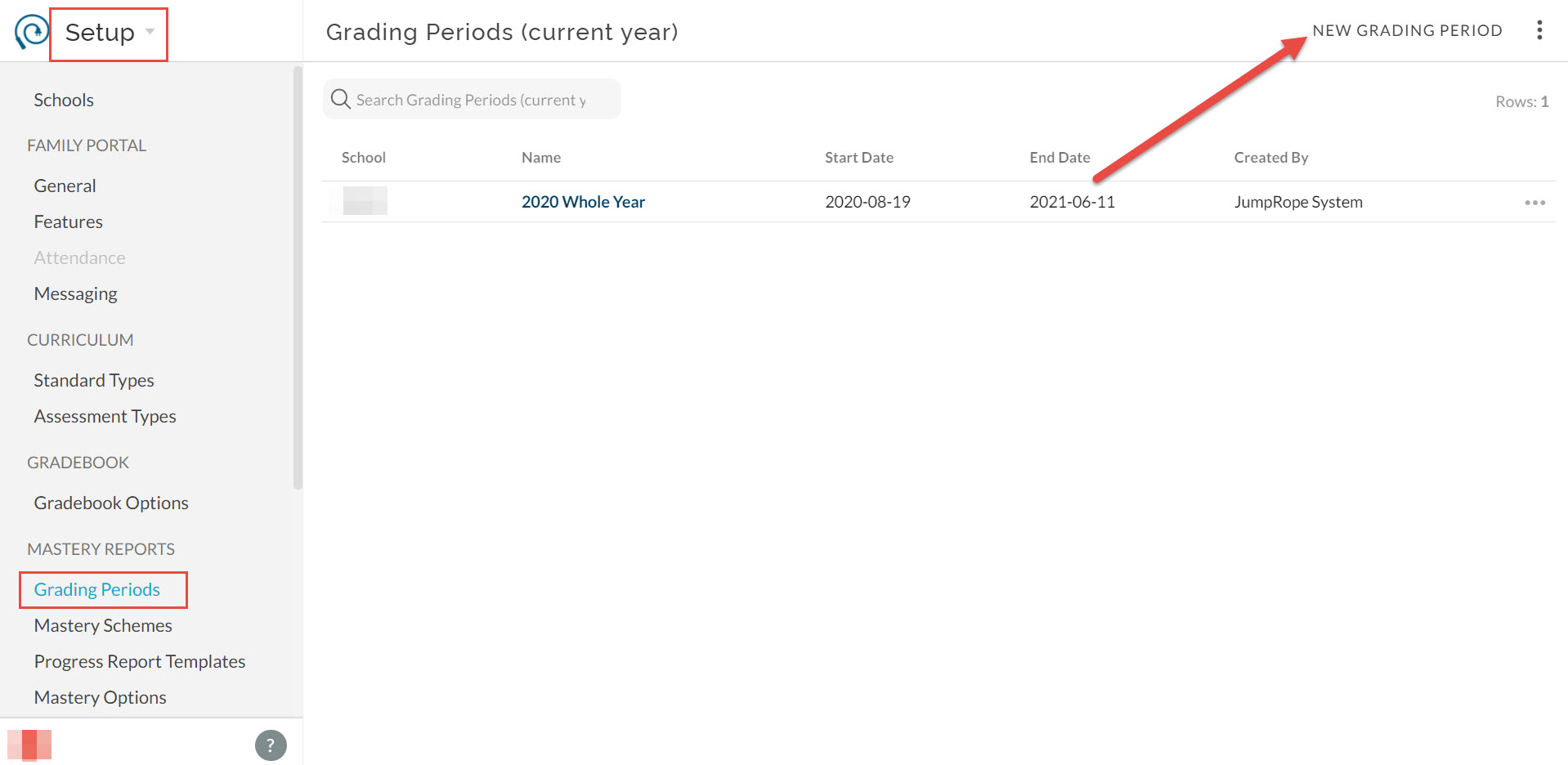
System Grading Periods (listed as created by "JumpRope System") will be automatically created covering the entirety of the school year (as defined by the term start and end dates in the Schedule section). If you have more than one term set up for a given school, a System Grading Period will be maintained for each term as well as for the entire year. You cannot change the name of these grading periods, and to change the dates you must go to Setup > Schedule > Terms and edit the date of the corresponding term.
For many customers, the system grading periods are sufficient to cover your reporting needs. For example, if you always want to be able to view cumulative mastery up to do the current date, you can simply use the "2020 Whole Year" grading period and it will always include all scores up to the current date. If, however, you need the ability to generate historical reports including data only up to a specific date (e.g. if you have multiple marking periods that are shorter than your terms), you can create up to ten Custom Grading Periods per school per year. To create a custom grading period, click New Grading Period in the top right:
- School *: select the school for the grading period (if applicable)
- Name *: 6-30 characters, letters numbers, and spaces only. In order to be consistent and organized in various reporting contexts, custom grading periods must fall within the date ranges of the current school year and must begin with the four-digit year of the start of the current school year. Examples of valid and invalid grading period names for the school year that spans 2020-2021 include:
- 2020 Spring Semester \-- valid (a bit confusing if in the 2020-21 school year)
- 20-21 Spring Semester \-- invalid (must start with "2020")
- 2020-21 Spring Semester \-- valid (and clearer that "2020 Spring Semester" in most cases)
- 2021 Spring Semester \-- invalid (even though it falls in the 2021 calendar year, it must start with "2020" because that is the official school year code in JumpRope)
- Start Date *: the start date of the grading period. Must be on or after the start date of the current school year.
- End Date *: the end date of the grading period. Must be on or before the end date of the current grading period.
- Report Text: Limited to three characters, this text is displayed as a column header on MGP reports (Multi-Grading Period)
A few important things to note about grading periods:
- Custom grading periods must have unique names for a given school, and no two custom grading periods for a given school can have the same start and end dates (effectively duplicating the date range for the school) as this would be redundant.
- When creating a new grading period or changing grading period dates, it can take up to 30 minutes for various reports to update mastery data within the affected grading period.
- If you deal with students that are potentially enrolled in more than one school within a given school year (and wish to report mastery across classes in multiple schools), the naming of grading periods is particularly important as the name of the grading period is used to link data from one school to the next. System grading periods automatically have consistent naming (e.g. 2020 Whole Year) and will include data from all classes within which a student was scores. _When creating custom grading periods, if you wish mastery data to be included for multiple schools (e.g. a middle school student taking one class in the high school), both schools must have a custom grading period with identical names. _ In other words, if you need a custom grading period called "2020 MP1" at the e.g. a middle school and you wish mastery reports for that grading period to include scores for a student that were entered via a class at the high school, you must also create a grading period at the high school called "2020 MP1".