

Note: Please confer with your JumpRope implementation specialist for any details on this integration. Also, depending on the version of Aspen that your schools utilize, these instructions may vary.
To upload student, teacher, and schedule information from Aspen into JumpRope, three CSV files are required from Aspen with custom field settings.
Follow these steps to export the three files:
- Log into Aspen
- Student Info:
- Click on the Students tab
- Click on the Field Set Menu icon (a table to the right of the Filter Menu icon) and then click on Manage Field Settings
- Create a new field set called "JumpRope Students" and add the following fields in this order (parenthesis show what the export will name the column):
- Student ID
- State ID (SASIS)
- Last name (LastName)
- Middle name (MiddleName)
- First name (FirstName)
- Gender
- Date of Birth (DOB)
- Grade level (Grade)
- Ethnic Category (Ethnic)
- Physical Address > Postal Code (Zip)
- Primary email-Correo electronico primario (Email1)
- Emergency contact 1 > Name (Name)
- Emergency contact 1 > Relationship (Relationship)
- Phone 1 (Phone1)
- Emergency contact 1 > Primary email-Correo electronico primario (Email1)
- From the print icon, select CSV to download the export. A consistent filename is important for our scripts, so please name this file Students.csv
- Staff Info:
- Click on the Staff tab
- Click on the Field Set Menu icon and then click on Manage Field Settings
- Create a new field set called "JumpRope Staff" and add the following fields in this order:
- Last name (LastName)
- First name (FirstName)
- Primary email-Correo electronico primario (Email1)
- User > Login ID (Login)
- Form the print icon, select CSV to download the export. A consistent filename is important for our scripts, so please name this file Staff.csv
- Student Schedules :
- Click on the Schedule tab
- Click on the Schedules side tab (on the vertical menu on the left side of the screen)
- Click on the Field Set Menu icon and then click on Manage Field Settings
- Create a new field set called "JumpRope Student Schedules" and add the following fields in this order
- Student > Student ID
- Student > Name
- Student > Grade Level
- School Course > Number
- Section Number
- Schedule
- Description
- Primary Staff > Name
- Teacher **Note: this may appear to be duplicate information, but it's important in order to model co-teacher relationships
- Primary Staff > Primary email-Correo electronico
- Schedule Term
- From the print icon, select CSV to download the export. A consistent filename is important for our scripts, so please name this file "Schedules.csv"
Upload files into JumpRope
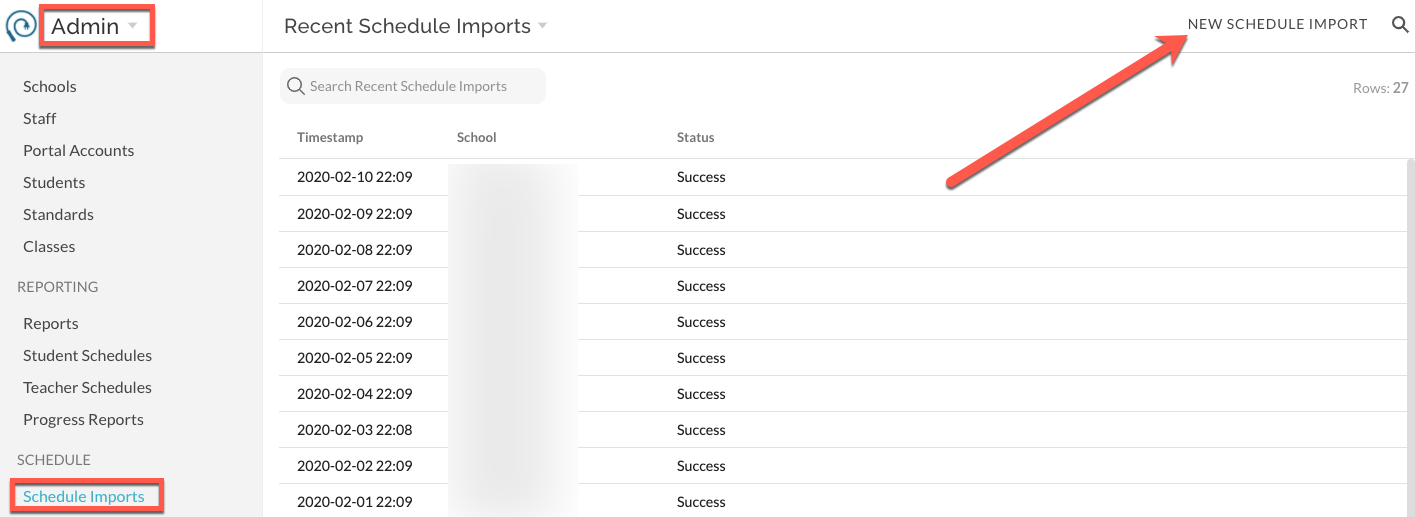
- Go to Admin -> Schedule Imports and select New Schedule Import
1. Browse for each of the three files and then click Upload:
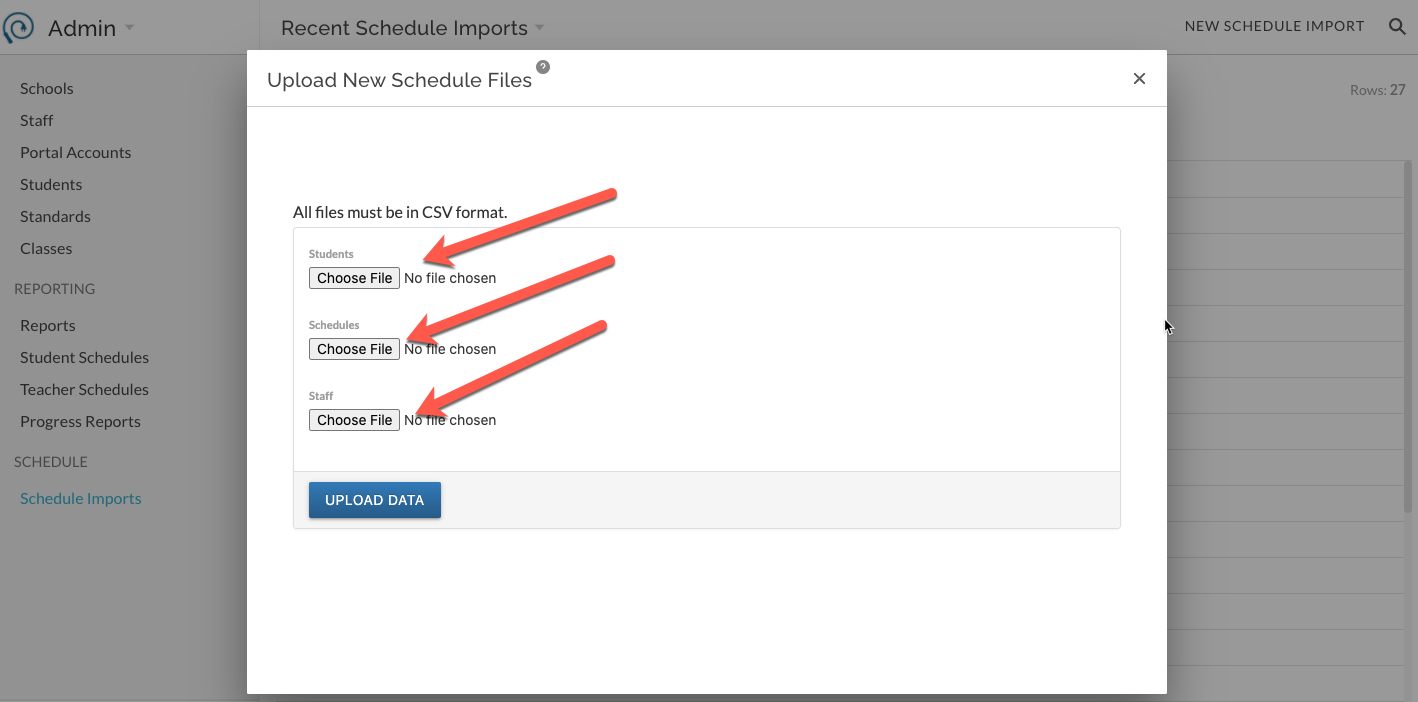
 2. Wait approximately 5 minutes while the sync completes, more info will be displayed throughout the process
 3. You're done!