Advanced Reports are our latest generation of reports that provide many features, including sophisticated filters as described below.
Filter Interface
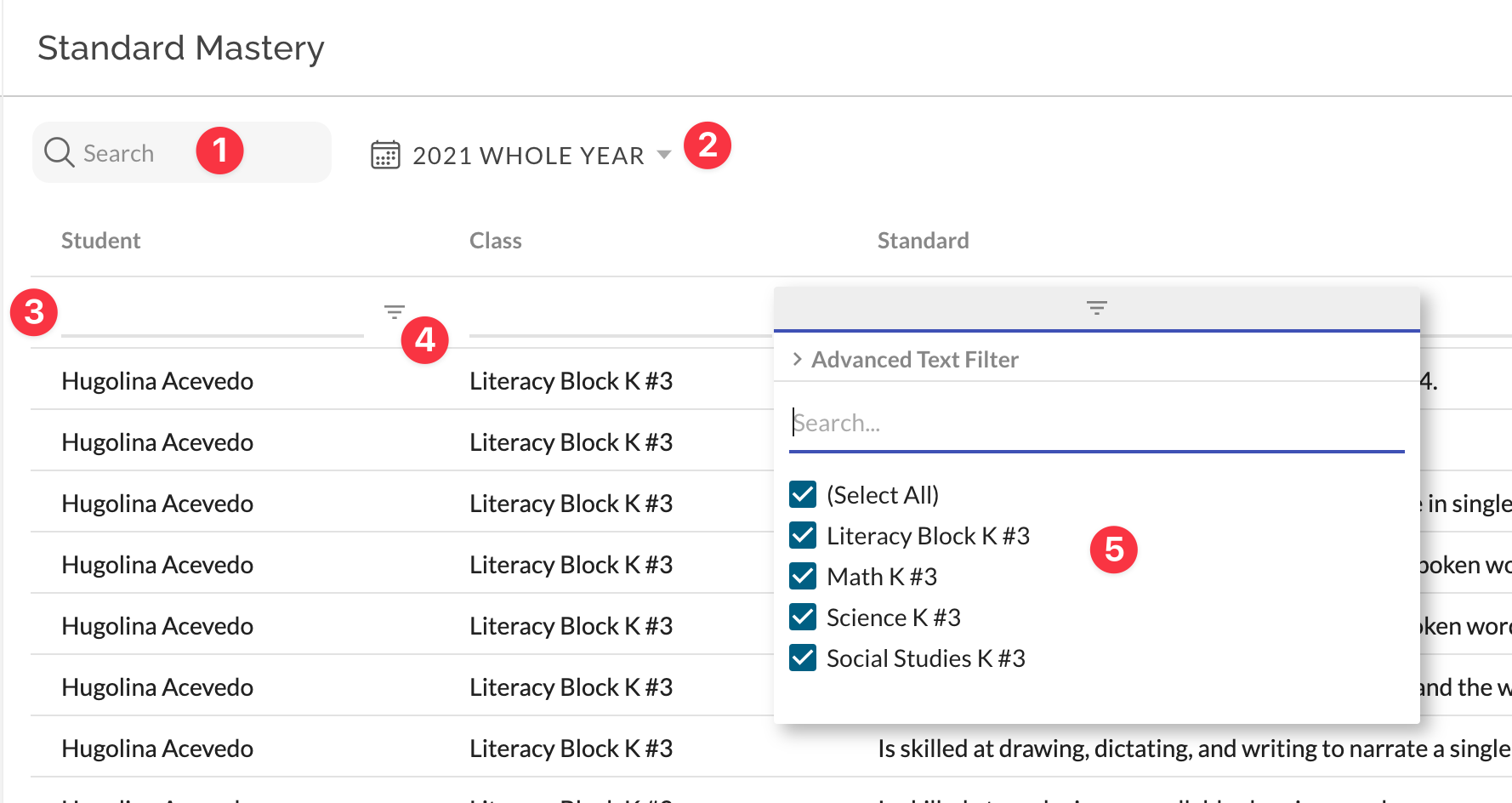
The image above indicates the user interface for various filter-related features. Note that a column must be visible in order to apply a filter to it, and that filters (other than #1, report Search) will be remembered between your user sessions unless and until you reset the report.
- Report Search lets you quickly search a report for specific data. Search terms are case-insensitive and apply across all columns (including hidden columns). Search applies instantly.
- Pre-filters display above the report data grid and determine which data will be loaded from JumpRope's database into your report for further analysis. An example of this might be the grading period(s) for class grades or mastery data. Changing a pre-filter generally results in the report data refreshing from the server.
- Column Search lets you type a search term to search data in individual columns. Note that if an advanced filter is applied to a column via the column filter dialog, the search box for that column will become a read-only representation of the filter applied until it is cleared.
- TheColumn Filter button displays advanced options for filtering the data in a particular column. Clicking the filter icon (▽) denoted by #4 will open a filter dialog similar to what is shown in #5
- TheColumn Filter Dialog shows advanced filter options for specific columns, such as a set filter, numeric filter, or text filter (see below for more details)
Column Dialog: Set Filters
Set Filters display in the column filter dialog after clicking on the filter icon in the filter row of a specific column. A set filter provides a check box for each data element that exists in the grid, and provides a more precise way to filter data than searching by text. Most columns provide a set filter other than certain numeric columns.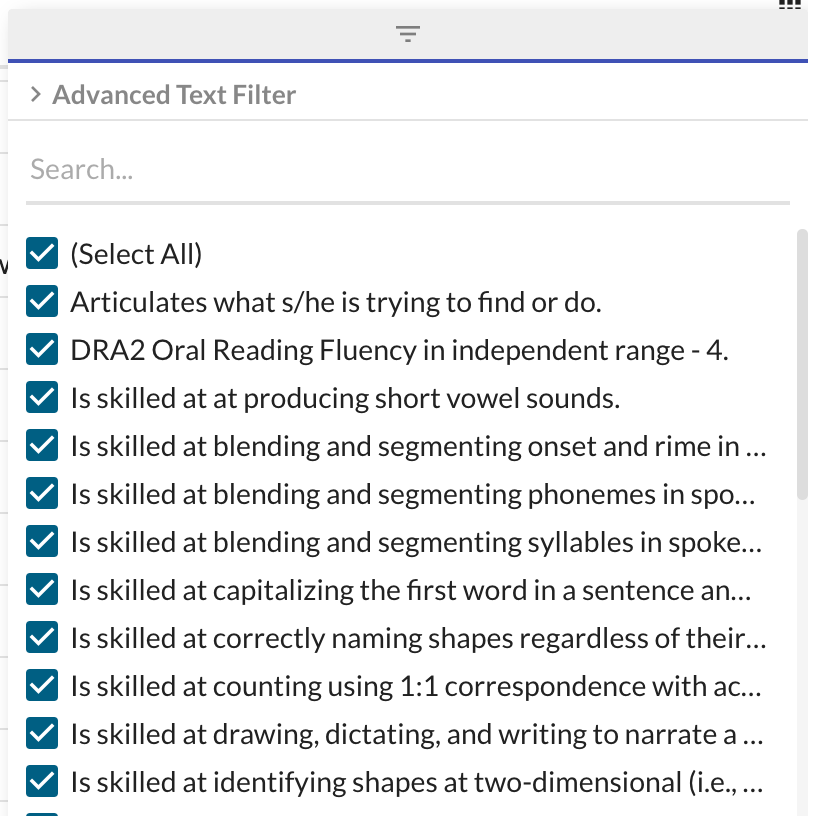
Check a box to toggle the state and filter rows for a specific data point such as the standards shown above. Click on (Select All) to select or de-select all checkboxes at once. You can search the available options to narrow down larger data sets. If you have a set filter applied (anything other than selecting all rows), a summary of the selected options will display in the column header of the report.
Column Dialog: Advanced Text Filters
Advanced Text Filters let you apply very specific filters to columns that contain text data.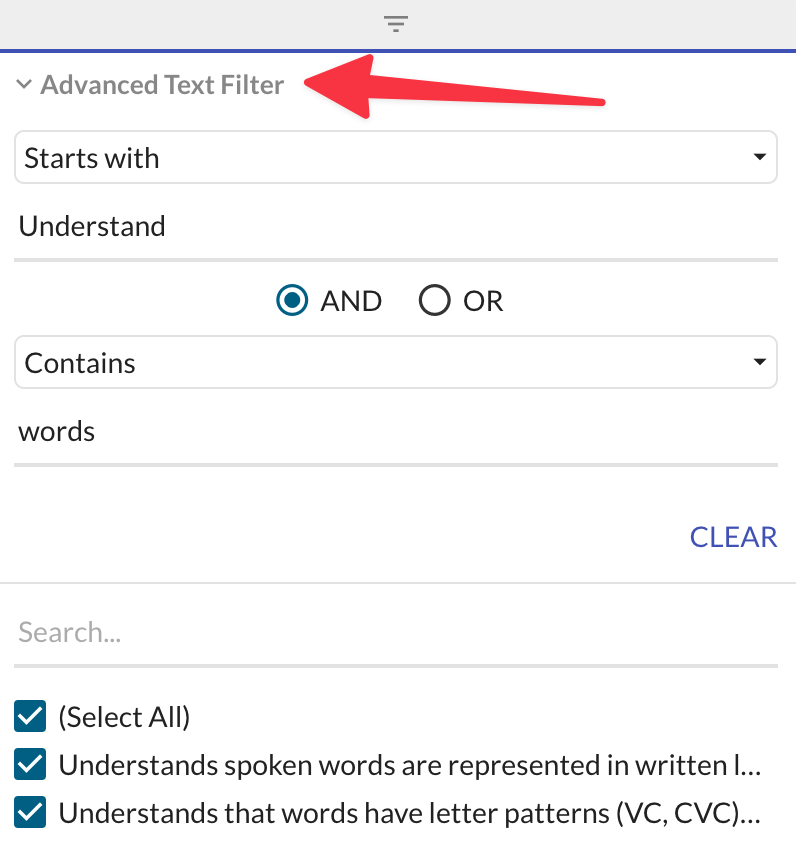
To access Advanced Text Filter, expand the dialog by clicking on the heading indicated by the red arrow above. You can combine up to two filters with And/Or logic: Contains, Not Contains, Equals, Not Equals, Starts With, Ends With, Blank, Not Blank
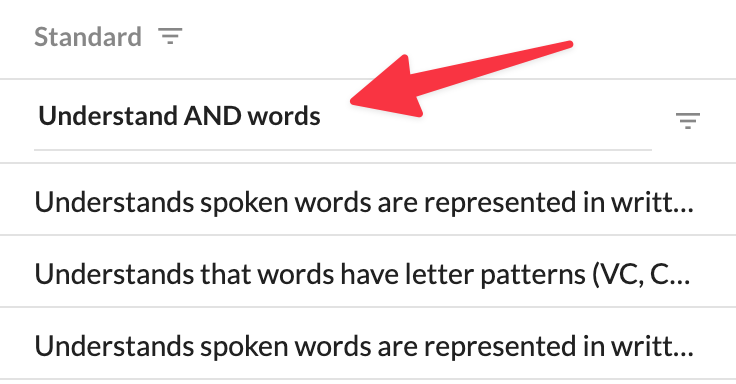
When you adjust the advanced filter parameters in a column with a set filter, the set filter options will adjust to show the matching values. When an advanced filter is applied, the column header will update to summarize the filter: