

Use assessment differentiation when an assignment applies to only part of a class. The score cell will not be available for student who are not selected for the given assignment; they cannot be scored accidentally.
Choose students when creating or editing an assessment
-
Create or edit the assessment and select one class.
-
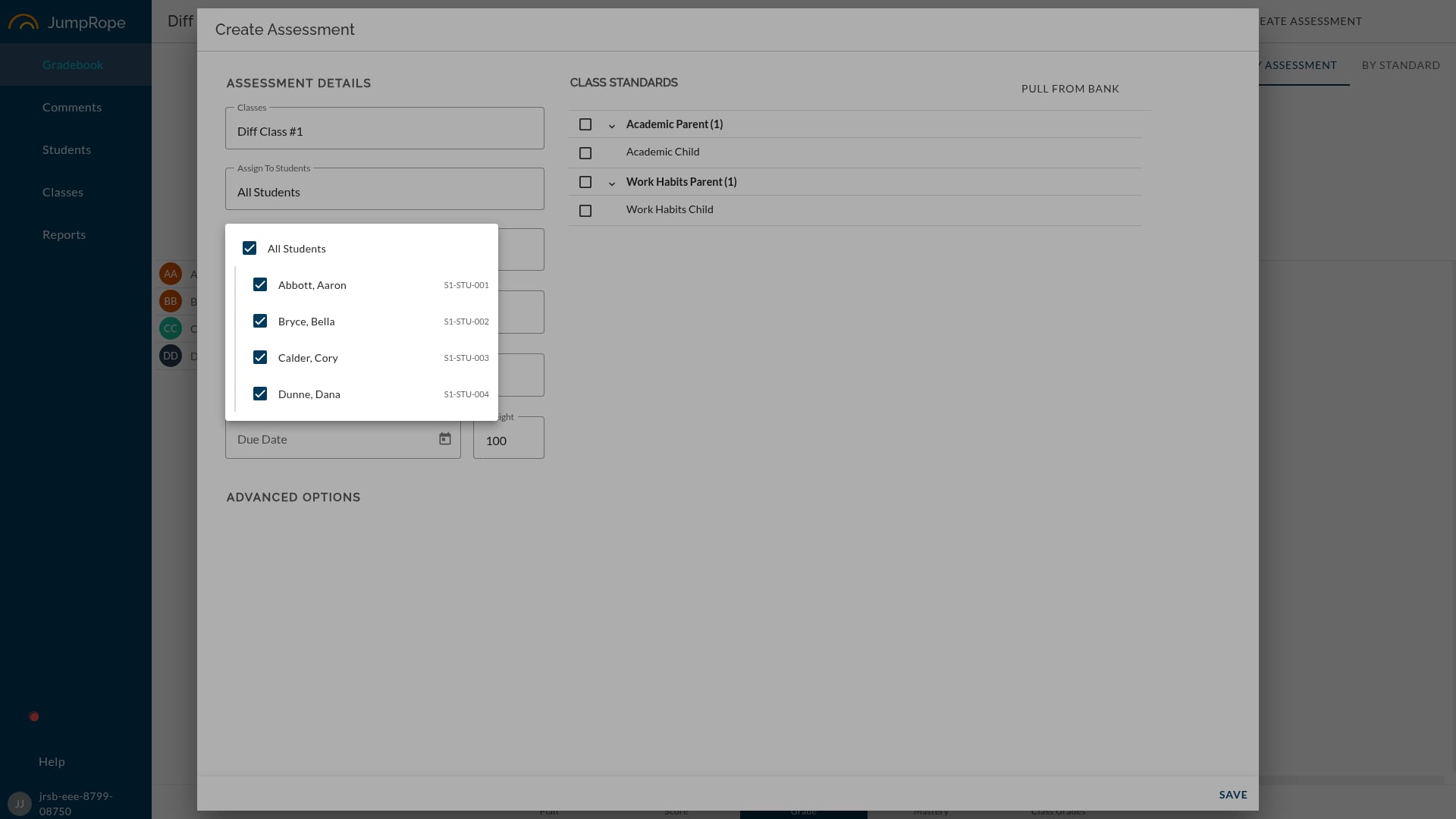
Open the Students field. All Students is selected by default.
-
To differentiate the assessment, clear All Students and select the individual students who should receive it.
-
Save the assessment.
If you select more than one class, JumpRope uses All Students and disables individual selection. Adding another class to an assessment that already has a student subset also clears that subset and returns the assessment to All Students.
Manage assignments later
Open Student Assignments from the upper right ... menu in Plan to review or change student assignments for all assessments in the class.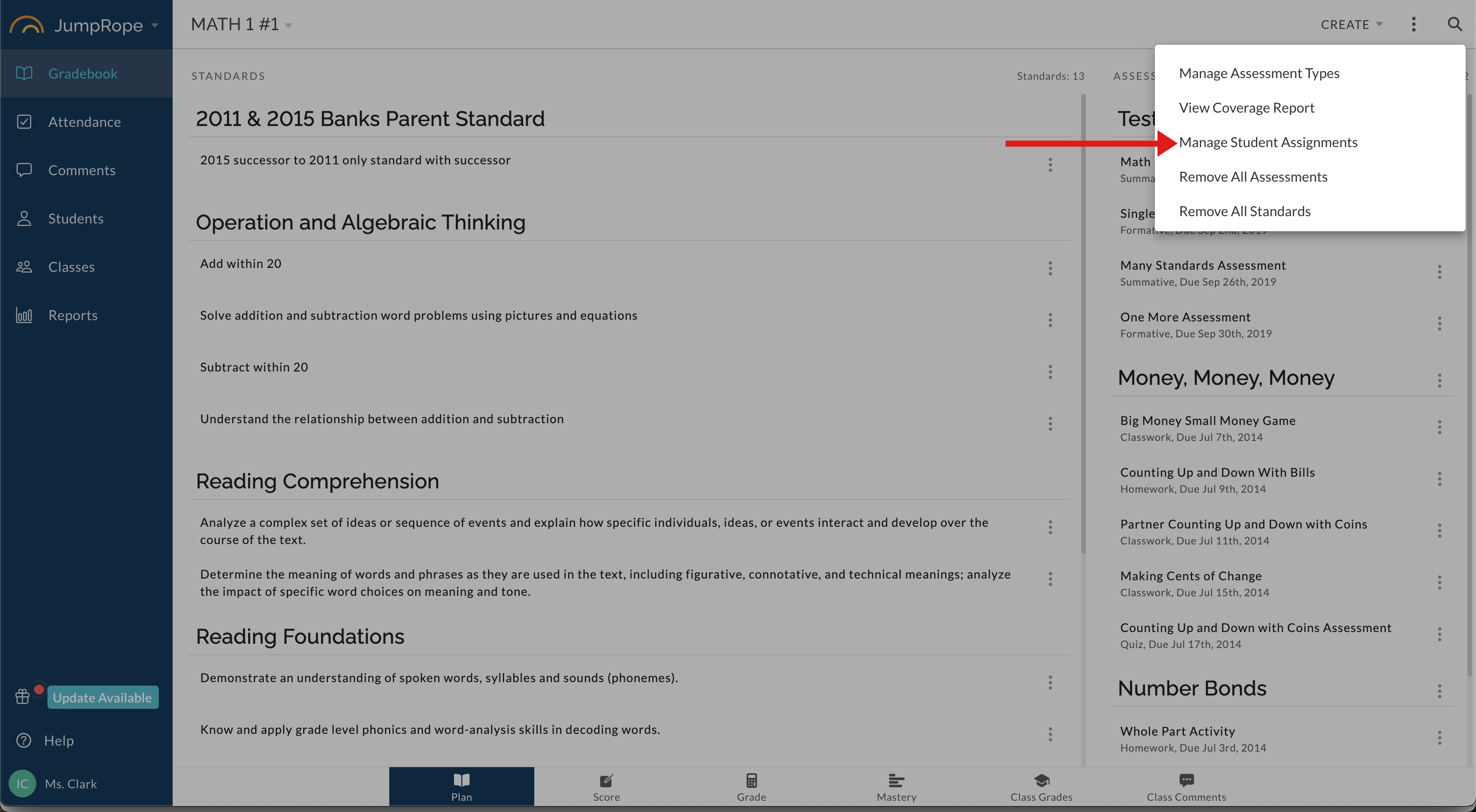
• The All Students row selects or clears the full class.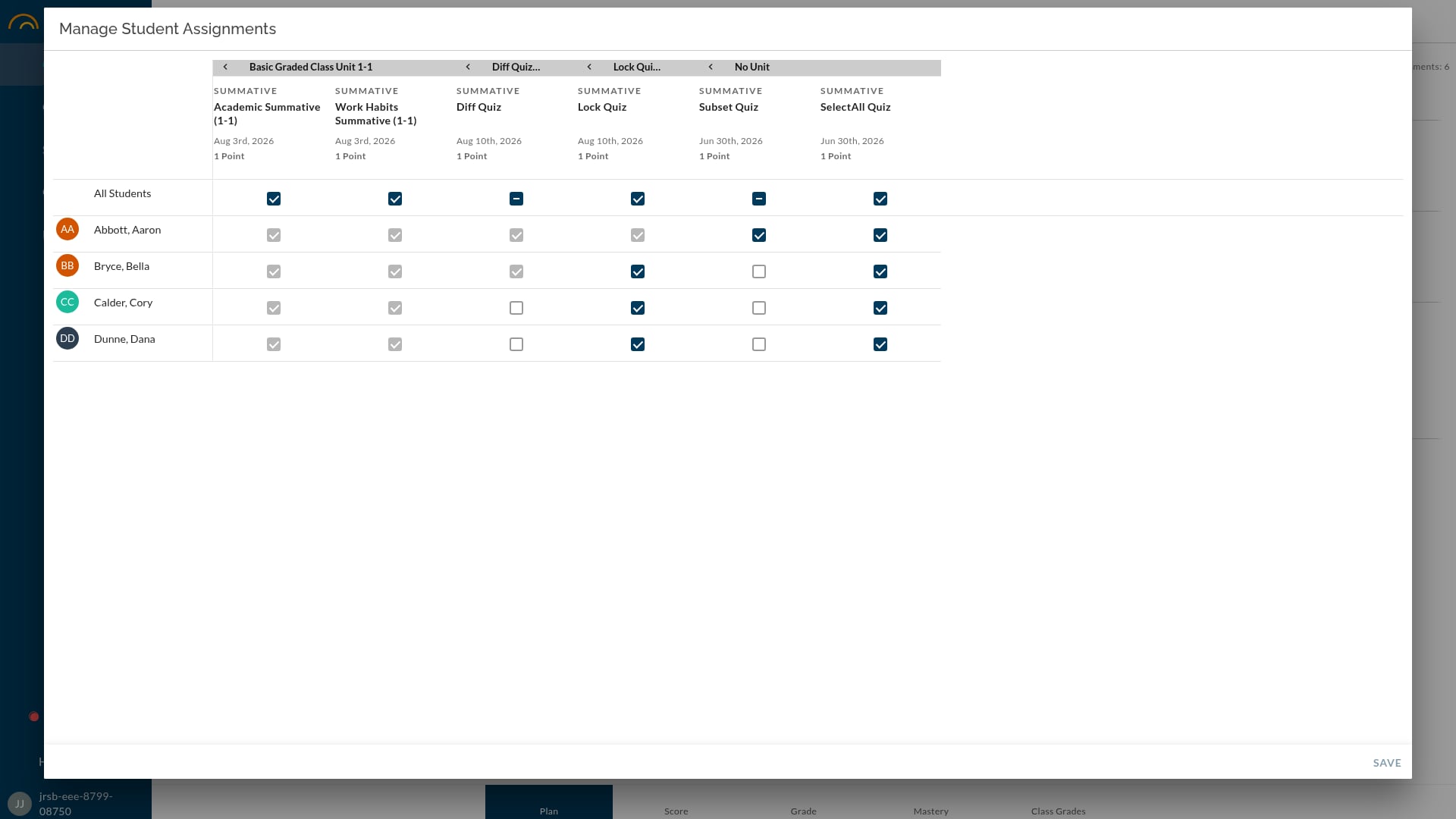
• Changes are not automatic. Click Save to keep them. Closing the window without saving discards them.