

The Grade sheet includes options individual to each teachers' preference. For each new option, JumpRope will remember your choice across all classes and grade views, but you can always toggle back and forth from the menu.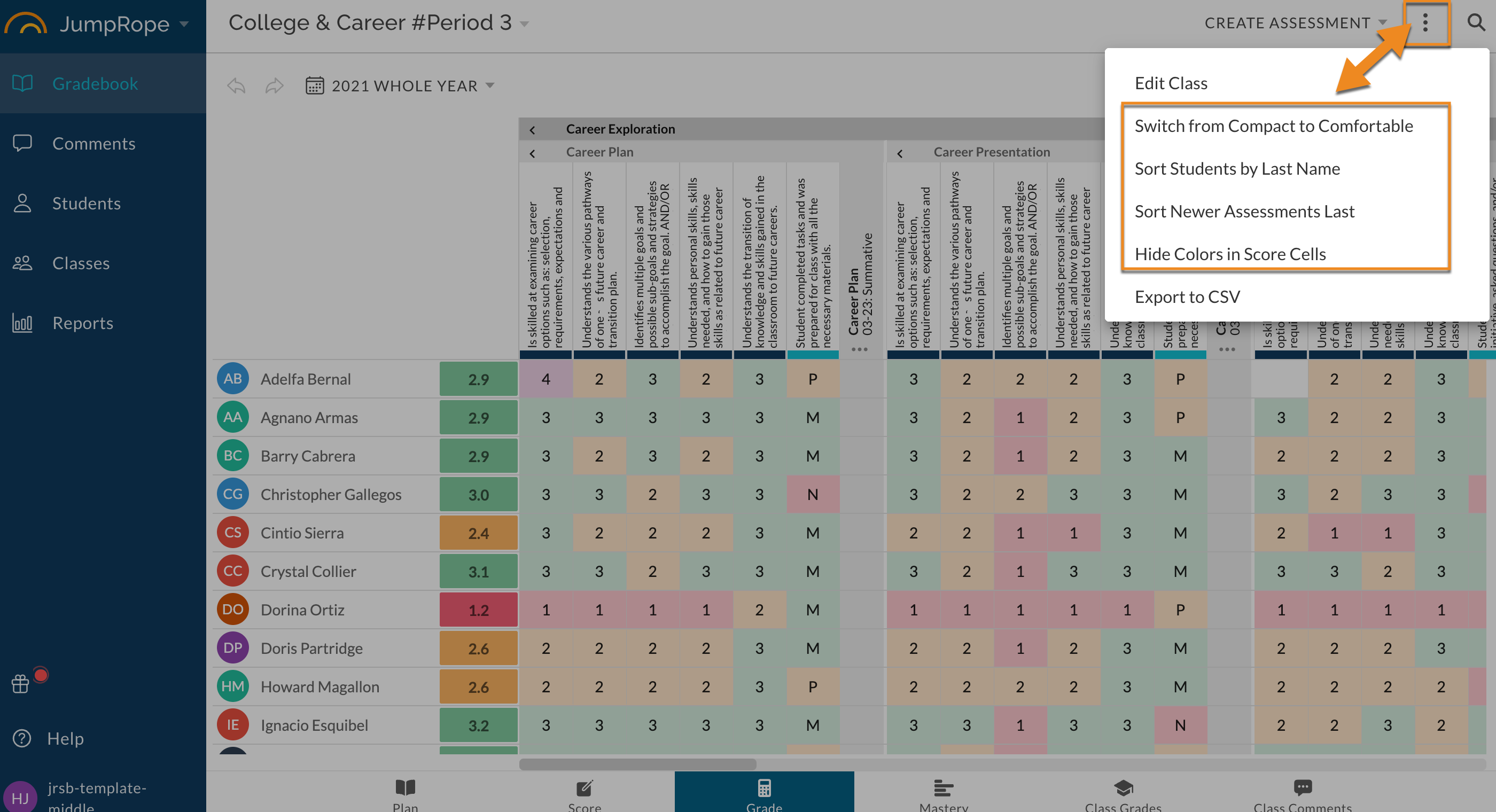
Compact to Comfortable
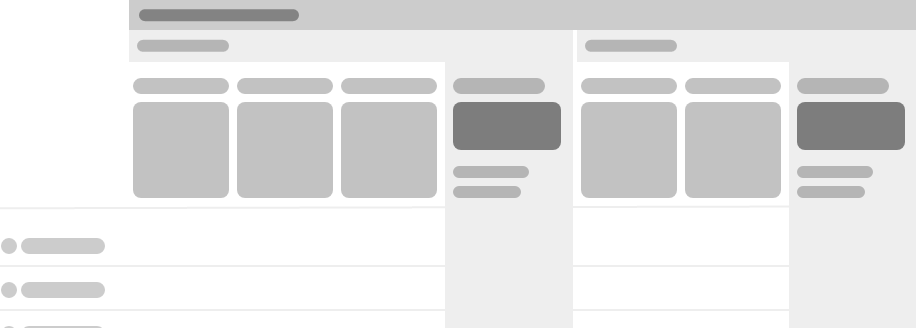
Choose between the compact view...

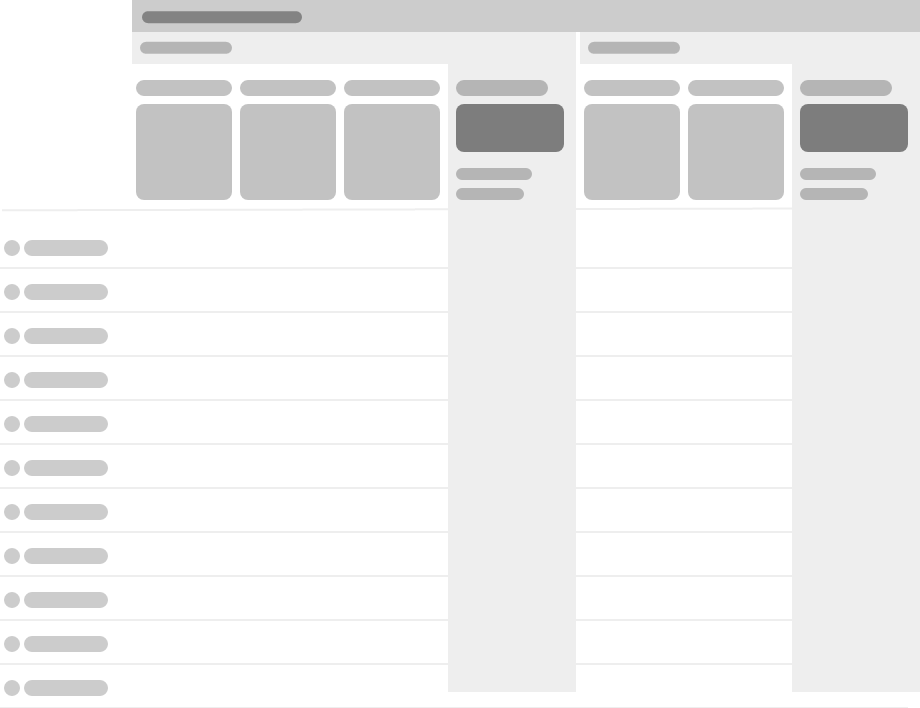
..and the comfortable view
Sorting
Choose to list (and sort) students by first name or last name across most views and reports throughout the app.
Choose to to sort assessments chronologically new to old or old to new. Assessments sort within their unit. Units are organized alphanumerically by title.
Mastery Colors
Toggle on and off the cell mastery colors for each individual score.
Undo/Redo
Using the Undo & Redo buttons, you can undo and redo individual score edits while entering scores. Please note: the history is only remembered until you change classes navigate away from the grade page, and only works with individual scores at this time (not with bulk imports or edits to assignments/standards).
Scoring Key
The Scoring Key gives you a quick reference for the marks that are valid in the gradesheet cell you are working in. It will remember it's status from class to class and session to session...if you pin it, it stays pinned. Collapse it, and it stays out of your way until re-opened.
Compact view
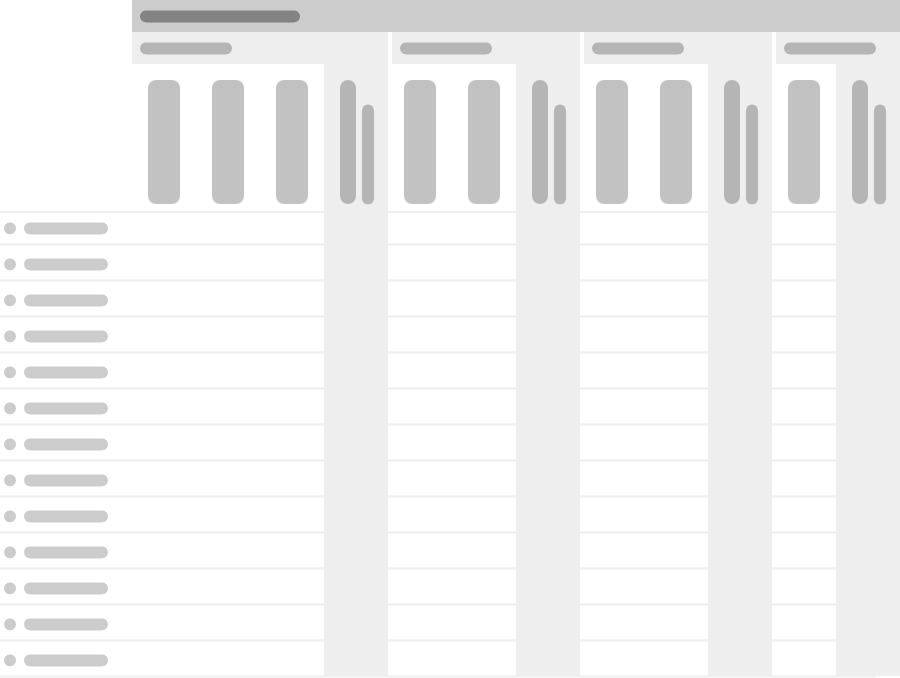
The compact layout has been built into JumpRope since day 1. It is best if you wish to view as much detail as possible on the screen at once, but packs things in pretty tightly:
Comfortable view
The comfortable layout lists all assessments and standards horizontally and shows more details in the column header. Your neck muscles may thank you!
If either of these is just a bit too big or too small, try adjusting your browser zoom using the keyboard shortcuts ctrl + and ctrl \- (the plus and minus buttons) to get a little more size or screen space out of the layout.
All of the gradebook functions that you already use work across both layouts, including:
- Collapse and Expand Columns to improve performance
- Bulk Fill scores
- Import Scores from Google Classroom