

The Scoring Key gives you a quick reference for the marks that are valid in the gradesheet cell you are working in.
-
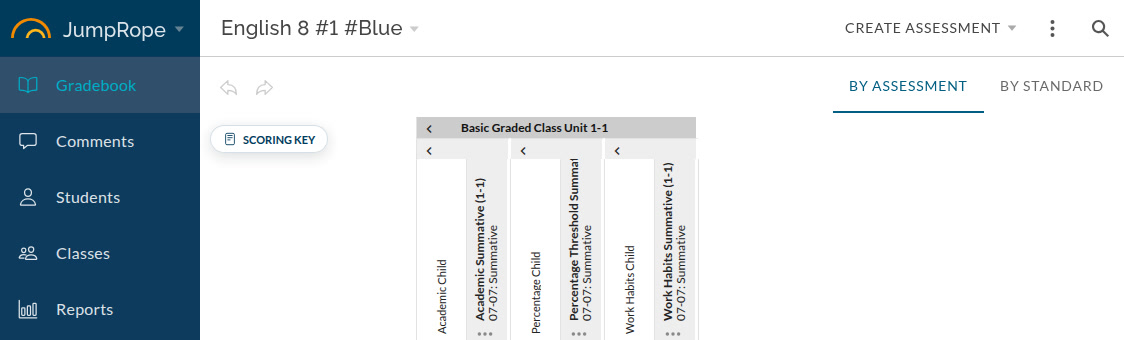
Open a class gradesheet.
-
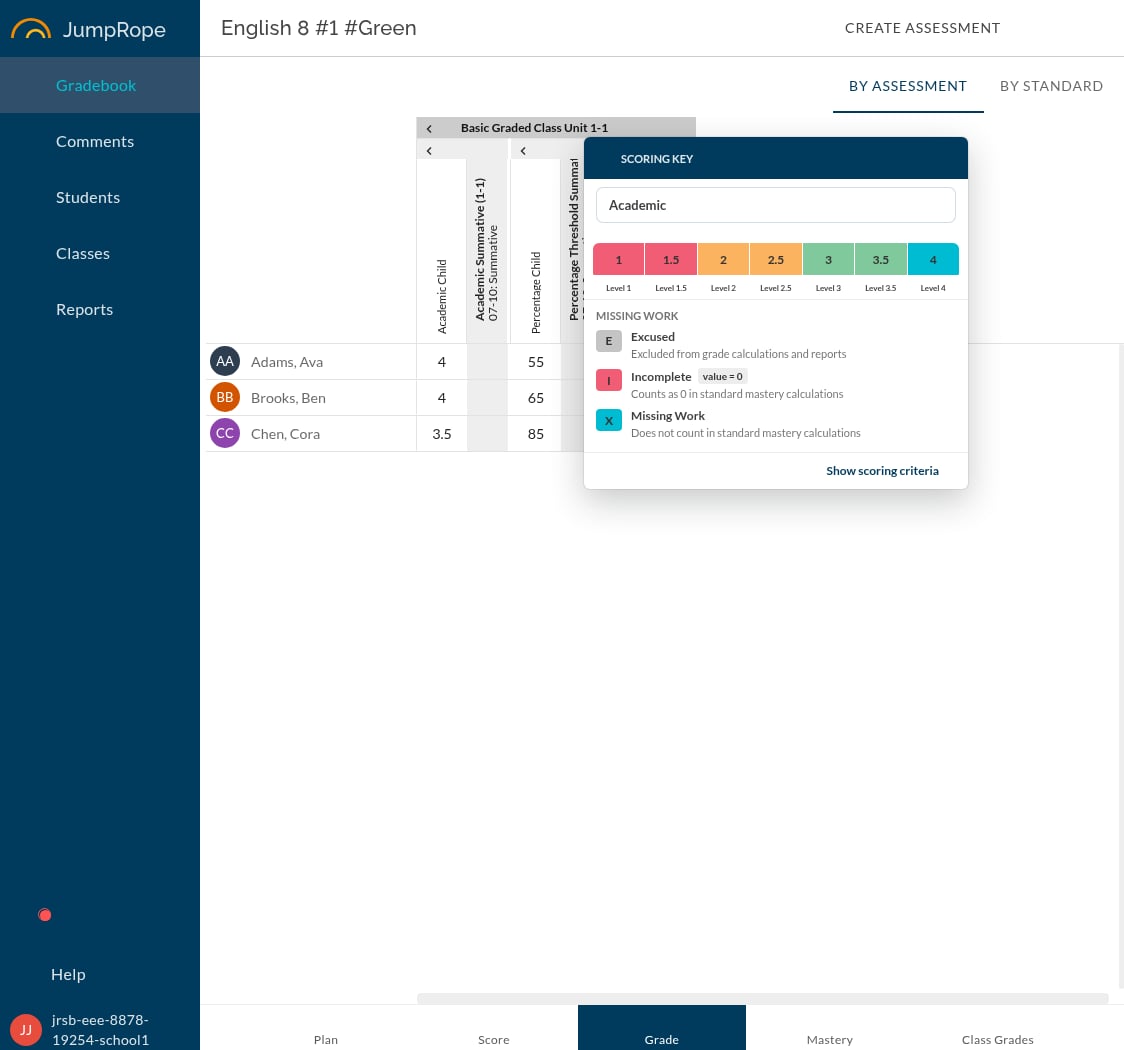
Select the minimized Scoring Key pill to open the key. It opens as a movable card.
-
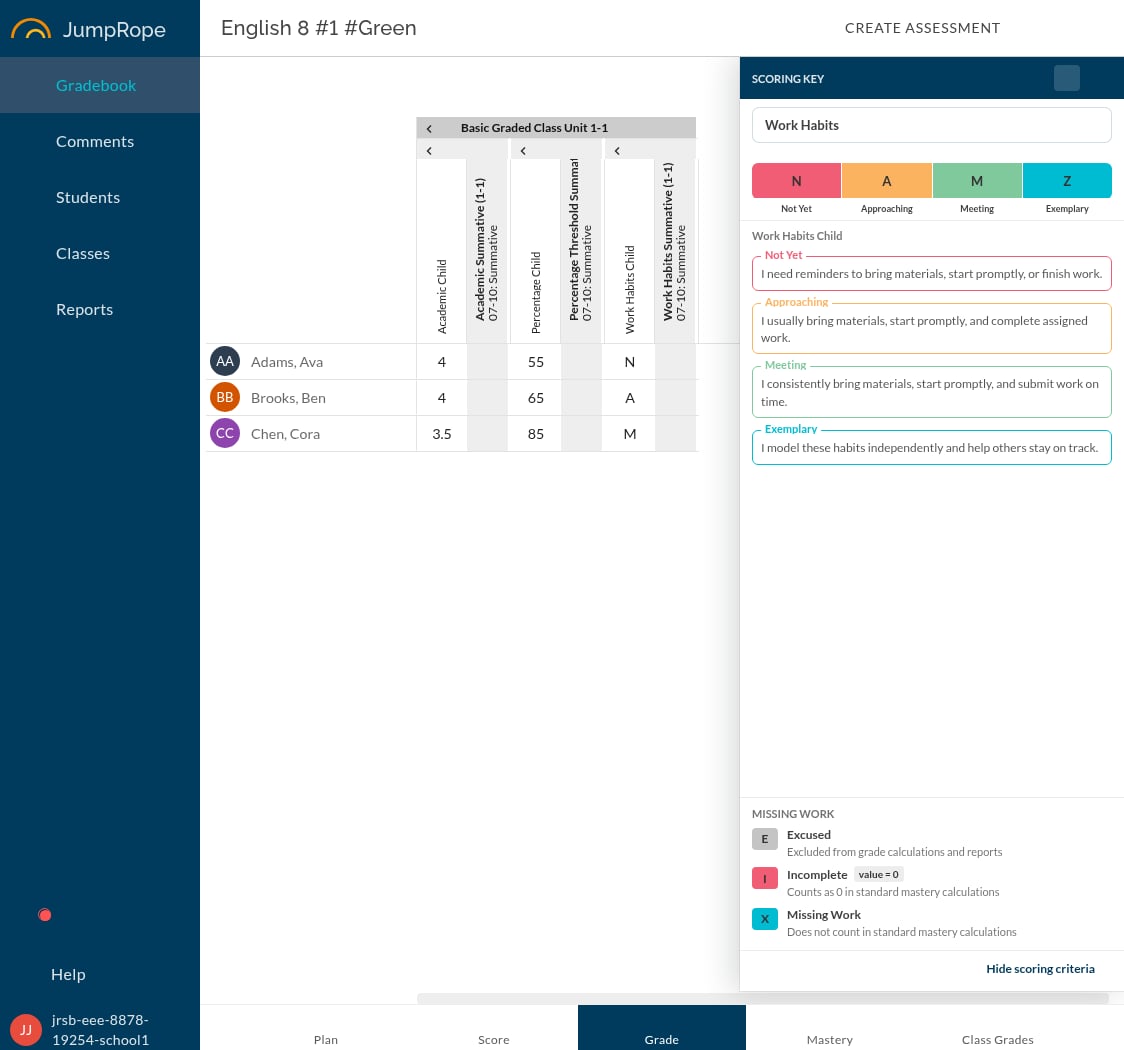
Select the Pin scoring key button in the card header to pin it to the right side of the gradesheet.
-
Select Unpin scoring key to make it movable again, or Close scoring key to return it to the minimized pill.
The pinned key reserves space beside the grid, so it stays visible without covering the score cells or the bottom navigation area.
The key follows the active cell
When you focus or edit a score cell, the Scoring Key switches to the scoring scale used by that cell's standard. It shows the valid marks for that context, including entry codes or numeric levels, labels and colors, and the school's missing-work codes. If the gradesheet uses more than one scoring scale, you can also use the scale menu in the key to review another available scale.
If scoring criteria are configured for the active standard, select Show scoring criteria to see the descriptions for its levels.