

The Score feature is available on desktop and tablet and is the primary score entry option on phones. Score is designed to enhance the score entry experience on tablets and phones while encouraging teachers to engage with student performance in terms of Scoring Levels. Score features a single assessment scoring view with clickable Scoring Levels for ease of entry.
Select the desired Class and choose "Score" or from the more menu of a desired assessment select "Score Assessment". 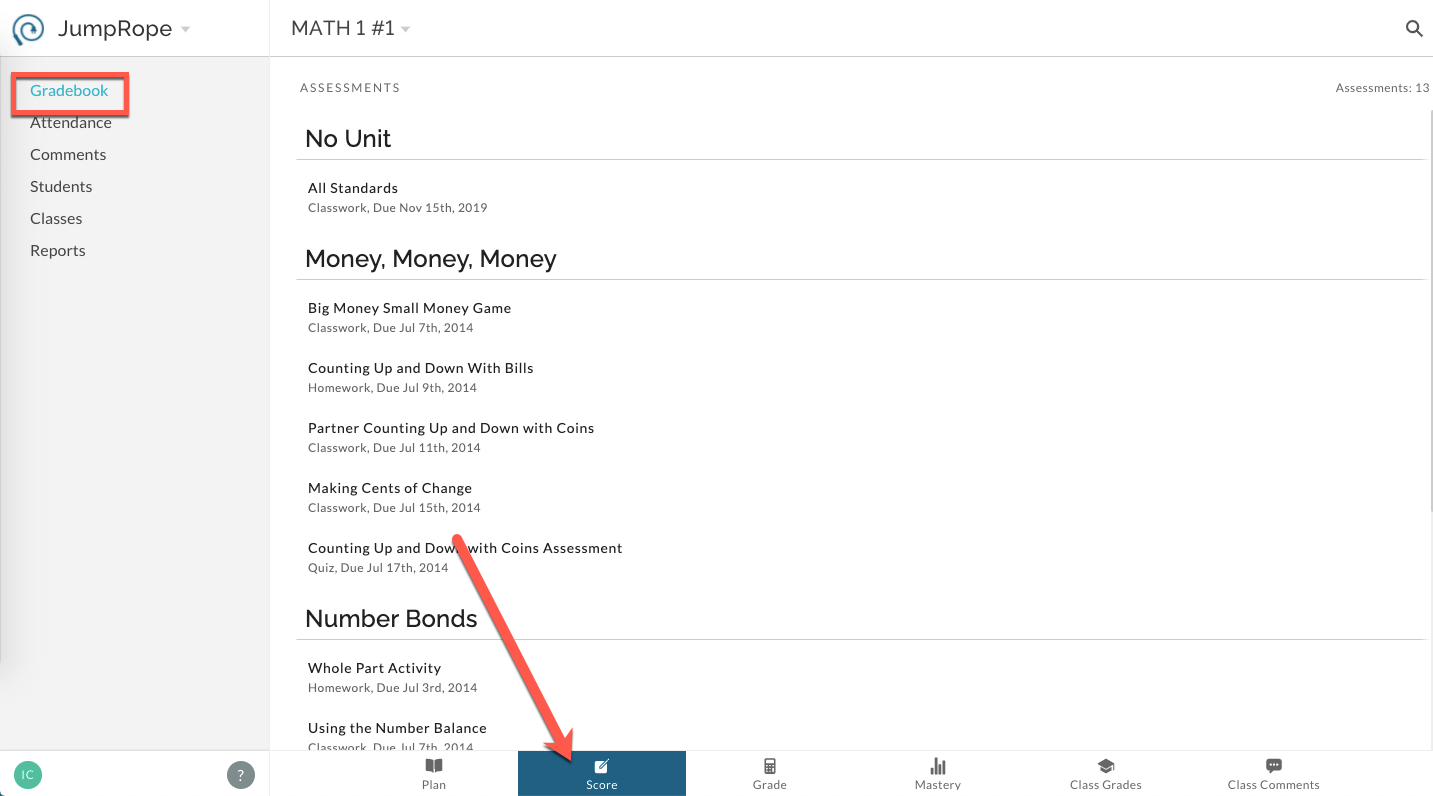
The student list will display a 'donut' chart showing the distribution of scores for the selected assessment. Click on the desired student.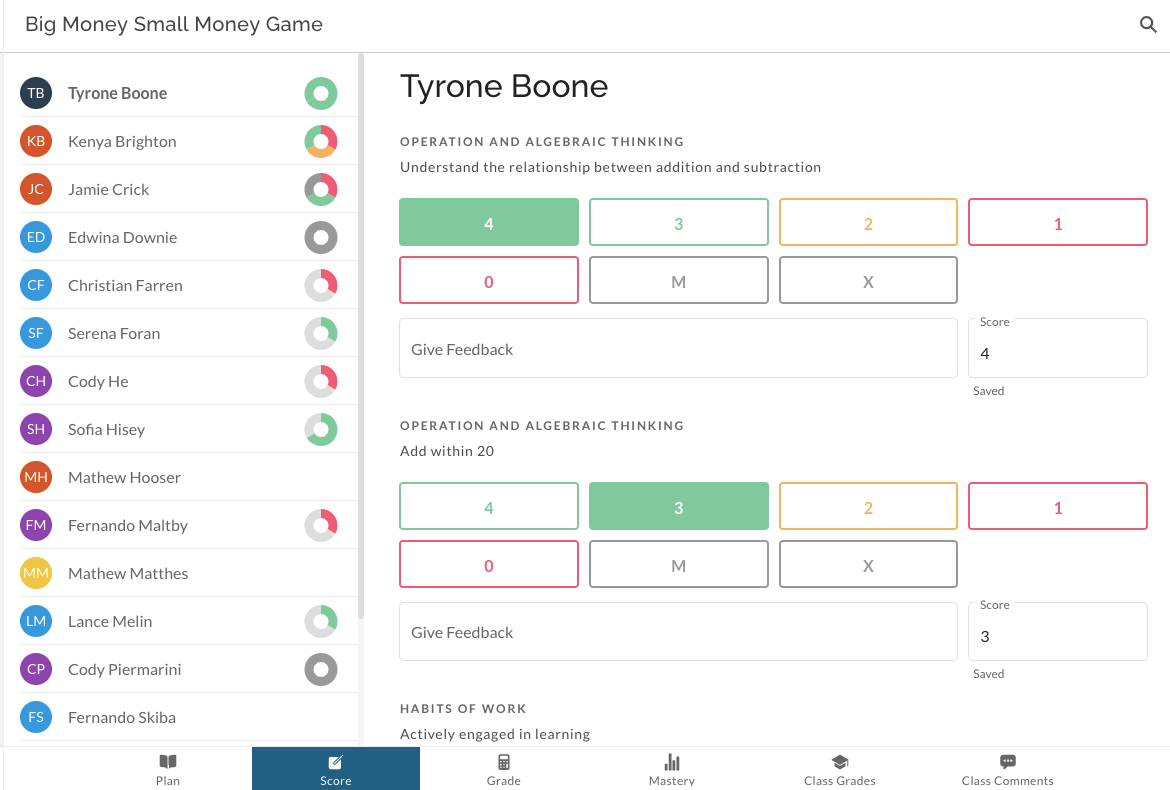
In the scoring view, your school's Scoring Scale will be presented with each Scoring Level as an available button. Along with these are any 'Missing' work code buttons. If your school/district has included Scoring Criteria for each level, you can toggle these on and off.
Select a Scoring Level for the given standard by clicking the button. You can also type directly into the Score field.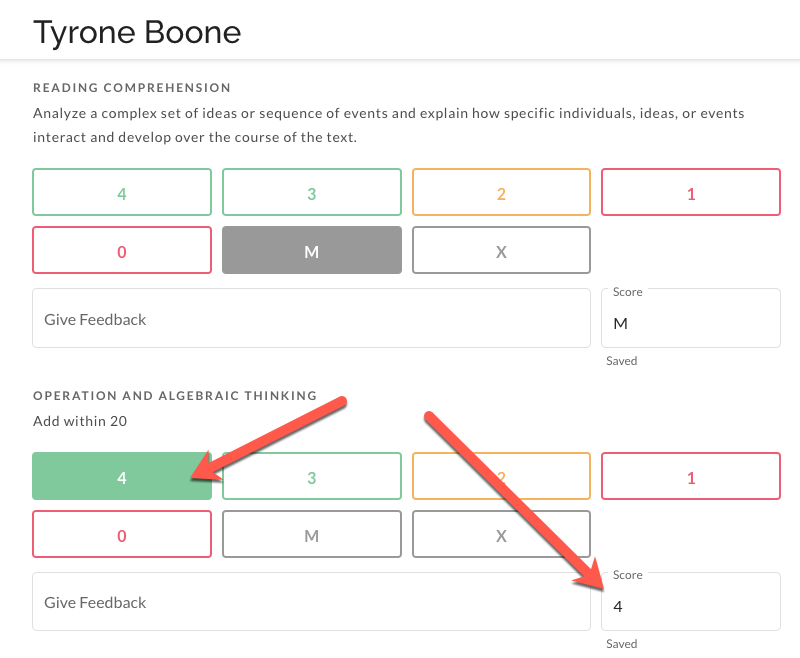
Once a value is selected, you have the option to include a feedback note. This text is a Score Comment visible on the Family Portal, expanded Progress Reports, and your Grade sheet (it's the same Score Comment that you enter by double clicking on a cell in the Grade sheet).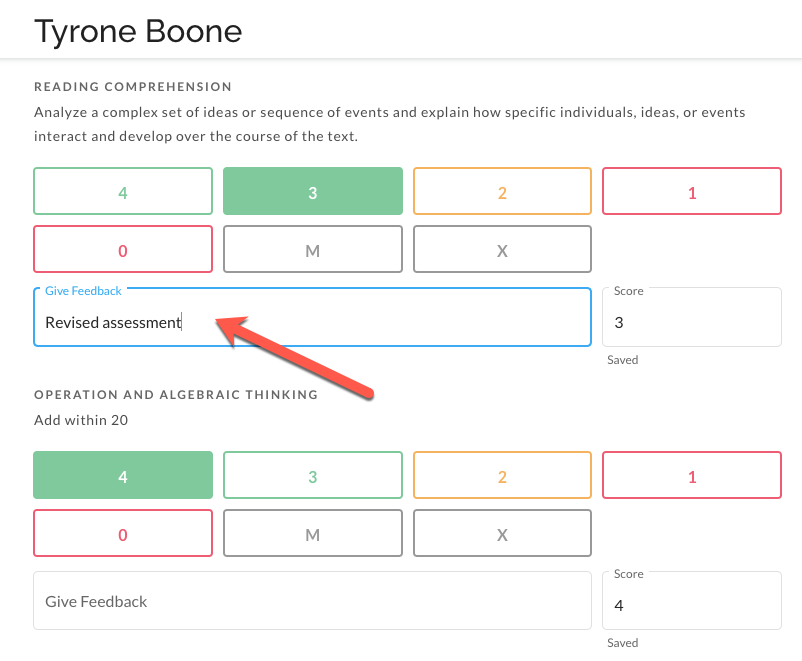
Scroll to move to the next student or select another student by name to jump to them.