

The functionality to push assignments from JumpRope to Google Classroom is available if the following criteria are met:
Your Google Classroom account is set up to use rubrics AND the class your are pushing from uses standards-based grading AND your school has enabled the feature.
OR
Your class uses a hybrid grading mode and you are pushing ONLY assessments to Google, not standard scores AND your school has enabled the feature.
If enabled for your school, you can send JumpRope assignments to your linked Google Classroom class so you don't have to create them twice. JumpRope creates the assignment in Google Classroom as a draft , with its title, description, due date and unit. If your Google account has access to Google Classroom rubrics, JumpRope also builds a rubric from the assignment's standards.
Before you start
-
Your class must be linked to a Google Classroom class, and you must be signed in to Google from JumpRope. If your Google sign-in has expired, JumpRope will ask you to sign in again before it pushes.
-
Push works for hybrid assessments in all Google Classroom environments, and works for standards-based assessments if your Google account allows rubrics.
Turn on push for a class
-
Click edit from the menu on a Class Card.
-
Turn on Push new assignments to Google Classroom by default. It is off unless you turn it on.
-
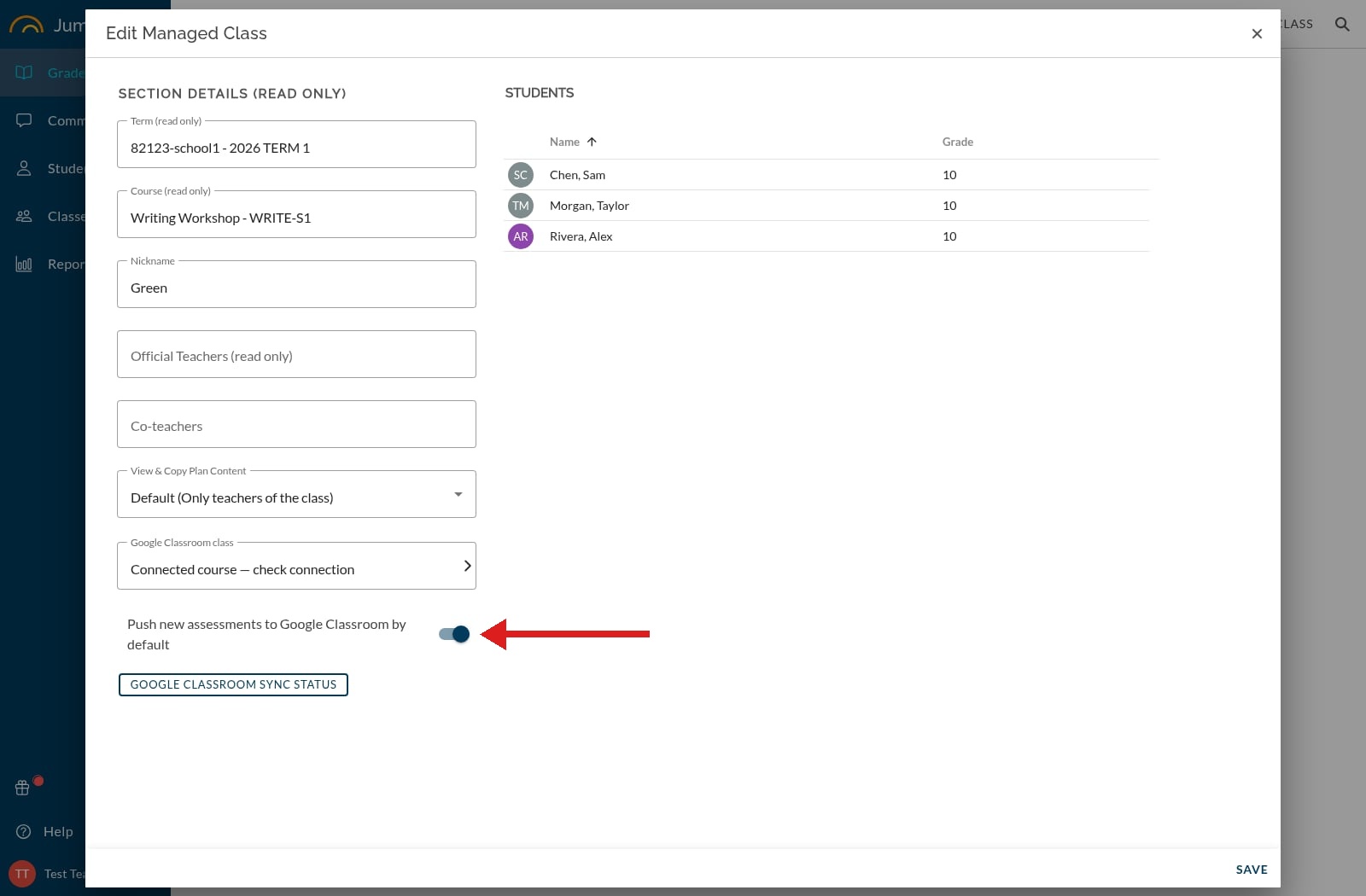 Save.
Save.
When push is on for a linked class, a Google Classroom logo appears in the avatar row on that class's card in the Gradebook, next to the teacher avatars.
Push a single assignment
-
Create a new assignment as usual.
-
In the create form, check the Push to Google Classroom toggle. It starts with your class default, and you can change it for this one assignment.
-
Save the assignment. JumpRope pushes it to each linked Google Classroom class in the background.
-
Open Google Classroom, review the draft assignment, and publish it when you're ready. JumpRope does not publish it for you.
The Push to Google Classroom toggle appears only when you create an assignment. It is not on the edit form.
Push an assignment you've already saved
If an assignment wasn't pushed (push was off when you created it, or an earlier push was cancelled or failed):
-
In the Grade sheet, open the ellipsis menu in the assignment's column header.
-
Choose Push to Google Classroom.
Check push status for the whole class
The sync status window lists every assessment in the class with its status:
-
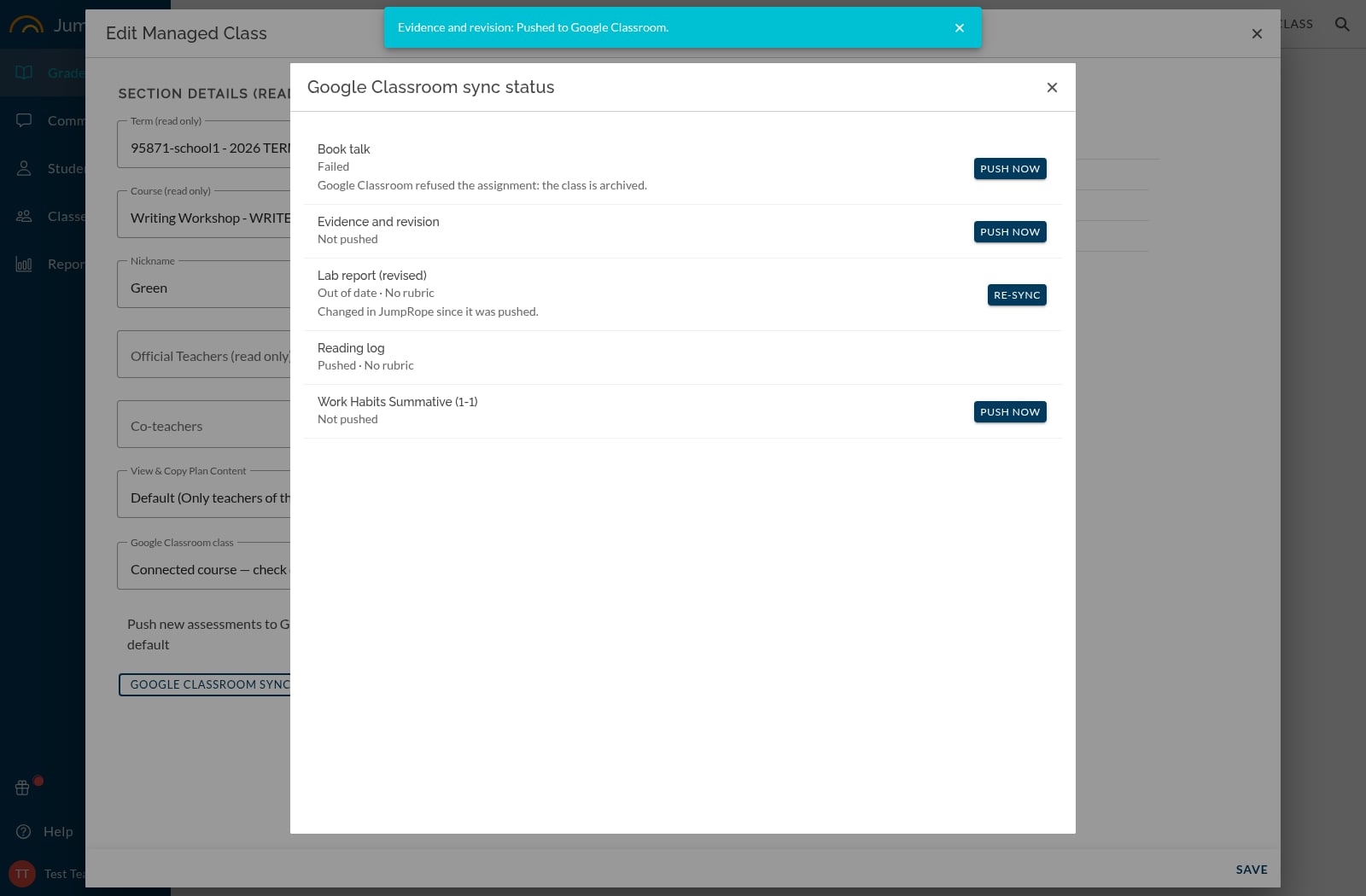 Not pushed : never sent to Google Classroom. Use Push now to send it.
 -
Pushed : sent successfully.
-
Failed : the push didn't finish for one or more linked Google classes.
-
Out of date : changed in JumpRope since it was pushed. Use Re-sync to update Google Classroom (title, points, due date or rubric [confirm: which fields Re-sync can update]).
If a push fails
If the push fails for a Google Classroom class, JumpRope shows you the result for each linked class:
-
Retry tries that class again. Classes that already succeeded are not pushed again.
-
Cancel stops the push. Your JumpRope assignment stays saved.
If Google Classroom created the assignment but couldn't add the rubric, that class is also shown as failed, and you can retry it.
How the rubric is built
-
There is one rubric criterion for each standard aligned to the assignment. The criterion title and description are the standard's title.
-
There is one level for each scoring level in that standard's scoring scale. The level title is the scoring level title, the points are the scoring level value, and the description is the standard's scoring criteria (rubric descriptors) if you've added any. See How To - Add Rubric Descriptors to Standards.
-
Levels follow the scale's Sort Levels Descending setting. Each criterion uses its own standard's scale.
Notes and limits
-
The assignment is placed under the Google Classroom topic that matches its JumpRope unit name. If there's no matching topic, JumpRope creates one. Assignments with no unit get no topic.
-
When you import scores back from Google Classroom for a pushed assignment, they always go into the original JumpRope assessment. No duplicate is created. See How to import scores from Google Classroom into JumpRope.