

Any Progress Report Template can be enabled to Allow Multiple Grading Periods. These reports are designed to compare a student's progress across several benchmarks throughout the school year.
See also: How to - Create a Progress Report that includes Multiple Grading Periods (MGP)
MGP (Multiple Grading Period) Progress Reports have been designed to support a Grading Card model that many elementary schools use, but they are flexible enough to be utilized by all grade levels and various cumulative and non-cumulative grade models.
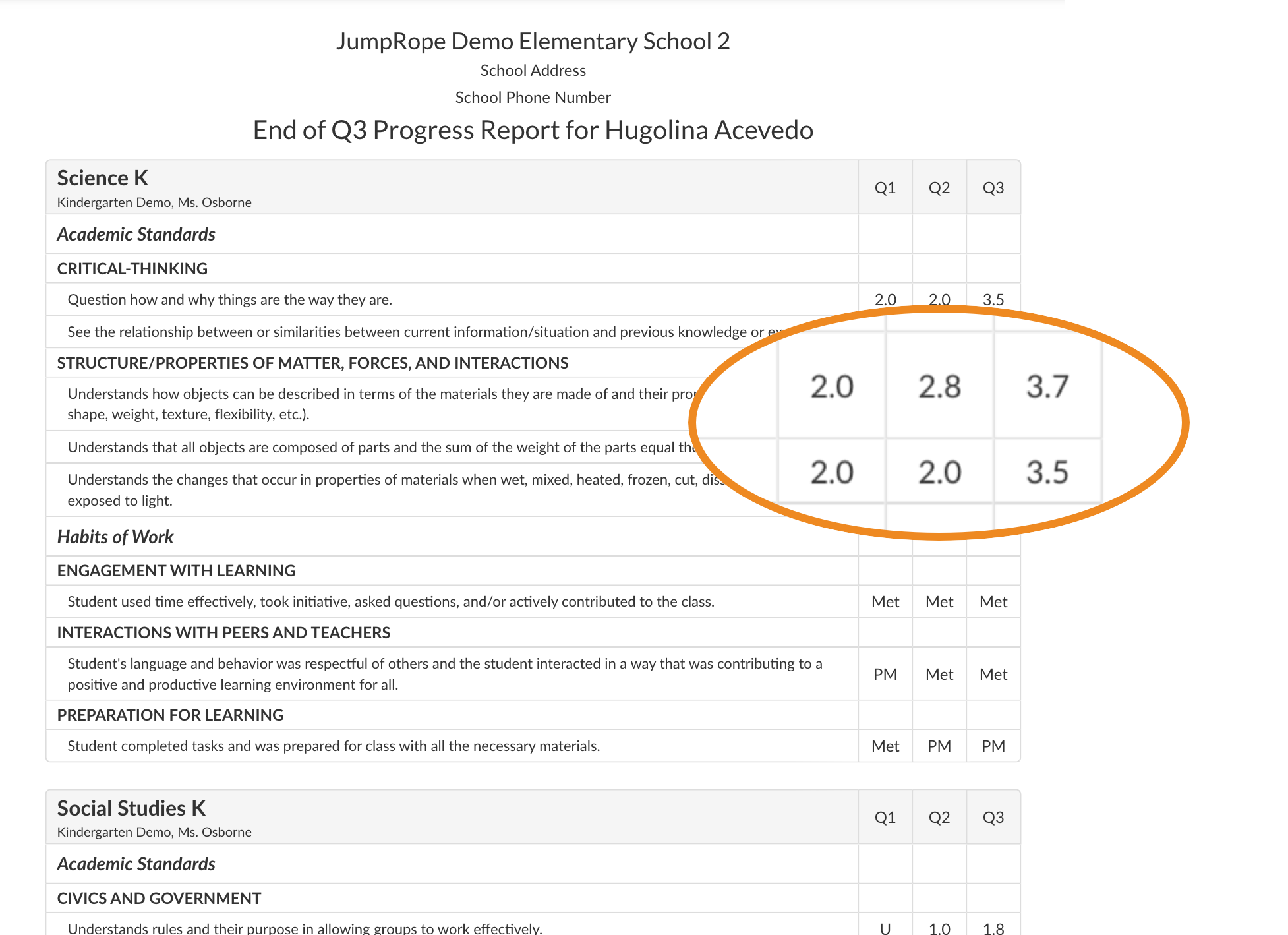 MGP report comparing scores for three Grading Periods.
For fields that don't have score data, a - is displayed. This is generally because no scores were entered for that Grading Period time frame. If score data exist but have no value (i.e. are all marked as 'missing' or all have no weight) a U score will be displayed.
Grading Periods in JumpRope can be discrete (i.e. not overlap and provide a blank slate for students at the beginning of each) or they can be cumulative (i.e. dates overlap and each successive date range begins with the start of the school year). MGP progress reports support either model.
Grading Periods have a Report Text field. Use the Report Text to name your Grading Period columns on a MPG report. See Setup - Mastery Reports - Grading Period to edit the Report Text.
Successive Grading Periods are often cumulative (depending on how your school has set up start and end dates for each Grading Period). To a similar point, it is suggested in this case to not include any future GP columns on a report; only add the columns that you want to show scores for at any given point in time.
Multi-grading period select is performed within the Print Progress Report Wizard. When selecting Grading Period(s) you can choose more than one. If you choose only a single GP, the report will be a regular progress report including colored mastery bars.