Table of Contents
Overview ↑
Aeries now allows districts to configure Identity Providers in addition to Google, to allow their staff, teachers and students to log in via SSO.
Navigate to School Info > Configurations > Identity Provider Configuration
The Identity Provider Configuration page allows administrators to set up Single Sign-On (SSO) for their district. Single Sign-On lets users log in to Aeries using an existing account from another service — such as Google — instead of a separate Aeries username and password. Aeries uses a standard called OpenID Connect to communicate with these external login services, which means it can work with any compatible identity provider.
Security ↑
The Identity provider Configuration page is only accessible to Admin users
Configurations ↑
Navigate to School Info > Configurations > Identity Provider Configuration.
Updating Google Redirect URIs (Migrated Districts)
If your district was previously using the legacy Google Sign-In integration, you may see the following notice when visiting this page for the first time. This is expected — it means Aeries has already migrated your Google identity provider to utilize the new table structure, but one manual step is required before you can continue.
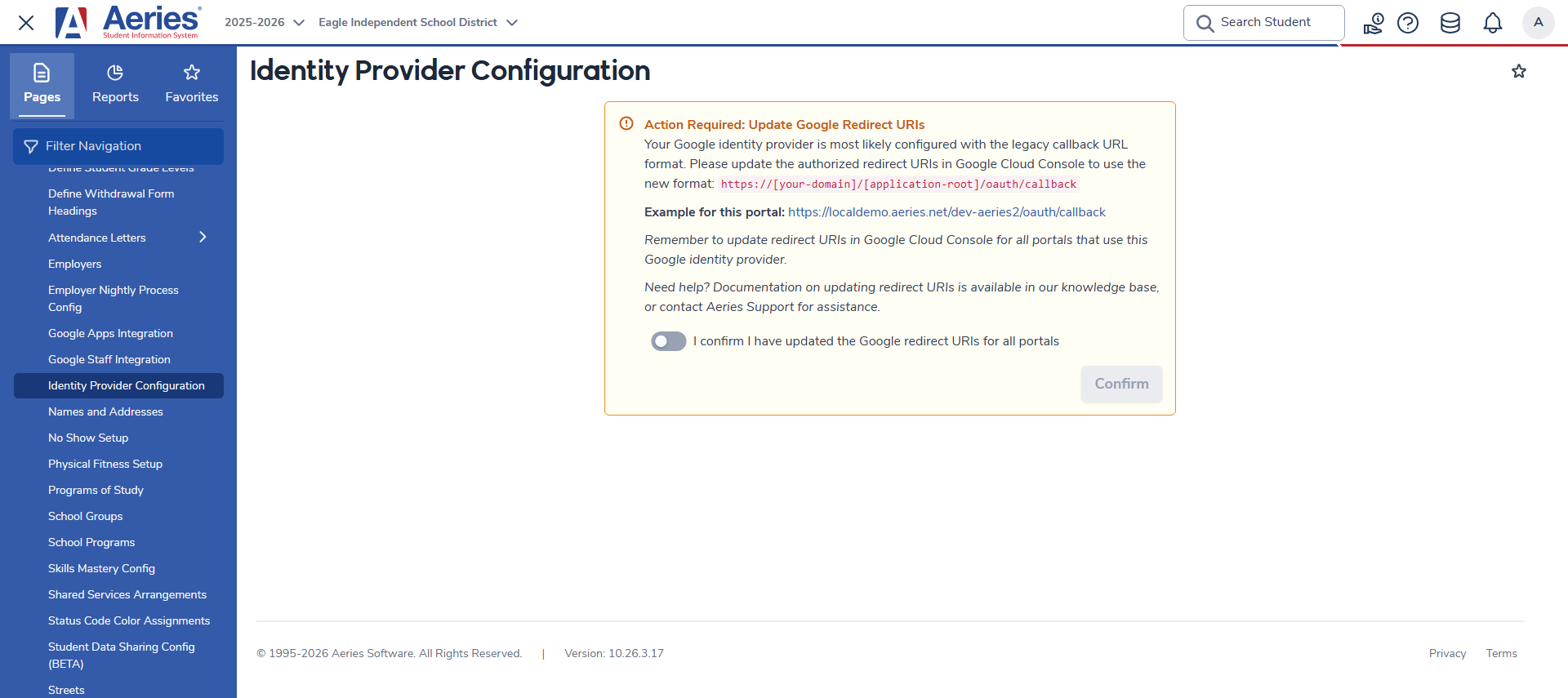
NOTE: Your existing Google Sign-On will continue to work until you confirm this step. However, you will not be able to access the Identity Provider Configuration page until you confirm that the redirect URIs have been updated. Once you confirm and proceed, the old callback URLs will no longer function — so ensure all portals have been updated in Google Cloud Console before clicking Confirm.
To resolve this, log in to your Google Cloud Console and update the authorized redirect URI for your Aeries application to the new format:
https://[your-domain]/[application-root]/oauth/callback
For districts hosted on the Aeries hosted environment, the three most common portal URLs to update are:
https://demo.aeries.net/admin/oauth/callbackhttps://demo.aeries.net/teacher/oauth/callbackhttps://demo.aeries.net/student/oauth/callback
The page will also display the exact URL for your specific portal as an example. If your district uses this Google identity provider across multiple portals, update the redirect URI for each one. Once all portals have been updated, toggle the confirmation switch and click Confirm to proceed to the Identity Provider Configuration page.
Identity Provider List
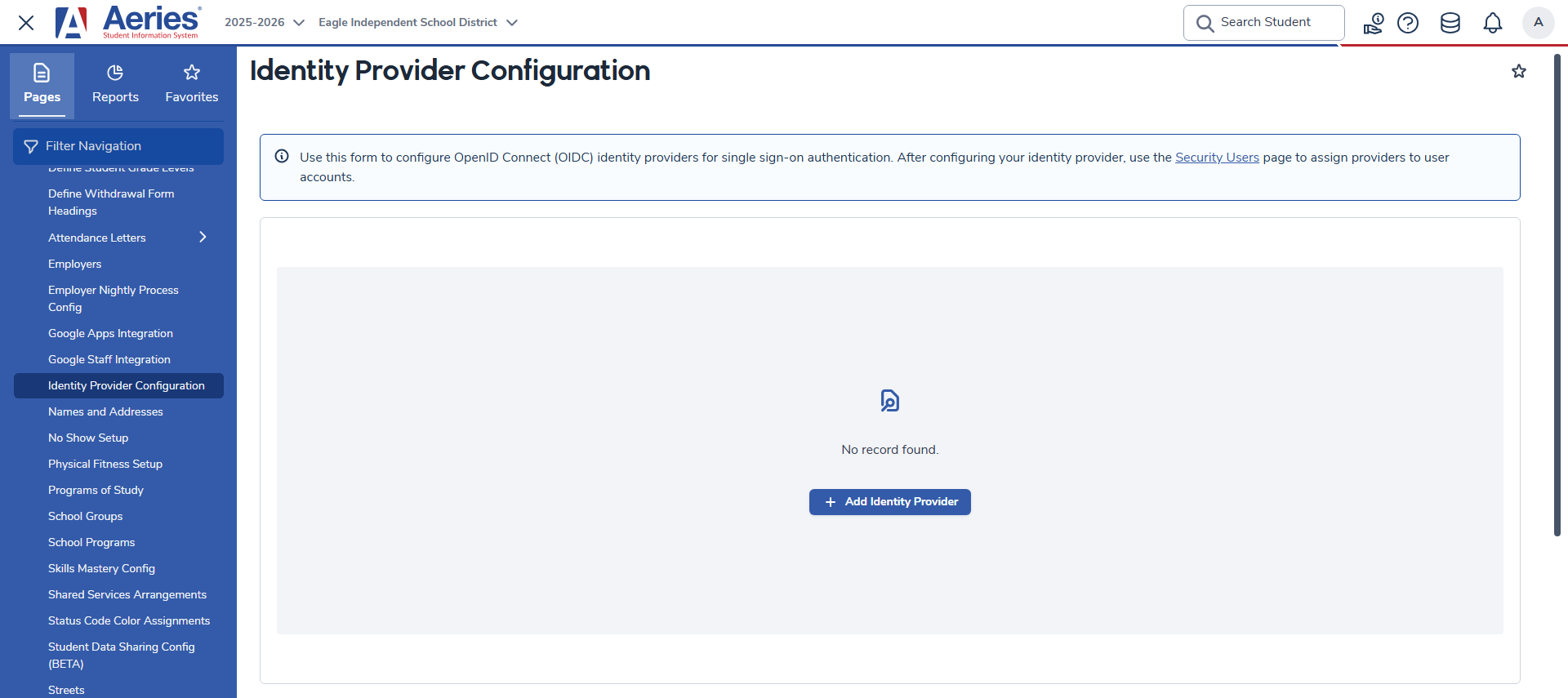
After confirming the redirect URI update (or if your district was not previously using the legacy Google Sign-In), you will see the main Identity Provider Configuration page.
If no identity providers have been configured yet, the page will display a No record found message along with an + Add Identity Provider button to get started.
NOTE: If your district was migrated from the legacy Google Sign-In, you will see an existing entry named Google (Migrated) in the list instead of the empty state shown above. This entry represents your previously configured Google integration and can be reviewed and edited from this page.
Adding an Identity Provider — Step 1: Basic Info
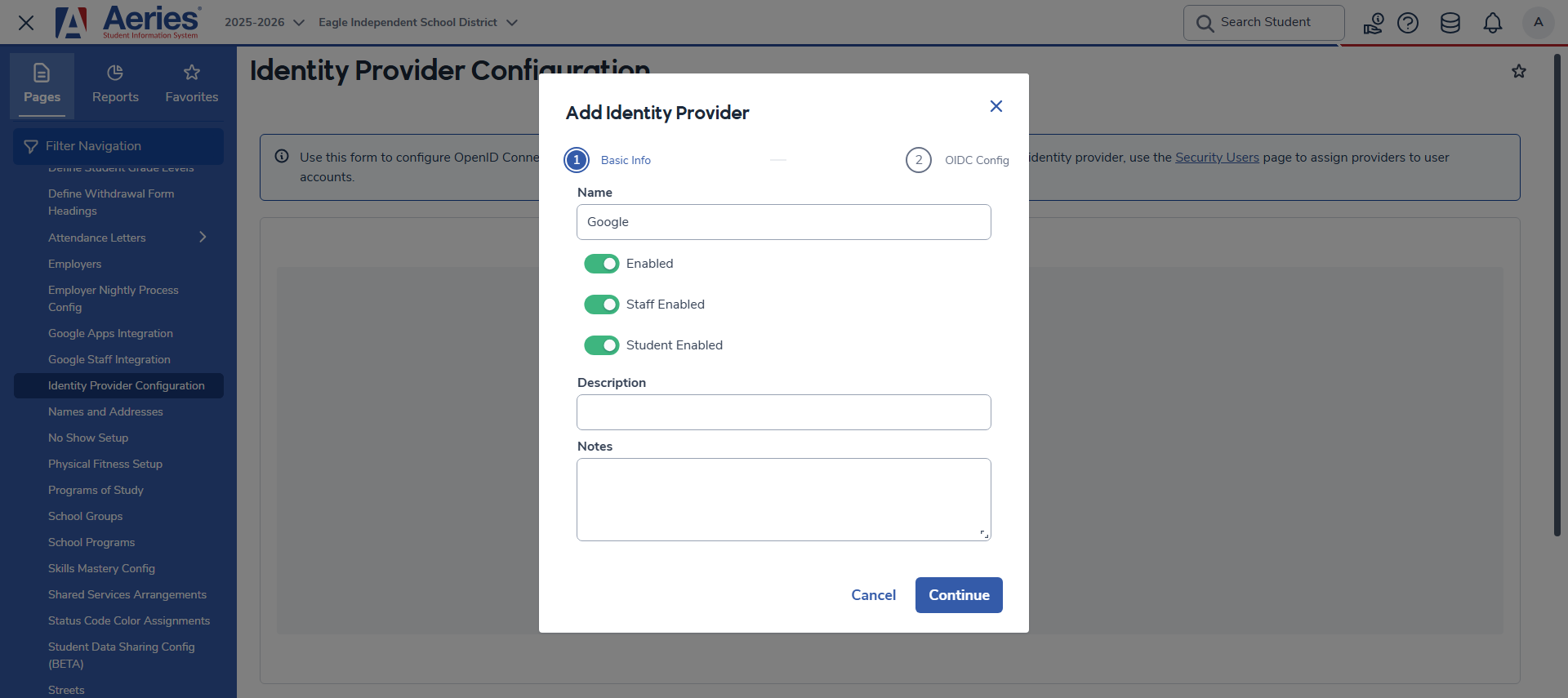
Click + Add Identity Provider to open the Add Identity Provider dialog. The first step collects basic information about the provider.
- Name (required) — A label for this identity provider. This is used internally to identify the provider within Aeries (e.g., "Google", "Microsoft").
- Enabled — Global on/off switch for this identity provider. When disabled, the provider cannot be used for login regardless of other settings.
- Staff Enabled — When enabled, this provider can be assigned to individual staff accounts, allowing those staff members to log in using this provider.
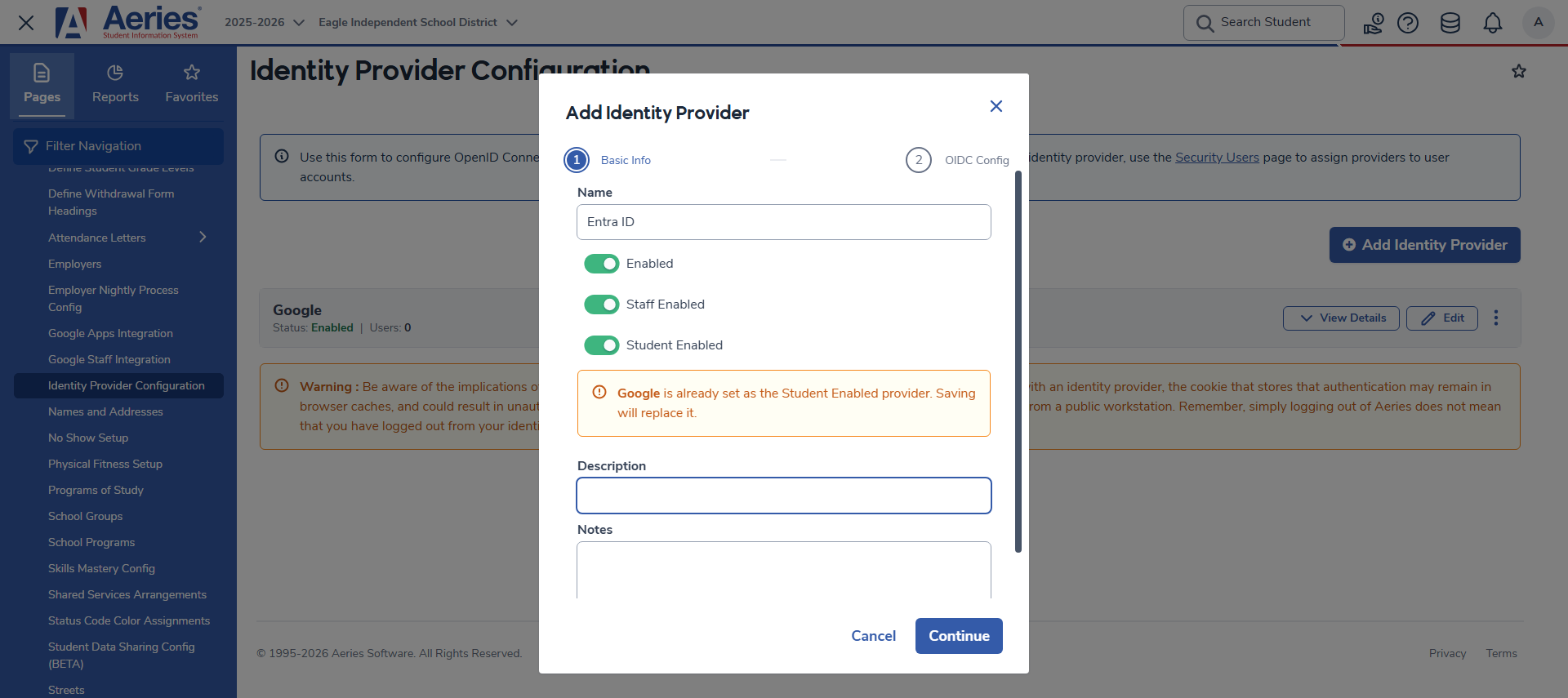
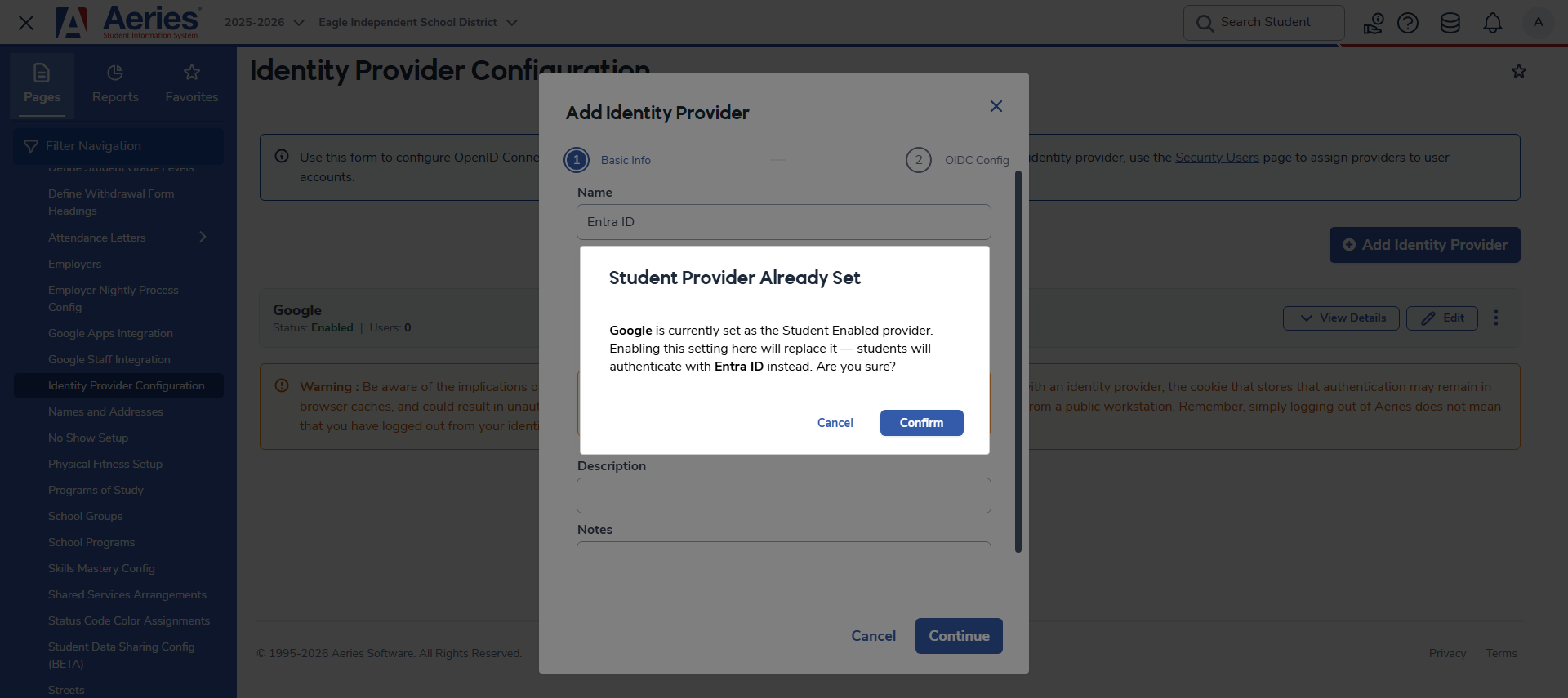
- Student Enabled — When enabled, all students in the district will be required to log in using this provider. Only one identity provider may have this enabled at a time. If another provider is already set as the student provider, an inline warning will appear identifying the existing provider. When continuing, a confirmation dialog will ask you to confirm the replacement before proceeding.
- Description — Optional internal description for administrators. Not visible to end users.
- Notes — Optional internal notes for administrators. Not visible to end users.
Once the required fields have been filled in, click Continue to proceed to Step 2.
Replacing the Student Enabled Provider
If a student provider is already set and you enable Student Enabled on a different provider, an inline warning will appear on the form. When you click Continue, a confirmation dialog will ask you to confirm before proceeding.
Adding an Identity Provider — Step 2: OIDC Config
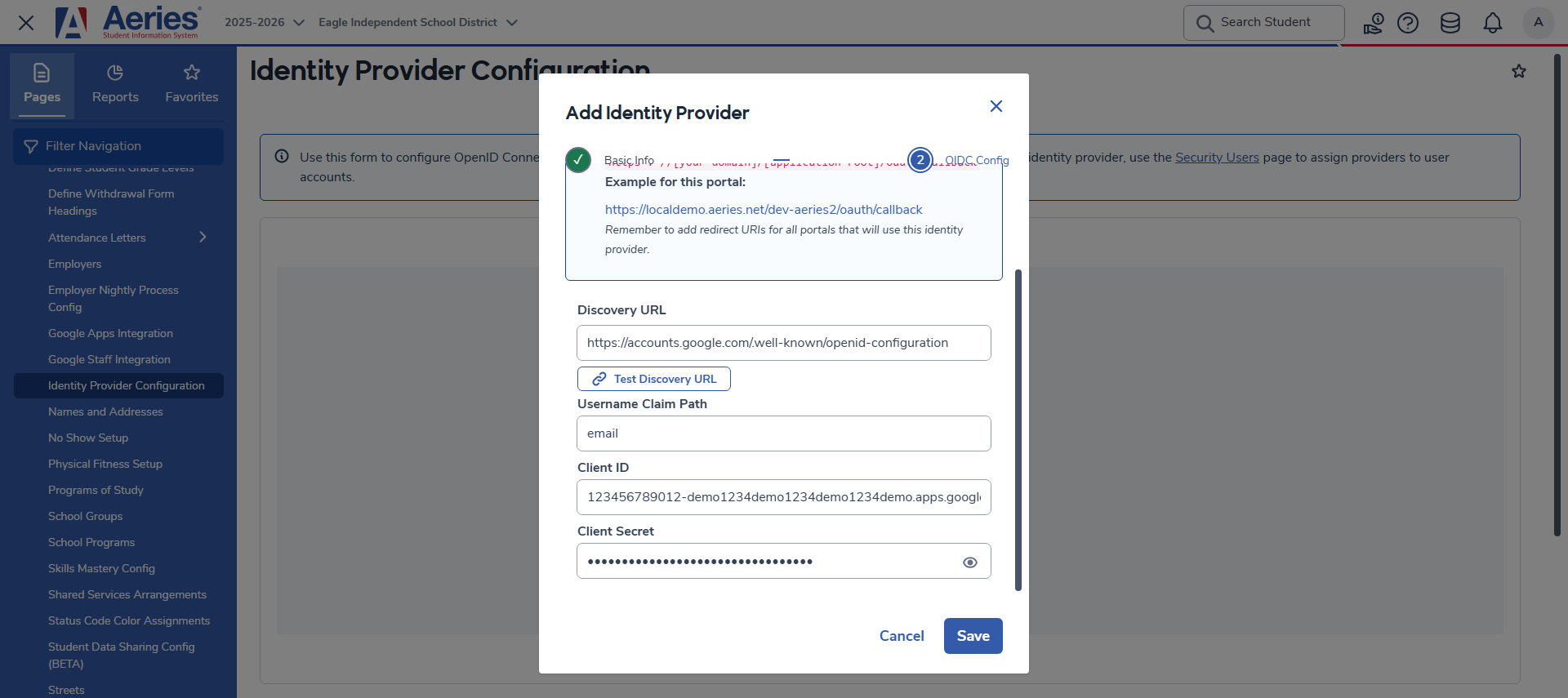
Step 2 collects the technical credentials needed for Aeries to communicate with your identity provider. These values are provided by your identity provider when you register Aeries as an application with them.
Before filling in this step, ensure that your identity provider has been configured with the correct redirect URI for each Aeries portal. The required redirect URI is displayed at the top of this step for reference.
- Discovery URL (required) — The OpenID Connect configuration endpoint for your identity provider. This tells Aeries how to communicate with the provider for authentication. Your identity provider's documentation will supply this URL.
- Test Discovery URL — Click this button to verify that the Discovery URL is reachable and returns a valid OpenID Connect configuration. The Discovery URL must be successfully tested before the provider can be saved.
- Username Claim Path — The field returned by the identity provider that contains the user's login name. This value must match what is entered as the username on the user's record in Aeries. The default value of email is recommended for most districts, meaning users' Aeries usernames must be set to their email address.
- Client ID (required) — A unique identifier for your Aeries application, issued by the identity provider during registration.
- Client Secret (required) — A secret key issued alongside the Client ID by the identity provider. This is used to securely authenticate Aeries with the provider.
NOTE: The Client Secret is encrypted when saved and cannot be viewed again after the provider is created. Store it securely before saving, as it will need to be re-entered if it is ever lost or rotated.
Once all fields have been completed and the Discovery URL has been tested, click Save to create the identity provider.
Managing Identity Providers
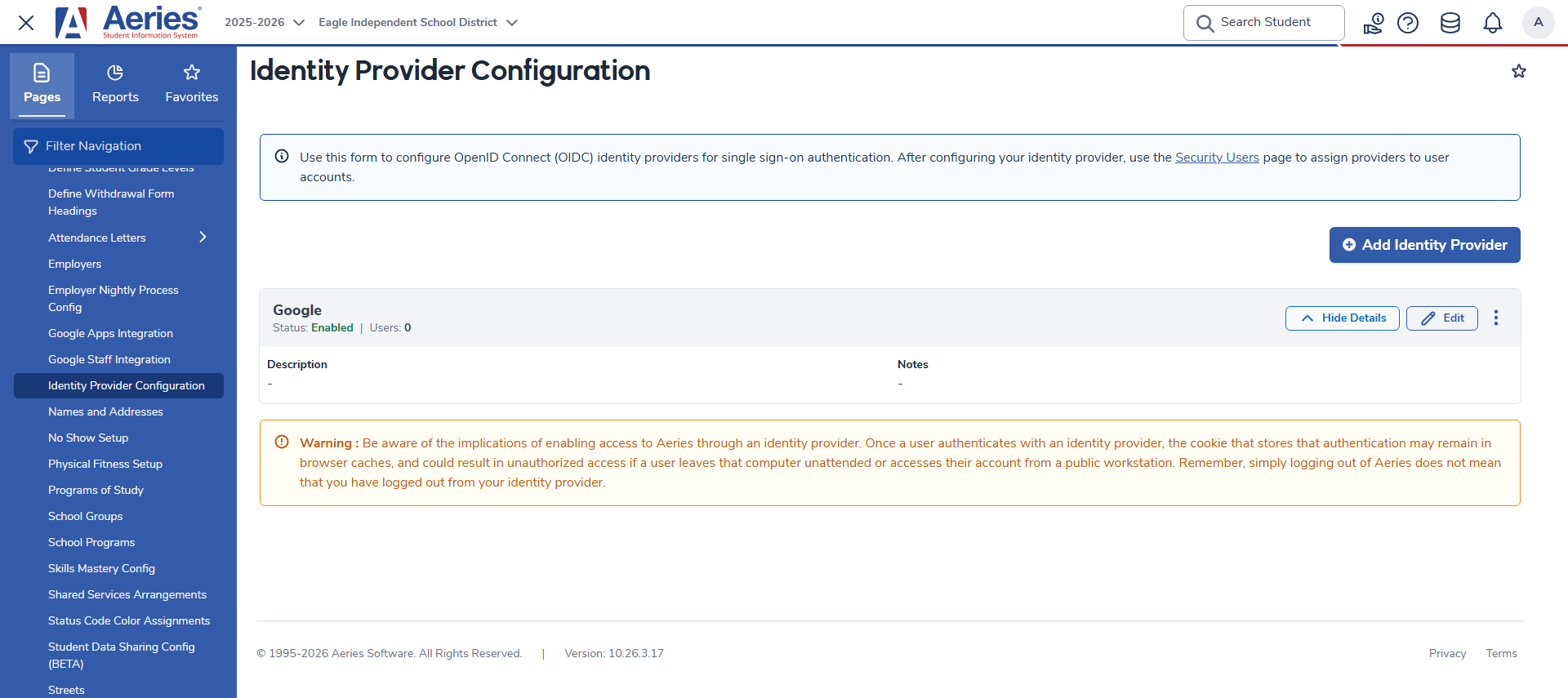
After saving, the provider will appear in the list on the Identity Provider Configuration page. Each entry displays the provider's name, its current status, and the number of Aeries users currently assigned to it.
The following actions are available for each provider:
- View Details / Hide Details — Expands or collapses the provider's Description and Notes fields.
- Edit — Opens the same two-step dialog pre-populated with the provider's existing values. The Client Secret field will appear filled in, but its value is always hidden. To update the Client Secret, simply replace the contents of the field and save. If no change is needed, leave the field as-is.
- Delete (three-dot menu) — Permanently removes the identity provider.
Tables ↑
| Table | Field | Description |
| IdentityProvider | Id | Unique identifier for the identity provider |
| Name | Display name of the identity provider | |
| Description | Internal description for administrators | |
| Enabled | Whether the identity provider is active | |
| StaffEnabled | Whether staff members can authenticate using this provider | |
| StudentEnabled | Whether all students are required to authenticate using this provider | |
| DiscoveryUrl | OpenID Connect discovery endpoint URL for the provider | |
| ClientId | OAuth 2.0 Client ID issued by the identity provider (stored encrypted) | |
| ClientSecret | OAuth 2.0 Client Secret issued by the identity provider (stored encrypted) | |
| UsernameClaimPath | The claim returned by the identity provider used to match the user's Aeries username | |
| Notes | Internal notes for administrators | |
| DEL | Soft delete flag; when set, the record is treated as deleted |
Options ↑
Assigning an Identity Provider to a User
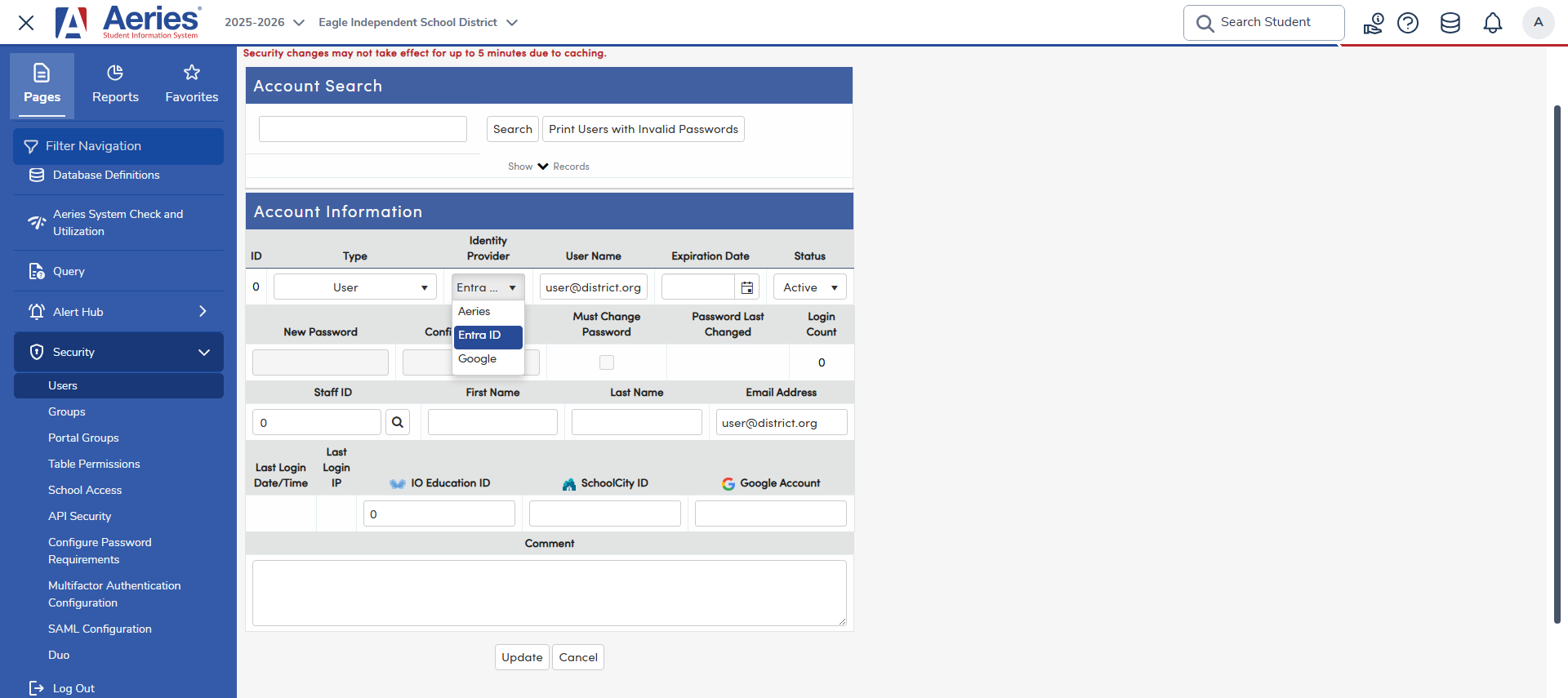
Once an identity provider has been configured, it must be assigned to individual staff user accounts before those users can log in with it. Navigate to Security > Users and open or create a user account.
The Identity Provider dropdown on the user record controls how that user authenticates:
- Aeries — The user logs in with a standard Aeries username and password. This is the default.
- [Provider Name] — The user logs in using the selected identity provider. The username on the user record must match the value returned by the identity provider for the configured Username Claim Path (e.g., if set to
email, the Aeries username must be the user's email address as known to the identity provider).
NOTE: Security changes may not take effect for up to 5 minutes due to caching.
Login Page ↑
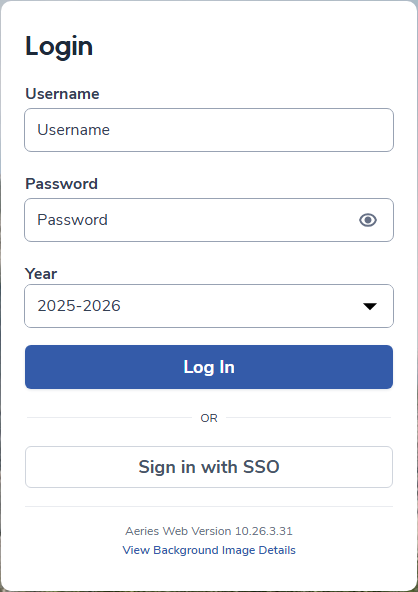
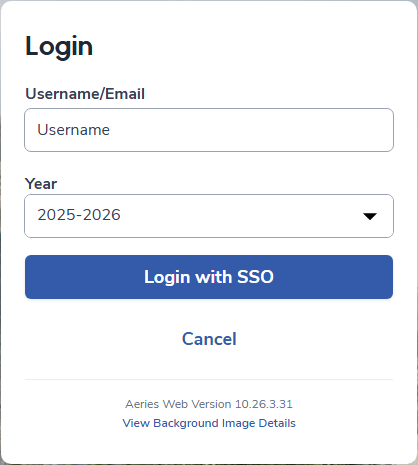
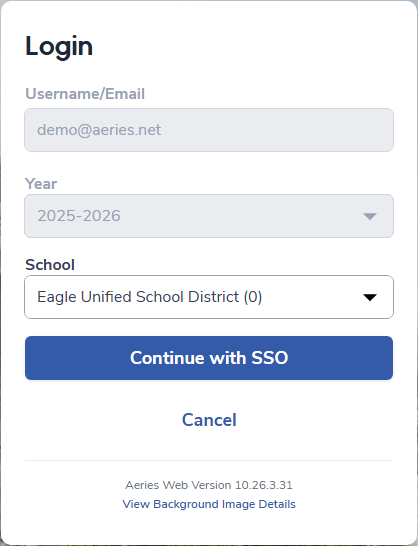
Here are how the login page will display with this enabled: