

The Forms page is your central hub for creating, configuring, and managing enrollment forms that parents and guardians use to enroll their students. This page is designed for administrators managing Aeries Enroll Path.
From this page, you can:
- Create new enrollment forms using the Aeries Enrollment Template
- Build and customize forms using a drag-and-drop editor
- Configure enrollment windows by schools, grades, and programs
- Set up branding
- Preview forms before publishing
- Publish forms to make them available to families
- Manage translations for multilingual support, including AI-powered Auto Translate
To access this page, navigate to Enrollment Setup > Forms in the left sidebar.
Table of Contents ↑
Prerequisites
Forms List View
Creating a New Form
Edit Form
Enrollment Template
Form Settings
Publishing a Form
Form Translations
Form Preview
Best Practices
Prerequisites ↑
To access the Forms page, you must have the Administrator security role assigned to your account.
Forms List View ↑
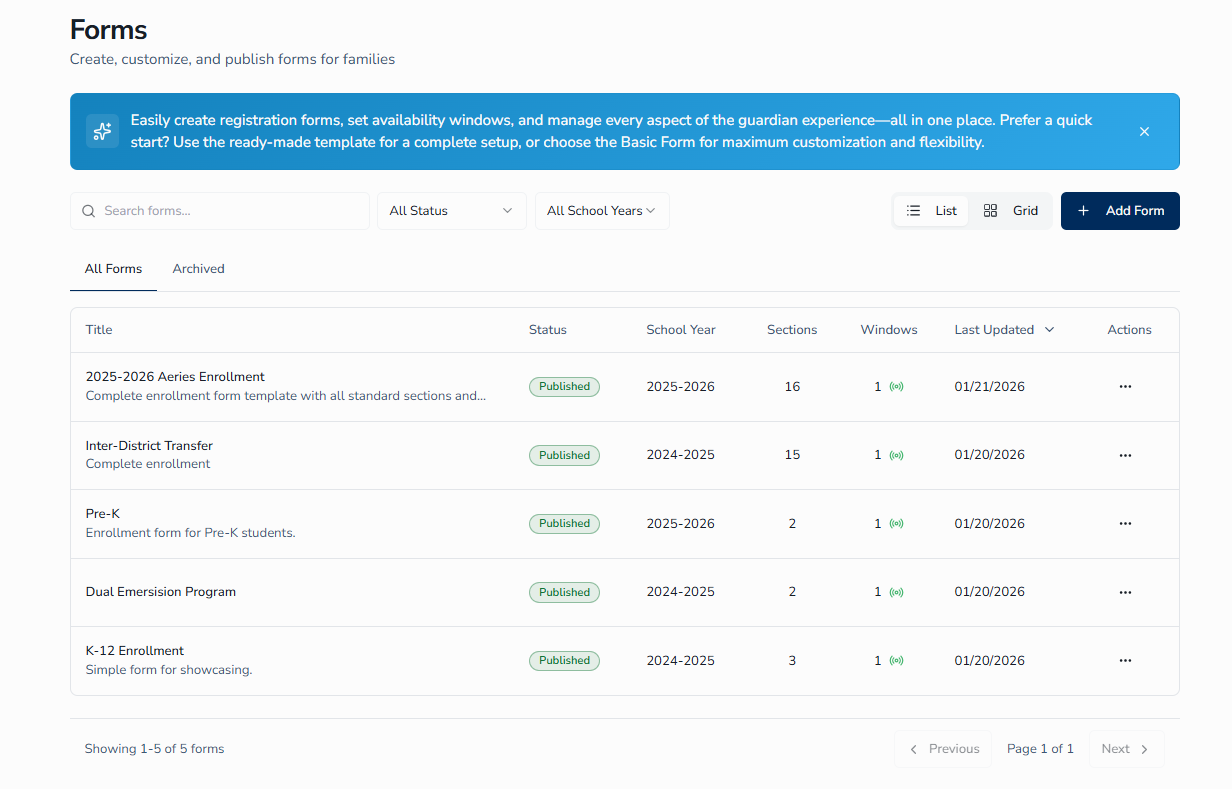
The Forms page displays all your enrollment forms in either list or grid format. Use the toggle in the top-right corner to switch between views.
A dismissible promotional banner at the top of the page summarizes the page's capabilities. You can close it with the X icon in its top-right corner.
All Forms and Archived Tabs
Two tabs appear below the search and filter controls:
- All Forms - Shows every form that has not been archived, including Draft and Published forms.
- Archived - Shows only archived forms. Use this tab to retrieve historical records.
Form Information Displayed
Each form card or row shows:
- Title - The form title
- Status - Draft or Published
- School Year - Academic year the form applies to
- Sections - Number of form sections
- Windows - Number of enrollment windows configured
- Last Updated - Most recent modification date
Form Status Definitions
- Draft - Form is being built or edited and is not visible to parents
- Published - Form is live and accessible to parents (requires at least one active window)
- Archived - Form is no longer active but preserved for records. Archived forms appear under the Archived tab.
Filter and Sort Options
Use these tools to find and organize forms:
- Search - Find forms by name
- Status Filter - Show only Draft, Published or Archived forms (depending on the tab selected)
- School Year Filter - Display forms for specific academic years
- Column Sorting - Click any column header to sort (list view only)
Form Actions
The 3-dot (ellipsis) menu on each form lists actions that depend on whether the form is active (Draft/Published) or Archived.
Available for active forms (Draft or Published) on the All Forms tab:
- Preview - See how the form looks to parents
- Duplicate - Create a copy of the form with all fields, settings, and translations
- Edit - Open the form builder
- Settings - Configure windows and branding
- Translations - Manage multi-language content
- Archive - Preserve the form but make it inaccessible to guardians. Archived forms move to the Archived tab.
Available for archived forms on the Archived tab:
- Preview - See how the archived form looked to parents
- Settings - Configure windows and branding
- Unarchive - Restore the form to Draft status and move it back to the All Forms tab
- Delete - Permanently deletes the form and all associated artifacts
Creating a New Form ↑
To create a new form, click the Add Form button in the top-right corner of the Forms page. This launches a guided wizard with four steps.
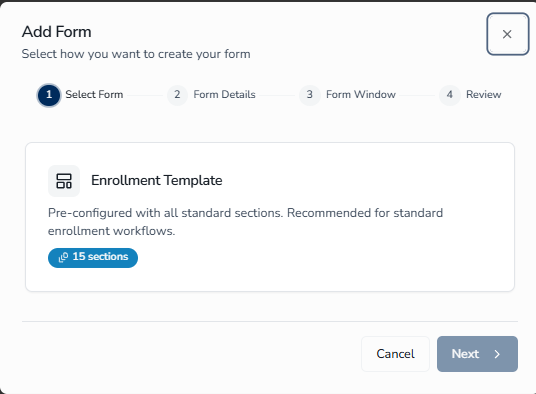
Step 1: Select Form
Click the Enrollment Template card to select it (a checkmark appears), then click Next. The Enrollment Template is pre-configured with all standard sections and is recommended for standard enrollment workflows.
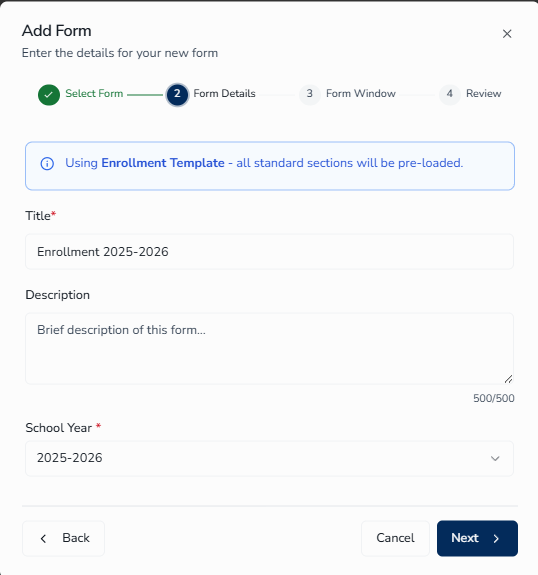
Step 2: Form Details
Enter the basic information for your form:
- Title - Give your form a clear name (for example, 2026-2027 Enrollment Form).
- Description - Optional brief description (up to 500 characters; a character counter shows your remaining count).
- School Year - Select the academic year this form applies to.
A blue info banner inside the step confirms: Using Enrollment Template - all standard sections will be pre-loaded.
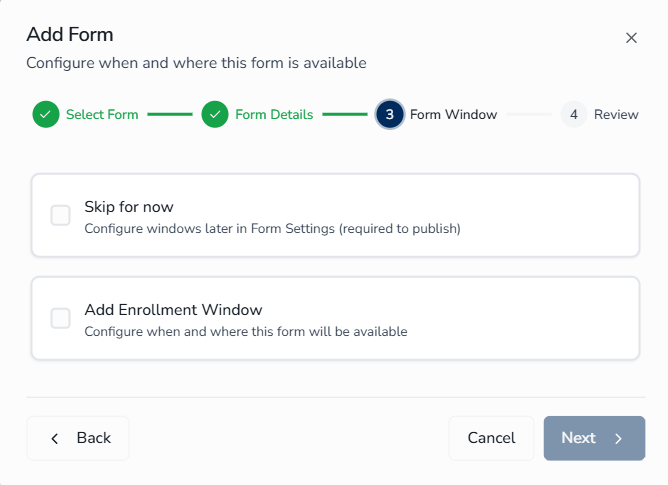
Step 3: Form Window
A Form Window controls when and where your form is available to parents. Choose one of two options:
Skip for now
- Configure windows later in Form Settings
- A form cannot be published until at least one window is configured
Add Enrollment Window
Select this option to configure the window now:
- Window Name - A name to identify this window (for example, Spring Enrollment 2026)
- Start Date / End Date - The date range when parents can access and submit the form
- Schools - Which schools this window applies to (use Select All or choose individually)
- Target Programs - Optional filter by specific programs offered at selected schools
- Target Grade - Which grade levels can enroll through this window
- Pre-K/TK Birthday Requirements - If Pre-K or TK grades are selected, specify age eligibility dates using the calculator icon
Step 4: Review
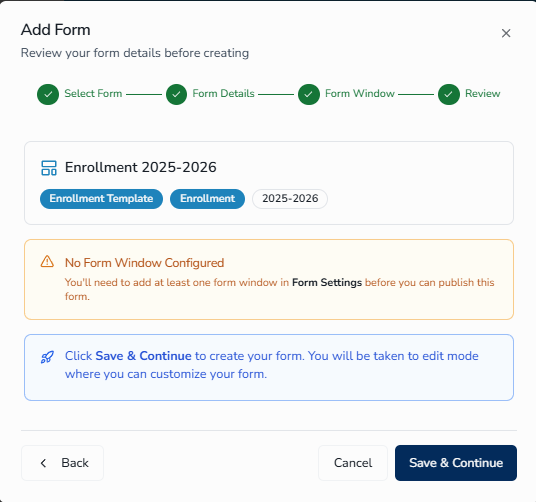
Review all your selections before creating the form:
- Form template (Enrollment Template)
- Title, description, and school year
- Window configuration (if added)
Click Save & Continue to finish. The form opens in Edit mode automatically and is ready for editing.
Edit Form ↑
The Edit Form page provides a comprehensive interface for building and customizing your enrollment forms using a drag-and-drop editor.
To open Edit Form, locate the form on the Forms page, click the 3-dot (ellipsis) menu, and select Edit. New forms also open in Edit mode automatically after you finish the creation wizard.
Page Header Elements
| Element | Description |
|---|---|
| Back to Forms | Returns to the Forms list view |
| Save Status Indicator | Shows real-time save state: Saving, Saved, or Auto-save enabled |
| Preview Button | Opens a modal preview showing how the form appears to parents and guardians |
| Publish Button | Publishes the latest version of the form, making it available to families. The button no longer shows a loading spinner after an autosave. |
| Page Title | Displays the Edit Form heading |
| Description | Subheading guiding you to customize the form with drag-and-drop fields and sections |
| Status Badge | Shows the current form status: Draft, Published, or Archived |
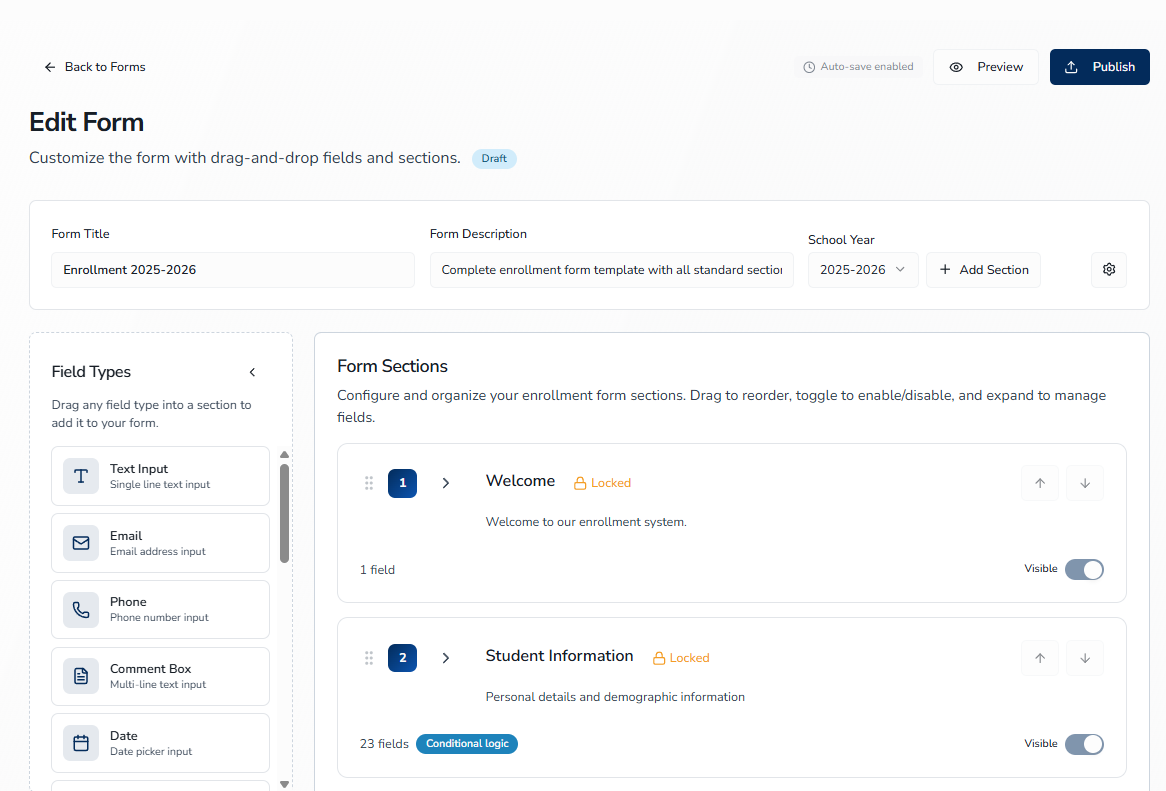
Form Builder Layout
Left Panel - Field Palette (collapsible)
- Contains all available field types to drag onto the form
- Scrollable list with field icons and descriptions
- Collapse to maximize workspace
Center - Section List
- Displays the form structure, including sections and their fields
- Drag-and-drop interface for reordering
- Expandable/collapsible sections
Top Bar
- Editable form title
- Editable form description
- School Year dropdown (disabled if the form has been published)
- Add Section - Add a section to the form
- Settings - Opens the settings window to configure certain details about the form
Available Field Types
| Field Type | Description |
|---|---|
| Text Input | Single-line text input |
| Email address input with validation | |
| Phone | Phone number input with formatting |
| Comment Box | Multi-line text input |
| Date | Date picker element |
| Address | Full address field including street, city, state, and postal code |
| Dropdown | Select one option from a list |
| Radio Buttons | Choose a single option from multiple choices |
| Checkbox | Multi-select options |
| Electronic Signature | Digital signature capture |
| File Upload | Upload documents or files. Supported file types include documents (.pdf, .doc, .docx, .wpd, .txt, .csv, .rtf, .xls, .xlsx, .ppt, .pptx), images (.jpg, .jpeg, .png, .gif, .svg, .heic, .heif, .bmp, .tiff, .tif, .webp, .avif). |
| Document Acknowledgement | Reference specific published documents with options to request confirmation that the user has read them and provide an electronic signature. When the underlying document has multilingual versions configured, parents see the language-appropriate file and title. |
| Survey Questions | Pre-defined survey questions provided by Aeries Enroll Path. Question and answer display labels can be customized in the properties panel (see Customizing Survey Question and Answer Labels below). |
| School Selection | Hierarchical district to school selection with primary and secondary options. Schools displayed are filtered to those that accept the enrolling student's grade level. |
| Grade Field | Grade level selection sourced from Form Window Grades. |
| Program Field | Program selection sourced from Form Window Programs. |
| Informational Text | Add instructional or informational content using a rich text editor that supports text styling, background color, custom font size, indent and outdent, and formatted boxes for visually distinct callouts. |
Understanding Field Types vs. Surveys
When building a form, you can add field types and surveys within any section. These are distinct architectural components:
- Field Types: Individual, reusable form inputs that can be placed directly into a section. Each field type appears as a standalone input in the form (e.g., a text box, date picker, or checkbox).
- Surveys: Section-bound containers that group related questions together. Surveys function as sub-sections within a form section and can hold their own array of field types internally. Surveys are useful for organizing logically related fields or enabling conditional logic between groups of fields. A section can hold more than one survey. Once a survey type has been added anywhere in the form, it appears greyed out in the survey picker with a tooltip explaining it's already present in this form — the restriction is form-wide, not per-section.
The choice depends on your form structure: use field types for independent inputs, and surveys when you need to group, organize, or enable conditional visibility across related fields.
Working with Sections
- Toggle section visibility on or off using the Eye/EyeOff control — clickable even for locked sections, since locking protects a section’s structure and position, not its visibility
- Reorder sections by dragging or using the up and down arrows
- Expand or collapse sections to show or hide fields from view
- Edit section title and description inline
- Add new sections using the Add Section button
Working with Fields
- Drag fields from the palette into any section
- Click a field to open its properties panel, where you can configure the label, required status, and tooltip
- Reorder fields within a section by dragging
- Delete fields with the trash icon
Adding a Deleted Template Field
Some templated fields, such as Birth Country and the Email Address field in the Guardian Information and Emergency Contacts sections, are not locked and can be deleted like any other field. When a section contains at least one field of this kind, an Add Template Field button appears in that section's field list, alongside the existing Add Survey and Add Field buttons.
To restore a deleted template field:
- Expand the section that previously contained the field.
- Click Add Template Field.
- Select the field from the list. Fields already present in the section appear greyed out with an Already on this section tooltip — the same pattern used by the Survey picker.
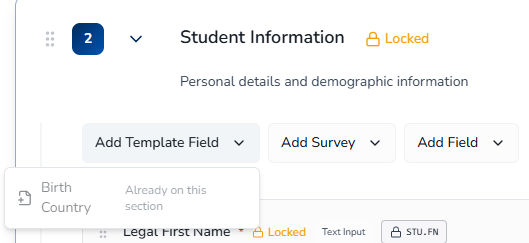
The field is restored with its original configuration, including any conditional follow-up questions and their answer options, so you do not need to rebuild them by hand.
Customizing Survey Question and Answer Labels
Administrators can customize the display label (wording) of survey questions and answer options directly in the Form Builder, and set whether each survey question is required. These are presentation and validation changes only — the underlying field keys, answer code values, SIS column mappings, and Aeries SIS sync behavior are unaffected by any label change.
To customize a survey question or answer label:
- In the form builder, click the survey field you want to edit.
- In the properties panel, update the display label for the question or any answer option.
- To mark a question as required, enable the Required toggle for that question.
- To revert any label back to its original wording, click Reset to System Labels.
Conditional Questions
Conditional questions allow certain fields to appear or hide based on a parent's response to a previous question. This keeps forms concise by showing only the questions relevant to each family's situation.
When a supported field is selected, a Conditional Questions toggle appears in the field's properties panel. Enabling it lets you specify a trigger response — the answer that reveals one or more follow-up questions directly beneath it. You can add an unlimited number of follow-up questions to a single trigger response, but follow-up questions cannot themselves trigger additional questions (one level only).
Field Type Compatibility: Not all field types can serve as condition triggers or conditional children. The table below shows which field types support conditional logic:
| Field Type | Can Trigger a Condition? | Can Be Conditional? |
|---|---|---|
| Text Input | Yes | Yes |
| Email, Phone, Comment Box, Date | No | Yes |
| Dropdown, Radio Buttons, Checkbox | Yes | Yes |
| Grade Field, Program Field | Yes | No |
| Address | No | Yes |
| Electronic Signature | No | No |
| File Upload | No | Yes — File Upload can appear as a conditional response field when configured by the admin. It is not available as a standalone top-level field type. |
| Document Acknowledgement, School Selection, Informational Text | No | No |
Using Surveys with Conditional Questions: When you enable conditional logic on a field type that supports conditions, you can add a survey containing the conditional child fields. Each field type can have only one survey assigned as a conditional child. Once you add a survey to a conditional parent field, the option to add a second survey is removed.
To configure a conditional question:
- Click the field you want to serve as the trigger.
- In the properties panel, enable the Conditional Questions toggle.
- Select the trigger response — the specific answer that will reveal the follow-up questions.
- Add one or more follow-up questions beneath the original. There is no limit to how many you can add.
- Preview the form to verify the follow-up questions appear and behave as expected.
Enrollment Template ↑
Pre-configured with the standard enrollment sections listed below. Recommended for standard enrollment workflows. Five sections are locked (core and unremovable); the rest are customizable. Some sections appear only when they apply — for example, the Home Language Survey is shown based on the student's prior schooling and is state-specific.
Sections
- Welcome - Static introductory text. This section is locked.
- Student Information - Core demographics, contact information, residential and mailing addresses, and race/ethnicity. This section is locked, though not every field inside it is — Birth Country can still be deleted and restored; see Adding a Deleted Template Field under Edit Form above. The Suffix field is a free-text entry, not a dropdown of Aeries Suffix codes.
- Enrollment Information - Includes the school year and a hierarchical school selection tool. This section is locked.
- Guardian Information - Primary guardian details, including contact information, portal access options, addresses, and employment information. This section is locked, though not every field inside it is — Email Address can be deleted and restored; see Adding a Deleted Template Field under Edit Form above.
- Emergency Contacts - Non-guardian emergency contacts. Fields are similar to those in the Guardian Information section. This section is locked, though Email Address can be deleted and restored, the same as in Guardian Information.
- Restrained Individual - Conditional section used to record individuals who are legally restricted.
- Local Physician Information - Optional section for entering physician or clinic contact information.
- Health & Immunizations - Medical conditions, comments, and basic immunization information.
- Other District Enrollments (History) - Up to four previous school records, including enrollment dates, grades, special program indicators, and district details.
- Authorizations - Required Yes/No consent questions (for example, internet use, photo/media permission, transcript release, surveys) (see Authorizations below). These questions are marked required by default; administrators can change the required status for each question in the form editor.
- Documents - File upload placeholders, such as proof of residency.
- Supplemental Questions - District-defined custom questions (see Supplemental Questions below).
- Residency Survey - Federal McKinney-Vento homeless status question, with optional additional child information (see Residency Survey below).
- Family Military Survey - Identifies students from active-duty military families (see Family Military Survey below).
- Foster Survey - Indicates foster care status (see Foster Survey below).
- Acknowledgement & Signatures - Closing step where the guardian reviews, acknowledges, and electronically signs to submit the enrollment.
Authorizations
The Authorizations section has five example Yes/No consent questions as a starting point:
- Student Able to Use the Internet?
- Release Records to Military?
- Photo Use in District Brochures and Press Releases?
- Surveys Permitted?
- Release of Student Transcripts?
These questions are not locked: administrators can edit, remove, reorder, or add authorization questions to match what their district actually collects. If your district doesn’t plan to collect authorization information in Enroll Path, you can also hide the entire section (using the section visibility toggle) or delete it altogether — Authorizations is not one of the Enrollment Template’s five locked sections.
Because each authorization question maps to an Authorization Code (AUT.CD) in Aeries during SIS Integration field mapping, it’s recommended that the wording and set of questions in this section mirror the entries in your district’s Authorization Code Table in Aeries Classic (School Info > Configurations > Update Code Table). Aligning the two makes it clear which Aeries code each question should map to.
For instructions on mapping each authorization question to its Aeries code, see SIS Integration > Standard Field Mappings > Authorizations.
Supplemental Questions
The Supplemental Questions section contains an example Yes/No question as a starting point:
- Is your student receiving special services?
This question is not locked: administrators can edit, remove, reorder, or add supplemental questions to collect whatever district-specific information they need. If your district doesn’t plan to collect supplemental data in Enroll Path, you can also hide the entire section (using the section visibility toggle) or delete it altogether.
Each supplemental question maps to a column in Aeries’ School Supplemental (SUP) table. SUP columns are not self-service — your district must submit an Aeries support ticket to have supplemental columns built before they can be mapped. See Supplemental Data Tables for details.
Insurance Info and Home Language Survey are not part of the default Enrollment Template — like the Income Survey (see Income Survey (Optional) below), they're optional surveys an administrator adds to a section through the Form Builder. Insurance Info collects health insurance details for the enrolling student: Insurance Type (required), Primary Coverage, Effective and Expiration Dates, Insurance Carrier, Policy/Member/Group Numbers, and Subscriber information including name and address (see the note below on the Medicaid/Benefits ID follow-up). Guardians can add up to five insurance records per student. Home Language Survey is covered in Home Language Survey (State-Specific) below.
MII.MBI) to sync.Home Language Survey (State-Specific)
The Home Language Survey is an optional add-on — administrators add it to a section through the Form Builder; it is not part of the default Enrollment Template. It collects the language background of newly enrolling students so the district can determine whether a student should be assessed for English language services. Which instrument appears is state-specific. California districts receive two instruments — the Home Language Survey (HLS) and the newer Family Language Inventory (FLI), which applies to Pre-K enrollments; an administrator removes whichever the district does not use. Texas districts receive the Multi-Language Survey (MLS), which replaces the legacy Texas Home Language Survey.
California — Home Language Survey (HLS). The four standard California Education Code questions. Each is a single-language selection and is required:
- Which language did your child learn when he/she first began to talk?
- Which language does your child most frequently speak at home?
- Which language do you (the parents or guardians) most frequently use when speaking with your child?
- Which language is most often spoken by adults in the home? (parents, guardians, grandparents, or any other adults)
California — Family Language Inventory (FLI). A broader, multi-select inventory that captures how the child hears, understands, and speaks languages. Each language question allows up to five languages:
- What language(s) does your child hear at home? — multi-select, required.
- Which language is most used at home? — required; appears only when two or more languages are selected above.
- What language(s) does your child hear in your neighborhood/community? — multi-select, required.
- What language(s) does your child understand? — multi-select, optional.
- What language(s) does your child speak? — multi-select, required.
- Which language does your child most use to communicate? — required; appears only when two or more languages are selected in the “speak” question above.
- Preferred language for written communications from the school — single-select, required.
- Preferred language for verbal communications from the school — single-select, required.
Texas — Multi-Language Survey (MLS). Replaces the legacy Texas Home Language Survey. Each language question allows up to five languages:
- Which languages are used at home? — multi-select, required.
- Which language is most used at home? — required; appears only when two or more languages are selected above.
- Which languages does the child use at home? — multi-select, required.
- Which language does your child most use? — required; appears only when two or more languages are selected above.
- If the child had a previous home setting, which languages were used? — multi-select, optional; left blank if there was no previous home setting.
- Preferred language for written communications from the school — single-select, required.
- Preferred language for verbal communications from the school — single-select, required.
- Acknowledgement checkbox (required) and Parent/Guardian signature (required).
Residency Survey
Collects the student's housing situation for federal McKinney-Vento eligibility. The dwelling options are state-specific. One required question:
Please select one of the following options to complete the residence survey:
- Temporary Shelters — a temporary residence for individuals who would otherwise sleep on the street or in emergency situations (including children awaiting foster placement).
- Hotels/Motels — a temporary residence usually requiring payment or vouchers on a daily, weekly, or monthly basis.
- Temporarily Doubled Up — sharing the housing of others due to loss of housing, economic hardship, or similar reasons.
- Temporarily Unsheltered — a residence not meant for human habitation (cars, parks, abandoned buildings, campgrounds, and similar).
- Permanent Single-Home (California) — living in a permanent single-home residence. Texas shows None of the above in place of this option.
The section also presents the family's educational-rights notice (immediate enrollment, school of origin, transportation, and protections under federal and state law) and an Unaccompanied Youth question.
Family Military Survey
Identifies students from active-duty military families. One required question:
- Please select whether or not at least one parent/guardian of this student is active in the United States Armed Forces: — Yes or No.
Foster Survey
Indicates foster care status. One required question:
- Please select one of the following options to complete the foster survey. — No (this student is not in foster care) or Yes (this student is in foster care).
Income Survey (Optional)
The Income Survey is an optional survey added through the Form Builder — it is not part of the default enrollment template. It collects household size and income-eligibility information used for Free and Reduced-Price Meals.
- How many people are in your household? — select 1 through 5, More, or Decline to Respond. Choosing “More” reveals an exact-number field.
- Income eligibility — the guardian indicates Free, Reduced, or Not eligible based on the federal income guidelines for the stated household size.
Families may decline to state their income (Decline to Respond) or explicitly decline the Free and Reduced-Price Meals program.
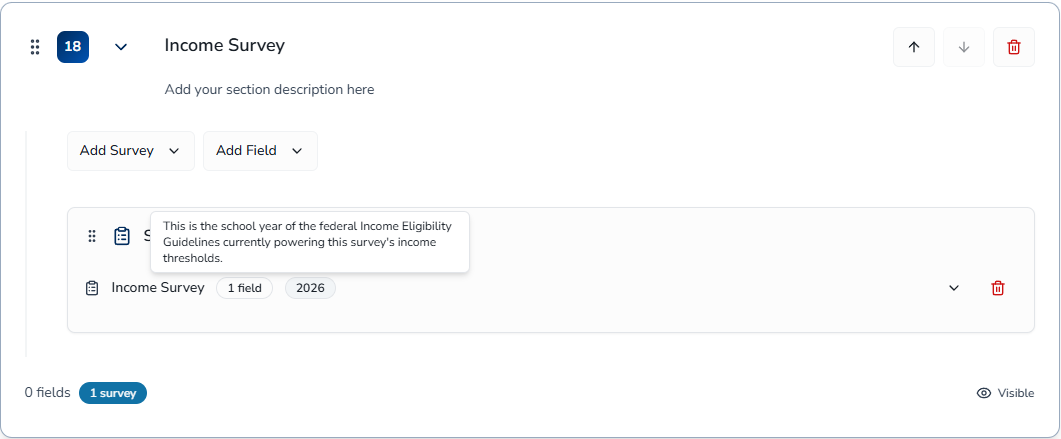
The dollar thresholds behind the Free, Reduced, and Not-eligible options come from the federal government’s published Income Eligibility Guidelines. These thresholds refresh automatically each year — administrators do not enter or maintain the dollar amounts. The Form Builder shows a badge on the Income Survey indicating which guideline year is currently powering that survey’s thresholds.
Pre-Filled Information
When using the Enrollment Template, the following sections are automatically pre-filled with existing student data.
Student Information fields pre-filled:
- First Name
- Last Name
- Date of Birth
- Grade
- Address
- Birth Country (defaults to United States) — selecting a country reveals one follow-up question: Birth State for the United States or Mexico, or Birth Province/Territory for Canada. All other countries have no follow-up question. If Birth Country is changed from the default, this also reveals the Home Language Survey section for completion.
Enrollment Information fields pre-filled:
- Grade
Guardian Information & Emergency Contacts:
- If Address is the same as the student is selected, the guardian and/or emergency contact address is pre-filled with the student's address
Using a Previously Enrolled Student
When a guardian selects Use a previously enrolled student while adding a new student, the following sections are always pre-filled with shared information from the selected student: Guardian Information, Emergency Contacts, Out-of-State Contact, Restrained Individual, and Local Physician Information. Depending on your district's configuration, Authorizations and the Family Military, Foster, and Residency surveys may also be pre-filled.
Form Settings ↑
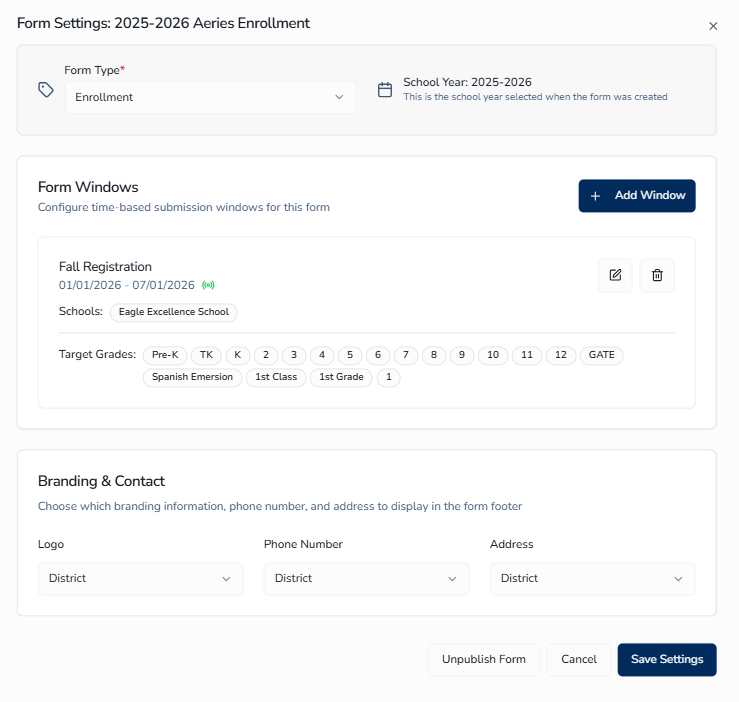
To access Form Settings, either:
- From the Forms page, locate the form, click the 3-dot (ellipsis) menu, and select Settings.
- While editing a form, click the Settings button in the top bar of the form builder.
School Year
Form Settings displays the academic year this form applies to as read-only text. To select or change the school year before publishing, use the School Year dropdown in the form builder's top bar — see Form Builder Layout under Edit Form above. That dropdown becomes disabled once the form is published.
Form Windows
Enrollment windows define when and for whom the form is available. Each window includes:
- Window Name - Descriptive title (for example, Main Enrollment Window)
- Date Range - Start and end dates when parents can access the form
- Schools - Which schools the window applies to (Select All available)
- Target Grades - Pre-K through 12th grade
- Target Programs - Optional program-based filtering
- Age Restrictions - Set birthday requirements for Pre-K and TK
Branding and Contact
Choose what information displays to parents for each element:
- Logo - District / School / Hide
- Phone - District / School / Hide
- Address - District / School / Hide
Publishing a Form ↑
Requirements to Publish
- At least one form window must be configured
- The window must be currently active or scheduled to become active (valid start and end dates)
How to Publish
- Click the Publish button in Edit Mode of the form.
- The system validates window requirements.
- If valid, the form becomes immediately available to parents.
After Publishing
- The form appears in the parent portal for eligible families during any active window
- The form's status changes to Published
Unpublishing
- Can be done from Form Settings
- Removes parent access immediately
- Preserves all form data and configuration
Archiving a Form
Archiving preserves a form and its historical data while making it inaccessible to guardians. Archived forms move to the Archived tab on the Forms page and can be restored at any time using Unarchive. Before archiving, you must close any active windows and return the form to Draft status.
To archive a form:
- Open Form Settings for the form and close any active enrollment windows by setting the
End Dateto a past date or removing the window record from the Windows tab. - Unpublish the form to return it to Draft status (see Unpublishing above).
- On the Forms page, click the 3-dot (ellipsis) menu for the form and select Archive.
Form Translations ↑
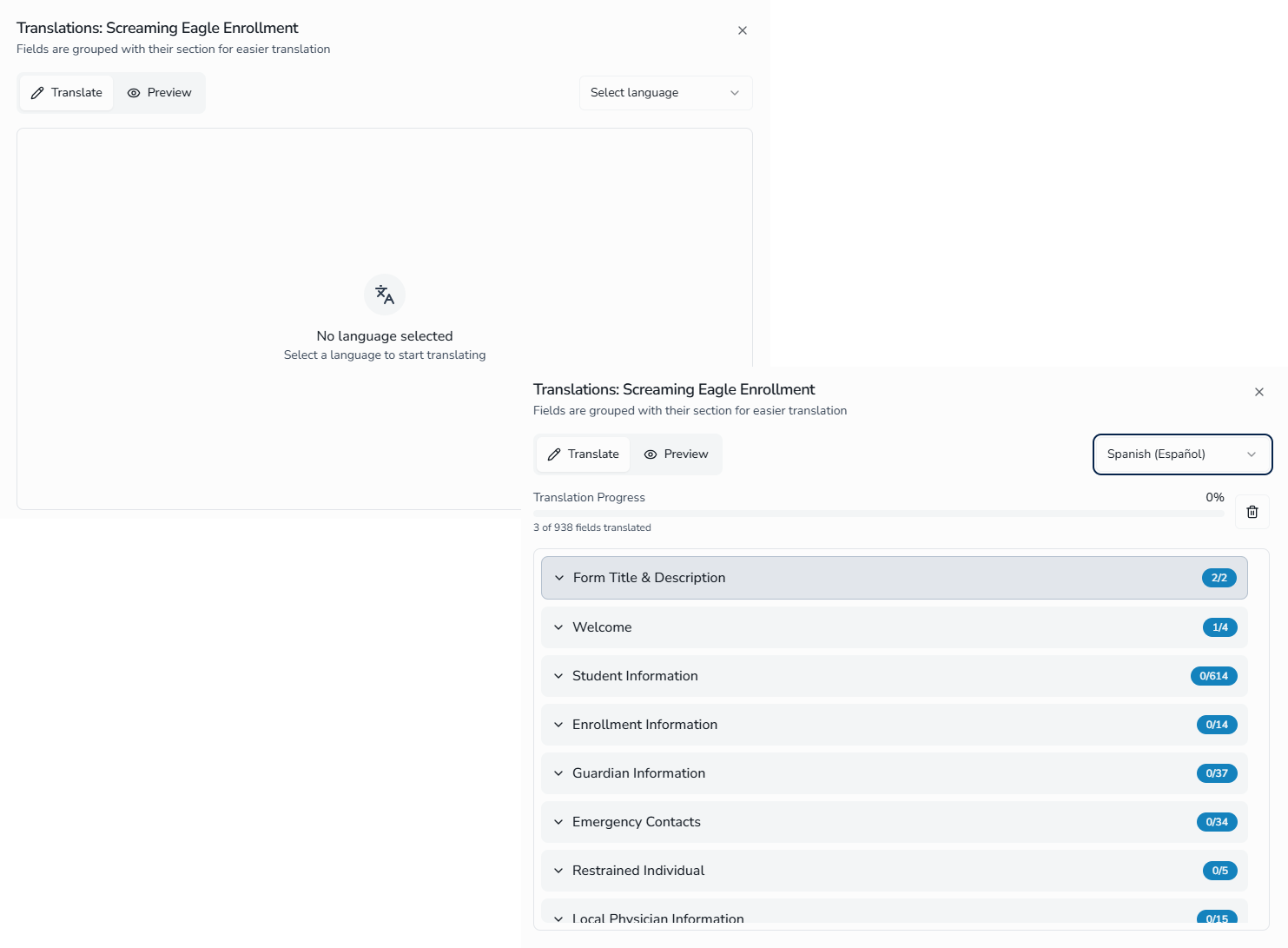
To access translations, locate the form on the Forms page, click the 3-dot (ellipsis) menu at the end of its row (or card, in grid view), and select Translations.
Supported Languages
Form Translations supports the following seven languages. English is the default. Your district administrator controls which of these are enabled for your tenant — only the enabled languages appear in the language selector inside the Translations dialog.
| Language | Native Name | Text Direction |
|---|---|---|
| English (default) | English | Left-to-right |
| Spanish | Español | Left-to-right |
| Vietnamese | Tiếng Việt | Left-to-right |
| Chinese | 中文 | Left-to-right |
| Korean | 한국어 | Left-to-right |
| Armenian | Հայերեն | Left-to-right |
| Arabic | العربية | Right-to-left |
What Can Be Translated
- Section titles and descriptions
- Field labels, descriptions (tooltips), and placeholders
- Dropdown and checkbox options
- Survey group content
Translation Features
- Manual translation input
- Translation progress tracking per language — this does not need to reach 100%; it is simply a reference to confirm all fields and answer options have been addressed
- Preview translations before saving
- Right-to-left support for Arabic
- AI-powered Auto Translate action (see below)
Auto Translate
The Auto Translate button uses AI to translate every untranslated field for the selected language in one action. This is useful for filling in a new language quickly so you can then review and fine-tune the results, rather than typing each translation by hand.
To use Auto Translate:
- Open the Translations dialog for the form.
- Select the language you want to translate into.
- Click Auto Translate in the top-right of the dialog.
- The button changes to Stop Translating while the AI works through each field. You can click it to stop early if needed.
- When the translation completes, review each field for accuracy and click Save.
When translated content is presented (in the admin dialog and in the parent-facing form), an inline AI translation notice appears: Generated by AI. Be sure to check for accuracy.
Deleting a Language's Translations
To remove all translations for a language, click the trash icon next to the language selector and confirm in the Delete Translation? dialog.
Form Preview ↑
To access Preview, either:
- From the Forms page, locate the form, click the 3-dot (ellipsis) menu, and select Preview.
- While editing a form, click the Preview button in the top bar of the form builder.
What You See
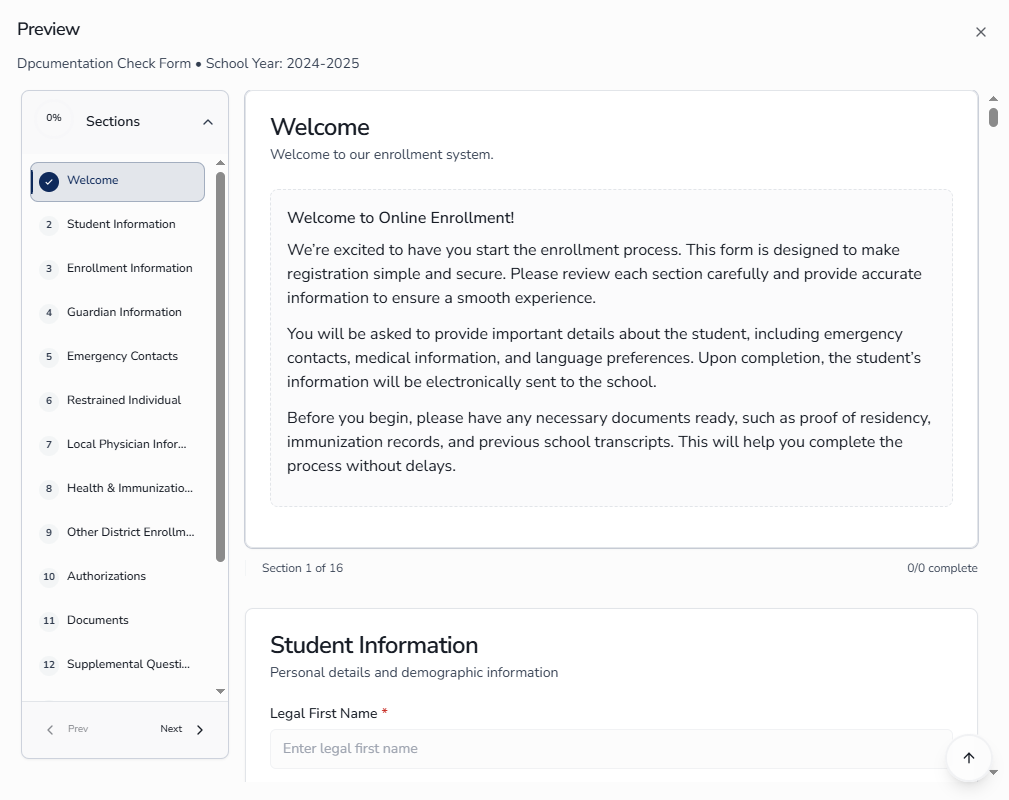
- An exact, interactive representation of how parents will see and experience the form
- All sections and fields rendered
- Branding elements displayed based on settings
- Multi-step navigation if applicable
Best Practices ↑
| Goal | Recommendation |
|---|---|
| Accurate grade and program options | Configure enrollment windows before building out your form — the Grade Field and Program Field display options based on window configuration |
| Quality assurance | Always use Preview before publishing to check how the form looks and behaves for parents |
| Conditional questions | Always preview the form after configuring conditional logic to verify follow-up questions appear and behave as expected. For Dropdown, Radio, Checkbox, Survey, and Preferred School triggers, you select the trigger response from existing options. For Text triggers, the response must match exactly what the parent will type — including spelling and capitalization — so use Text triggers sparingly when conditional logic is critical |
| Multilingual families | Identify which of the seven supported languages are spoken by your school community and ask your district administrator to enable them in your tenant. Set up translations for those languages before publishing |
| AI translations review | Auto Translate is a starting point, not a final product. Always have a fluent speaker of each language review every translated field for accuracy, tone, and cultural appropriateness — especially for consent language, eligibility statements, and anything with legal weight |
| Reuse across school years | Use the Duplicate action to copy a previous year's form. The dialog asks you to choose a new name and the new school year for the copy. All fields, settings, and translations carry over — you only need to update the window dates and any school-year-specific content |
| Income Survey timing | If your form includes the Income Survey, wait until the federal government publishes new guidelines before opening a form window for an upcoming school year, and verify the guideline-year badge shows the correct year first. If the form does not include the Income Survey, this does not apply — see Income Survey (Optional) above |
| Record keeping | Archive old forms to preserve records and historical data. Archived forms move to the Archived tab on the Forms page and can be restored at any time with Unarchive |