Overview
Beginning in the 2025−26 Academic Year, CALPADS will receive students’ migrant statuses directly from the Migrant Student Information Network (MSIN), and will provide LEAs with a weekly extract identifying those students. LEAs should download this extract and then upload it into Aeries, as the extract is the authoritative source for students’ migrant statuses. Since the CALPADS extracts are updated weekly through the CDE-MSIN data exchange, LEAs should upload the MEPS extract into their SIS on a weekly basis.
Although Migrant records are no longer included in the SPRG extract starting with the 2025–26 academic year, it is still recommended to maintain these records in Aeries. They continue to support other important functions such as CCGI, Analytic Indicators, locally saved queries, and validations, helping to accurately identify students for LCFF and other purposes.
NOTE: Since this is a new process, there may be future adjustments needed to handle the import process more effectively. The program records that are provided by CALPADS may have start dates that reflect previous years and may have end dates that end in the future, making it difficult to maintain accurate data moving forward when the PGM table has historical Migrant Ed data. Ending the prior year records may be helpful, however, there's no guarantee that the records will not overlap.
In Aeries, the MEPS Import tab has been added to the CALPADS extracts page to facilitate this import process.
Navigate to School Info > Imports and Exports > CALPADS Extracts.

Security ↑
Table | Permission | Description |
|---|---|---|
| State Reporting | Admin | To Import MEPS extract file, users must be admin or have state reporting permission. |
CALPADS File Download ↑
Users must first download the Migrant Eligible Program Students download file (MEPS) using the ODS Extracts in CALPADS. This file will extract as a TXT file. If using the template provided by CALPADS, the file must be saved as text file in .txt format.
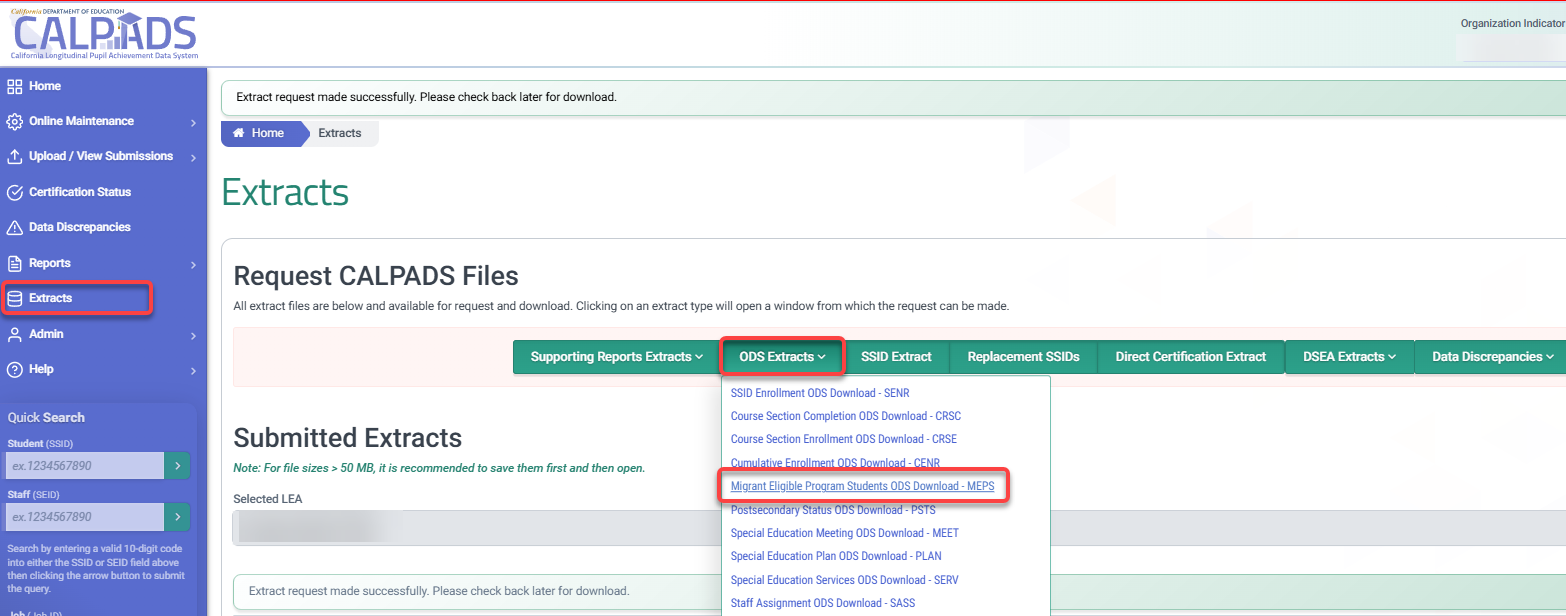
Users will need to select the type of record history that they plan to manage in Aeries. There are two options, selecting either Active Student or Date Range. When selecting Date Range, enter the Enrollment Start Date no earlier than 07/01/2025 and enter today for the Enrollment End Date.
Selecting 'All' will include all students that have been identified as Migrant Eligible. Selecting 'Most Recent Only' will only contain the most recent students identified as Migrant Eligible.
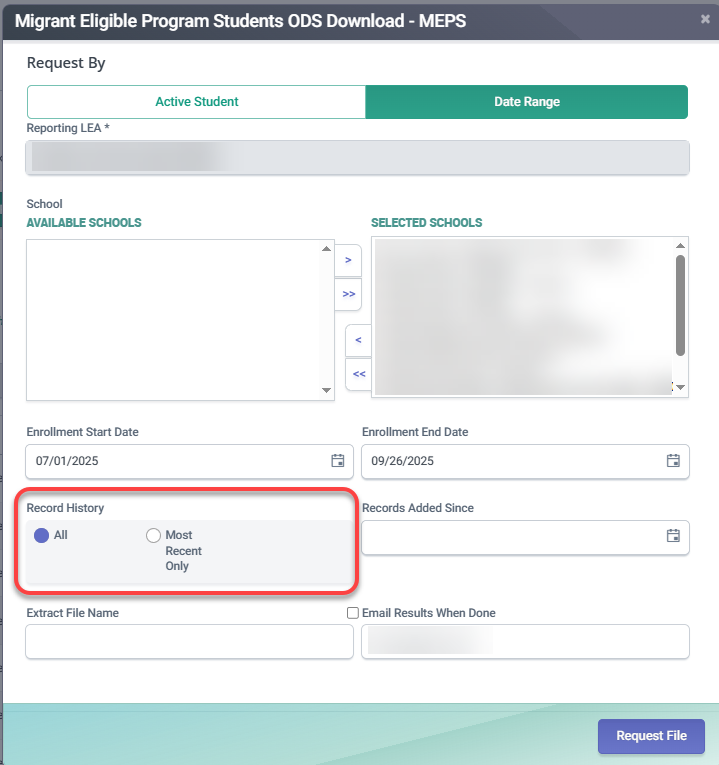
NOTE: It is recommended to select 'All' students initially, then it is up to the district if they would rather include 'Most Recent Only' or 'All' students each time the import process is requested. The Latest Update Date column will reflect the date the MEPS record was last updated in the weekly MSIN import.
File Layout ↑
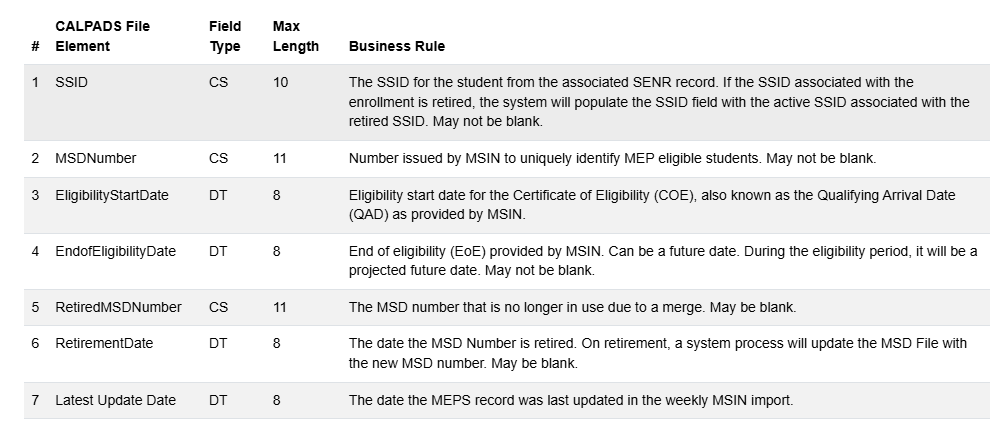
The File Layout from CALPADS is defined as follows:
File Import Process ↑
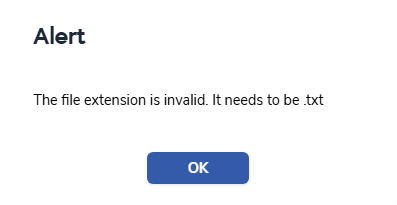
On the CALPADS Extracts page, select the MEPS Import tab. Select the MEPS file using the Select MEPS file button. The file must be a .txt file and must adhere to the correct format provided by CALPADS. The file name will display under the button as it is selected.

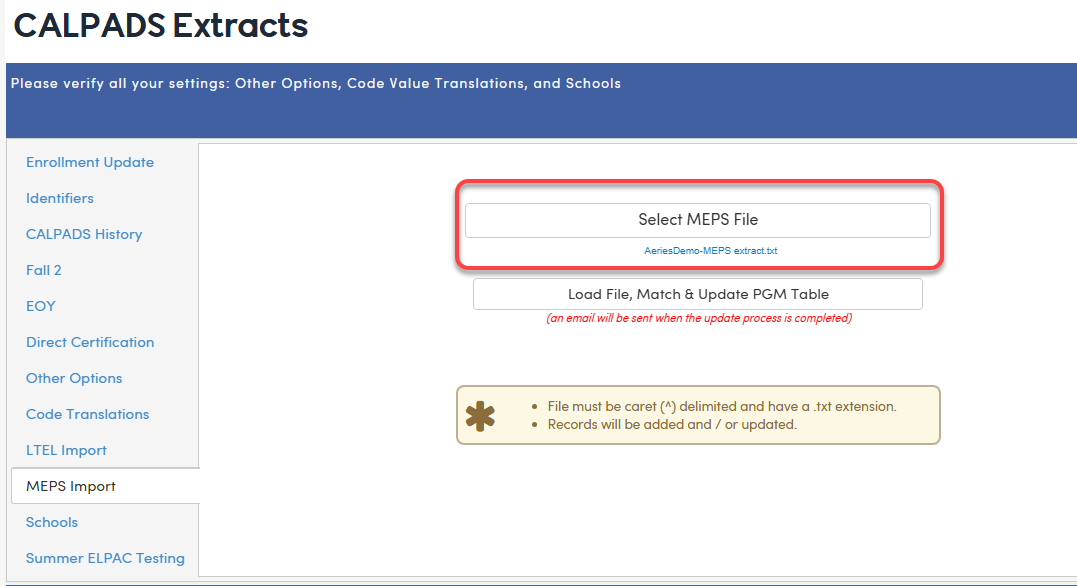
Next, select the Load File, Match & Update PGM Table button. This process matches students by SSID and uses the Eligibility Start Date and Eligibility End Date from the file to compare against existing Program 135 (PGM) records. The import includes students regardless of their status tag (STU.TG).
NOTE: This process will never delete existing PGM records. It will only add new records or update end dates on existing records where the start date matches.
What happens to Program 135 (Migrant Ed) records:
| Scenario | Result |
|---|---|
| No existing Program 135 record for the student | A new PGM record is added; |
| SSID matches, start date matches, end date matches | No change to PGM record; SSD.MID is updated |
| SSID matches, start date matches, PGM has no end date but file has one | PGM.EED is updated with the date from the file; SSD.MID is updated |
| SSID matches, start date matches, end dates differ | PGM.EED is updated with the date from the file; SSD.MID is updated |
| SSID matches, but start date does not match | A new PGM record is added from the file. The existing record is not modified or deleted. |
| SSID does not match any student in the file | Existing PGM record is not modified or deleted |
Retired Migrant State ID:
If the import file includes a retired Migrant State ID, the comment field on the matching record will be updated to note the retired ID and the date it was retired. If the record already has an existing comment, the retired ID information will not be added and the existing comment will not be overwritten.

Why you may see a new record alongside an existing one:
If a student already has a Program 135 record with a different Eligibility Start Date than what appears in the current MEPS import file, the process cannot confirm these represent the same enrollment period. To preserve your existing data, the original record is left untouched and a new record is added from the import file. Both records will exist in the PGM table until reviewed.
Completion Email ↑
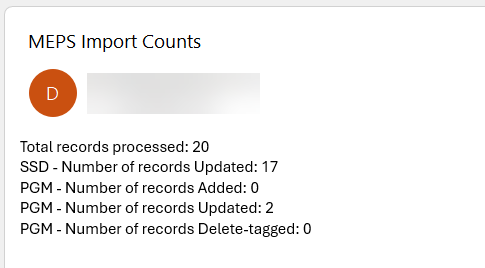
An email will be sent when the process completes. The email will indicate the number of SSD and PGM records processed, updated and/or added. At this time, no records will be Delete-tagged.
Program Record ↑
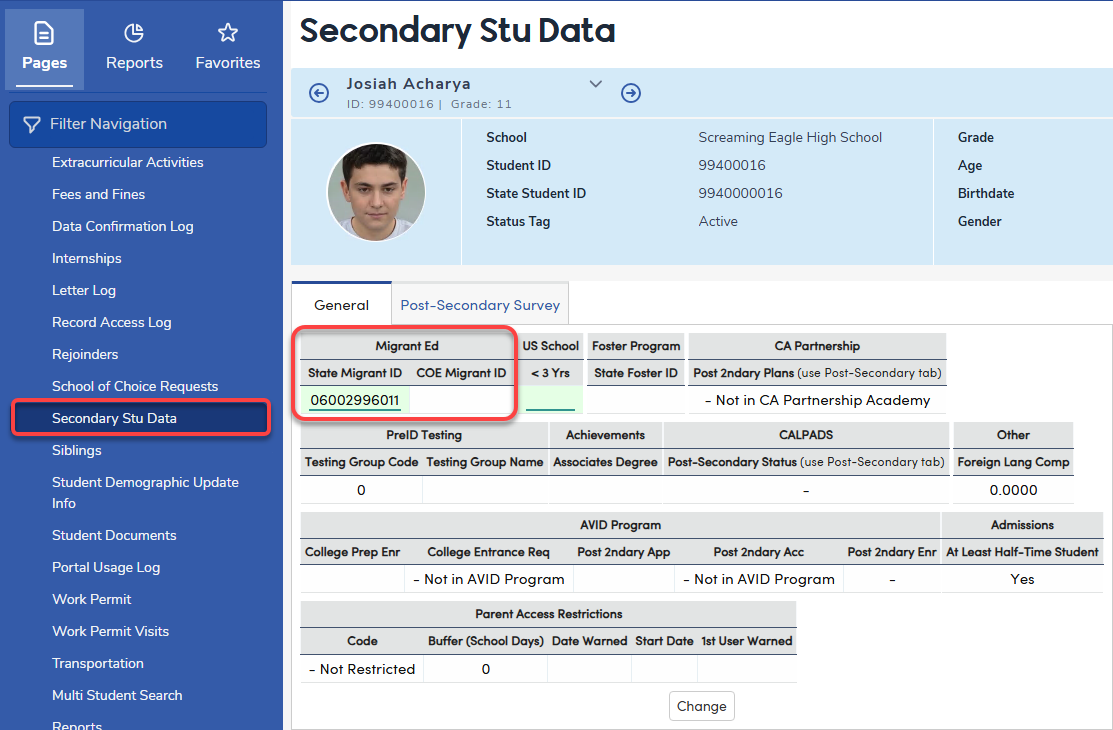
Once the import process completes, the Special Programs table will be updated to include matching students from the file. All matches are based on a matching SSID from STU.CID. The State Migrant ID number is stored in the Secondary Student Data - State Migrant ID field (SSD.MID) and will be updated during this process. The State Migrant ID will also display on the Special Programs record. When more than one program 135 record exists, the State Migrant ID will display on all records, including prior year records.
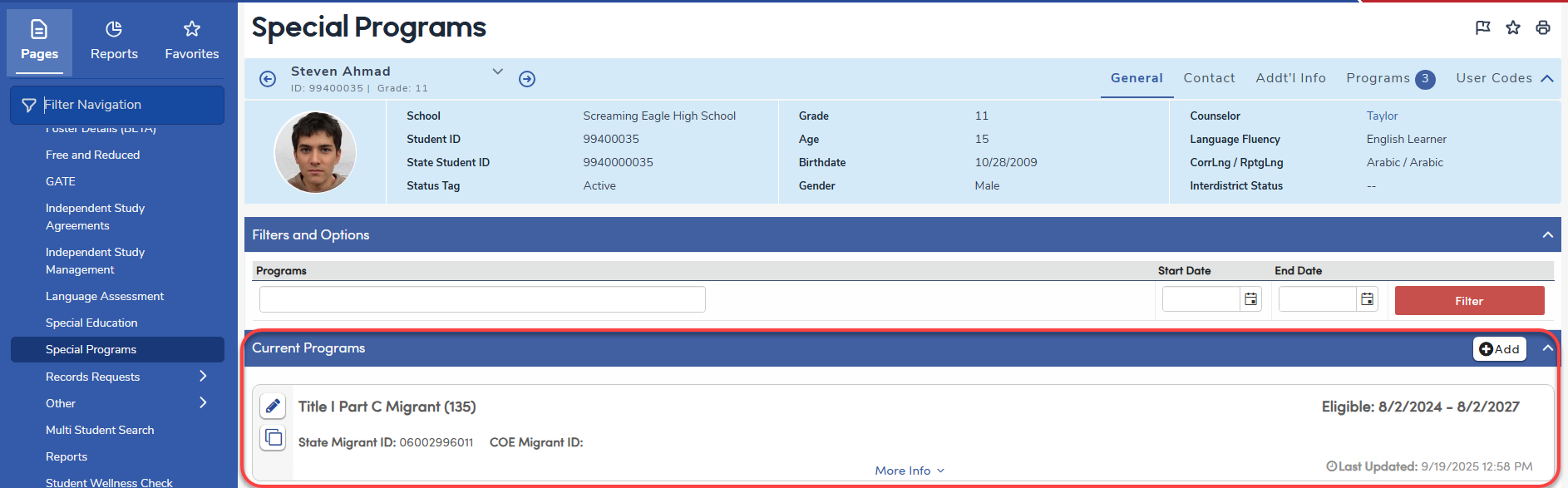
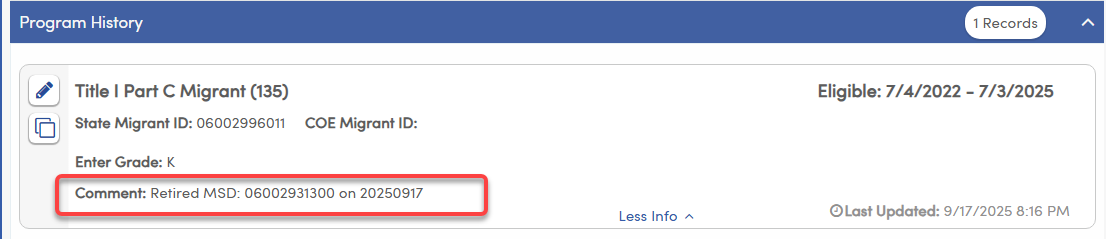
If the record contains a retired MSID number, the ID and Retired Date will be inserted into the Comment field if the field is empty.
Queries ↑
To effectively manage newly imported student data, it may be necessary to update or modify existing records in 2025/26. All records from the prior year should be closed out beforehand. While this does not guarantee that a record won’t be altered during the import process, any student with a matching SSID may have their existing record updated. Starting with a clean slate of closed records helps ensure a smoother and more accurate import.
Users are encouraged to verify that all student records from the 2024/25 school year have been properly closed with an end date of 06/30/2025 if no end date exists. In the 2025/26 database run the following queries to close out all prior year open records. This practice supports the integrity of the MEPS Import process by keeping prior year data finalized and allowing new records to be updated appropriately. Moving forward from year to year, users should rely on the MEPS import for managing the start and end dates of the Migrant Eligible students.
Run a list of all program 135 records - know who your students are or how many have program 135
LIST STU PGM STU.ID STU.NM STU.GR STU.TG STU.CID PGM.CD PGM.ESD PGM.EED IF PGM.CD = '135'
Keep all program 135 records and identify any blank end dates including inactive students
KEEP STU PGM IF PGM.CD = '135' AND PGM.EED = NULL
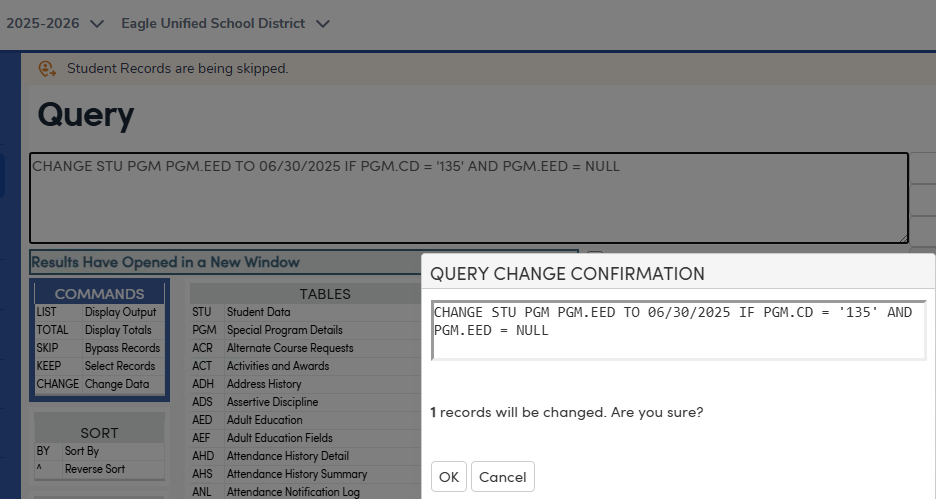
For users with Change permission, you may query change the Eligibility End Date to reflect the last day of school or 06/30 if it's currently blank.
CHANGE STU PGM PGM.EED TO 06/30/2025 IF PGM.CD = '135' AND PGM.EED = NULL
Student Programs Report ↑
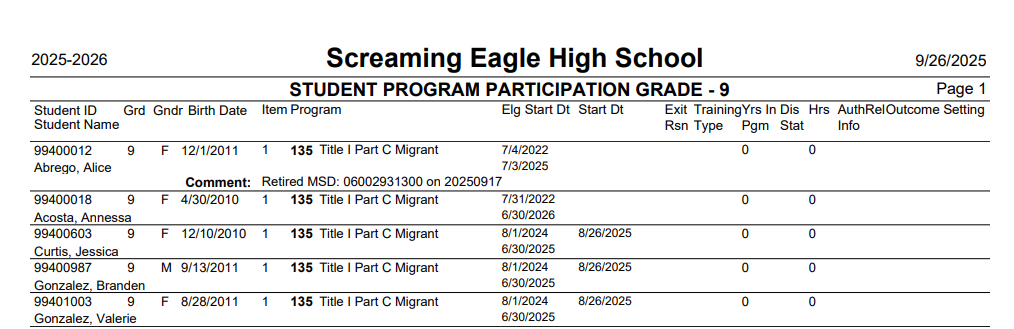
The Student Programs Report can be used to get a complete printout of all Migrant Eligible Students from the Special Programs (PGM) table. Navigate to Reports > Student Programs.
In Report Options, select PGM# 135 and choose from a status: Active Programs Only, Current Year Programs or All Programs.
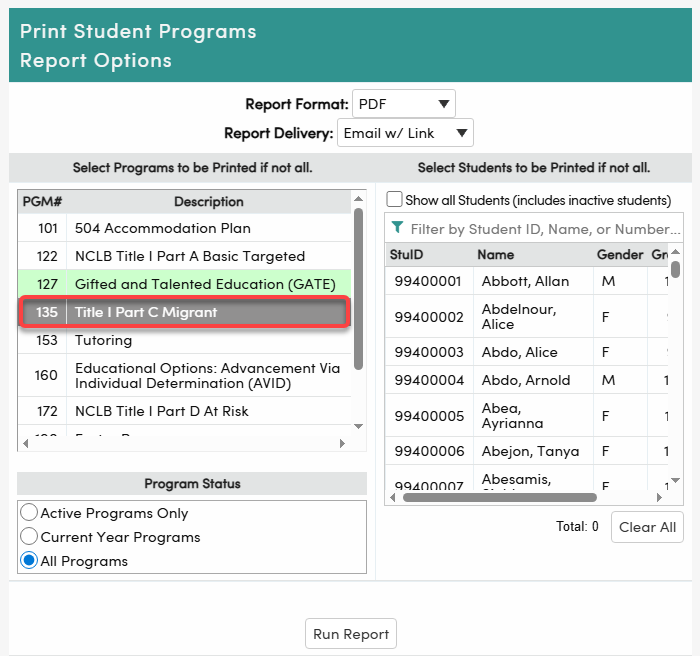
Any student meeting the criteria will display on the report broken down by grade level.