
Overview
Navigate to School Info > Imports and Exports > Import Test Results
The Import Test Results process can import both the STAAR End-of-Course and STAAR Alternate 2 EOC student test results files. For best results, load test files at the district level when possible. The Import Test Results process will also add any new STAAR EOC and STAAR Alternate 2 EOC test parts into the Testing Control (CTL) table and the Content Standard Names (CSN) table when the file layout is selected.
Select File Layout ↑
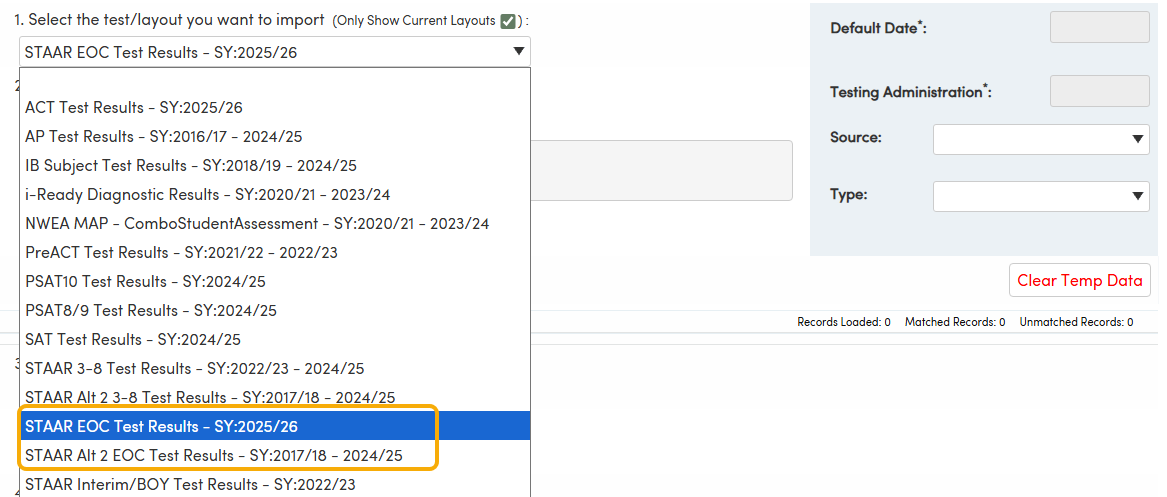
Select the proper STAAR EOC Test Results file layout to import the STAAR EOC student results file. The data file must be in the format defined in the STAAR End-of-Course or STAAR Alternate 2 End-of-Course Student Data File Layouts found on the Texas Education Agency Data File Formats website. Once the file is downloaded from the testing vendor, it should NOT be opened before importing into Aeries, as that sometimes breaks the format the import routine is expecting. Choose the layout by the administration in the file, not by the date you downloaded it. Select STAAR EOC Test Results - SY:2025/26 for Fall 2025, Spring 2026 and Summer 2026 STAAR EOC files, or STAAR Alt 2 EOC Test Results - SY:2017/18 - 2025/26 for STAAR Alternate 2 EOC files. Older STAAR EOC files (Spring 2018 through Summer 2025) use STAAR EOC Test Results - SY:2017/18 - 2024/25, which appears only after you clear the Only Show Current Layouts check box.
NOTE: It is VERY important that the correct file layout be chosen to match the results file, as the STAAR End-of-Course and STAAR Alternate 2 EOC file layouts are almost identical. Choosing the wrong layout for the file being imported will result in the test records being misidentified, and not aligning properly.
NOTE: Each layout loads only records with an administration date it supports. STAAR EOC Test Results - SY:2025/26 loads 1325 (Fall 2025), 1526 (Spring 2026) and 1626 (Summer 2026). STAAR Alt 2 EOC Test Results - SY:2017/18 - 2025/26 loads only the spring administrations 1518 through 1526, and does not include Algebra II or English III. Records with any other date are not loaded, so the number of records loaded can be lower than the number of rows in the file.
Select Test Results File ↑
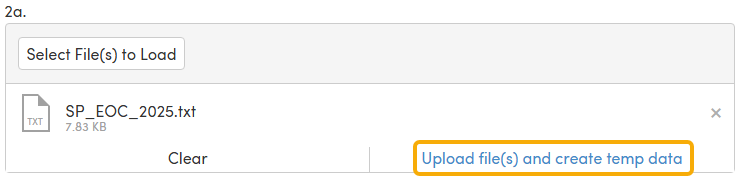
Once the file layout is selected, click on the Select File(s) to Load button, select the proper data file, and click on Open.
A warning message may appear that the data file does not match the selected layout. This check looks only at the name of the file, not at its contents, and the file can still be loaded. Confirm that the layout you selected matches the administration in the file.
For example, if the STAAR EOC file layout is selected, but the data file is the STAAR 3-8, then a warning message will appear alerting the customer to double-check that the correct data file was selected. After clicking on the OK to remove the warning the customer can click on the Clear button to remove the data file and then select a new file.
Once the correct data file has been opened, click on the Upload file(s) and create temp data button to load the data file. A progress bar will display as the file is loaded.
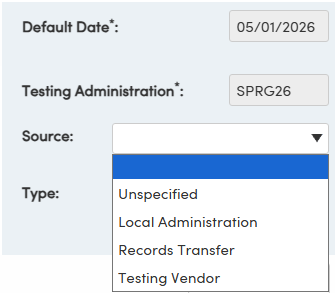
The Default Date and the Testing Administration for the STAAR EOC test results is derived from the Administration Date field contained in the data file (fields 1-4 of each record). The Aeries Testing Administration (TST.TA, CST.TA and TEX.TA) for the test results is either FALLXX, SPRGXX, or SUMMXX where XX is the year portion of the Administration Date field contained in the data file. NOTE: The Default Date and Testing Administration boxes are read-only and cannot be changed on this page.
If desired, the test results may also include an identification of the data source by choosing it from the Source drop-down menu, although the Source and Type fields are optional. Additional values can be added to both of these dropdowns through the Update Code Table process.
Matching Students ↑
Click on the Match Students button to match the students in the data file to the students in Aeries. The Unique ID is the primary identification in the STAAR EOC Student Results data files. It should be the first method used for matching students. If there are still large numbers of students unmatched, you can also select other options for matching.

If students are still unmatched, you can print a report of the unmatched students by clicking on the button labeled Print Unmatched Students:
Finally, students can be matched manually by searching by name, Student ID or Unique ID, or by entering the Student ID number directly into the matching field. For best results, please match as many students as possible before loading the test results. Click View Unmatched Students if necessary to assist matching the students manually by using the Student Lookup feature.

Update Test Tables ↑
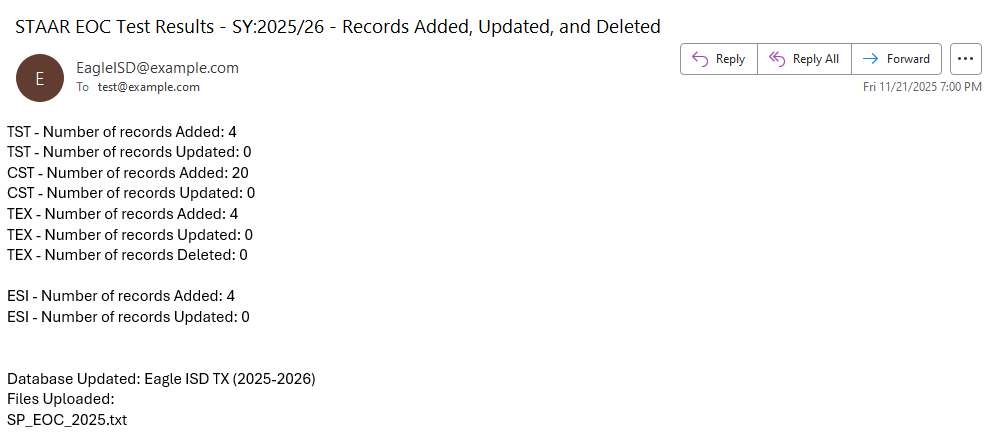
The STAAR Test Results import will add/update records to the Test Scores (TST), Content Standard Scores (CST), Test Exclusions (TEX), and External Student IDs (ESI) tables. After the import process has completed an email with summary information will be sent to the user that initiated the import.