

Table of Contents
Student Attendance Detail Report
Student Attendance Campus Summary Report
Student Attendance District Summary Report
Student Attendance Summary Report
Overview
Navigate to Student Data > Demographics
The Student Attendance Detail, Student Attendance Campus Summary, and Student Attendance District Summary reports are run for each six-week Attendance Reporting Period. The Student Attendance Detail report provides specific attendance data for each student. The Student Attendance Campus Summary report provides summary attendance data by campus and track. The Student Attendance District Summary report provides summary attendance data for one or all schools in the district.
Note: before running these reports, the six-week periods must be correctly configured on the Attendance Reporting Periods page at each school that will be reported. See the Attendance Reporting Periods documentation for more information.
Security ↑
To print the reports, Read permissions to Student Attendance (ATT), Special Ed (CSE), Attendance Reporting Details (ARD) for the Student Attendance Detail, Attendance Reporting Hours (ARH) and Attendance Reporting Summary (ARS) for the Campus and District Summaries, are required.

To recompute the data printed on the reports, Mass Update to ARD and ARS are also required. Additionally, the ability to view and/or print the Social Security Number field on the Student Attendance Detail report is controlled by specific permissions related to Encrypted Student Data. See Encrypted Student Data documentation for more information.
Tables ↑
The following tables store data for use in Attendance Reports and PEIMS Attendance Reporting files.
| Table | Description |
| Attendance Reporting Details (ARD) | Student Attendance details for TX Attendance Reporting |
| Attendance Reporting Summary (ARS) | Campus and District Summary details for TX Attendance Reporting |
| Attendance Reporting Hours (ARH) | Student Hourly CTE details for TX Attendance Reporting |
| Attendance Reporting Remote (ARR) | Student Remote attendance details for TX Attendance Reporting |
Options ↑
The Student Attendance Detail Report, Student Attendance Campus Summary Report, and Student Attendance District Summary Report have several options.
- All reports now honor Query KEEP/SKIP statements. This will allow users to recalculate totals for only a selected group of students, instead of the entire school/district.
- A message will appear in red near the Run Report button whenever a KEEP/SKIP query is active. The data for this report will only be recalculated for the student(s) kept, however at the district level, all the students will be included in the summary data.
- When only a group of students are being recalculated, the reports will generate much faster than when all students must be recalculated.

Student Attendance Detail Report ↑
At the school level, filter Reports by "student attendance detail" or navigate to Reports > Attendance > Student Attendance Detail. This report is also available on the View All Reports page, in the Attendance category.

Under Print For Which Reporting Period?, select the six-week attendance reporting period to print.
The Student Attendance Detail report can be printed without recomputing the attendance data totals, or it can be set to recompute the data as it prints. To print the Student Attendance Detail without recomputing the attendance data totals in the report, un-check the Recompute Attendance Reporting Details (ARD) Information checkbox. If the data on the report should be recomputed from current data, check the Recompute Attendance Reporting Details (ARD) Information checkbox.

A blue informational box highlights which six-week periods have already been computed. In the example above, only the first six-week reporting period has been computed. If a reporting period is re-calculated, all subsequent reporting periods will have to be re-calculated.
As the red message indicates, Recomputing Reporting Period 1 will delete ALL records in ARD. In other words, if the first six-week attendance reporting period is recomputed, the other reporting periods will all need to be recomputed.
If the Print Student Photo checkbox is selected, the Student Attendance Detail report will include a student photo, if existing.
Once the correct options have been selected, click Run Report. The report will be printed by grade.

The Student Attendance Detail summarizes data stored in the following tables: ATT (Attendance Data), PGM (Special Program Details), FOF (504 Plans) , GTE (Gifted/Talented), LAC (Language Assessment), CSE (Special Education Data) and CSH (Special Ed Instructional Setting History).
The report provides a header and four informational sections: Student Information, Current Programs, Enrollment, and Programs. At the end of the report, a signature section is provided.
The header of the report contains the following information:
- The school year, district name, and school name
- The date the report was printed
- The county-district-campus number
- The six-week Attendance Reporting Period number and date range
- The total number of days of instruction in the reporting period
- The student's instructional track
- The student's grade

Student Information contains identifying data from the student's Demographics and Free and Reduced page:
- Name
- Gender
- Grade
- Birthdate and age as of September 1st
- Student ID, Unique ID, and SSN or state-assigned alternative ID number
- Ethnic group
- Economically disadvantage status (from FRE)
- Name and address of parent or guardian with whom the student resides
- Original entry date in enrollment this year
The Current Programs section contains the student's most recent program information:
- ADA Eligibility (ATT.PR)
- Special Education instructional setting code (CSH.INS)
- Speech therapy indicator (CSV.CD = 411 or 412)
- Bilingual (PGM.CD = 146 and PGM.TY = 42, 43, 44, 45, 47, 48, 49 or 50)
- ESL (PGM.CD = 147 and PGM.TY = 2, 3, 5 or 6)
- Career/Tech Ed
- Course Enrollment (CAR) in a CTE course section with a MST.CH = 1, 2, or 3
- CTE Ineligible will indicate the number of days a student is ineligible for CTE funding for the following reasons:
- Instructional Setting - CTE Ineligible: Student is in a disciplinary setting and not receiving instruction from a certified CTE instructor. Identified on the Special Programs page
with a Program Card = CTE Ineligible Funding. (PGM.CD = 414) - Homebound - CTE Ineligible: Student is unable to attend classes in person.
- Special Education Students are identified with an instructional setting code = 01 (CSH.INS)
- General Education Students are identified on the Special Programs page with a Program Card = Homebound (PGM.CD = 412)
- Instructional Setting - CTE Ineligible: Student is in a disciplinary setting and not receiving instruction from a certified CTE instructor. Identified on the Special Programs page
- Gifted/Talented (GTE)
- Pregnancy-Related (PGM.CD = 162)

The Enrollment section contains a summary of the student's enrollment and attendance data during the reporting period.
- Reporting Period
- Start Date and End Date: the student's enrollment during the reporting period
- School, track and grade level for the student
- Days taught
- Days in membership
- Total days absent
- Total days present
- Total days eligible
- Total days ineligible
- OFSDP/HSEP minutes eligible
- OFSDP/HSEP minutes ineligible
The student's dates of absence during the reporting period are displayed under the summary line.

The Programs section contains summary information from ATT and programs (PGM, FOF, GTE, LAC, CSE, and CSH). Each program line contains the following data:
- Six-week reporting period
- Program name and code
- Student's school, track and grade
- Days eligible for the program
- Contact Hours:
- For an Instructional Setting: Days eligible multiplied by the specific Contact Hour Multiplier for the Instructional Setting
- Career and Technical Education: Days eligible multiplied by the specific Contact Hour Multiplier for the CTE Course
For CTE students placed in a disciplinary setting during the reporting period, CTE Eligibility must cease on the day before the student is placed the disciplinary setting and resume the day after the student's last day in the setting. Use PGM.CD = 414 (CTE Ineligible Funding) to track these students. The option is used in calculations when the student was enrolled in this program for six or more consecutive school days.
For CTE students who start receiving homebound services during the reporting period, CTE Eligibility must cease on the day before the student starts receiving services, and resume the day after homebound instruction ends. CTE days are not counted during this period. (See SAAH 5.2.4)
- For special education students, homebound services are indicated by the Instructional Setting (CSH.INS = 01).
- For PRS and all other students, homebound services are indicated by the special program (PGM.CD = 412).
- Excess Hours: any hours more than a total of six hours per day in a Career Tech or Instructional Setting program
- Enter and Leave: the start and end dates in the program for that reporting period. This is not the actual start date of when the student entered each program, but the start date within the specific reporting period. If the student was in the program for the entire reporting period, the Enter date will match the first date of the reporting period school is in session. The leave date will only display if the end date is within the specific reporting period.

Flexible Attendance
Attendance for students in Flexible Attendance programs (OFSDP or HSEP) is calculated according to the following specifications.
If both the following conditions are true for the student, the OFSDP or HSEP minutes will be calculated:
- The student's ADA Eligibility Code (ATT.PR/ENR.PR = "7" or "8")
- Eligible Minutes if PR = 7
- Ineligible Minutes if PR = 8
- The student's Flex-Att Code (ATT.FA/ENR.FA = 1, 2, 3, or 6)
- OFSDP is codes 1 and 6
- HSEP is code 2
Minutes for Flex-Att are based on their total Supplemental Attendance Data (ATD.TM), which is the student's minutes in a Supplemental Attendance program. Additionally, a daily minimum of 45 minutes is required, before the minutes will be included in the calculation (in other words, if the student is in attendance in a Flex-Att Supplemental Attendance session for less than 45 minutes, those minutes will not be included in the student's time). Daily Present for OFSDP is calculated as the total minutes / 360. For HSEP, the Daily Present is total minutes / 240.
Only Supplemental Attendance programs designated as Flex-Att (ATP.FA = Y) will have their time included.

Campus, Track and Grade Summaries
After the student pages, another view of the information is provided summarized by grade, track, and campus:

After the summaries, a signature area is provided.
Student Attendance Campus Summary Report ↑
This report provides attendance summary information by grade level for the campus and track for one, multiple, or all schools and for the district.
Filter Reports by "student attendance campus summary" or navigate to Reports > Attendance > Student Attendance Campus Summary.

Under Print For Which Reporting Period?, select the six-week attendance reporting period to print. If multiple tracks exist at the school, the earliest date through the latest date, among all tracks, will be listed for the reporting period dates. Each student as they are processed will limit based on their school and track dates in the ARP table.
The Student Attendance Campus Summary report can be printed without recomputing the attendance data totals, or it can be set to recompute the data as it prints. To print the Student Attendance Campus Summary without recomputing the attendance data totals in the report, un-check the Recompute Attendance Reporting Details (ARD) Information checkbox. If the data on the report should be recomputed from current data, check the Recompute Attendance Reporting Details (ARD) Information checkbox.

A blue informational box highlights which six-week periods have already been computed. In the example above, the first two six-week reporting period have been computed. If a reporting period is re-calculated, all subsequent reporting periods will have to be re-calculated.
As the red message indicates, Recomputing Reporting Period 1 will delete ALL records in ARD. In other words, if the first six-week attendance reporting period is recomputed, the other reporting periods will all need to be recomputed.
Once the correct options have been selected, click Run Report.

The Student Attendance Campus Summary summarizes the data printed for each student individually on the Student Attendance Detail report.
The report provides a header and four informational sections: Track/Campus Summary, Career Tech Summary, Special Education Summary, and Program ADA / FTE. Multiple tracks will be printed on separate pages. At the end of the report, a campus summary is provided. Finally, a signature section is on the last page of the report.
The header of the report contains the following information:
- The school year, district name, and school name
- The county-district-campus number
- The date the report was printed
- The six-week Attendance Reporting Period number, the Track number, and the six-weeks' date range
- The total number of days of instruction in the reporting period
The Track/Campus Summary section provides a summary of attendance data by grade level.

The following data is included:
- Grade level
- Days Membership (both eligible and ineligible students)
- Days Absent (both eligible and ineligible students)
- Days Present (both eligible and ineligible students)
- Ineligible Days Present
- Eligible Days Present
- Eligible Days Bilingual / ESL
- Eligible Days Pregnancy - Related
- Eligible Days Special Ed Mainstream
- Total Gifted / Talented Students
- ADA % (Days Present / Days Membership)
Career Tech Summary
The Career Tech Summary section summarizes the Career Technical Education data for the track and campus:

The Career Tech Summary provides the following data for each of the career and technical education codes V1 - V3:
- Eligible Days
- Contact Value
- Contact Hours
- FTE or Full-Time Equivalent
The Special Education Summary section summarizes attendance data for each Instructional Setting, including Speech:

The following data is provided for each Instructional Setting, including Speech:
- Total Eligible Days Present
- Contact Value
- Total Contact Hours
- Excess Contact Hours
- Eligible Hours
- FTE or Full-Time Equivalent
The Program ADA / FTE section summarizes ADA and FTE data:

The Absence Summary provides the total days absent, reported by date, for each day in the reporting period:

At the end of the report, a signature area is provided.
Student Attendance District Summary Report ↑
This report totals attendance data for one, multiple, or all schools and for the district.
At the district level, filter Reports by "student attendance district summary" or navigate to Reports > Attendance > Student Attendance District Summary.

Under Print For Which Reporting Period?, select the six-week attendance reporting period to print. If multiple tracks exist at the selected schools, the earliest date through the latest date, among all tracks, will be listed in the dropdown for the reporting period dates. Each student as they are processed will limit based on their school and track dates in the ARP table.
The Student Attendance District Summary report can be printed without recomputing the attendance data totals, or it can be set to recompute the data as it prints. To print the Student Attendance District Summary without recomputing the attendance data totals in the report, un-check the Recompute Attendance Reporting Details (ARD) Information checkbox. If the data on the report should be recomputed from current data, check the Recompute Attendance Reporting Details (ARD) Information checkbox.

The summary data will be printed by track. The last page will provide a District Summary.
A blue informational box highlights which six-week periods have already been computed. In the example above, the first two six-week reporting periods have been computed. If a reporting period is re-calculated, all subsequent reporting periods will have to be re-calculated.
As the red message indicates, Recomputing Reporting Period 1 will delete ALL records in ARD. In other words, if the first six-week attendance reporting period is recomputed, the other reporting periods will all need to be recomputed.
Once the correct options have been selected, click Run Report.

The report provides a header and three informational sections: Track or District Summary, Career Tech Summary, and Special Education Summary. Multiple tracks will be printed on separate pages. At the end of the report, a district summary is provided. Finally, a signature section is on the last page of the report.
The header of the report contains the following information:
- The school year and district name
- The county-district-campus number
- The date the report was printed
- The six-week Attendance Reporting Period number, the Track number, and the six-weeks' date range (if track dates vary, the earliest and latest dates are used)
- The Maximum Days and Minimum Days of instruction in the reporting period
The Track or District Summary section provides a summary of attendance data by grade level.

The following data is included:
- Grade level
- Days Membership (both eligible and ineligible students)
- Days Absent (both eligible and ineligible students)
- Days Present (both eligible and ineligible students)
- Ineligible Days Present
- Eligible Days Present
- Eligible Days Bilingual / ESL
- Eligible Days Pregnancy - Related
- Eligible Days Special Ed Mainstream
- Total Gifted / Talented Students
- ADA % (Days Present / Days Membership)
Career Tech Summary
The Career Tech Summary section summarizes the Career Technical Education attendance data:

The Career Tech Summary provides the following data for each of the career and technical education codes V1 - V3:
- Eligible Days
- Contact Value
- Contact Hours
- FTE or Full-Time Equivalent
The Special Education Summary section summarizes attendance data for each Instructional Setting, including Speech:

The following data is provided for each Instructional Setting, including Speech:
- Total Eligible Days Present
- Contact Value
- Total Contact Hours
- Excess Contact Hours
- Eligible Hours
- FTE or Full-Time Equivalent
At the end of the report, a signature area is provided.
Student Attendance Summary Report ↑
The Student Attendance Summary report summarizes attendance for the selected six-week Attendance Reporting Periods in the same row order and with the same row codes and labels as the TEA TSDS PEIMS Superintendent's Summary Report of Student Attendance (PDM5-130-008). This allows attendance to be reconciled to TSDS line for line before and after each six-week submission.
Navigate to Reports > Attendance > Student Attendance Summary. The report is also available on the View All Reports page, in the Attendance category.
Note: The Student Attendance Summary is calculated from the Attendance Reporting Summary (ARS) data. Before printing, recompute attendance by running the Student Attendance Detail report with Recompute Attendance Reporting Details (ARD) Information checked, or by using Attendance Accounting > Mass Run Attendance Reports.
Report Layout
Each row is printed for each selected Reporting Period, followed by a Reporting Period Totals column. When logged in to a campus, the report reflects that campus only.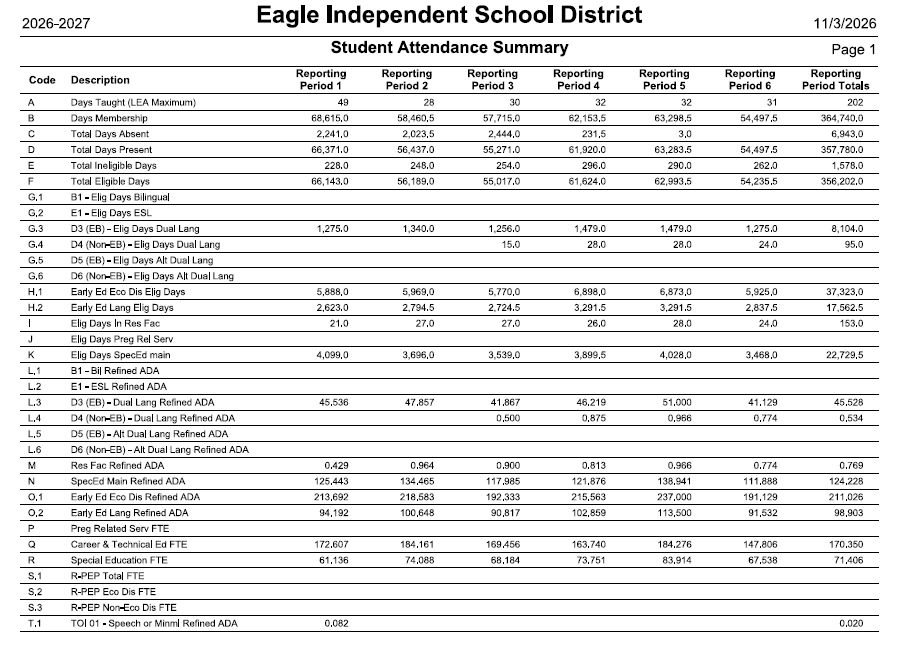
| Row | Label | Description |
|---|---|---|
| A | Days Taught (LEA Maximum) | Days of instruction. Only reporting periods that have attendance data are shown, and the Total is the sum of those periods. |
| B – F | Days Membership, absent and present days | Days Membership, Days Absent, Days Present, Ineligible Days Present and Eligible Days Present. |
| G.1 – G.6 | Elig Days Bilingual/ESL and Dual Language, by funding code | One row per Bilingual/ESL funding code: B1 Bilingual, E1 ESL, D3 (EB), D4 (Non-EB), D5 (EB) Alt Dual Language and D6 (Non-EB) Alt Dual Language. See Bilingual/ESL funding codes below. |
| H.1 – H.2 | Early Education eligible days | Early Education Eco Dis and Early Education Language eligible days. |
| I – K | Elig Days In Res Fac, Preg Rel Serv, SpecEd Main | Eligible days for students in a residential facility, receiving pregnancy-related services, and in Special Education Mainstream. |
| L.1 – L.6 | Bilingual/ESL and Dual Language Refined ADA, by funding code | Refined ADA for each G row (G.x eligible days divided by Days Taught). Each student's days are counted in one row only. |
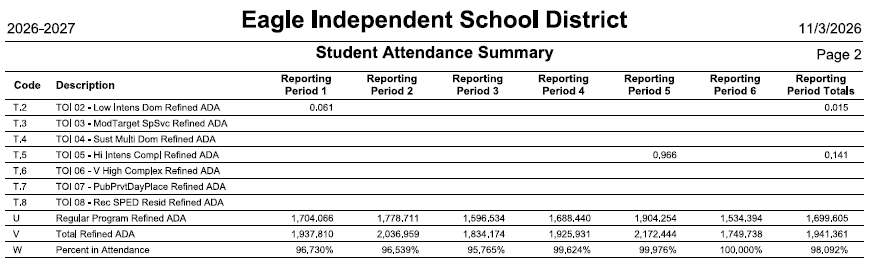
| M – O.2 | Refined ADA | Remaining Refined ADA rows, including the Early Education rows O.1 and O.2. |
| P, Q, R | Preg Related Serv FTE, Career & Technical Ed FTE, Special Education FTE | Full-time equivalent, shown to three decimals. Career & Technical Ed FTE is a single row as funding Tiers are calculated by TEA. |
| S.1 – S.3 | R-PEP Total FTE, Eco Dis FTE, Non-Eco Dis FTE | Printed so the report matches TSDS. These rows are blank because Aeries does not calculate R-PEP attendance. |
| T.1 – T.8 | TOI 01 – TOI 08 Refined ADA | Tier of Intensity Refined ADA for each tier of intensity. |
| U | Regular Program Refined ADA | |
| V | Total Refined ADA | |
| W | Percent in Attendance | Days Present divided by Days Membership, shown to three decimals. |
Note: A value of zero prints blank in the period columns and in the Totals column.
Bilingual/ESL funding codes
Rows G.1 – G.6 and L.1 – L.6 are determined by the Bilingual/ESL funding code on the student's program record, not by the program model or by LEP status. To report days on these rows:
- Update the funding code (Funding Type, PGM.FT) on the student's Bilingual/ESL Program card (Program Code 146 or 147) to one of the codes B1, E1, D3, D4, D5 or D6. Days under a blank or retired funding code are not printed on the G and L rows.
- Recompute attendance (see the Note above) before printing the report.
- If a student's funding code changes during a six-week period, the student's days appear on the row for each code, for the days under that code. A day is never counted on more than one row.
Reporting Period Totals
Only reporting periods that have attendance data are included in the Reporting Period Totals column.
- Days rows (A – K): the sum of the included periods.
- ADA and FTE rows (L – V): total eligible days (or contact hours) across the included periods divided by total Days Taught across the same periods, calculated for each campus and track and then summed. It is not an average of the period values.
- Percent in Attendance (W): total Days Present divided by total Days Membership across the included periods.
The Total can be larger than any single period's value when more than one campus or track is included.