Aeries has a feature to lookup the ZIP+4 code from the USPS when entering or changing a student's address. This feature requires the district to register for a USPS Developer Portal account at https://developers.usps.com/getting-started. Creating the developer account is free. As of July 12, 2026, USPS also requires a signed license agreement and a paid subscription to use the address validation API.
This tool retrieves the ZIP+4 extension from USPS for the address you enter. It does not validate the street address against your district Streets data, which is handled separately when you enter the address.
Note: Due to changes made by USPS, each customer who wishes to use the Zip Lookup tool must now register for a USPS Developer Portal account and obtain a Consumer Key and Consumer Secret. The developer account is free to create, but as of July 12, 2026 USPS requires a signed license agreement and a paid subscription to use the address validation API. The previous method used by Aeries is no longer supported.
Security
Table | Permission | Description |
| Student Data (STU) | Update | View the Student Data page Update Student Addresses Can access the USPS lookup endpoint |
Obtaining USPS API Credentials
To enable USPS Address Verification in Aeries, you must obtain API credentials from the USPS Developer Portal. This process involves:
Create or log in to a USPS Business Account
Use the USPS Customer Onboarding Portal (COP) to sign in or create a new USPS Business Account.Create an App
After your account is set up, select My Apps in the COP Business Portal.Retrieve your Consumer Key and Consumer Secret
Within COP, select your app and locate your Consumer Key and Consumer Secret in the Credentials section. These credentials are required to configure USPS Address Verification on the 3rd Party Connections page in Aeries.
Additional Information:
After creating your account, go to My Apps, then open the Developer Apps tab and add a new application. The app name can be named "Aeries". Once your application is created, you will be able to view and copy your Consumer Key and Consumer Secret from the Credentials section.
NOTE: All account creation and credential management are handled by USPS. If you need assistance with obtaining a Consumer Key and Consumer Secret, please contact USPS API Support directly.
NOTE: Creating the USPS Developer Portal account is free. As of July 12, 2026, using the USPS address validation API also requires a signed license agreement and a paid subscription. Licensing and fees are handled by USPS.
Configuration
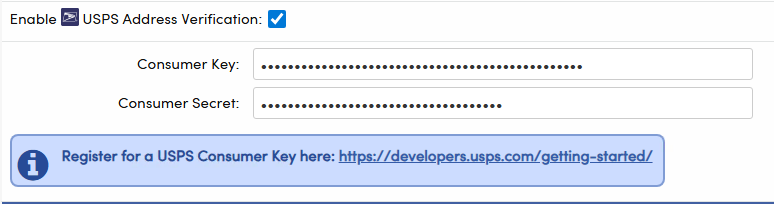
The option to enable USPS Address Verification is configured on the 3rd Party System Connections page at the District level.
- Check the box next to Enable USPS Address Verification.
- Enter the Consumer Key and Consumer Secret you received when registering for the USPS Developer Portal.
- You can register for a USPS Consumer Key here: https://developers.usps.com/getting-started/
NOTE: If the USPS Address Verification option on the 3rd Party Connections page is not configured, the Zip Lookup tool will redirect users to the USPS Zip Code Lookup website, where the zip code can be looked up manually.
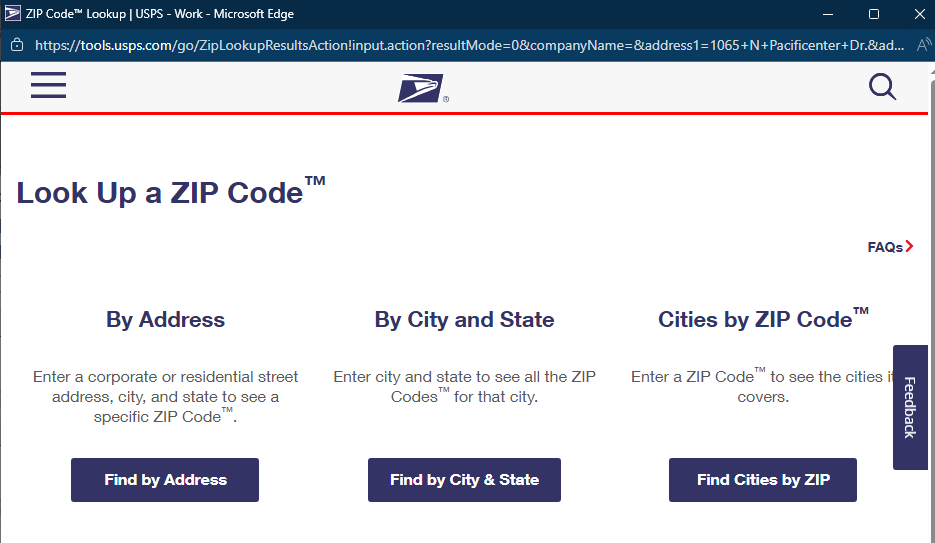
Look Up a ZIP Code
When adding a new student record or changing an existing student's address, and USPS Address Verification is enabled:
- Click the magnifying glass icon next to the ZIP code extension field.
- For existing students, ensure either Fixing Bad Data or Address Change is selected at the top of the window.
- If the address is found, click Apply Zip Code Extension to copy the ZIP+4 code to Aeries.

The following window will appear when the entered address and ZIP code are successfully validated and matched with USPS records.

Validation Messages
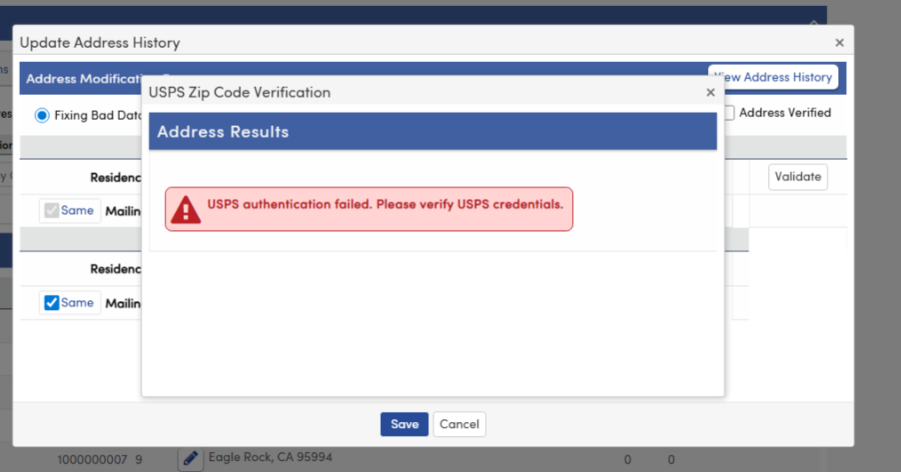
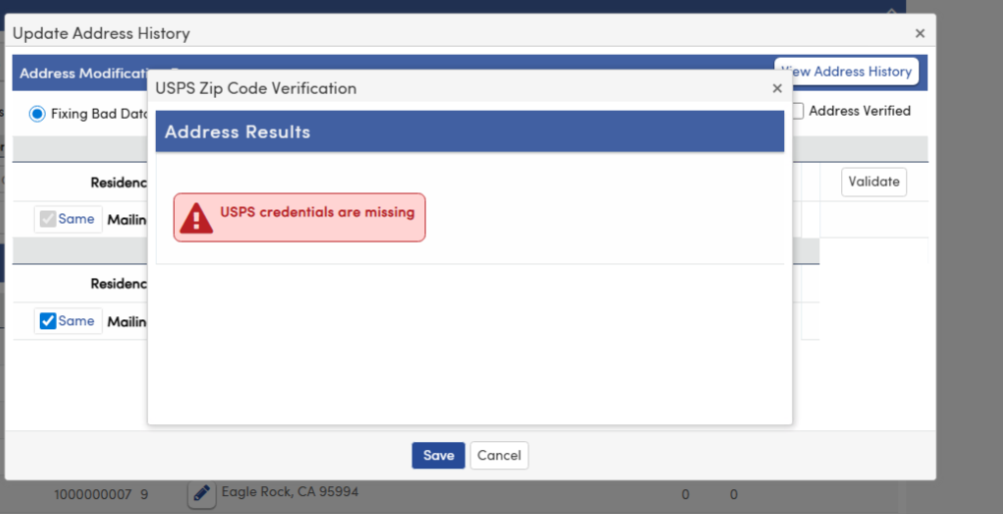
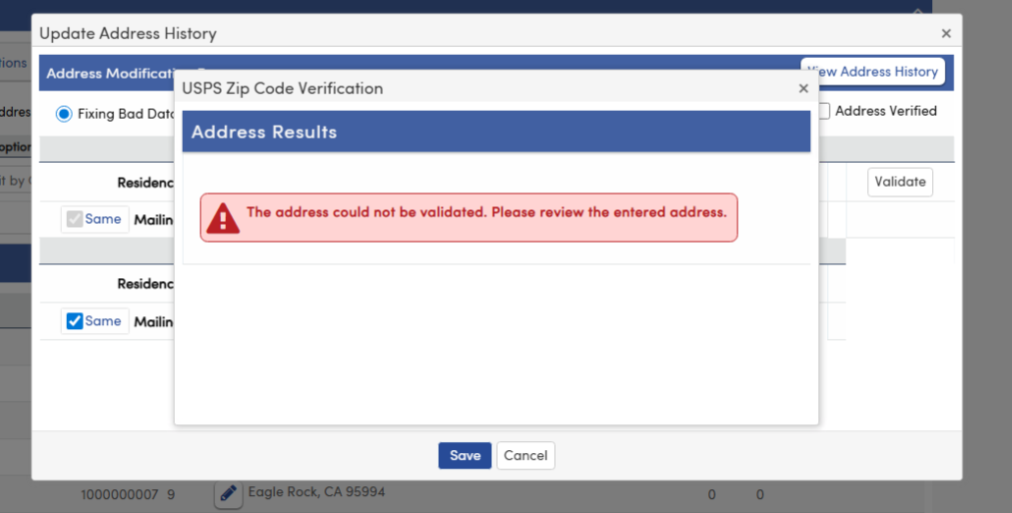
The following validation messages may appear during address verification using the USPS Lookup Tool:
- Scenario: Invalid USPS Credentials
- Scenario: Missing USPS Credentials
- Scenario: Invalid or Missing Address
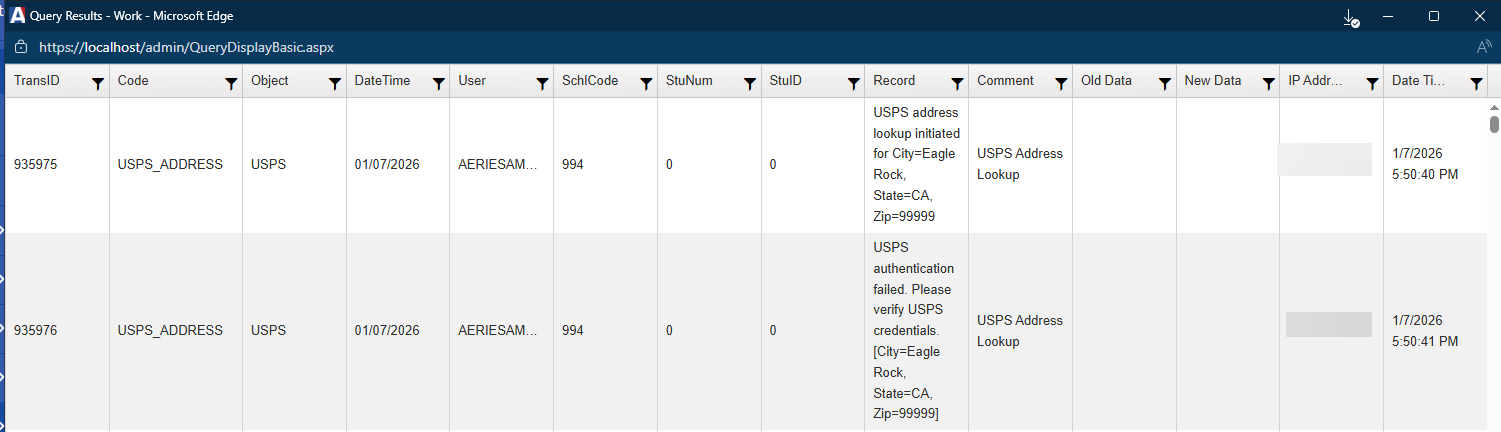
Errors are logged in the LOG table and can be queried as follows:
LIST LOG IF OB = USPS