

The Attendance History tables store multi-school, multi-year attendance history. Each year’s history is built from that year’s attendance (ATT) data when Update All Schools Now (or the nightly process) runs on the Attendance History Configuration page. To build multi-year history, copy prior years’ Attendance History from another database year with Pull Attendance History From Another Database in Aeries Web. Only admin users can run this process.
CAUTION: This process deletes the current database’s Attendance History records (AHC, AHD and AHS, plus CHD for Flex scheduling schools) for the years you select, then copies those years from the selected database. Missing IDN records are also copied; no IDN records are deleted. Connections to the other database years must be set up for them to be listed.
Step 1: Build history in the earliest year
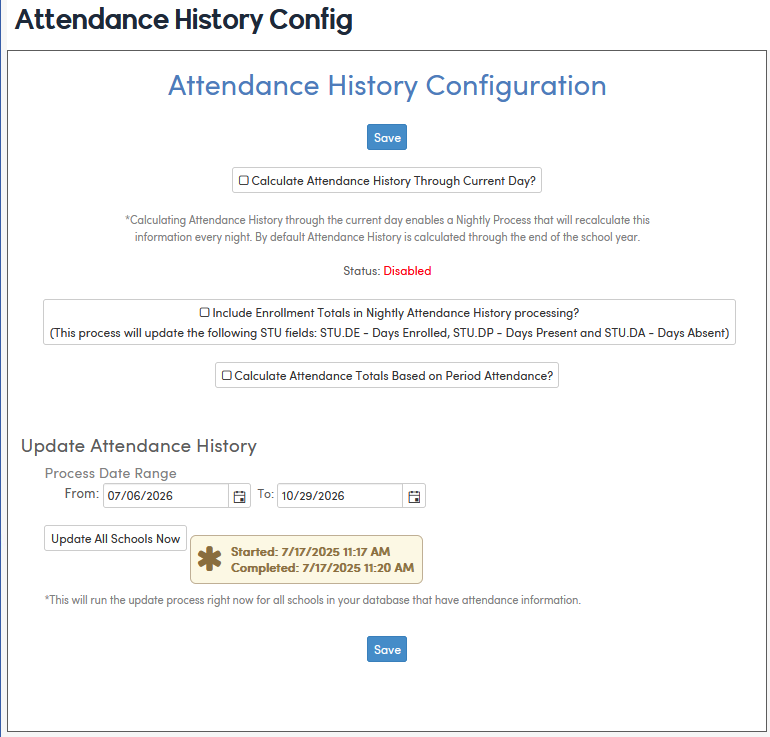
Log in to the earliest database year in Aeries Web. Go to Attendance Accounting > Configurations > Attendance History Config and click Update All Schools Now. This fills the Attendance History tables from the attendance (ATT) data. You receive an email when it has completed.
Step 2: Pull history into the next year
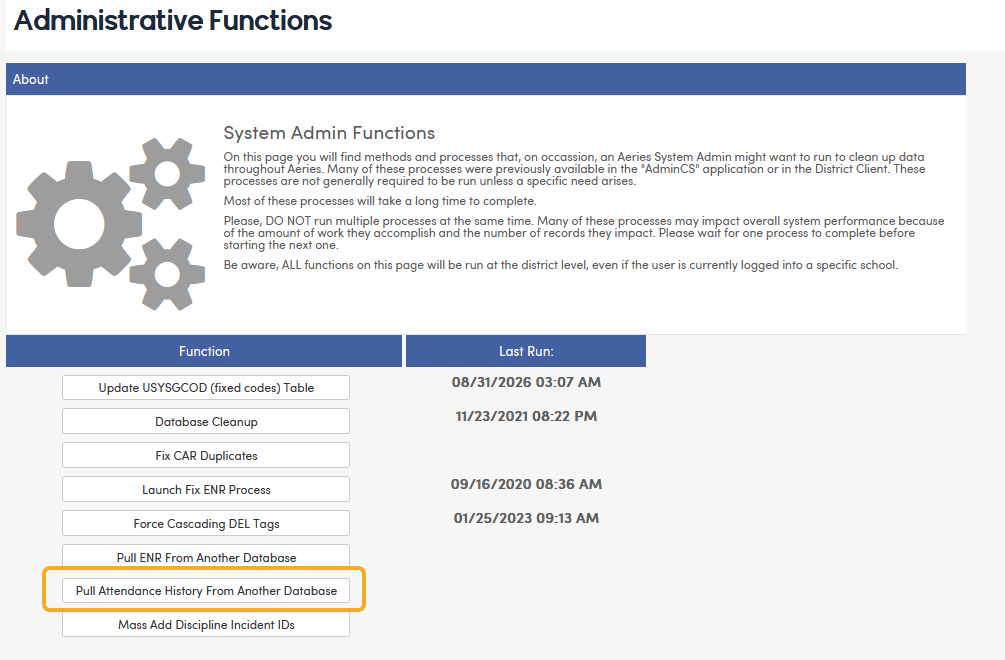
Change to the next database year. Go to School Info > Functions > Administrative Functions and click Pull Attendance History From Another Database. The date and time the process last ran is shown in the Last Run column.
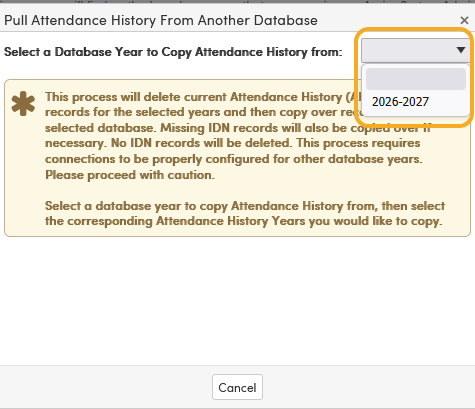
In Select a Database Year to Copy Attendance History from:, select the prior database year. Only database years that have Attendance History are listed.
Under Attendance History Year records available in <year>, select each year to copy, or select Select All.
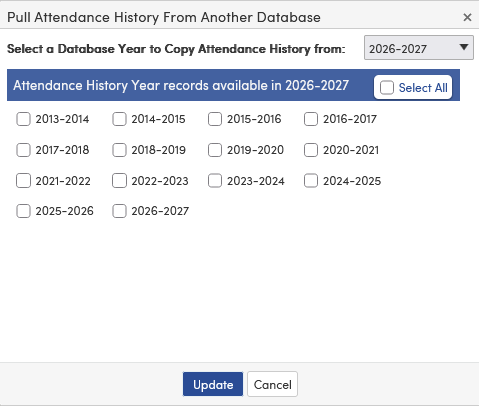
Each time you select a year, a Select this year? message shows how many AHC, AHD, CHD and AHS records will be deleted and how many will be inserted. Click OK to keep the year selected.
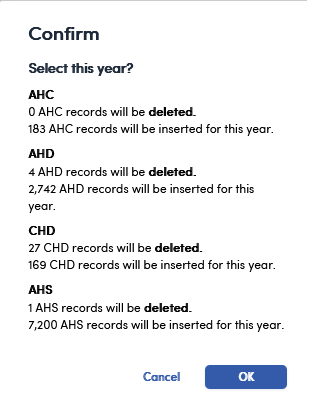
Click Update. A message shows the total number of records that will be deleted and inserted. Click OK to start the process. You receive an email when it is complete.
Step 3: Update history for that year
In the same database year, go to Attendance Accounting > Configurations > Attendance History Config and click Update All Schools Now.
Repeat Steps 2 and 3 for each year until you reach the current year.
Summary of steps
- Log in to the earliest database year in Aeries Web.
- Run Update All Schools Now on Attendance History Config and wait for the completion email.
- Change to the next database year.
- Run Pull Attendance History From Another Database (School Info > Functions > Administrative Functions), select the prior database year and its year(s), click Update and wait for the completion email.
- Run Update All Schools Now on Attendance History Config for this year.
- Repeat steps 3 - 5 up to the current year.