

This report lets a teacher see on a single report how all the students in a gradebook are doing in all their classes, with one column per class.
To print it, click Reports on the gradebook menu bar, then click Progress By Class under the Progress heading.
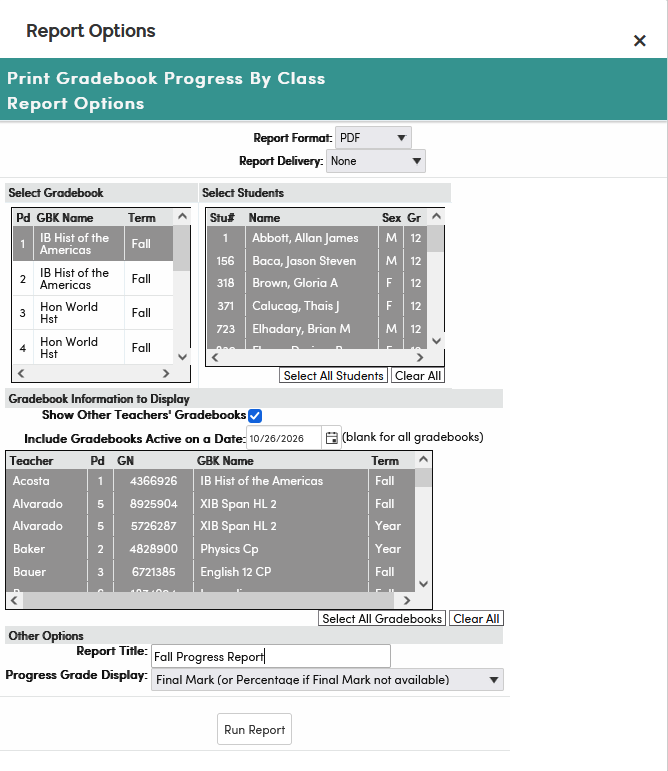
- Select Gradebook – click one or more of your gradebooks; the gradebook you are working in is already selected. The Select Students list fills with their students, all selected. Click a student to deselect them, or use Select All Students / Clear All.
- Gradebook Information to Display – choose which classes appear as columns. Show Other Teachers' Gradebooks (checked by default) includes the students' gradebooks from other teachers. Include Gradebooks Active on a Date defaults to today; leave it blank for all gradebooks. Every gradebook listed is selected; click a row to deselect it, or use Select All Gradebooks / Clear All.
- Other Options – enter an optional Report Title (if blank, the report is titled "Progress Report By Class"), and choose a Progress Grade Display: Final Mark (or Percentage if Final Mark not available), Percentage, or Both % and Final Mark (or just % if Final Mark not available).
Click Run Report. At least one gradebook, one student and one class to display must be selected. Each class column follows that gradebook's own settings for showing the overall score and final mark, so a class whose gradebook hides the overall score shows only the mark, or a blank.
The following is an example of the Progress By Class report.
