

This report allows teachers to print student rosters from gradebook lists with student information and a series of blank columns.
To print this report, click Reports on the gradebook menu bar, then click Gradebook Roster. The following window will display.
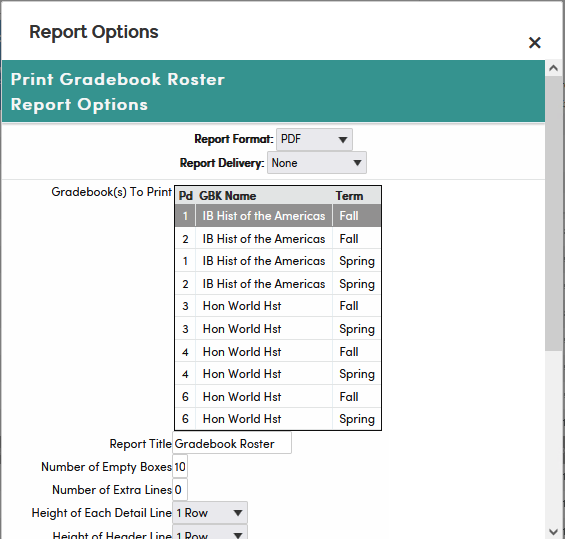
In the Gradebook(s) To Print list, click each gradebook to include. Selected rows are highlighted; click a row again to deselect it. The gradebook you are working in is already selected. There are various options to choose from in creating this report. Select from the following options and then click the Run Report button.
• Report Title – the title of the report when printed (defaults to "Gradebook Roster")
• Number of Empty Boxes – this number of empty boxes will print on each line (defaults to 10).
• Number of Extra Lines – this number of empty lines will be printed at the end of the report. These empty lines can be used to write in new students.
• Height of Each Detail Line – indicates how high each line of students should be (defaults to 1 Row).
• Height of Header Line – how tall the column-heading row should be (defaults to 1 Row), for example to leave room to write column names above the empty boxes.
• Student Sort – students can be sorted by name, student ID or custom sort order
• Student ID/Number Viewing – view by Student ID (STU.ID), Student Number (STU.SN) or Neither
• Show Line Numbers – next to each student (selected by default).
• Show Student Grade Level – to the right of each student name (selected by default).
• Show Phone Number
• Show Address
• Show City – prints the city in its own column
• Show Birth Date
• Show Parent/Guardian Name
• Include Inactives – by default, only active students print.
• Include Student Alias Names – prints the student's alias name in parentheses after their name, when they have one
The following is an example of the Gradebook Roster.
