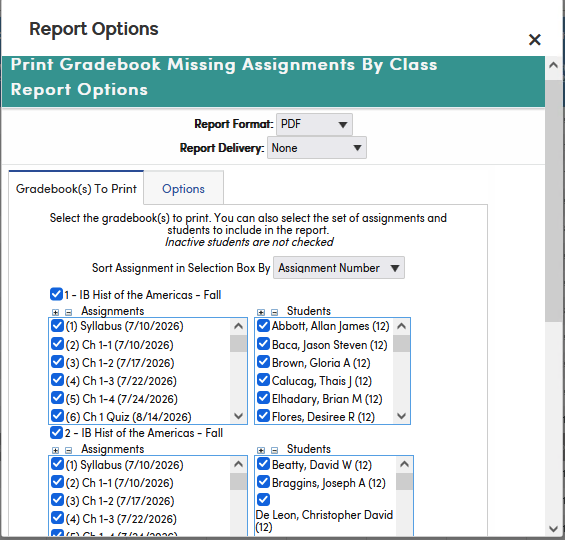
To print missing assignment information for a class, click Reports on the gradebook menu bar, then click Gradebook Missing Assignments By Class. On the Gradebook(s) To Print tab, check each gradebook to include; the gradebook you are working in is already checked. Use the Assignments and Students lists that appear to leave out assignments or students (inactive students are not checked). Then click the Options tab, choose your options, and click Run Report.
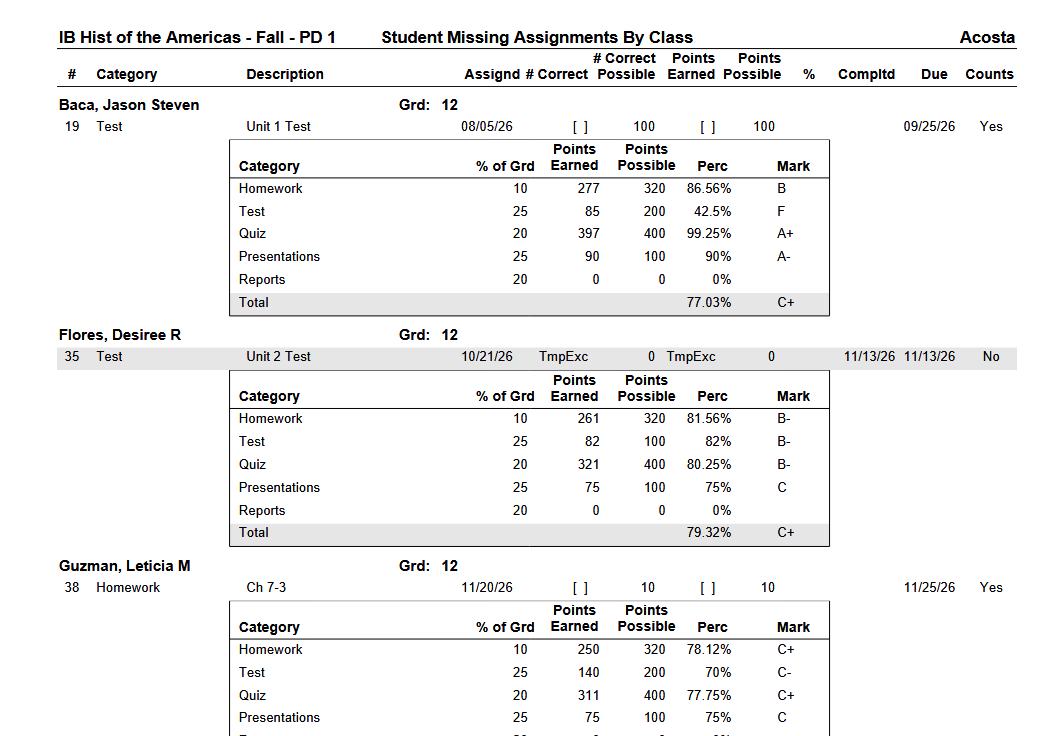
The Options tab includes Report Title (defaults to "Student Missing Assignments By Class"), Report Comment, Sort Assignments By, Student Sort, Show Gradebook Summary, Show Completion Checks Instead of Scores, Print Only Students with Missing Assignments, Print Only Student with Grade % Below / Above, and Show Assignment Comment. If Print Only Students with Missing Assignments is unchecked, students with none are listed with the note "NO MISSING ASSIGNMENTS". Show Gradebook Summary (selected by default) prints a table under each student with their points earned, points possible, percentage and mark for each category, plus the total.
This version of the report has no Show Signature Line, Page Break On Each Student or Email To Parents. To print or email a page per student, use the Gradebook Missing Assignments Report, which also explains what counts as a missing assignment.
The following is an example of the Gradebook Missing Assignments By Class report.