

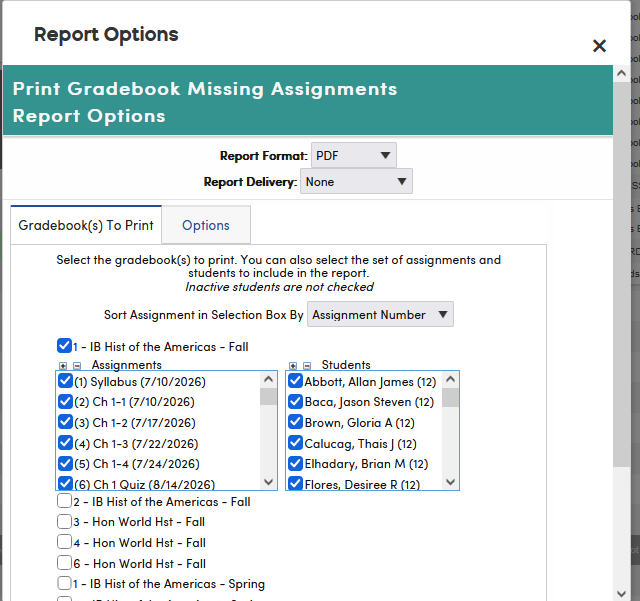
To print missing assignment information for your students, click Reports on the gradebook menu bar, then click Gradebook Missing Assignments. The Report Options window opens on the Gradebook(s) To Print tab with the gradebook you are working in already checked. Check each gradebook to include. Checking a gradebook shows its Assignments and Students lists. All assignments and all active students are selected (inactive students are not checked); uncheck any you want to leave out.
An assignment is counted as missing when the student's mark is one your school set up as a Missing mark, or when the assignment is marked Grading Completed and the student has no score. Only assignments that count toward the grade are included.
Click the Options tab to choose from these options, then click Run Report.
- Report Title – defaults to "Student Missing Assignments"
- Report Comment – text printed on the report
- Sort Assignments By – Assignment Number, Due Date, Category and Assignment Number, or Category and Due Date
- Student Sort – Student Name, Custom Sort or Student ID
- Show Gradebook Summary – prints the summary of scores by category and the overall score (selected by default)
- Show Signature Line – for the parent to sign and return to the teacher
- Show Completion Checks Instead of Scores
- Print Only Students with Missing Assignments – if unchecked, students with no missing assignments are also listed, with the note "NO MISSING ASSIGNMENTS"
- Print Only Student with Grade % Below / Print Only Student with Grade % Above – enter a percentage to limit the report to students below or above it
- Page Break On Each Student – starts each student on a separate page (selected by default)
- Show Assignment Comment – prints the assignment comment on the report
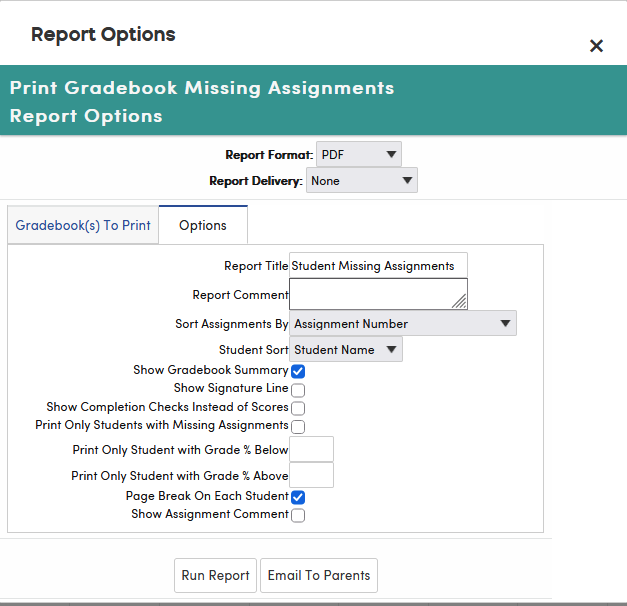
The Email To Parents button emails each selected student's missing assignments to the student's family. After you confirm ("Are you sure you want to send this email?"), the emails are sent in the background, and you receive a summary email titled Email Gradebook Assignments by Student Summary listing who was emailed for each student. The report is in the body of the email, not attached. The button is not shown to users with read-only access to the gradebook.
For each selected student, one email is sent to every address on file for that student:
- contacts with an email address and Access to Portal set to Yes
- the Parent Email and Student Email on the student's demographics
- every Parent Portal account linked to the student
The email uses each gradebook's parent/student display settings, so the overall score and final mark appear only if the gradebook shows them to parents and students.
The following is an example of the Gradebook Missing Assignments.

For more about this window, see Gradebook Assignments by Student Report; the missing assignments report uses the same window.
NOTE: This report is only available to teachers from their gradebook, or to staff who open a teacher's gradebook through Teacher Emulation > Gradebook.