

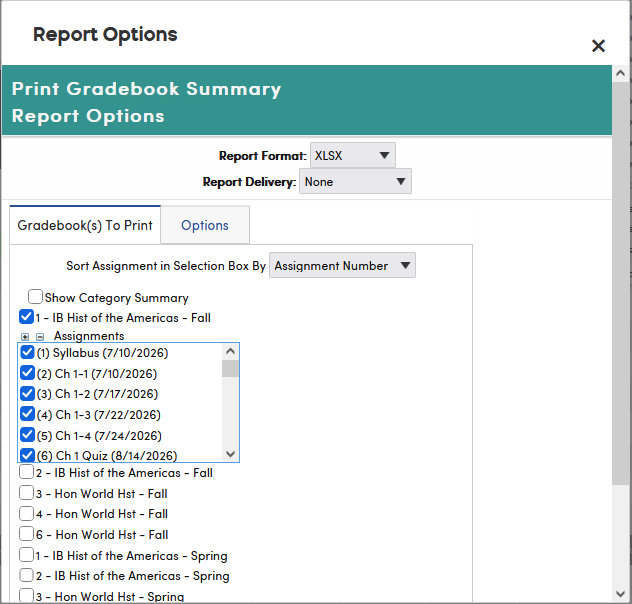
To print a summary for a gradebook, click Reports on the gradebook menu bar, then click Gradebook Summary. The window opens with the gradebook you are working in already checked. Teachers can also run this report from View All Reports in the left navigation, in the Gradebook category.
On the Gradebook(s) To Print tab, check one or more gradebooks. Checking a gradebook shows its assignments, all selected; uncheck any you don't want, or use the – and + icons to deselect or select all. Sort Assignment in Selection Box By sorts the list by Assignment Number or Due Date. Check Show Category Summary to add category totals; this also shows each gradebook's categories and the Include ONLY Assignments in Selected Categories option.
On the Options tab, set the Report Title (defaults to "Gradebook Summary"), whether to Include Inactive Students, which student information to show, the Student Sort (Student Name, Student Id or Overall Score), the Assignment Sort, and which columns to show. Show Student Grade, Show Percentage, Show Mark and Show Class Average are checked by default; Show Point Ratio and Show Assignment Description are not. Do Not Print Assignments leaves out the assignment columns. Then click Run Report.
To get this report as a spreadsheet, choose XLSX under Report Format at the top of the window before you click Run Report. For gradebooks with a large number of assignments, use the Gradebook Summary Export to Excel report instead, which always creates an Excel file; see Gradebook Summary Export to Excel Report.
The following is an example of the Gradebook Summary.
