

NOTE: Records Transfer is available to California districts only. Texas districts use TREx instead.
A user with appropriate permissions can create a records request in Aeries. The user must have Insert permission to the Outgoing Record Requests (RTO) security area.

Before initiating a records request, the school must already have created a Student Data (STU) record for the student, and that student record must be the currently selected student in Aeries. Your school must also be set up on Records Transfer Config; the contact information entered there is sent to the other school with the request.
To begin, select Records Transfer (BETA) | Request Records from the navigation menu.
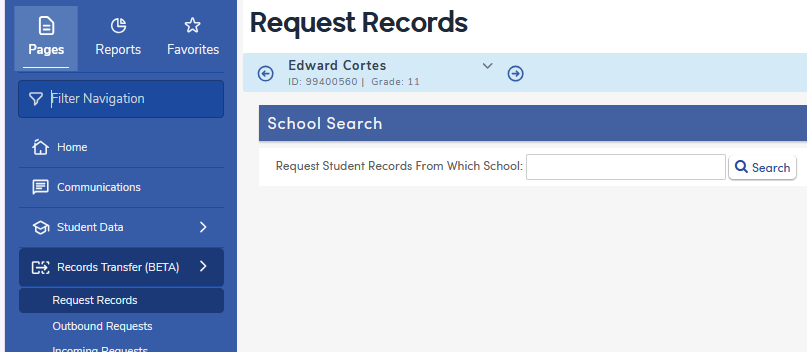
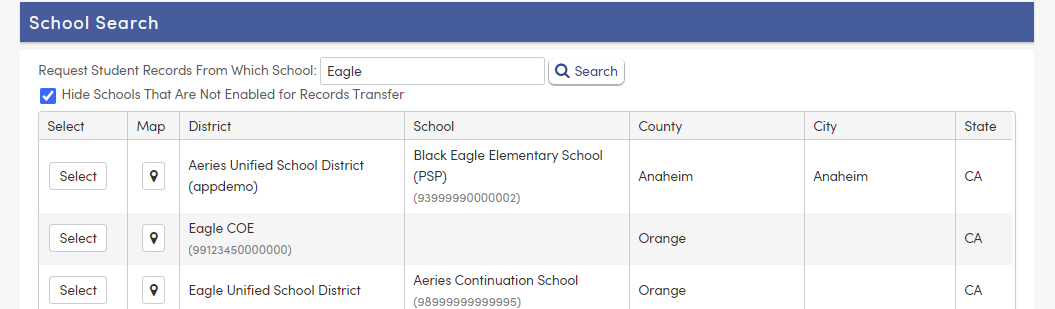
In the search box, type at least 5 characters of the name of the school or district from which you need to request records, then click Search. (A shorter search displays "You must search using 5 or more characters.") From the list of results, click the Select button next to the correct school. Results show the district, school and CDS code, county, city and state, and a Map button.
Schools that are not set up to receive records requests are hidden by default. To see them, uncheck Hide Schools That Are Not Enabled for Records Transfer; these schools show a greyed-out Not Configured button instead of Select.
NOTE: Only active schools (per the official state directory, e.g., CDS) will be included in the search results.
The following prompt will appear. It shows the student's name and State ID. Click Request Records to send the request to the other school, or Return to Search to go back without sending.

After the request is sent, the message "Request Sent." displays. The request has a status of Pending and can be tracked on the Outbound Requests page.
If the student already has a Pending or Data Received request with the same school, a second request is not created. A message displays that a request is already in progress, with a link to the Outbound Requests page.