

Navigate to School Info > Imports and Exports > Import Test Results
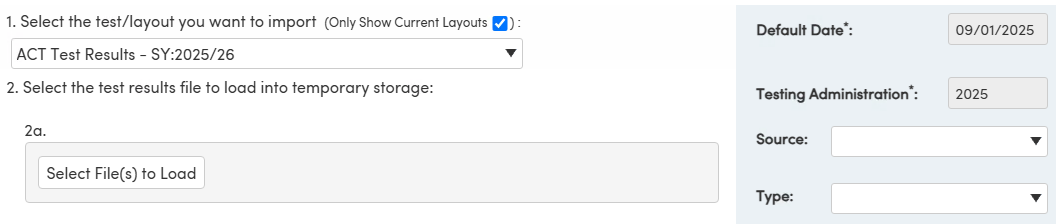
Select the ACT Test Results file layout to import the ACT Test Results data files. When deciding which year file layout to use, first select the file layout that was in effect when the data was downloaded. If the data does not import using that file layout, then try using the file layout for the year the assessment was administered.

The Import Test Results page has been programmed to import specific file formats for the different ACT testing administrations. ACT Test Results that were downloaded during the 2016/17 - 2019/20 testing administrations are in a fixed length (.txt) file format. Beginning with the 2020/21 testing administration the ACT Test Results are using a comma delimited (.csv) format.
NOTE: To download the ACT Test Results from ACT, log into the ACT site.
Downloading Data in Online Reporting
- Once signed into Online Reporting via success.act.org, select Download Hub.
- Select the Program from the Program dropdown.
- The ACT (All Data) includes all scored The ACT tests for students in the user’s organization. If participating in contract testing it will include National and contract results for students in the user’s jurisdiction.
- The ACT State/District Contract includes all scored The ACT tests for students in the user’s organization that tested under the state or district contract program. *This is NOT a replacement for contract files. This is a supplement to the contract files available in Pearson AccessNext. Refer to contract schedule for when contract files will be available in Pearson AccessNext.
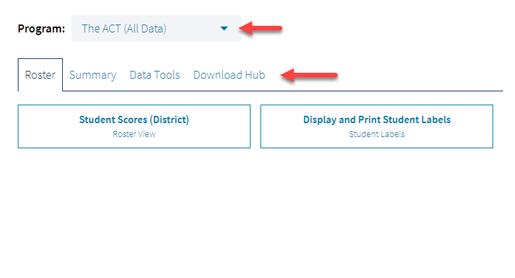
- Select "Request a File"
- If this is the first time anyone from the organization has created a file, it will say No Data Available. If previous files have been created by other users at that organization, a list of files with the dates created and the parameters of their creation will be shown.
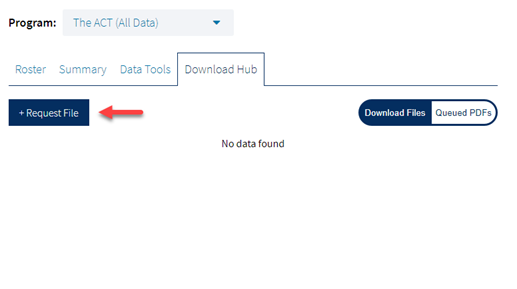
- Choose the academic year and select "Make Request."
- If in a State or District Program, there will also be a selection to choose Fall or Spring testing.
- A green bar will pop up letting users know that it can take up to 48 hours for the file to be created. In most cases, it will not take 48 hours - this is the longest it can take. The larger the file, the longer the processing time will be.
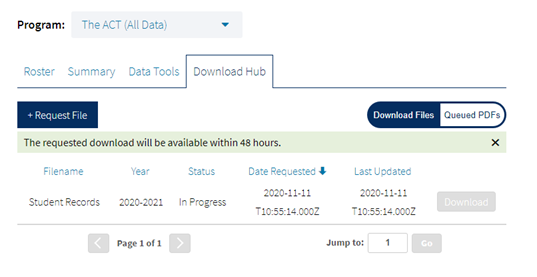
- The page will not automatically refresh. To see if the file is ready select ACT in the upper left side of the screen, or refresh the browser, to go back to the main page. Navigate back to the Download Hub to see the status of the file.
- Select the Program again as the system will automatically revert back to The ACT (All Data)
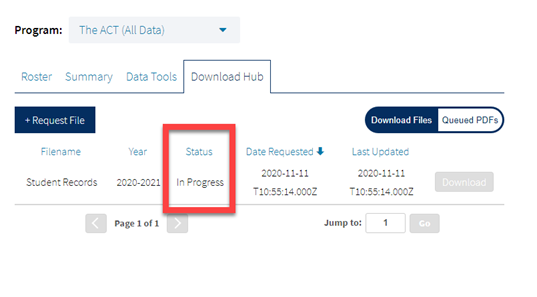
- Once the file is ready, the Download button will be available.
- If after 48 hours the download button is not available, be sure to check the Status as there may be No Data Available. No Data can be confirmed by viewing the school’s Roster using the same search parameters.
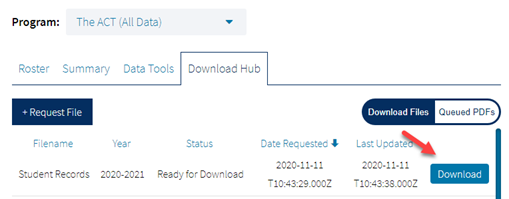
- A zipped file will be downloaded and available for the user to open. If the option to open the file is not immediately available, make sure that the browser is not blocking pop-ups. How the file will be presented depends on the browser being used. The example presented here is from Chrome.
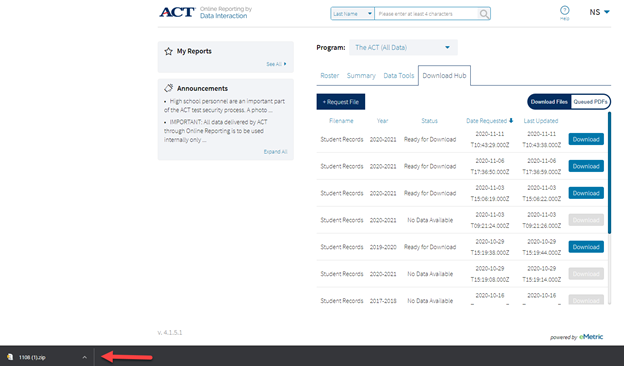
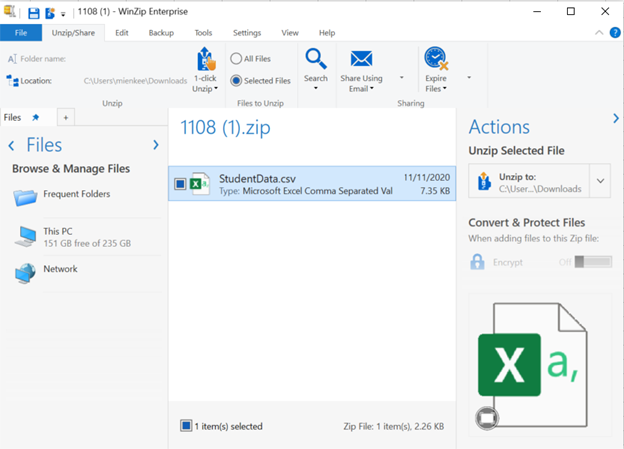
- The file should then pop up to open. There is no password needed to open the file. The file will always export out of the system as “StudentData” and it is recommended that users save the file with a unique file name of their choosing.
Using the Select Files to Load button, navigate to the saved ACT Test Results data file and select it. Click on the Load button to load the students.
The Default Date for the ACT Test Results is the oldest date in the data file in the format mm/01/yyyy. The Testing Administration will display 20xx where xx is the year in the file. NOTE: We do not recommend updating the Default Date or Testing Administration, especially when import test records from prior administrations.
The Student Name and birth date is usually the primary identification in the ACT Test Results data files. It should be the first method used for matching students. However some ACT Student Results files may also include the Student's State ID and that can also be used for matching.

The Edit button to the left of the test record can be used to manually match test records to students that may not have been matched during the match process or that may have been matched to an incorrect student. Please see the Import Test Results article for detailed instruction on how to do this.
Click on the Print Unmatched Students button to print a report listing any students that were not able to be matched.

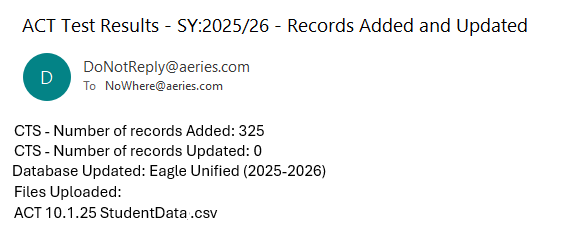
The ACT Test Results import will add/update records to the College Entrance Test (CTS), table. After the import process has completed an email with summary information will be sent to the user that initiated the import.
The ACT test results can be viewed in the ACT tab of the College Entrance Tests page.

The Print button will bring up a selection of tests that can be printed for the student. Selecting the ACT test will produce the following report:

The same report can be run for all students in a school from View All Reports | College Entrance Tests. This report is only available at the School level, it cannot be run from the District.
