

To integrate Google with Aeries, you must have a Google Workspace (formerly G Suite for Education and Google Apps for Education or GAFE) domain created with Google. All the following steps must also be configured on the Google side by a user account with Super Admin privileges in the Google domain.
There are three types of Google Integrations: Directory, Google Classroom, and Single Sign-On (SSO).
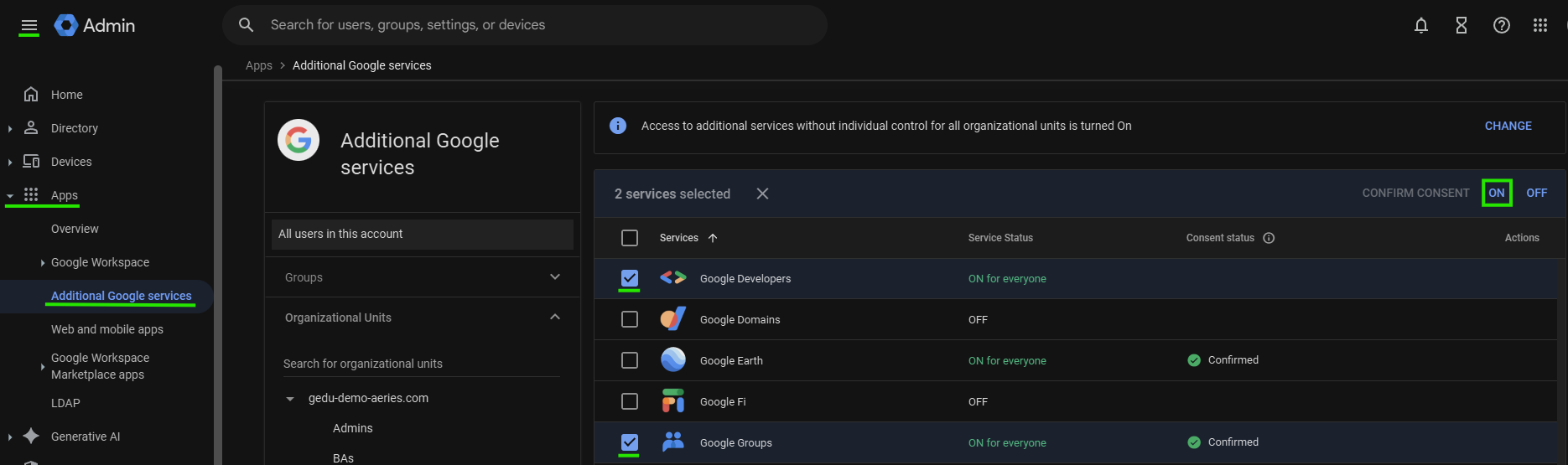
For all Integration types, please ensure that you have enabled “Google Developers Console” and “Google Groups” in the Google Admin Console. From the Navigation Menu > Apps > Additional Google services > Check Google Developers and Google Groups < Check ON
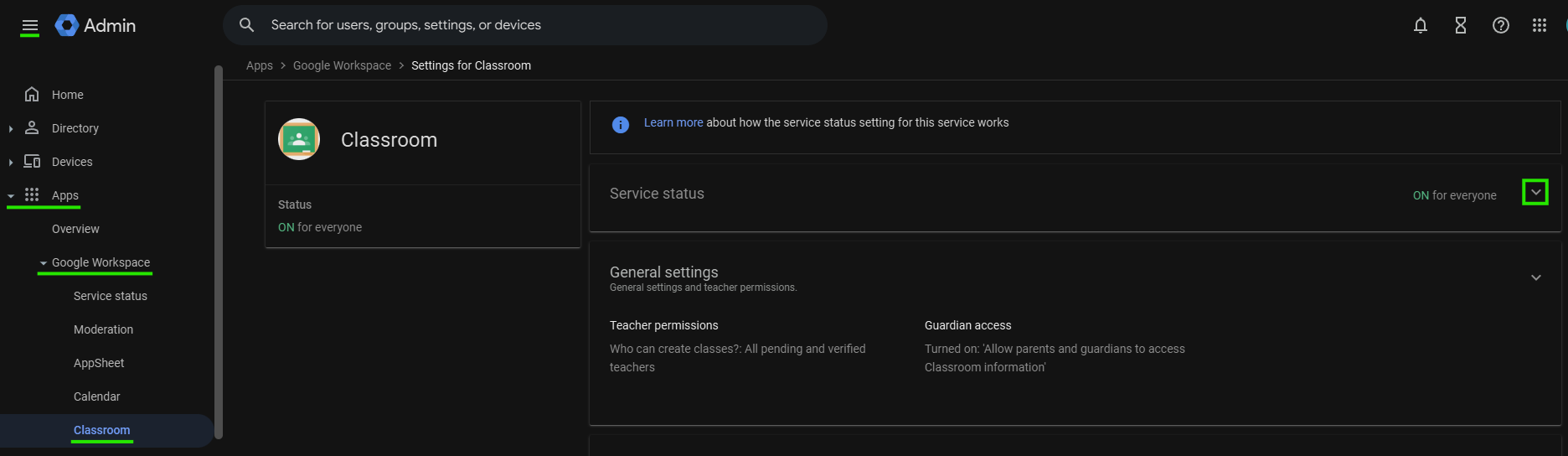
If you are enabling Google Classroom integration, you will also need to enable "Classroom" under the Google Workspace section in Apps.
For Directory Integrations, follow the steps below:
Step 1: Create a Super Admin Account
Step 2: Complete Cloud Console Configuration
- Create Project
- Enable APIs - Admin SDK
- Configure OAuth consent Screen
- Credentials and Service Account
- Create JSON Key
Step 3: Complete Admin Console Configuration
- Advanced Settings
- Classroom Teachers Group
Step 4: Complete Aeries Configuration
For Google Classroom Integrations, follow the steps below:
Step 1: Create a Super Admin Account
Step 2: Complete Cloud Console Configuration
- Create Project
- Enable APIs
- Configure OAuth consent Screen
- Credentials and Service Account
- Create JSON Key
Step 3: Complete Admin Console Configuration
- Advanced Settings
Step 4: Complete Aeries Configuration
For Google SSO Integrations, follow the steps below:
Step 1: Create a Super Admin Account
Step 2: Complete Cloud Console Configuration
- Create Project
- Configure OAuth consent Screen
Step 3: Create OAuth client ID credentials
Step 4: Complete Aeries Configuration for Google Authentication