

Create a New Project
Using the Super Admin account you just created, login to the Google Cloud Console.
Click on the Project Dropdown. If no projects exist, it will display 'Select a project'.
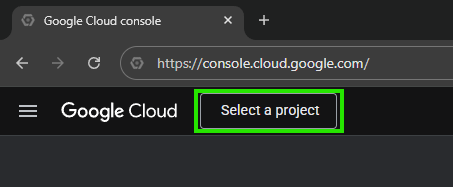
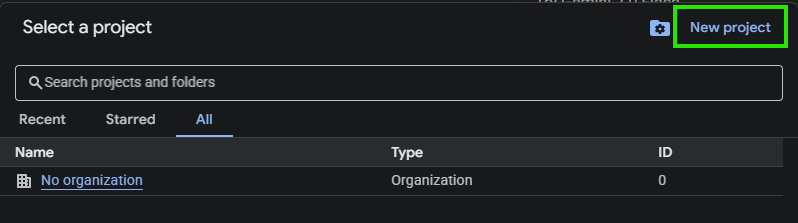
Choose New Project from pop-up window
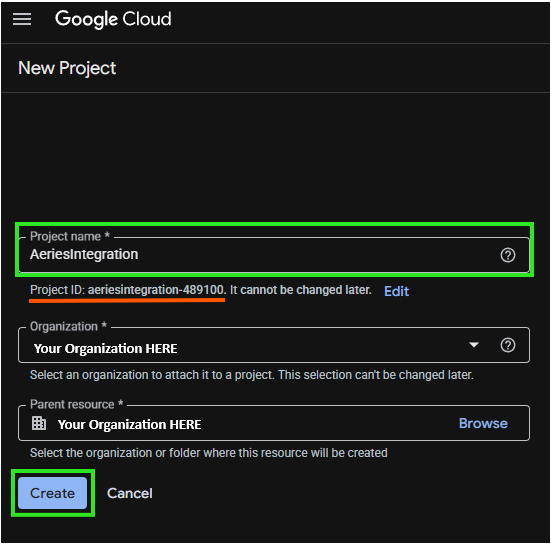
Name the Project. We recommend using a distinct name such as "Student Integration" or "Aeries Integration". Your Organization should populate automatically. If not, select your Organization from the dropdown menu. (The Project ID will be the API Integration ID on the Google Staff Integration page in Aeries.) Click Create.
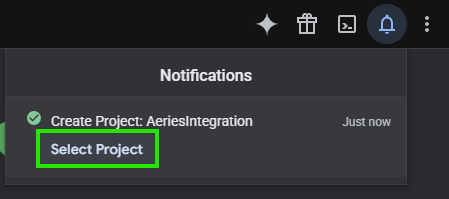
Process will complete and a notification will pop up in the top right hand corner. Click Select Project. It will now be available in the dropdown and will display as the selected project.
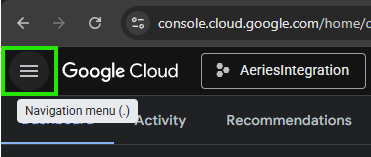
From the Navigation Menu,
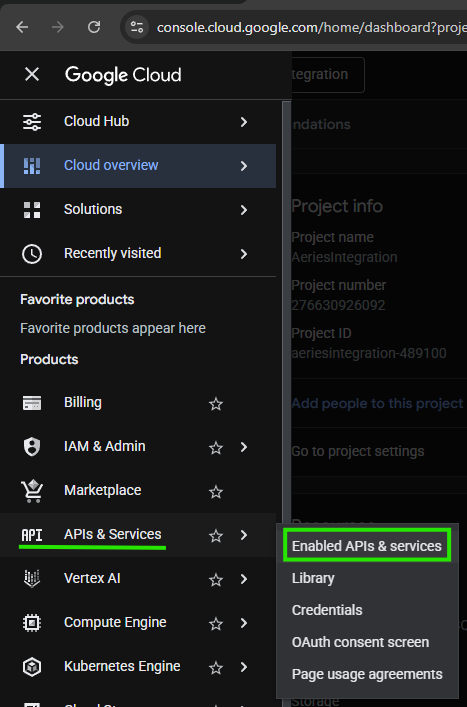
Go to APIs and Services. Select Enabled APIs & services
Enable APIs
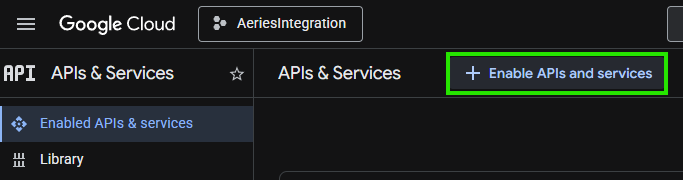
Choose + Enable APIs and Services
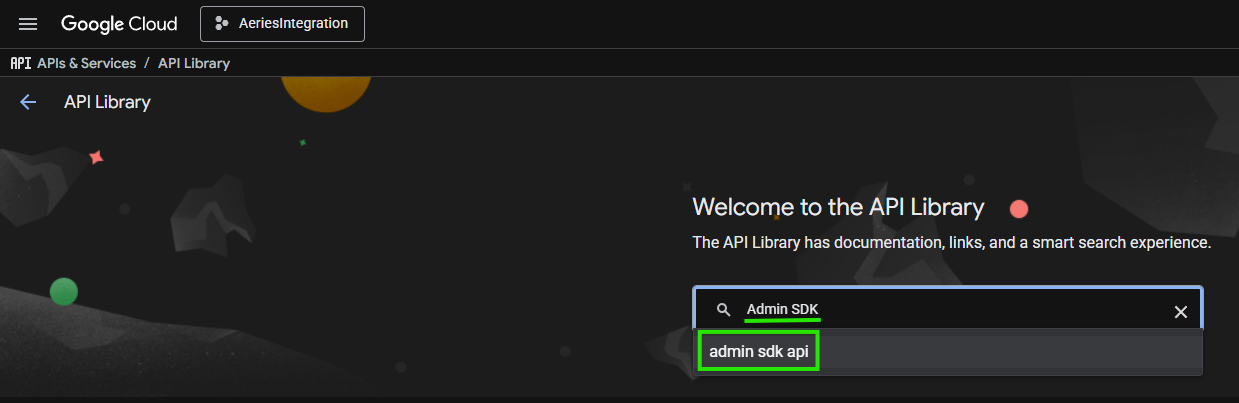
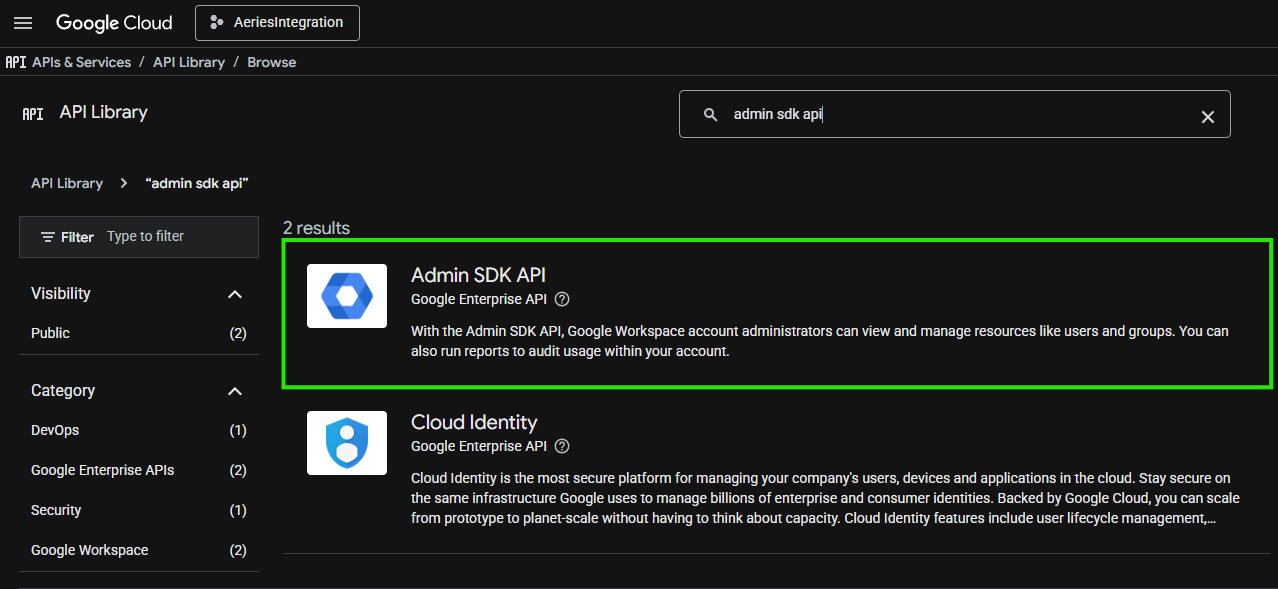
Search for the Admin SDK and select admin sdk api.
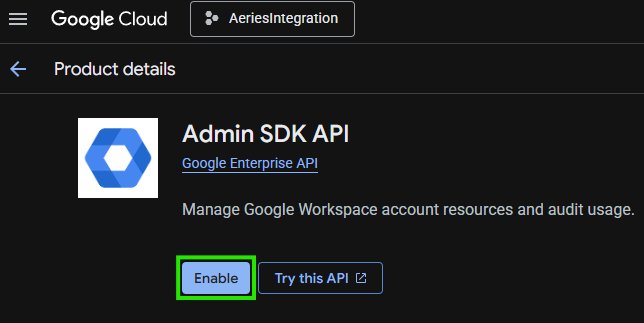
Click on the Admin SDK API
Click Enable
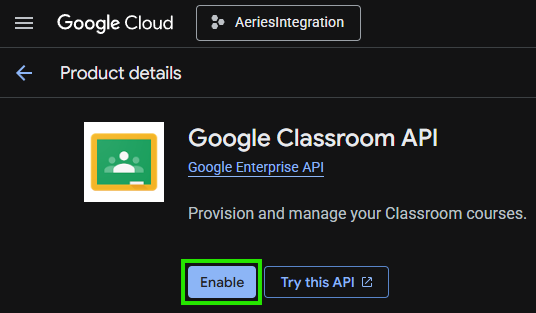
If enabling Google Classroom, follow the same steps to Enable Google Classroom API
Configure OAuth consent screen
If this is your first Google project then you will need configure the Oauth consent screen. If consent screen has already been configured, skip to next step. From the Navigation Menu > APIs & Services > Credentials > Click Configure consent screen

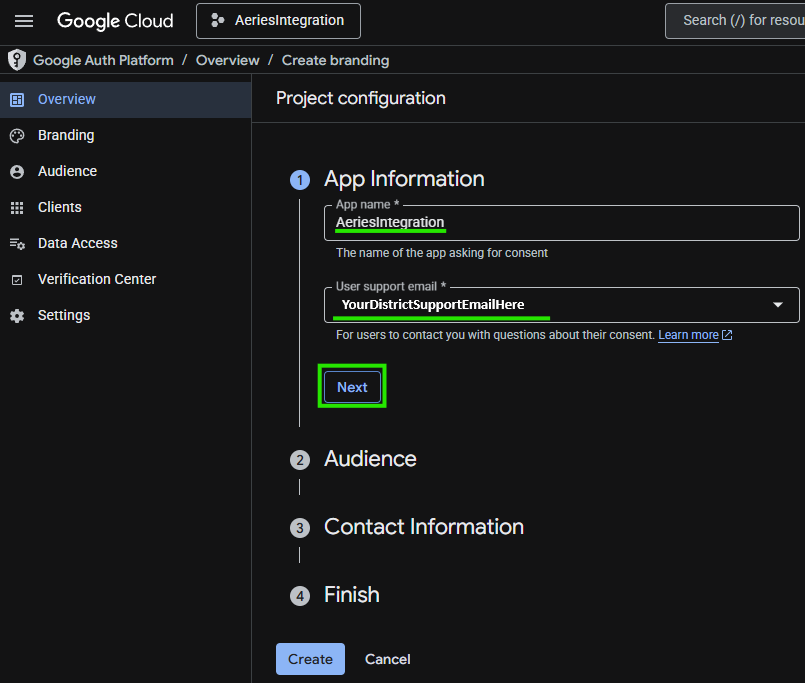
Select Get started. Add Distinct App Name. Enter support email for your District that users can use to contact you with questions. Click Next.
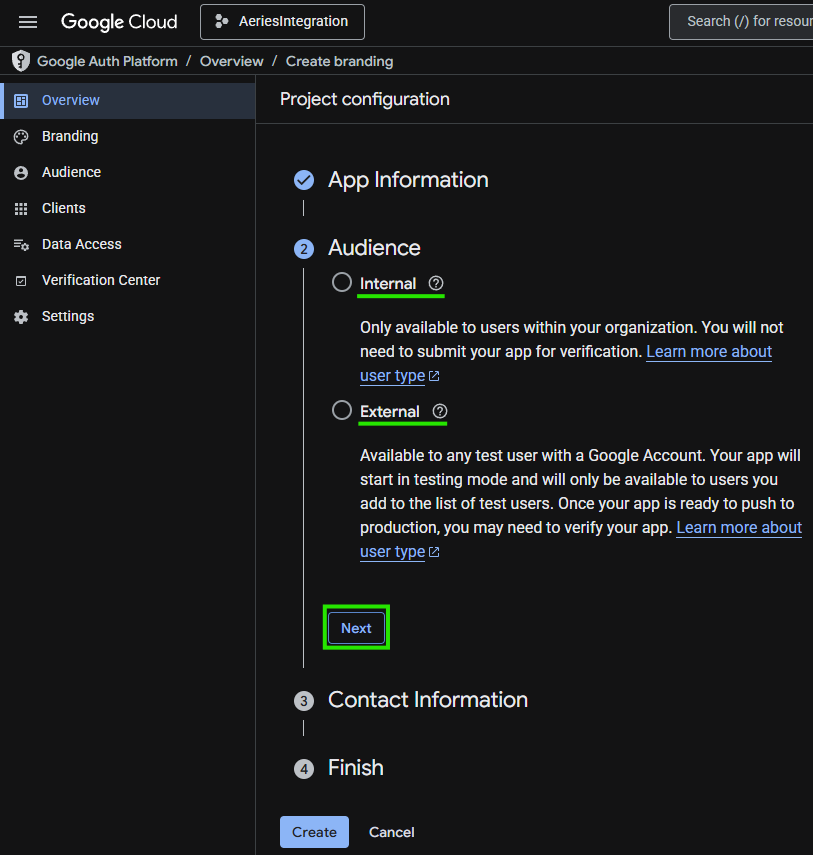
Your District will need to determine if the Audience should be Internal or External. Use the Learn More about user type link for further details about each type. Select Audience type and Click Next.
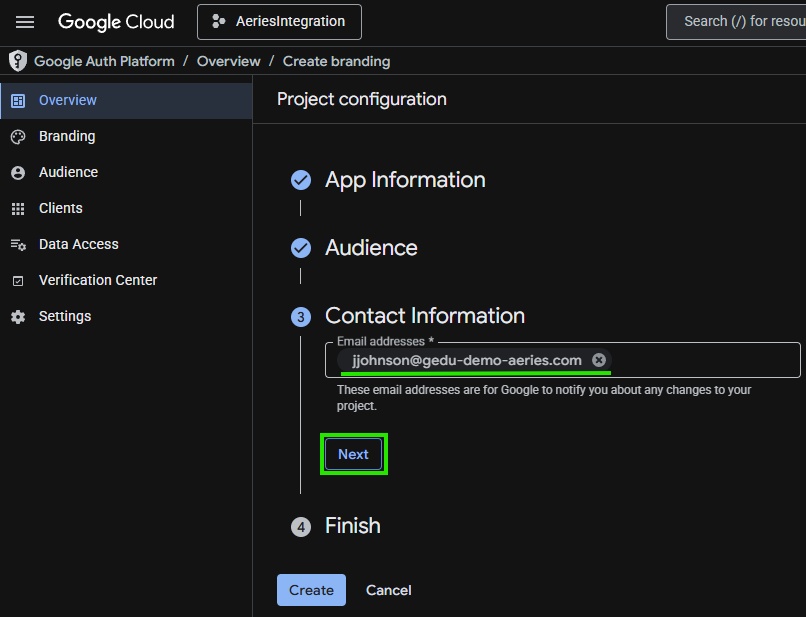
Enter email address for Google Notifications of changes to your project. Click Next.
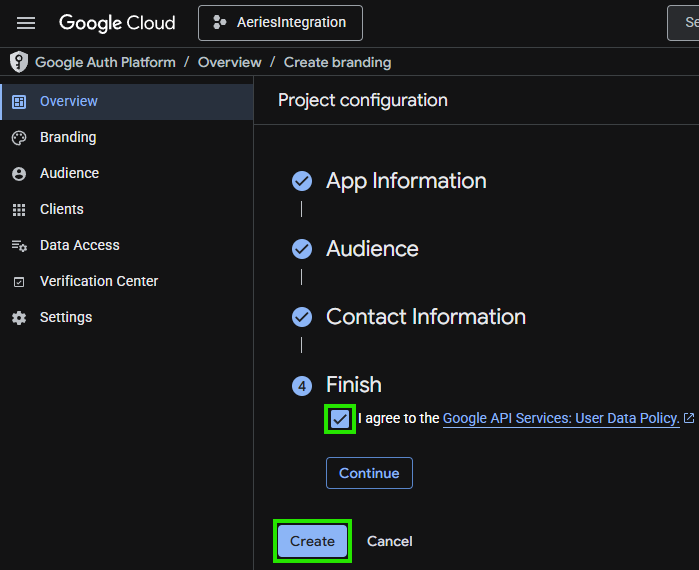
Read Google API Services: User Data Policy. Check Box to agree and Click Create.
Credentials and Service Account
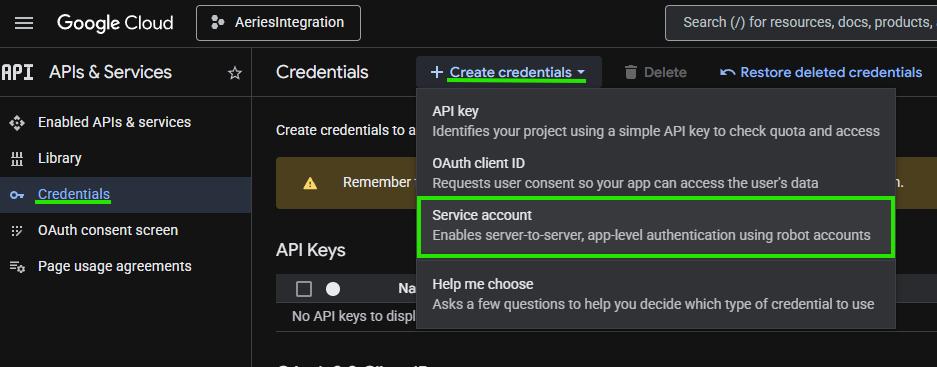
On the APIs and Services Dashboard, choose Credentials > + Create Credentials > Service Account.
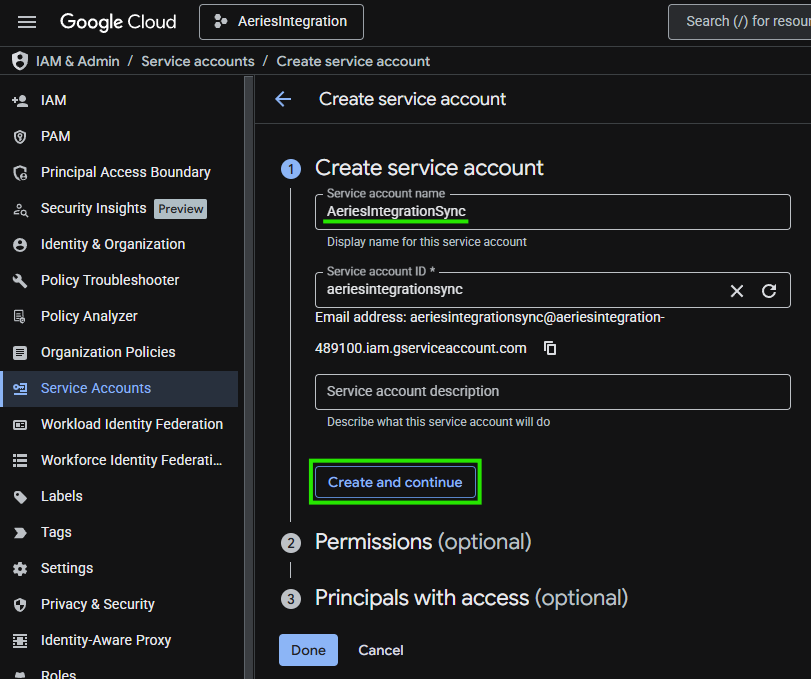
Name the Service Account and click Create and continue
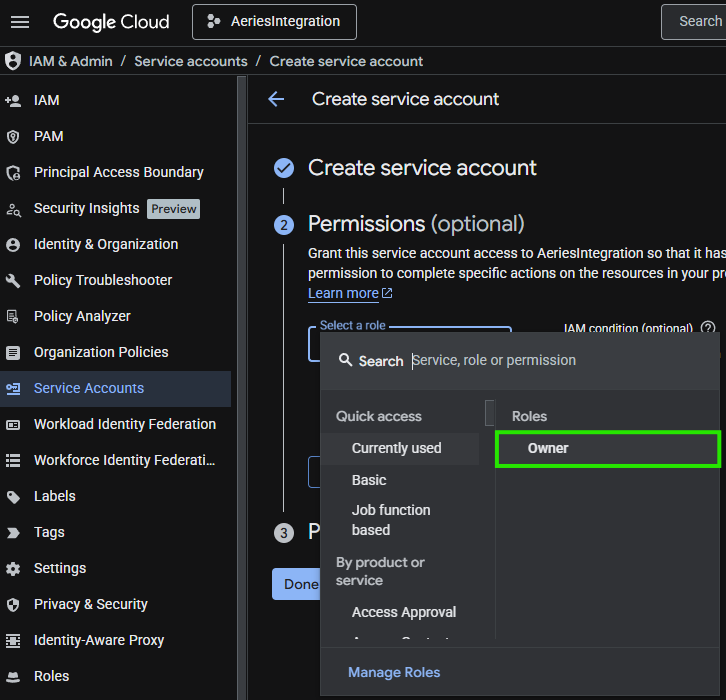
Select the dropdown menu for Select a role and choose Owner.
Click Done.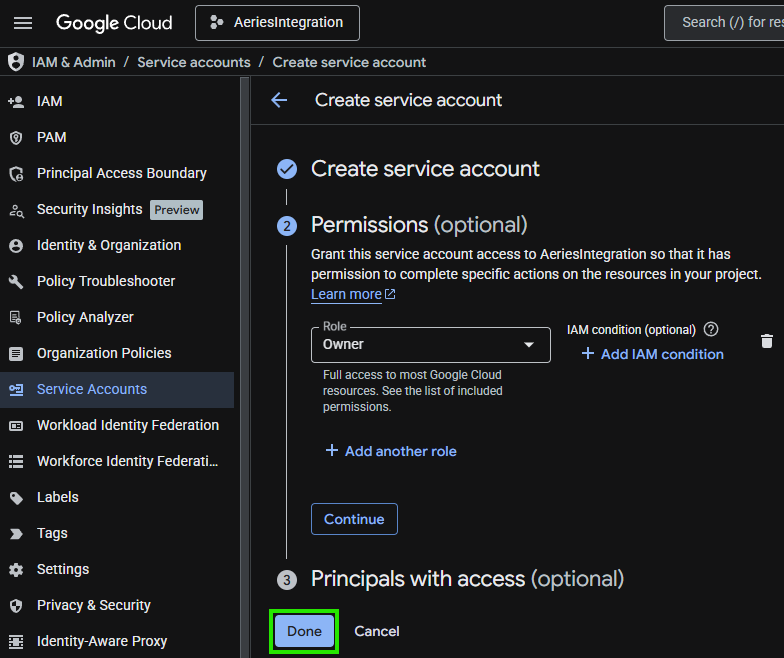
Create JSON Key
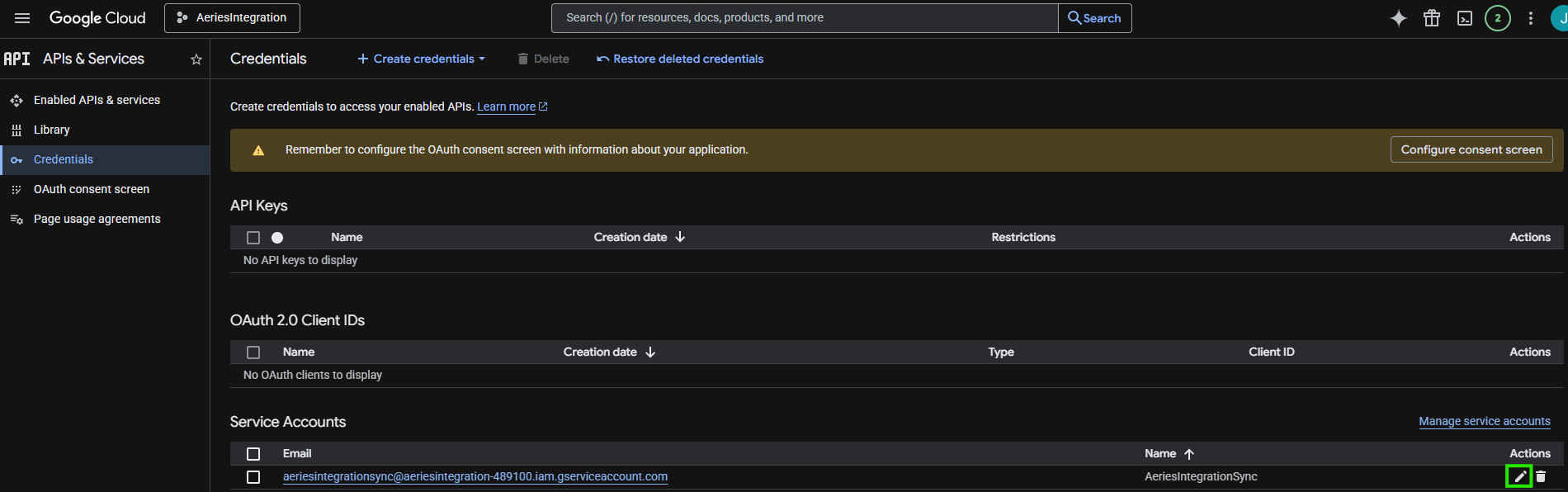
From the Main Menu > APIs & Services > Credentials. Under Service Accounts, Select the Pencil icon under Actions next to your new service account.
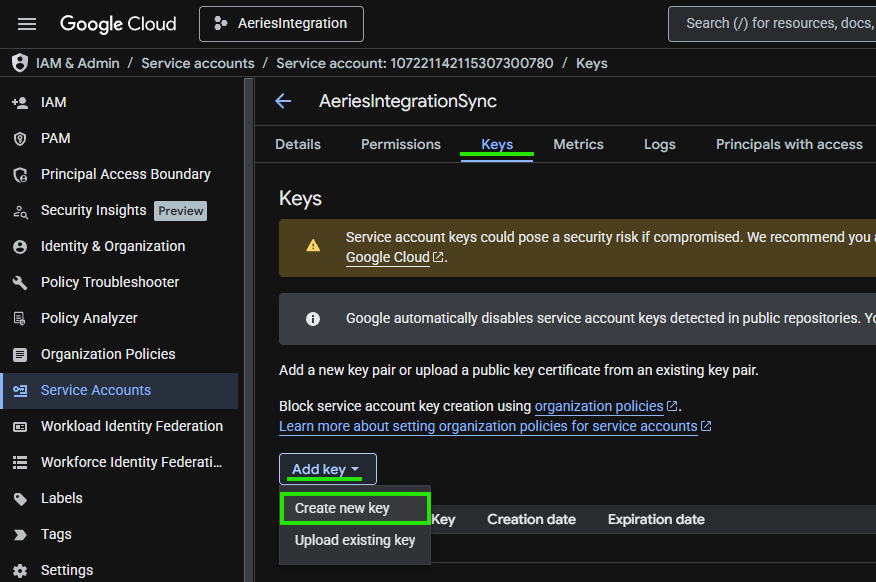
Select Keys > Add key > Create new key.
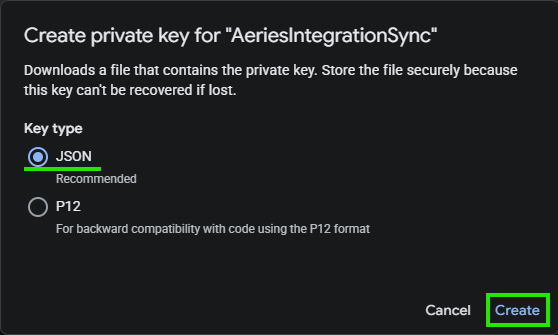
Select JSON as the Key type. Click Create. Once the key has been created you will need to store the file securely because if the file is misplaced then a new key will need to be created. The previous file cannot be recovered.
The Key will be created and automatically downloaded. Save it in a secure place for later use. This file will go in the AppSettings folder of your web server and the AeriesReportings\Service folder of your Report Server.
Filename will display. Take note of the filename because it will be added into the Aeries portion of the setup.
