

Overview
The Career Pathways Management page displays data related to Career Pathways Codes and provides a quick and easy way to assign Students as Participants (Introductory), Participants (Level 2) and Participants (Completer) for CALPADS Reporting and Pathway completion management.
The Career Pathways Management page can be accessed on the Navigation tree under the Scheduling Process > Configurations node. The page is available to California districts and is secured by the Career Pathway Courses security area: Read to view the page, Update to mark students. The Career Pathways Management page can also be added to My Favorites to provide easy access to the page.
Click Select a Career Pathway to see the pathways that have at least one course linked at this school, shown as Description (Code). Type part of the code or description to filter the list. Select Show All Available Pathways to list every state pathway code, for example to set up a new pathway.

When accessing the Career Pathways Management page from the District level, a School must be selected.
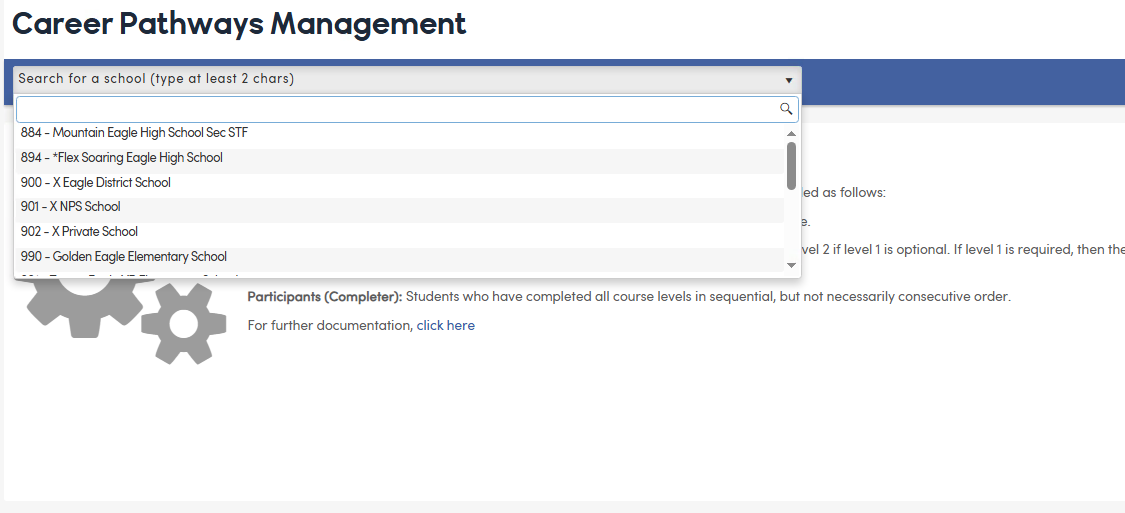
The following is an example of the Career Pathways Management page when a code is selected. After you select a pathway, the page shows two sections: Courses In This Pathway and Students In This Pathway.
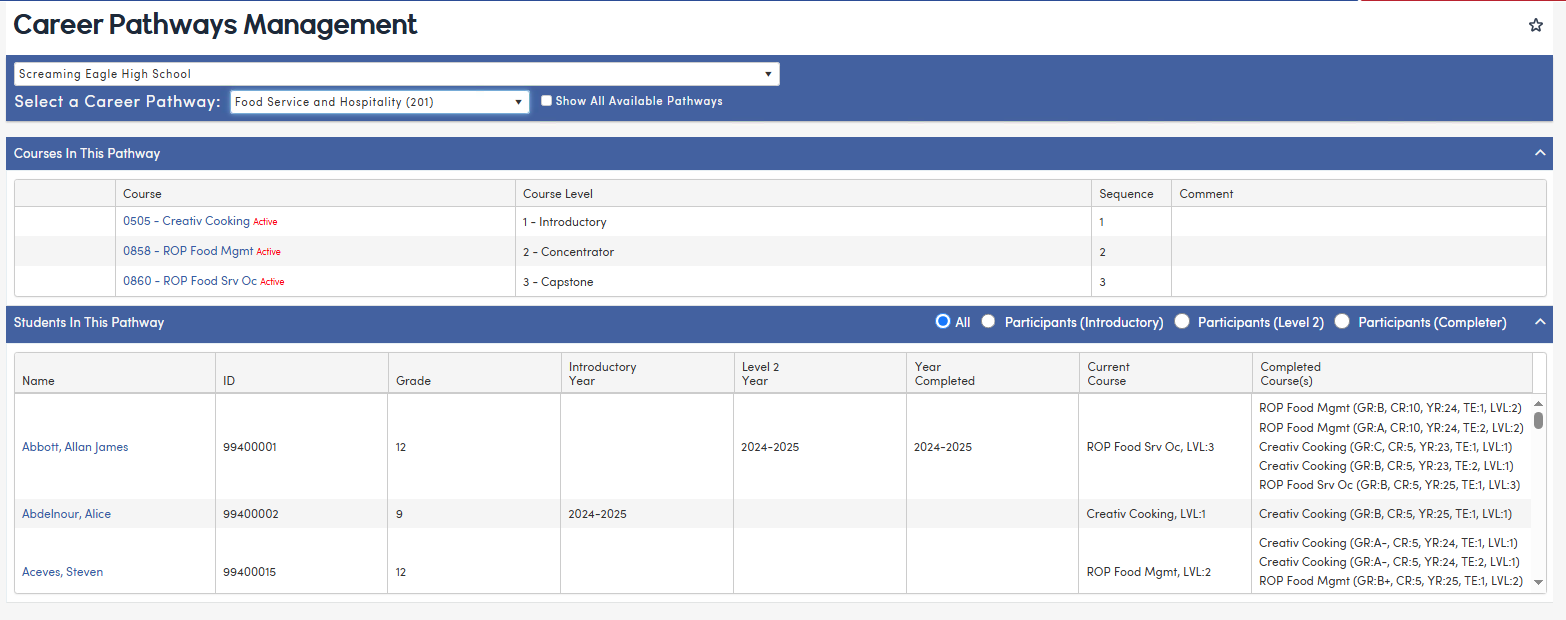
Career Pathways Management - Courses Section
The course section labeled Courses In This Pathway will display courses that are connected to the selected Career Pathway code, the course's status (shown in red next to the course, for example Active or Inactive), the Course Level, the Sequence (1-4), and any Comment. In this section, courses can be added or removed from a Pathway. Select Require Introductory Course when students must take the Level 1 course before the Level 2 course. This setting applies to every school in the district that uses this pathway code, and it can only be saved when at least one Level 1 course is linked to the pathway. The Add button can be used to link courses to the Pathway code selected.
Note: Courses must be managed at the School level. Adding courses at the District Level is not currently supported.
The Require Introductory Course option enforces course sequencing for identifying Level 2 (Concentrator) and Completer students. This option does not affect the display of Introductory (Level 1) students, who will appear as long as they are enrolled in or have completed a Level 1 course.
The following fields will display when clicking on the Add button. Courses can be searched by typing in the Course Number or any part of the Course Title. The list only shows CTE courses, which are courses with a State Course Code from 7000 through 8999; if you can't find a course, check its State Course Code on the Courses page. The Course Level will be populated based on the State Course Code assigned to the course. If you change the State Course Code on a course, it will update the Course Level for that course in every pathway it is linked to.

After a course is saved to a pathway, click the course to open it on the Courses page in a new tab. The Career Pathways tab on the Courses page shows the School, Career Pathway (code and description), Year and Comment.

Courses can also be added to Pathways on the Courses page by clicking on Add New Record within the Career Pathways tab. This will place the course on the Pathway in the Career Pathways Management page.

Career Pathways Management - Student List
All shows students enrolled at the selected school who have a course in this pathway in their current Class Schedule (SEC) or on their Transcript (HIS), at any level, taken in sequential order. Students can't be selected in the All view.
- The Participants (Introductory) shows students who are enrolled in a Level 1 course this year or completed one this school year, and who have not completed a Level 2 or Level 3 course in the pathway.
- The Participants (Level 2) shows students who are enrolled in a Level 2 course this year or completed one this school year, and who have not completed a Level 3 course. If Require Introductory Course is selected, the student must also have a Level 1 course, taken before the Level 2 course.
- The Participants (Completer) selection shows students who are enrolled in a Level 3 course this year or completed one this school year, and who have completed a Level 2 course (plus a Level 1 course if Require Introductory Course is selected) in sequential order. If all of the pathway courses are Level 3, a Level 2 course is not needed.
NOTE: If two or more Schools in a District offer the same Pathways, it is strongly recommended that they offer the same courses. If the course offerings differ between Schools for the same Pathway code, the 'Students In This Pathway' list will include courses taken at the other schools.
Marking Students
Select Participants (Introductory), Participants (Level 2) or Participants (Completer). Click rows to select students (a selected row is highlighted in blue), or use Select All. Click the Mark As button for that level, for example Mark As Participants (Completer), and click OK to confirm. Marking requires Update permission to Career Pathway Courses.


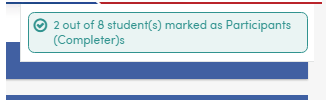
A message shows how many students were marked. If it shows fewer than you selected, the others already had a Career Pathway History record with a Level for the current year at this school and were not changed.
For each student, marking adds the pathway (CPW.CD) if the student doesn't already have it, and adds a Career Pathway History record for the current school year and this school with the Level (CPH.LVL = 1, 2 or 3). Marking as Participants (Completer) also checks Completed (CPW.CM). The current year is the school year of the database you are signed into.

NOTE: If a student no longer qualifies as a Completer after grades post, delete only their current-year Career Pathway History record on the student's Career Pathways page. Don't delete the pathway (CPW.CD) record: that also deletes all of the student's history for the pathway, and the pathway record is needed for the Career Pathway widget on the Student Profile.
Only students with a Career Pathway History record for the extract year with Level 3 (CPH.LVL = 3) at their current school are included in the CALPADS SCTE extract. See EOY 1 Career Technical Education File (SCTE).
- Name – Last name, First name Middle name. Click the name to open the student's Career Pathways page in a new tab. Click any column header to sort.
- ID – This is the Student’s Permanent ID number. All Career Pathway records in Aeries are ID based and the Pathway will travel with the Student if they are to enroll in another School within the District.
- Grade – This is the student’s current grade level.
- Introductory Year – the earliest Career Pathway History year (CPH.AY) recorded at the Introductory level.
- Level 2 Year – the earliest history year recorded at a level above Introductory.
- Year Completed – the latest of those history years, shown only when the pathway is marked Completed (CPW.CM). These years come from the Career Pathway History, not from the transcript.
- Current Course – displays if the course is in the Student’s current Class Schedule (SEC).
- Completed Course(s) – displays course information from the Transcript (HIS) including the Mark, Credits Completed, Year, Term, and Course Level (CCP.LVL).
A course with a Mark of F displays in red at any level.

Level 3 (Capstone) courses (CCP.LVL = 3) with a D-range Mark (D+, D, D-) also display in red.

Terms Affected by COVID-19
For terms affected by COVID-19 (Spring and Summer 2019-20, and all of 2020-21), a course of any level with zero Credits Completed also displays in red. The terms are identified by the State Term Codes on the Transcript Definition (H5, H6, Q4, S2, T3, SS), and the Summer year depends on the College Entrance Requirements option "Does the School Year on HIS records change for the Summer following an academic year?".

