

Navigate to Standards Based Grades > Configurations > Standards Based Options
The Standards Based Options page is used to select report card options, grade reporting options, mark types, valid marks and comments.
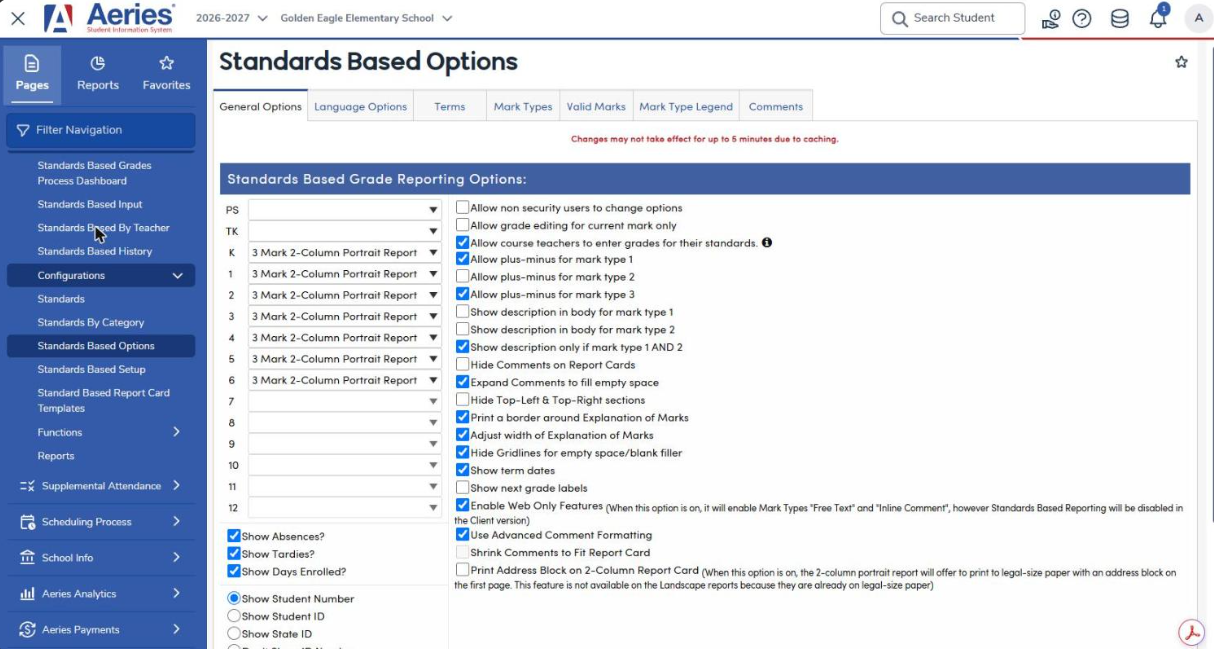
Select the Report Card Type for each grade level including PS and TK. Each grade level can have a different report card type. Below are the available report card types:
- Landscape Report Card will format the report card to print in legal landscape format and will grow or shrink to the size of your setup but is limited to only 1 page.
- 1-Column Portrait Report Card will format the report card to print as a 1-column portrait report card. It is designed to be printed one-sided and can be multiple pages per student if there are many standards.
- 2-Column Portrait Report Card will format the report card to print as a 2-column portrait report card. It is designed for double-sided printing on 1 piece of paper.
Each report card type is available as a 1-, 2-, 3- or 4-mark report card:
- 1 Mark Report Card will format the report card to print for 1 marking period.
- 2 Mark Report Card will format the report card to print up to 2 marking periods.
- 3 Mark Report Card will format the report card to print up to 3 marking periods for trimester schools.
- 4 Mark Report Card will format the report card to print up to 4 marking periods.

The standards based grade reporting pages that are available to staff, teachers, parents and students will also be limited to the number of marks available on the Portrait report cards. For example, if the Report Card Type is a 2 Mark 2-Column Portrait Report Card, then the staff Standards Based Input page will only display marks 1 and 2, as well as the Teacher, Parent and Student views of the Standards Based Report card pages.
Attendance totals can be displayed on the report card for each marking period. The Update Attendance Totals function needs to be run to update these totals prior to printing the report cards.
- Show Absences will print the total number of absences the student has on the report card for each marking period.
- Show Tardies will print the total number of tardies the student has on the report card for each marking period.
- Show Days Enrolled will print the total number of days the student has been enrolled for each marking period.
Only 1 of the following options can be selected:
- Show Student Number will print the student number on the report cards.
- Show Student ID will print the student ID on the report cards, labeled Stu ID.
- Show State ID will print the assigned State ID on the report cards.
- Don’t Show ID Number will not print ANY student numbers on the report cards.
Allow non security users to change options can be utilized by a security level user to give individuals such as a clerk the capabilities to change grade reporting options.
Allow grade editing for current mark only will only allow changes to the current mark. This option does not affect a teacher's access to enter or update grades, their access is limited by Portal Options. It is designed to limit non-Admin users with update permission to Standards Based Grades to only update the current marking period.
Allow course teachers to enter grades for their standards controls which teacher is assigned each standard when a grading cycle is initialized. This option applies only to schools using Master Schedule or secondary scheduling.
- When checked (the default), if a standard is linked to a course, the teacher of the student's section of that course enters the grade.
- When not checked, every standard goes to the teacher on the student's record (the homeroom teacher), regardless of which courses the student takes.
NOTE: Changes take effect the next time you initialize a grading cycle. Initialize a mark again to update existing students. Hover over or tab to the info icon next to this option to see a short description of each setting.
Several options are available that affect how the marks are displayed:
- Allow plus-minus for mark type 1 allows a plus or minus to be added to the mark.
- Allow plus-minus for mark type 2 allows a plus or minus to be added to the mark.
- Allow plus-minus for mark type 3 allows a plus or minus to be added to the mark.
- Show description in body for mark type 1 will print the Mark Type 1 description and can be de-selected to not print.
- Show description in body for mark type 2 will print the Mark Type 2 description and can be de-selected to not print.
- Show description only if mark type 1 AND 2 will hide mark descriptions of mark type 1 or 2 for standards that are only using one of them, but still print if the standard is using both mark type 1 AND mark type 2.
NOTE: If using the Show description only if mark type 1 AND 2 option, the Show description in body for mark type 1 and Show description in body for mark type 2 options must also be selected.
Hide Comments on Report Cards will hide the teacher comment section on all of the generated Standards Based Report Cards.
NOTE: This option only affects the report cards and not the ability to add or edit comments or the view of comments in the Teacher or Parent Portals.
Expand Comments to fill empty space expands the last column that does not contain standards/categories to allow additional comment space. This option applies to the Landscape report cards.
Hide Top-Left & Top-Right sections will move the body of the report card up when the Top-Left and Top-Right sections are not populated with standards.
NOTE: This option should NOT be enabled if you wish to have Language information printed at the top of the page. These settings are found on the Language Options tab.
Several options are available for the Explanation of Marks area:
- Print a border around Explanation of Marks will print a border around the mark legend.
- Adjust width of Explanation of Marks will format the “Explanation of Marks” to accommodate longer mark descriptions.
Hide Gridlines for empty space/blank filler will remove the empty horizontal lines on the report card. The report card will display as more separated areas.
Show term dates will print the term dates in the top center of the report card.
Show next grade labels will print the student's next grade in the top right hand corner and is usually selected for the final report card of the year. A “Promoted to grade” or “Retained in grade” label will print depending on the value in the Next Grade (STU.NG) field for the student. Queries should be run against the STU.NG field prior to printing report cards to ensure that every student's next grade is correct.

Enable Web Only Features enables two additional mark types to be used: Free Text and Inline Comments. When this option is selected, two additional options become available:
- Use Advanced Comment Formatting allows the report card comments and Inline Comment standards to be entered with a rich text editor that keeps formatting. Teachers no longer see a character counter under the comment box. This option is available only when Enable Web Only Features is selected, and it cannot be used together with Shrink Comments to Fit Report Card.
- Shrink Comments to Fit Report Card will shrink the comments that the teachers enter to fit in the space provided.
NOTE: Report cards are limited to up to 20 Inline Comment Standards per report card.
NOTE: Caution the teachers to be aware of the space available in both the Inline Comments and the report card Comments. The system will not limit them upon data entry. The Advanced Comment Formatting will lessen the amount of text that will fit in the comment box and the Shrink Comments to Fit will attempt to fit all of the text into the comment box to the point of making the comment too small to read.
Print Address Block on 2-Column Report Card makes the Print Address Block Legal option available on the Print Standards Based Report Cards page when printing the 2-Column Portrait report card. This prints the report card on legal-size paper with an address block on the first page. Mail Info at Top places the address block at the top of the page. Print to Contacts also prints to contacts whose Mail Tag is Copy of All Mail or Copy of Report Cards Only. These options are not used for the Landscape or 1-Column report cards or for Report Card History.
Save saves the changes made to the options page.
Push to Other Schools will push the options on the General Options tab and the Language Options tab to the selected schools. The list shows the schools that teach any of the same grade levels as the current school, and options outside the current school's grade range are not pushed. Click in the box to the right of a school to select it, or use Select All and Clear All. This button is available only to users with Admin permission for this page.
