

This report lets a teacher see on a single report how all the students in a gradebook are doing in all their classes, with one column per class.
To print it, click Reports on the gradebook menu bar, then click Progress By Class under the Progress heading.
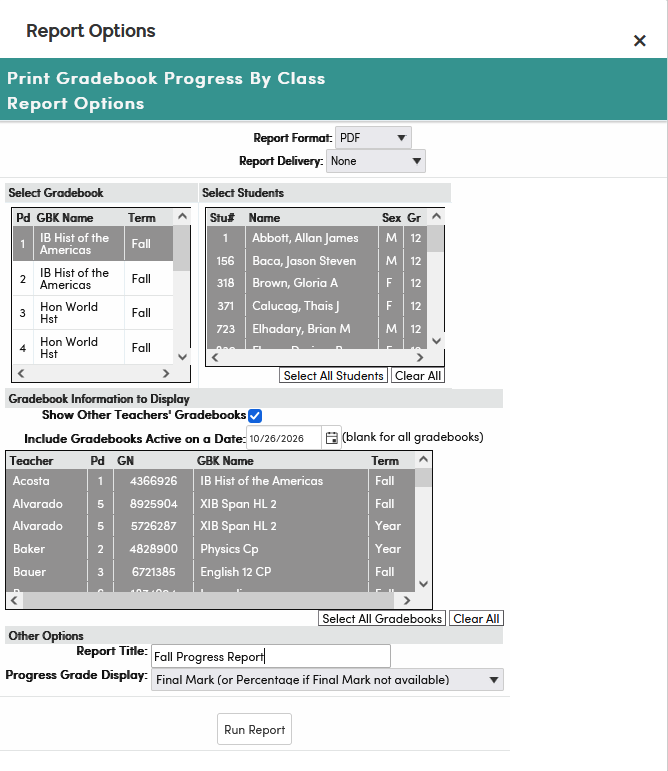
- Select Gradebook – click the gradebook you want to report on (one at a time). When you open the report from inside a gradebook, that gradebook is already selected (from the gradebook dashboard, nothing is selected until you click one). The Select Students list fills with that gradebook’s students, all selected (if you opened the report from the Scores By Student page, only the student you were viewing is selected, and only for that gradebook; if you click a different gradebook, all of its students are selected). Click a student to deselect them, or use Select All Students / Clear All.
- Gradebook Information to Display – choose which classes appear as columns. Show Other Teachers' Gradebooks (checked by default) includes the students' gradebooks from other teachers. Include Gradebooks Active on a Date defaults to today; leave it blank for all gradebooks. Every gradebook listed is selected; click a row to deselect it, or use Select All Gradebooks / Clear All.
- Other Options – enter an optional Report Title (if blank, the report is titled "Progress Report By Class"), and choose a Progress Grade Display: Final Mark (or Percentage if Final Mark not available), Percentage, or Both % and Final Mark (or just % if Final Mark not available).
Click Run Report. At least one gradebook, one student and one class to display must be selected. Each class column follows that gradebook's own settings for showing the overall score and final mark, so a class whose gradebook hides the overall score shows only the final mark (if that gradebook shows final marks, the student has a mark, and you did not choose Percentage), otherwise it is blank.
The following is an example of the Progress By Class report.
