

Note: Grading policies apply only to schools that use the Hybrid gradebook option.
A grading policy sets how a hybrid class calculates grades: its grading method, the assignment types teachers choose from (such as Homework or Tests) and, for weighted methods, how much each type counts. Classes that use a policy pick up its assignment types, and new classes start with the school default policy.
Grading policies are currently available only to schools using our Hybrid gradebook and do not apply to standards-based schools.
Open Grading Policies
Navigate to Setup -> Gradebook -> Grading Policies.
You see this item only if you have Setup access and your school uses hybrid grading.
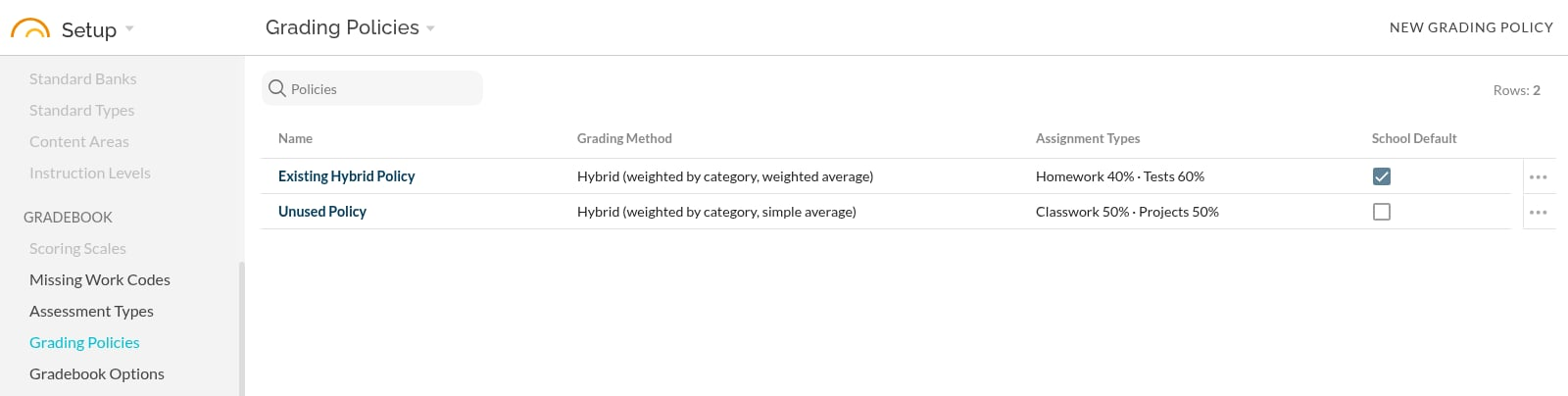
The Grading Policies list.
Each row shows a policy's Name, Grading Method and Assignment Types with their weights. A checked School Default box marks the policy that new classes start with. Click a policy's name to open it. Click the ⋯ at the end of a row for its other actions.
Archived policies are listed separately. Click the Grading Policies title and choose Archived Policies to see them.
Create a policy
- Click New Grading Policy in the top right.
- Under Grading Policy Options, enter a Name and, if you like, a Description.
- Choose a Grading method:
- Hybrid (points-based): assignment types have no weights. All of the class's assignments are averaged together, each counting by its own weight.
- Hybrid (weighted by category, simple average): each assignment type has a weight. Within a type, every assignment counts equally.
- Hybrid (weighted by category, weighted average): each assignment type has a weight. Within a type, each assignment counts by its own weight.
- Under Assignment Types, enter the first type's Name and Percent Weight. Click Add assignment type for each additional type.
- Click Save in the top right.
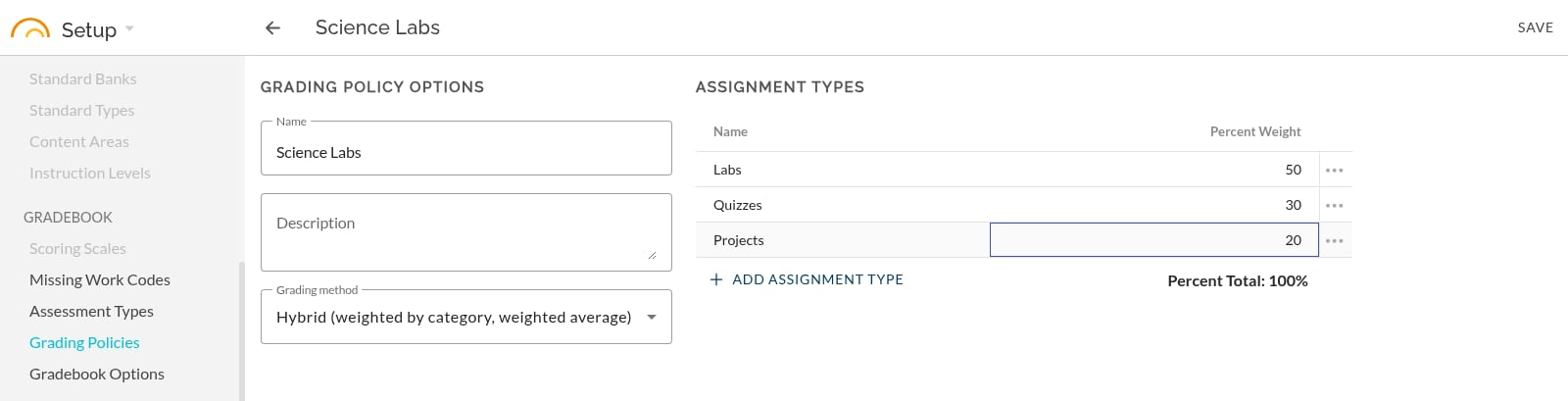
A new policy with three weighted assignment types.
For the two weighted methods, the weights must add up to exactly 100. Percent Total under the grid updates as you type, and turns red when the total is not 100%. Weights can have up to two decimal places.
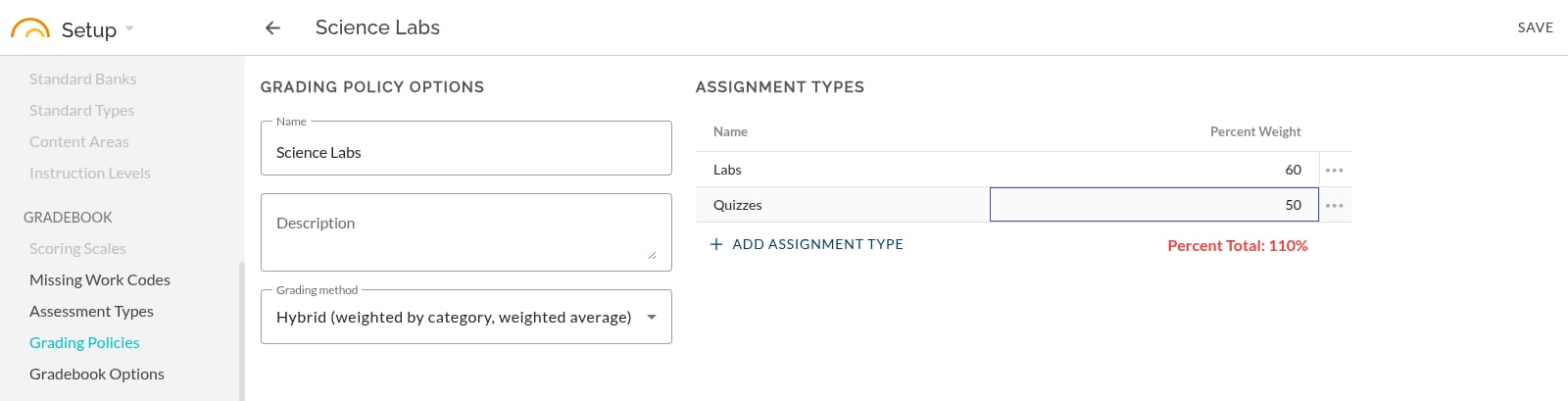
Percent Total turns red until the weights add up to 100%.
If something still needs fixing when you click Save, JumpRope lists what to fix instead of saving, such as a missing name or two assignment types with the same name.
To stop offering a saved assignment type, click the ⋯ at the end of its row, choose Archive, and then click Save. Existing assignments that use it are left alone.
Edit a policy that classes use
Open the policy from the list. When classes use it, a note at the top of the page says so.
- You can change the policy's name and description, and its assignment types' names and weights.
- The Grading method cannot be changed. To use a different method, Duplicate the policy and change the copy.
When you click Save, nothing changes yet. JumpRope first shows Confirm policy changes:
- how many current-year classes are affected, and the first five of them, each with its number of scores;
- each change, such as a weight going from 40% to 50%.
Click Cancel to go back to your edits without changing anything. Click Confirm and recalculate to apply the changes (the button reads Confirm changes when only names change).
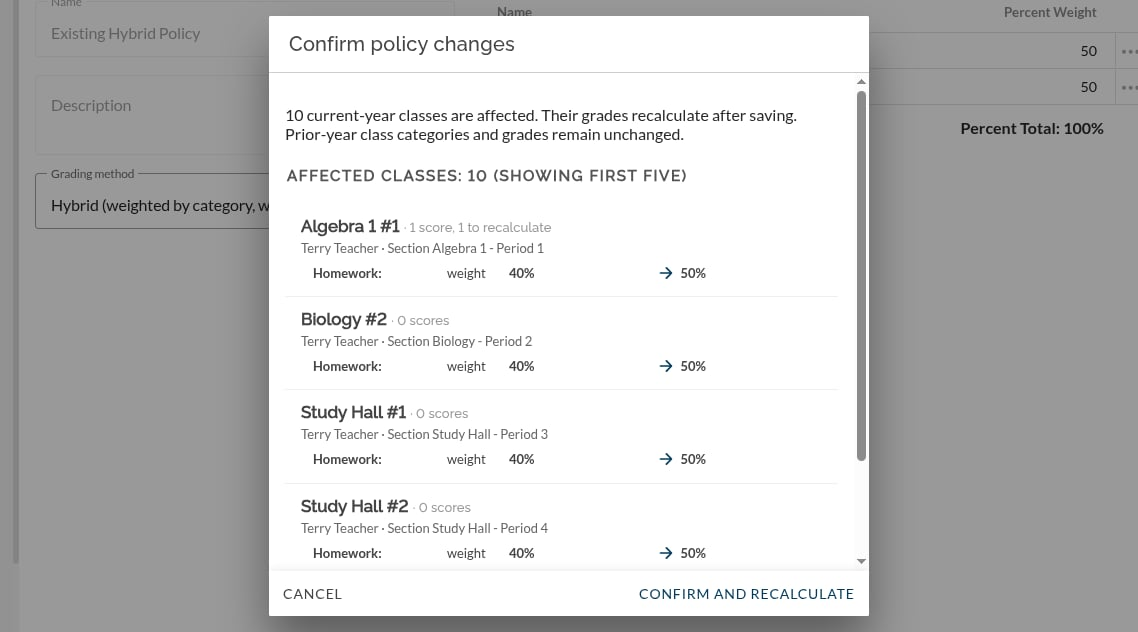
Review the affected classes before you confirm.
After you confirm:
- Weight changes recalculate the affected classes' grades in the background. The scores teachers entered do not change, only the calculated grades.
- Name changes update the assignment type names in those classes. Grades are not recalculated for a name change.
- Classes from prior years are not changed.
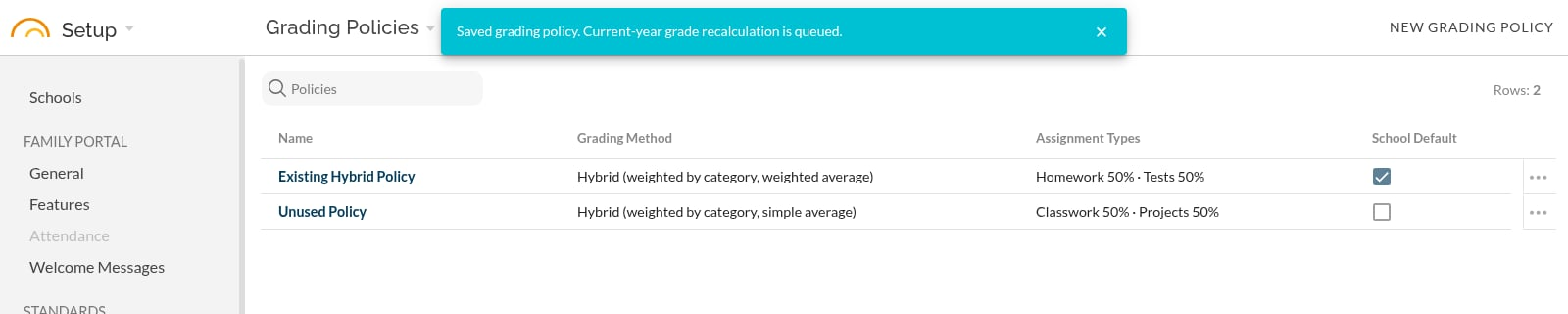
The list shows the new weights, and the affected grades are queued for recalculation.
Other actions
Click the ⋯ at the end of a policy's row on the list. Inside a policy, the ⋮ in the top right offers the same actions, except setting or clearing the school default.
- Duplicate: makes a copy named "Copy of" followed by the policy's name, and opens it.
- Set School Default: makes this the policy new classes start with. A confirmation tells you how many current-year classes have no policy assigned. When you click Set default, those classes are assigned to this policy. Classes that already have a policy, and prior-year classes, stay as they are.
- Clear School Default: new classes no longer start with this policy. Classes already using it keep it.
- Archive: hides the policy from the active list. To archive the school default, clear the default first. To edit or use an archived policy again, open Archived Policies and choose Unarchive.
- Delete: removes a policy that no class uses. JumpRope does not delete a policy that classes use; archive it instead.
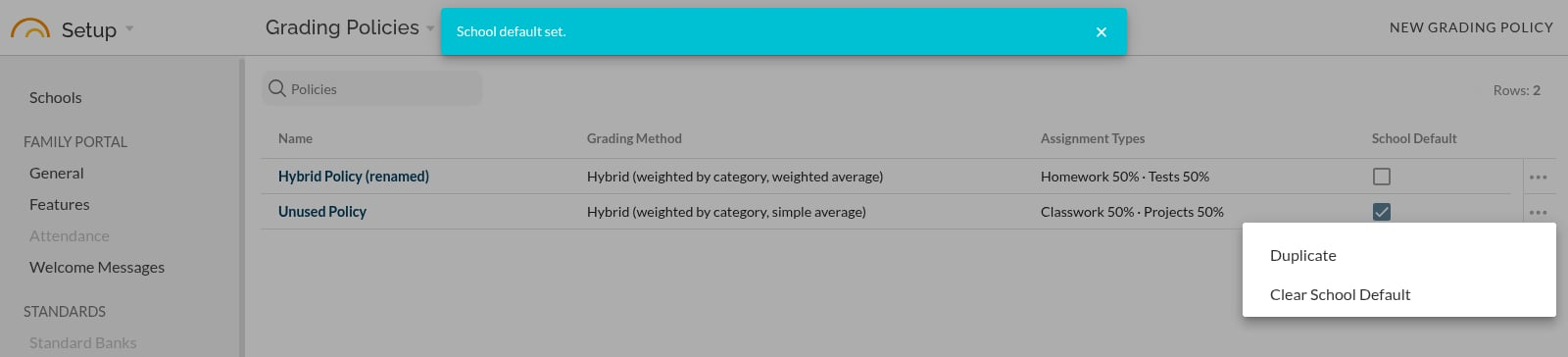
The row menu for the school default policy.
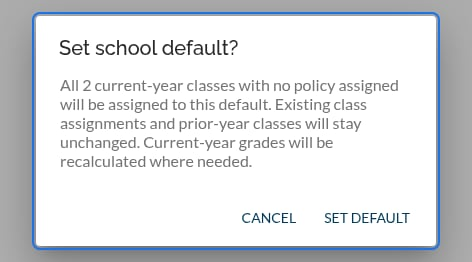
Setting a school default tells you which classes it will be assigned to.