

Who can use this: This feature is available to users with Admin or Reporting permissions, and to district administrators.
Use Excuse Attendance for Date Range when a student will miss school for several days and every class period should be marked Excused. JumpRope looks at the student's schedule for each date and creates an Excused record for every scheduled period that does not already have attendance.
Open the form
You can start from either of two places:
- From the student's Attendance page: open the student (Admin > Students), choose Attendance at the bottom of the page, click the menu (⋮) in the top right, and select Excuse Attendance for Date Range. The student is filled in for you.
- From the Daily Attendance Overview: go to Admin > Reporting > Attendance and click Excuse Attendance for Date Range in the top right. In the form, click the search icon in the Student field and choose the student.
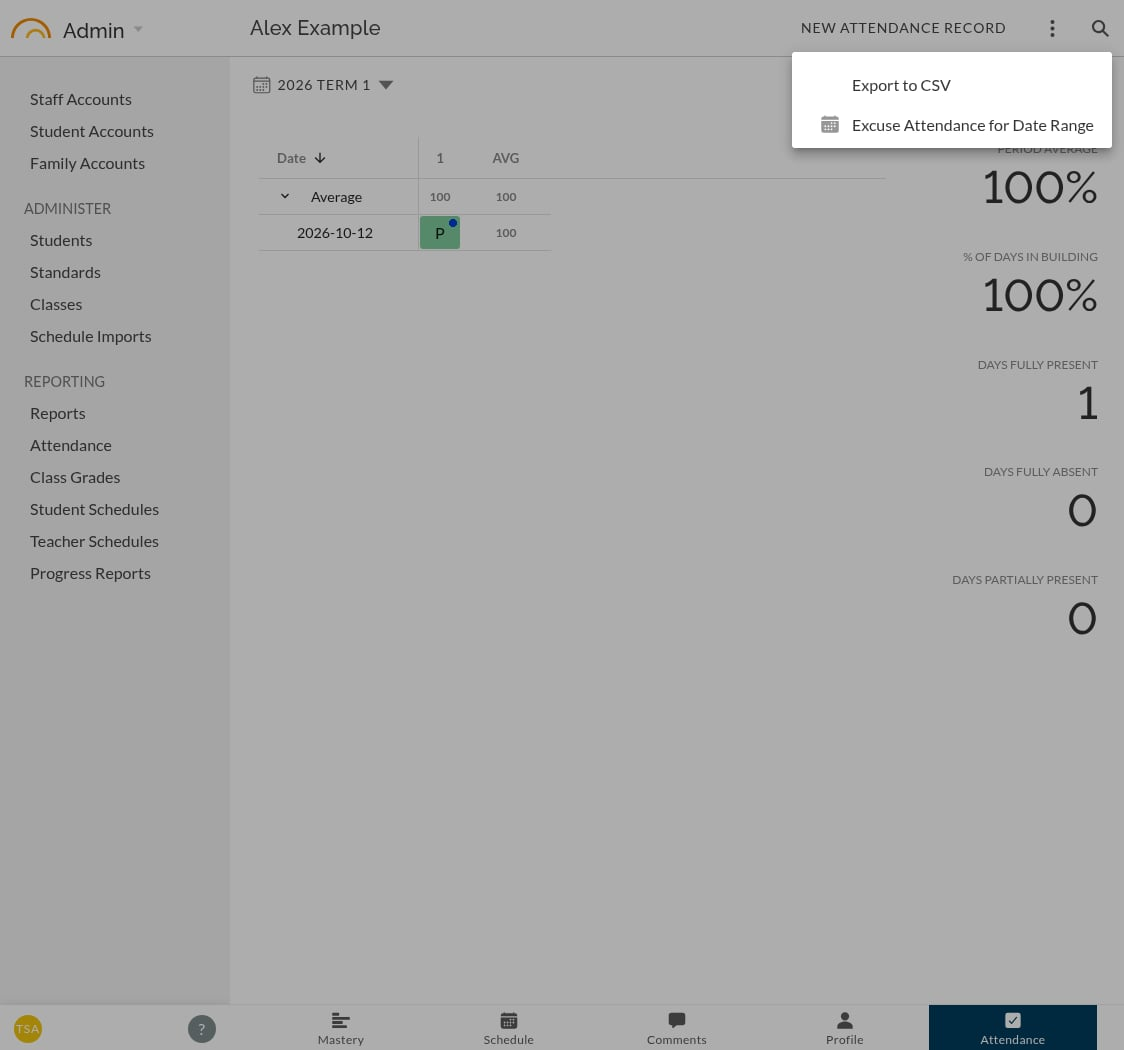
Excuse Attendance for Date Range in the menu on the student's Attendance page.
Choose the dates and add a comment
- Enter a Start Date and an End Date , or click the calendar icon in either field to pick a date. Both dates are included. The End Date must be on or after the Start Date.
- Enter a Comment explaining the absence, for example "Family trip, approved by the front office". A comment is required.
- Click Preview.
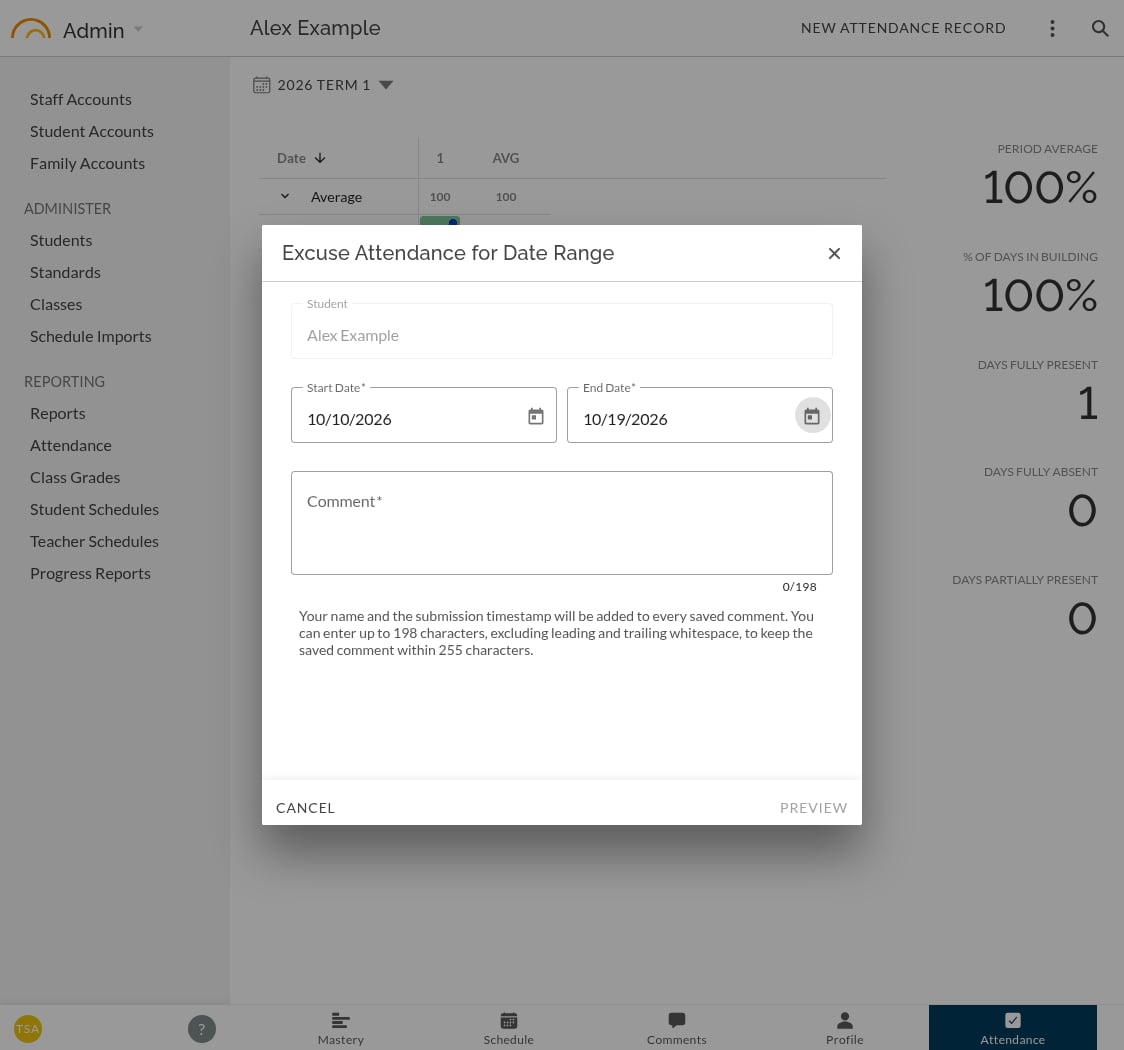 The counter under the comment shows how many characters you have used out of the maximum. JumpRope adds your name and the date and time you submitted to the end of every saved comment, so the maximum leaves room for that
Choose a start and end date, then enter a comment.
Review the preview
The Preview Excused Attendance window lists each record that will be created, with its Weekday , Date , Period and Class , plus the total number of records to create.
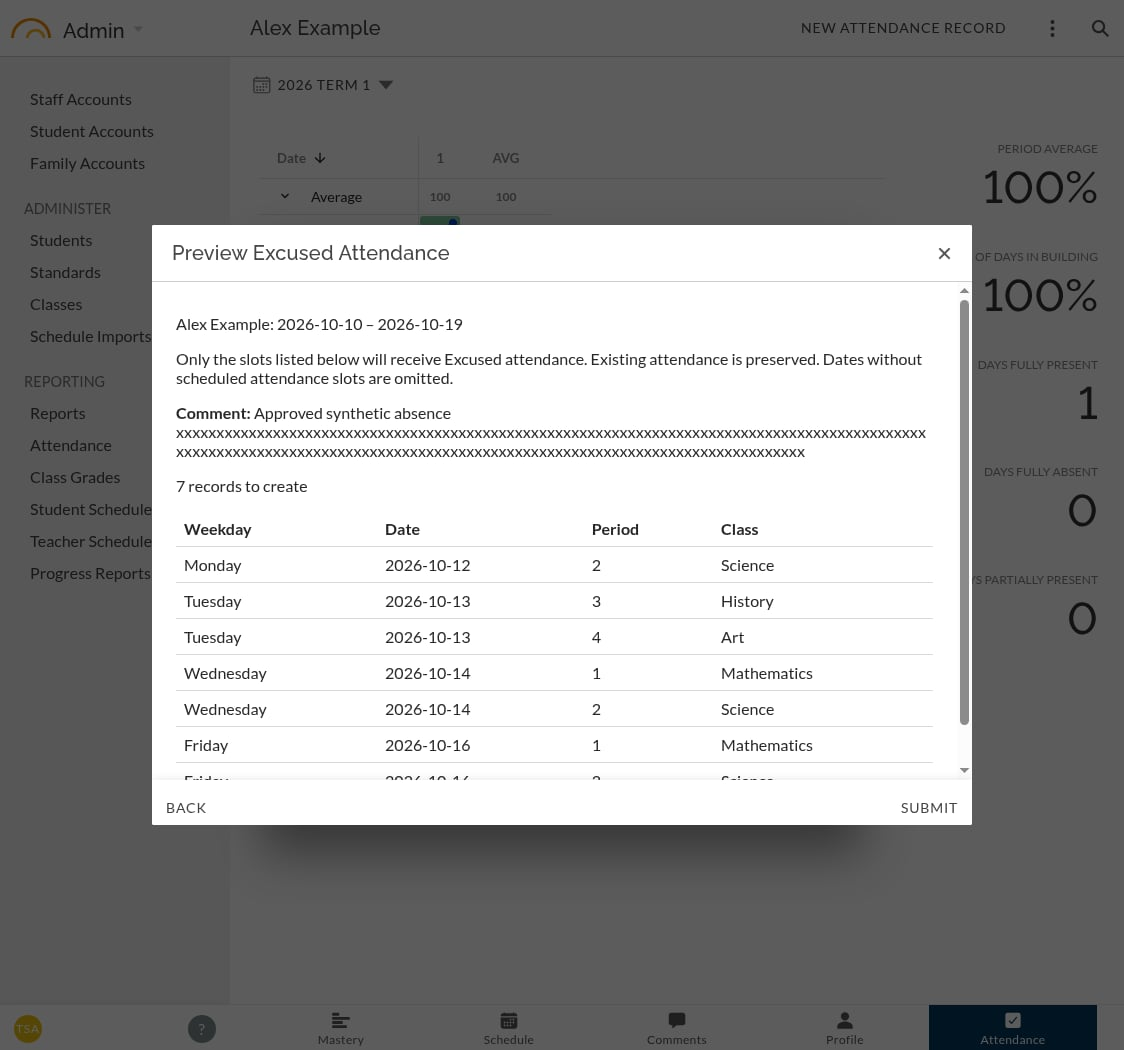
The preview lists every empty scheduled period in the date range.
- Only scheduled class periods that are still empty are listed. Any attendance already entered, such as a Present or Tardy mark, is kept as it is.
- Days when the student has no scheduled classes, such as weekends and holidays, are left out.
- If nothing is listed, a warning explains that the student may not be scheduled on those days, or that attendance may already have been entered. Submit is unavailable. Click Back to change the dates.
To change anything, click Back. Your dates and comment are still filled in.
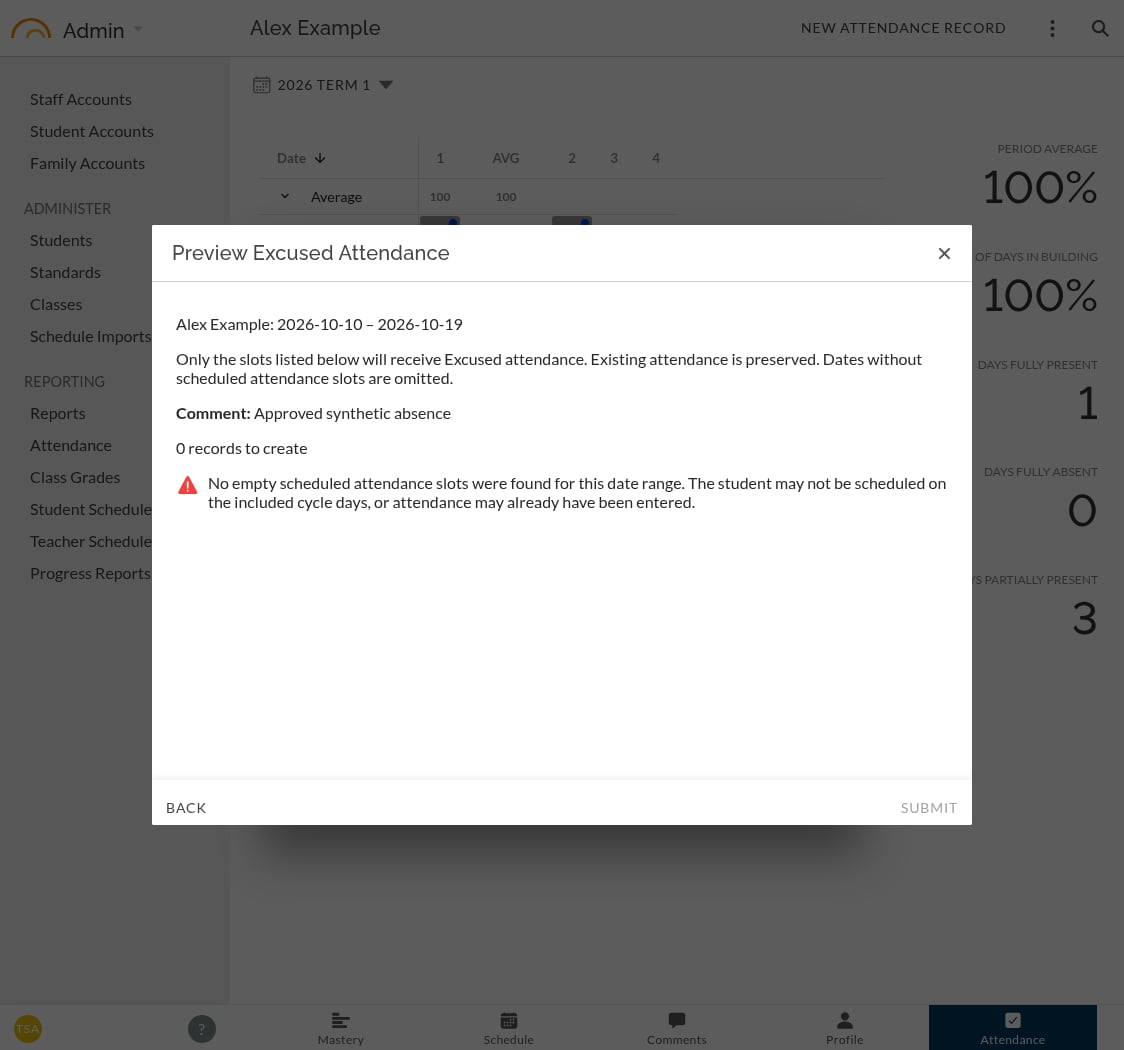
When there is nothing to excuse, a warning explains why and Submit is unavailable.
Submit
Click Submit. A message confirms how many Excused attendance records were saved, and the student's Attendance page refreshes to show them.
If someone entered attendance or changed the schedule while you were reviewing the preview, JumpRope leaves those periods alone. The message tells you how many were skipped.
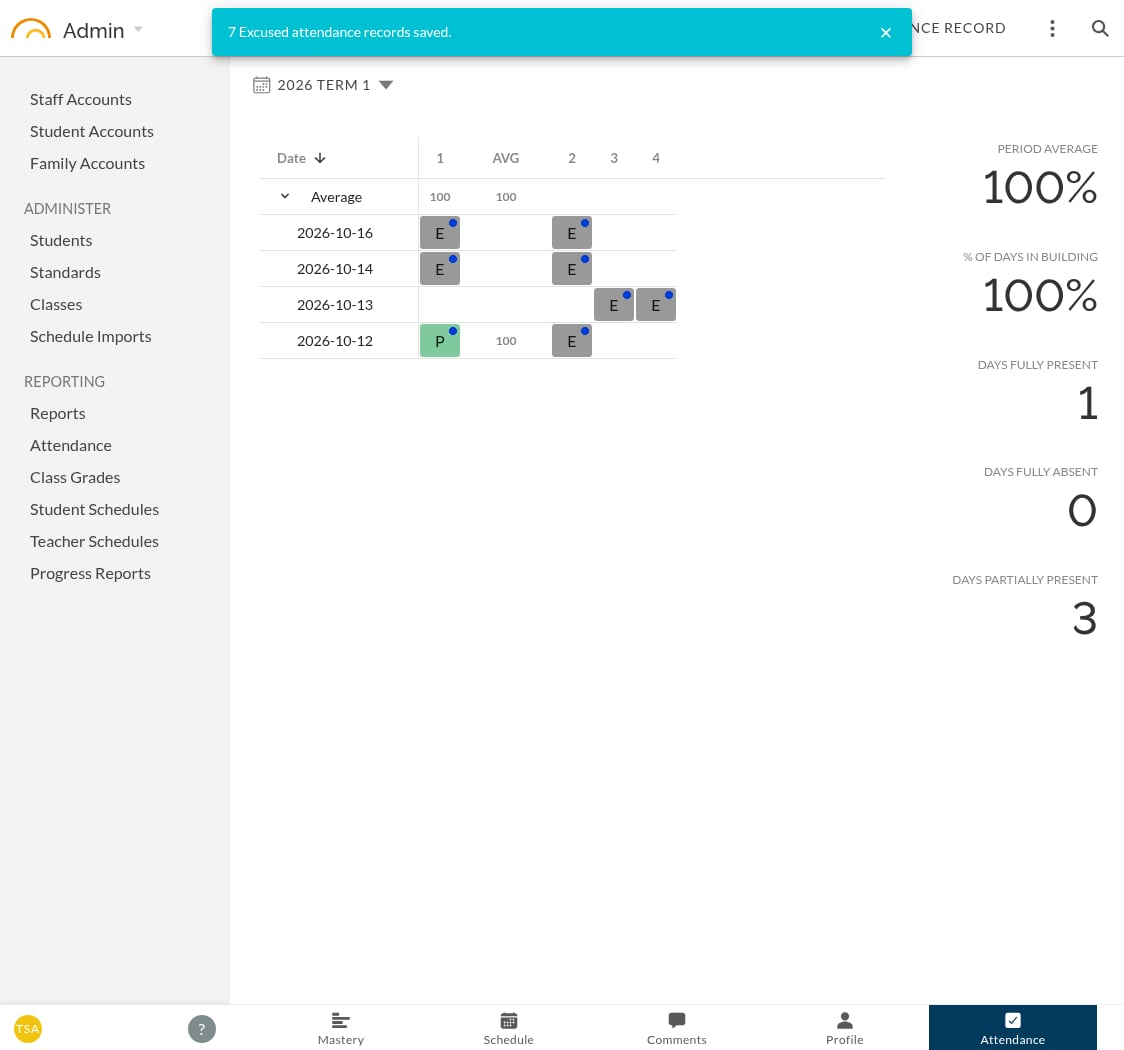
The new Excused records appear on the student's Attendance page. Existing attendance is unchanged.
Good to know
- Each record is an ordinary attendance record. To change or remove one later, use the student's Attendance page as usual. See Student Attendance: Quick Help.
- Families are not notified when you excuse attendance this way.