

Curious about what Mastery Schemes and Grouping Schemes are? Read here first.
Mastery Scheme Locations
Mastery Schemes inform the configuration of reports in three separate areas: the Family/Student Portal, Progress Report Templates, and Default Course Grades Mastery Scheme. Different schemes can be applied to different areas in order to customize what each stakeholder has available in their view.
Edit an existing Mastery Scheme
In Setup - Mastery Reports - Mastery Scheme, select an existing scheme by clicking on its title. This will open up the Mastery Scheme workspace. In the sample report workspace, adjust the desired elements using the toggle switches. A preview will generate as you make changes. Click Save in the top right. These changes will apply to any location that is currently using this scheme.
Create a New Mastery Scheme
In Setup -> Mastery Reports -> Mastery Scheme, select New Mastery Scheme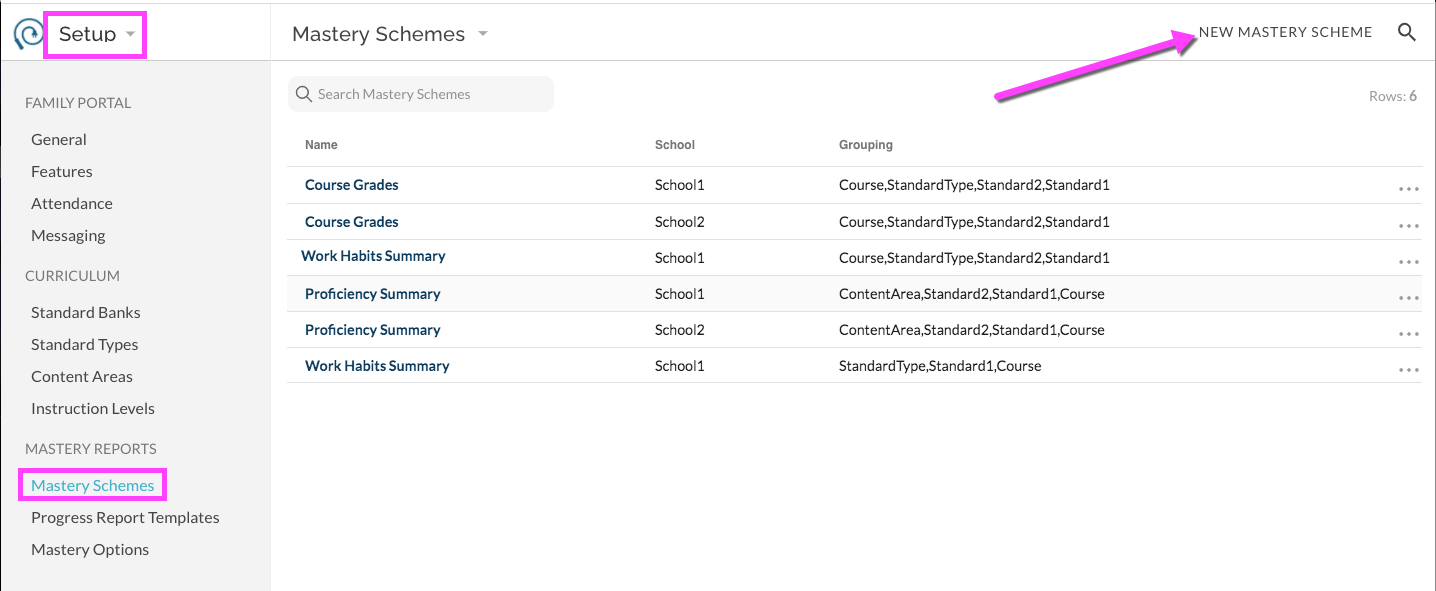
In the modal window that opens, select the school that the Scheme will apply to (if more than one school is available).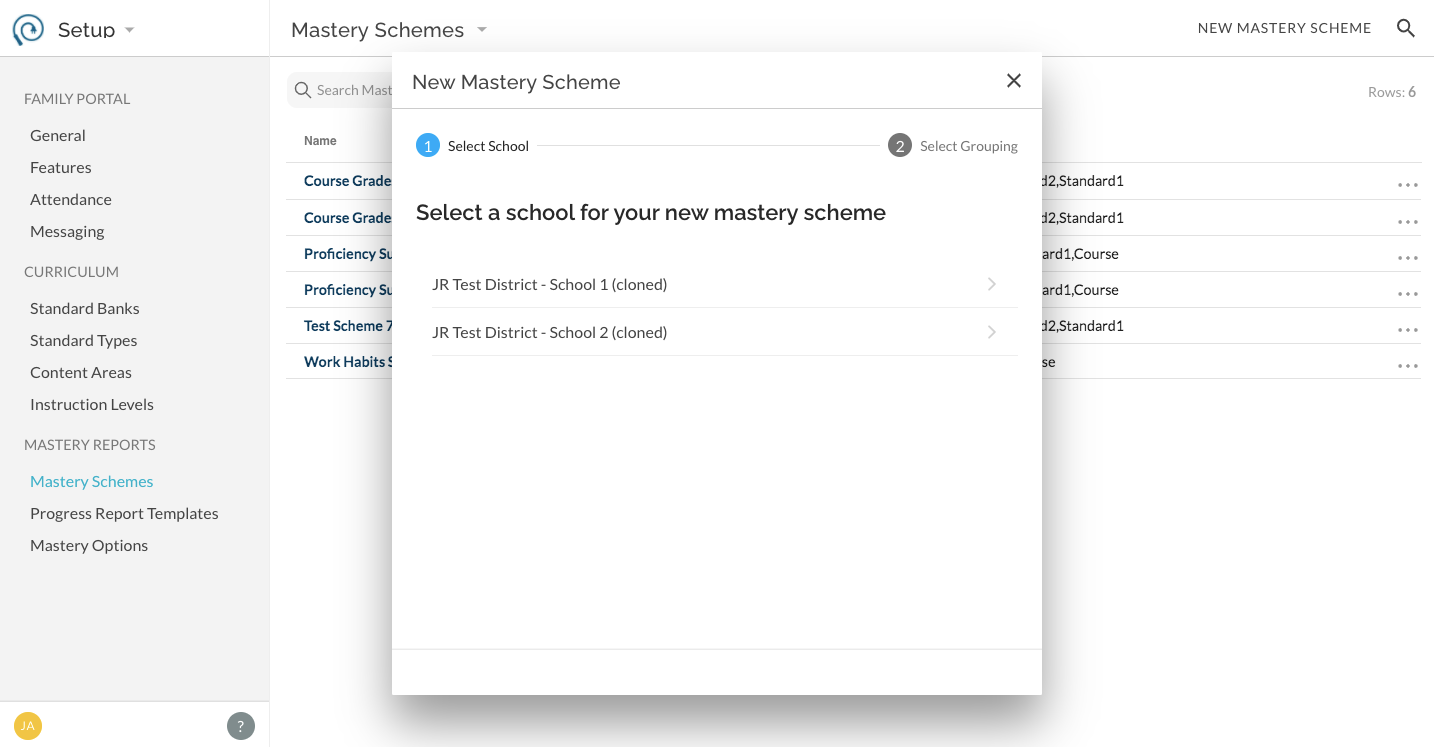
In the second step, select the Grouping Scheme for your new Mastery Scheme.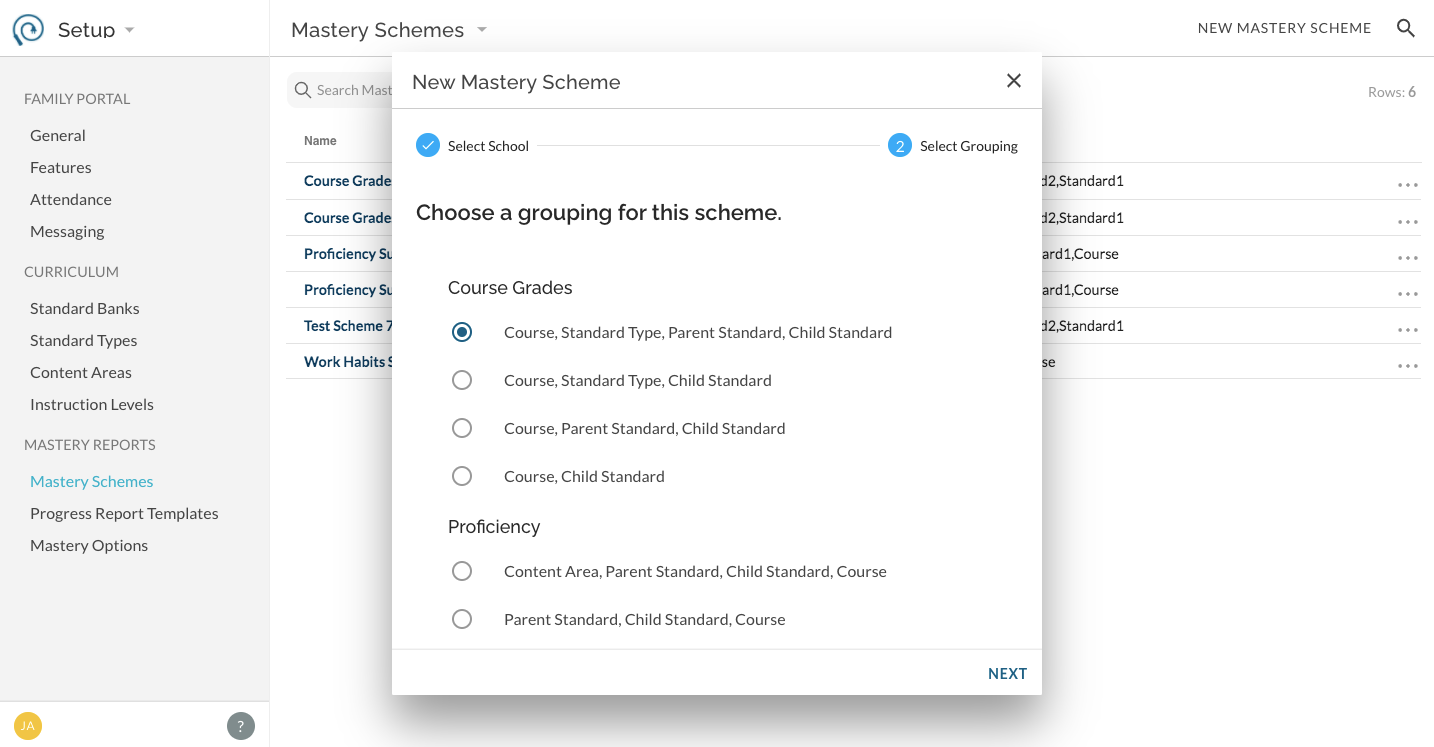
Click Next to navigate to a sample report workspace that includes toggle switches for the various editable features of the Mastery Scheme. 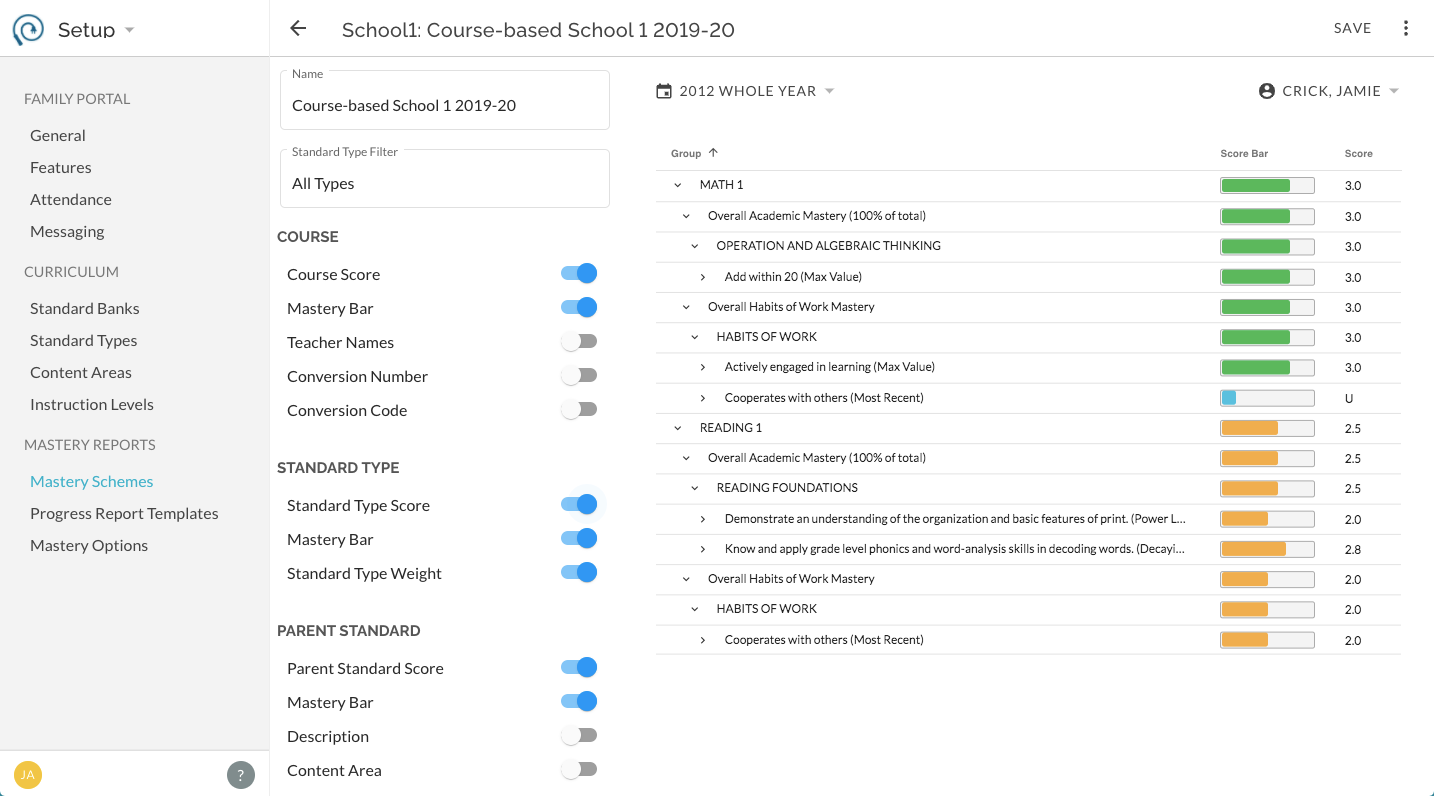
In the sample report workspace, adjust the desired elements using the toggle switches. A preview will generate as you make changes.
Enter a Title for this Mastery Scheme. This will be the Title that users will see and select when they are generating mastery reports (on -screen reports, progress reports, etc). Consider naming your Scheme with enough detail that another user could distinguish easily from other Schemes (duplicate titles are not allowed). Save changes.