

_*Grading Periods are used for mastery reports. they differ from Terms which are related directly to scheduled enrollments. If you are unsure of the need for Grading Periods or Terms, please read this document:_Terms vs Grading Periods
Create a New Grading Period
- Navigate to Setup -> Grading Periods
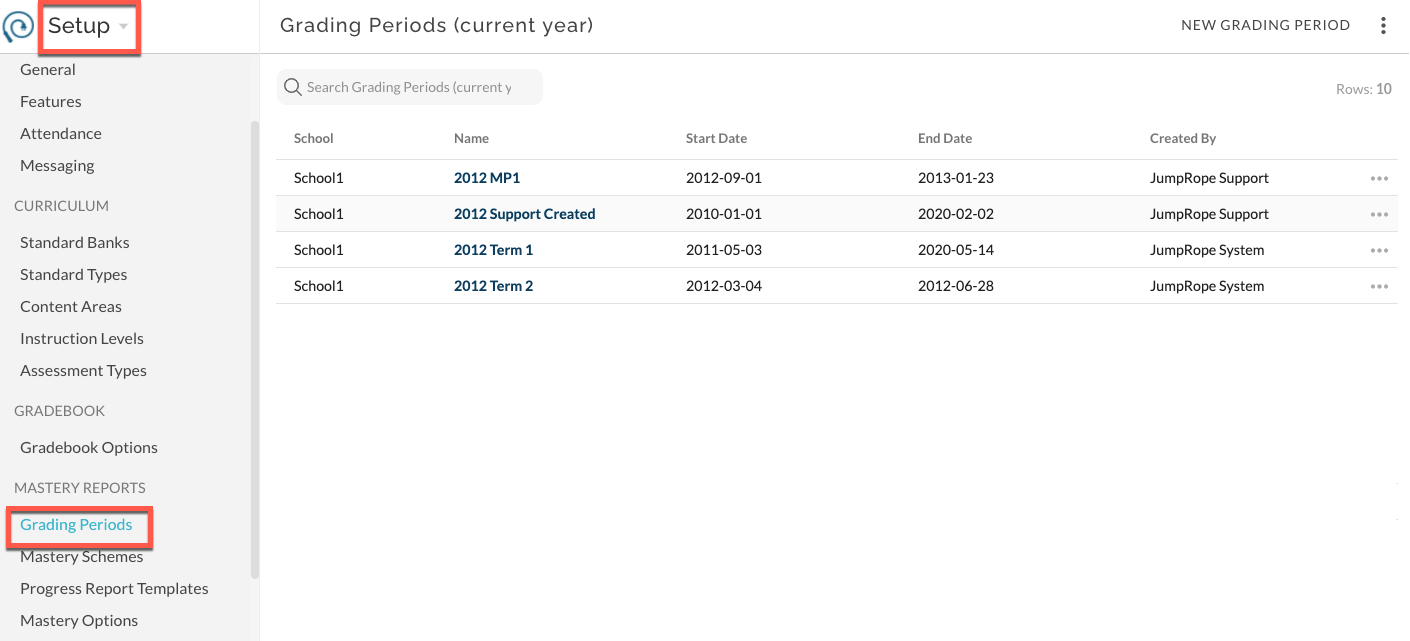
- To create a new grading period, select New Grading Period. Complete form and save
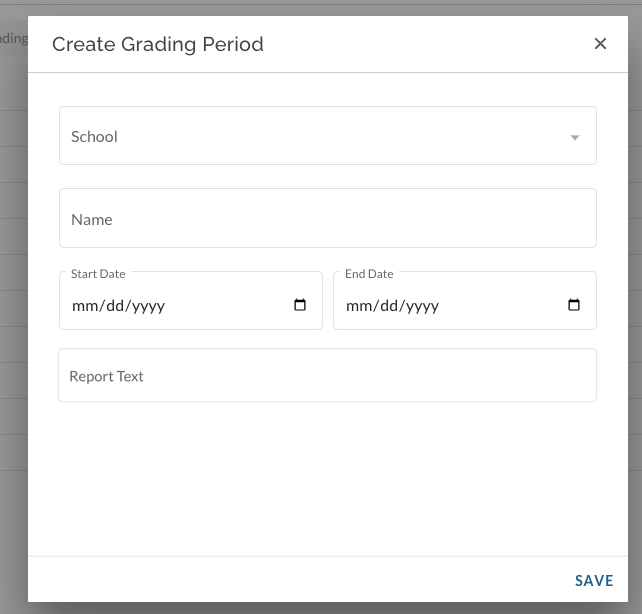
- School *: select the school for the grading period (if applicable)
- Name *: 6-30 characters, letters numbers, and spaces only. In order to be consistent and organized in various reporting contexts, custom grading periods must fall within the date ranges of the current school year and must begin with the four-digit year of the start of the current school year. Examples of valid and invalid grading period names for the school year that spans 2020-2021 include:
- 2020 Spring Semester \-- valid (a bit confusing if in the 2020-21 school year)
- 20-21 Spring Semester \-- invalid (must start with "2020")
- 2020-21 Spring Semester \-- valid (and clearer that "2020 Spring Semester" in most cases)
- 2021 Spring Semester \-- invalid (even though it falls in the 2021 calendar year, it must start with "2020" because that is the official school year code in JumpRope)
- Start Date *: the start date of the grading period. Must be on or after the start date of the current school year.
- End Date *: the end date of the grading period. Must be on or before the end date of the current school year.
- Report Text: Limited to three characters, this text is displayed as a column header on MGP reports (Multi-Grading Period)
Edit an Existing Grading Period
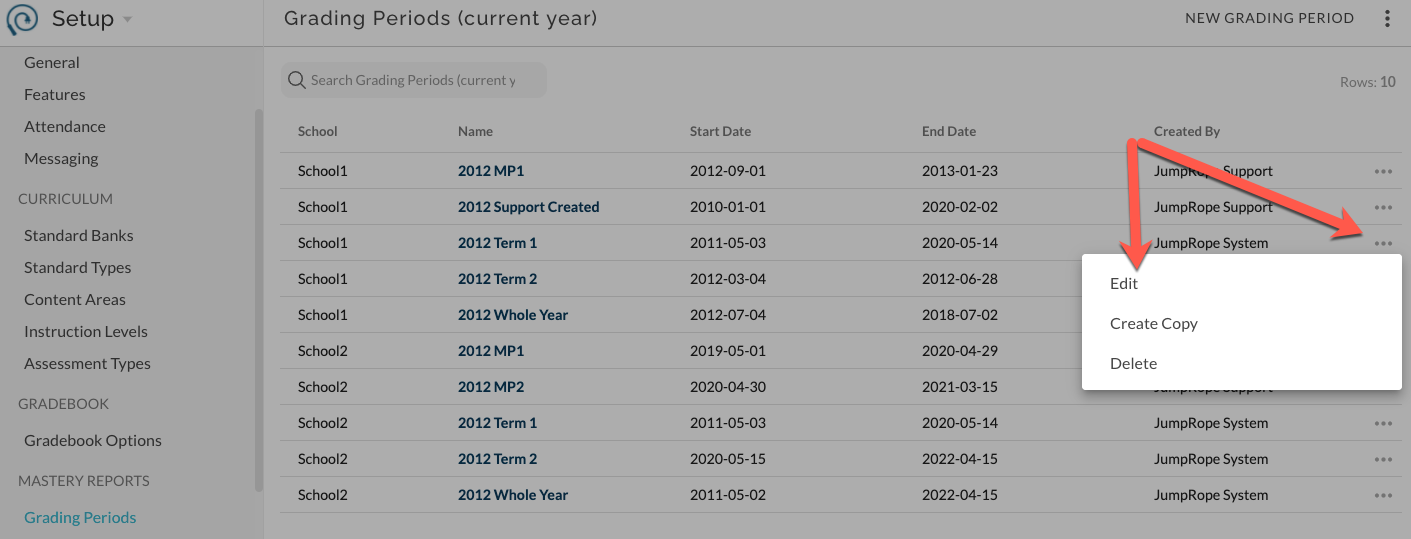
- In Setup -> Grading Periods, click on the ... menu and select Edit. Save.
Notes:
- When creating a new grading period or changing grading period dates, it can take up to 30 minutes for various reports to update mastery data within the affected grading period.
- See also Managing Grading Periods