

For an in-depth explanation about how the Google Classroom Integration works click here.
See bottom of document for information on importing more than one assessment at a time along with scores.
Import Scores for one existing Assignment at a time:
- From the Gradebook, click "GRADE" on the class card for the class that you would like to import the scores into.
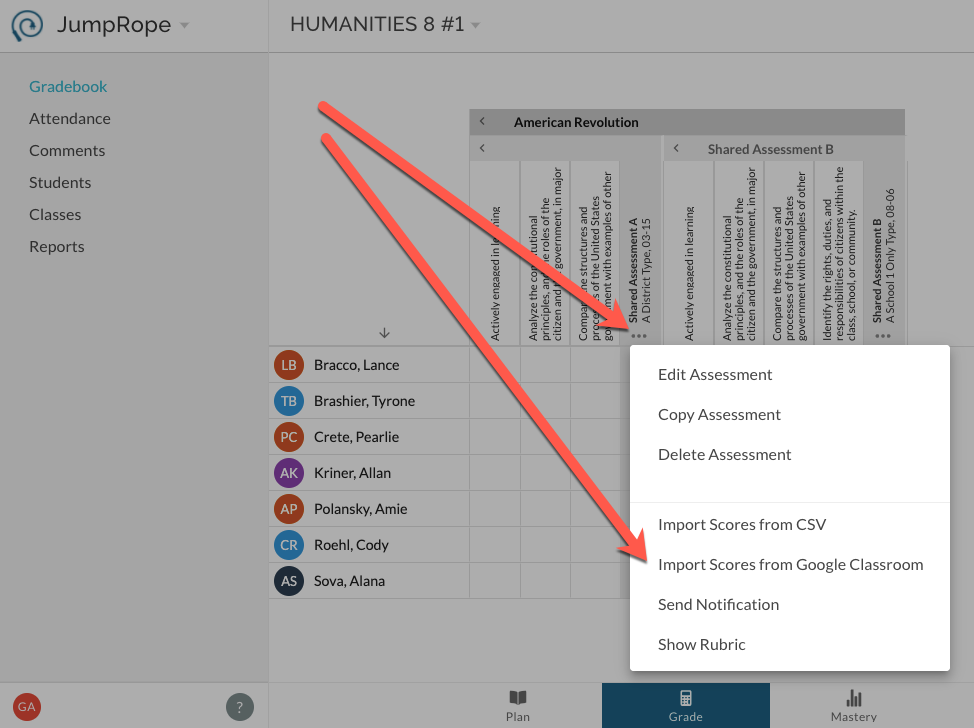
- Once in the Grade sheet, find the assessment that you want to enter scores for, click on the ellipsis menu in the header of the Grade sheet for that assessment, and select "Import Scores from Google Classroom."
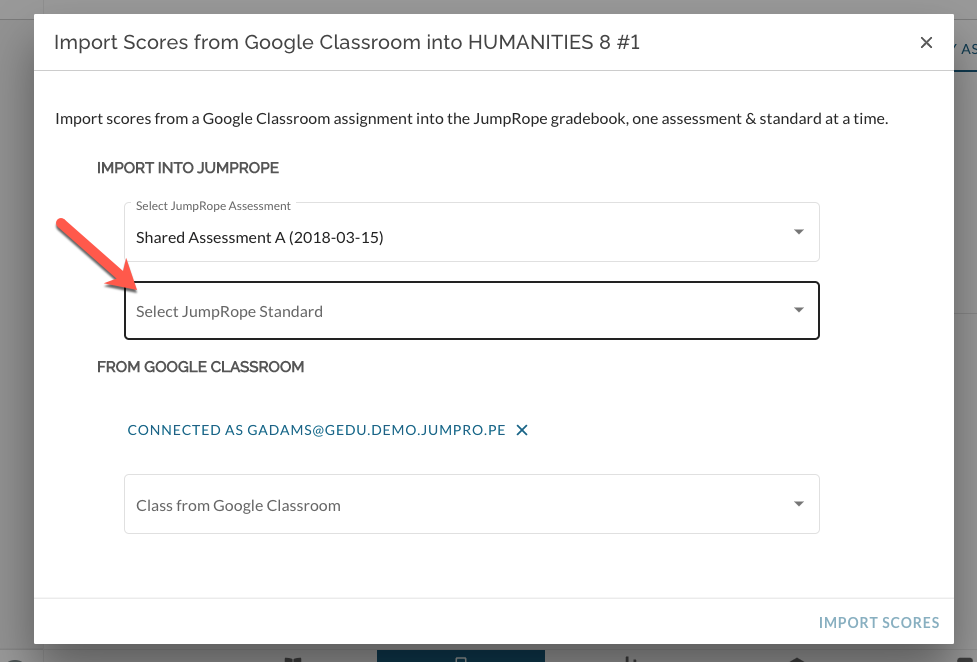
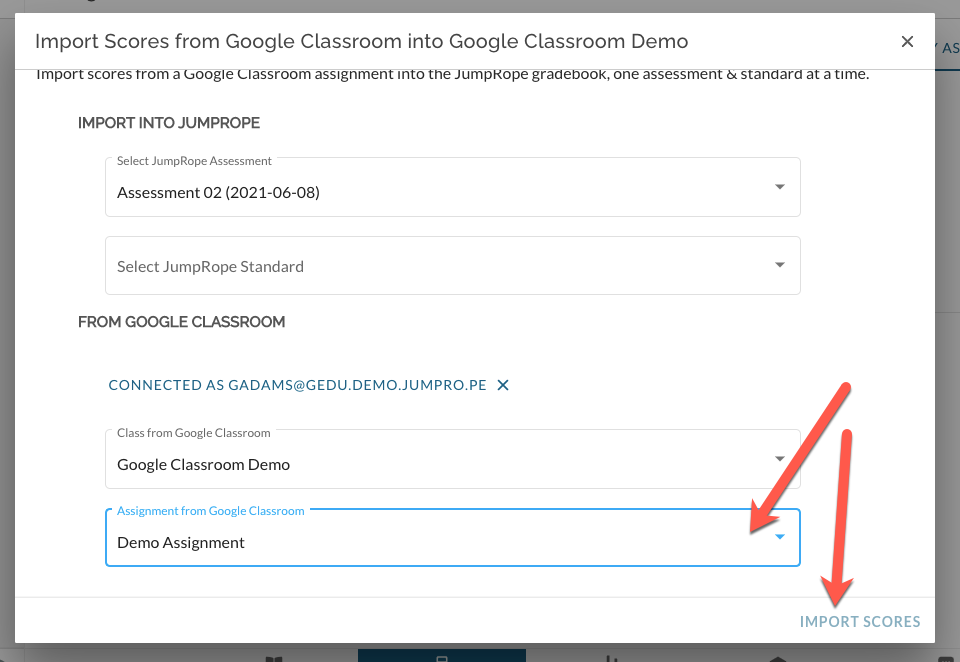
- If you are importing a score into an assessment with more than one standard you will need to select the standard that you want to import the scores for. Repeat the import process for any other standards if needed. If your assessment has only one standard aligned then it will already be selected for you.
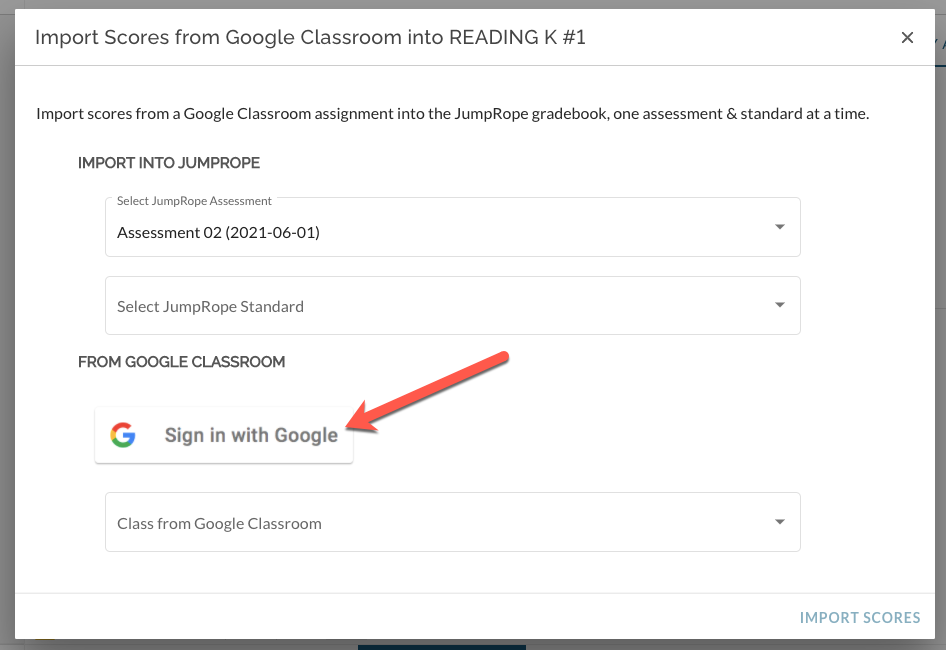
- If you have not authenticated into your Google account from JumpRope you will need to do that first by clicking on the sign-in with Google button and following the directions.
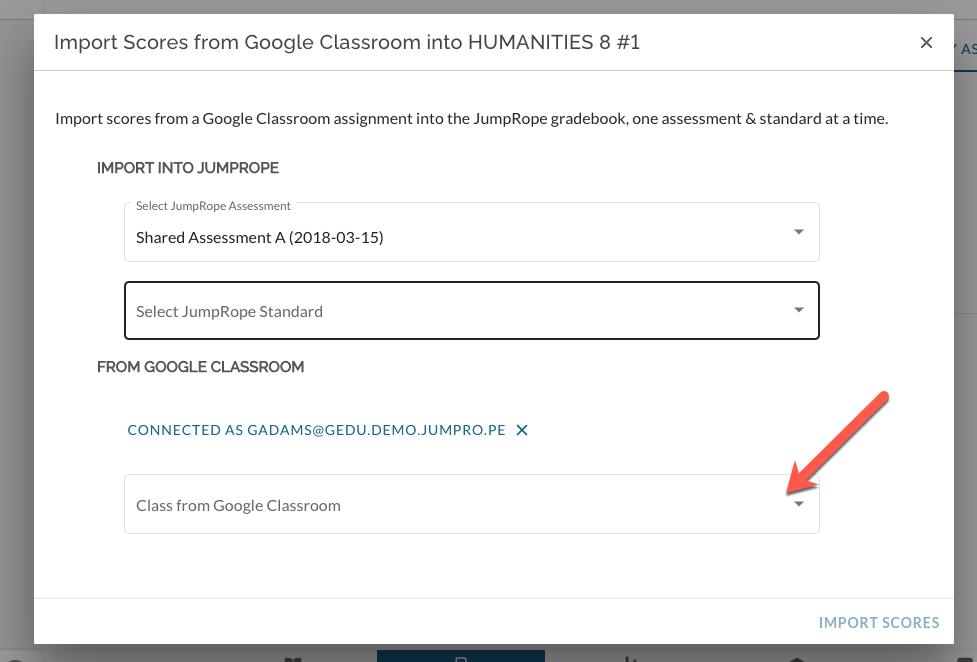
- Select the Google Classroom class that you want to import scores from.
- Select the assignment from Google Classroom that you want to import into JumpRope and click Import Scores.
- JumpRope will return to the Grade sheet and any scores that have been imported will flash with a blue background indicating that the scores have been saved. Any warning will display at the top of your screen.
Once you have imported scores from Google Classroom to a JumpRope assessment, JumpRope will remember which assignment in Google the scores came from. You can use the assessment menu in the gradesheet to re-import scores from the same assignment easily without needing to re-select the class and assignment in the dialog.
Import Assignments and Scores for multiple assignments at once:
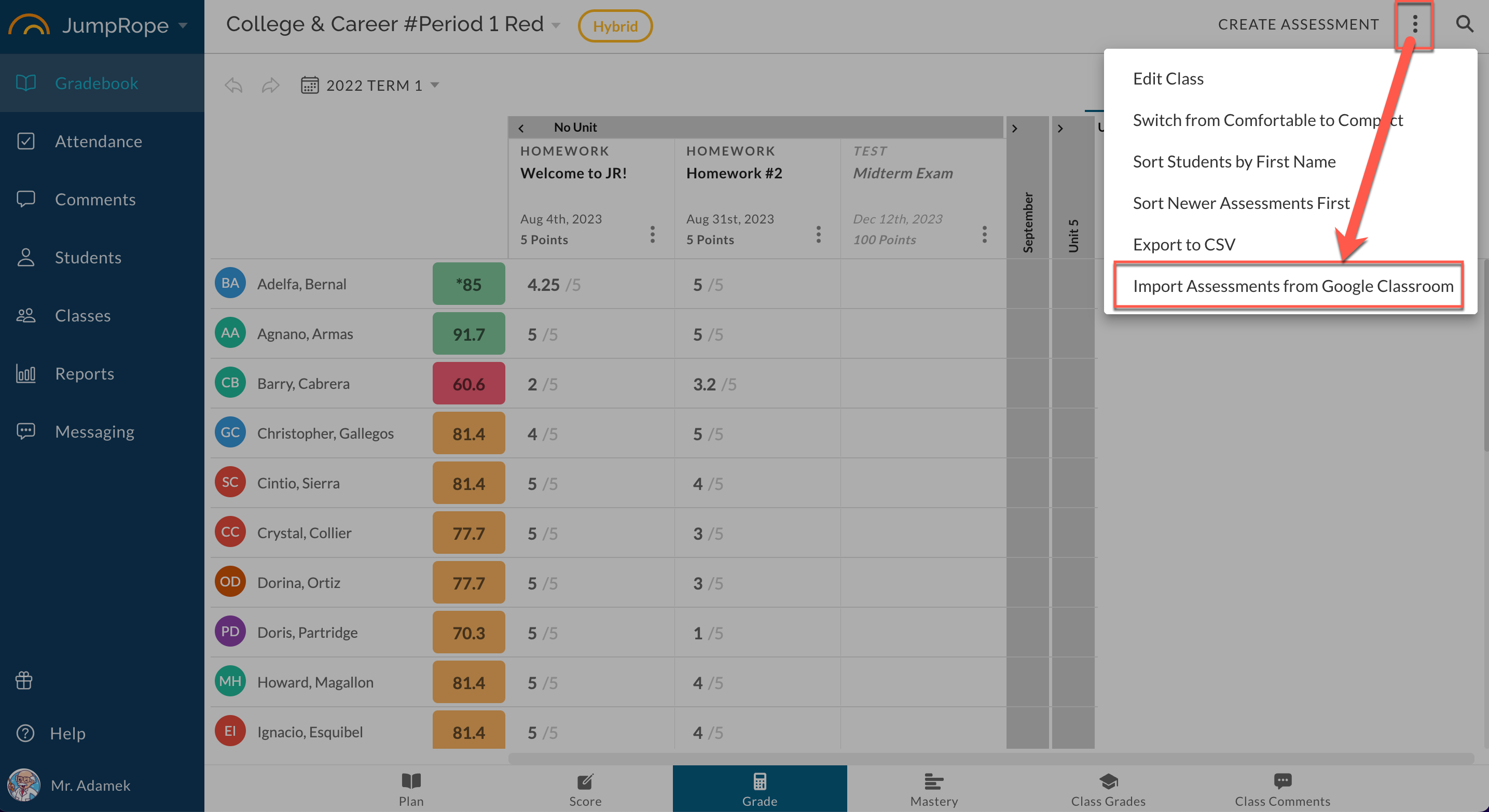
Given that your school utilizes JumpRope's Hybrid features, your JumpRope Grade book can be populated with Assignments and Scores from your Google Classroom classes.
In your Grade sheet:
Notes: JumpRope matches students to scores based on their Portal account email address. If their Google Classroom email address and their JumpRope Portal Account are not the same, scores will not import for the given student(s). The import feature currently supports only numeric score entry.
Troubleshooting and FAQs - Importing scores with Google Classroom